The main branch of this remote repository will serve as our single source of truth. It will represent the latest version of production-ready code.
main branch has special protection rules.
- To merge code into
mainyou must create a pull request. - The pull request must be approved by at least 1 other person.
- No one can push directly to main except the team captains.
- In the future Continous integration will also place a status check preventing anyone from pushing directly to main.
Your first step will be cloning our remote repository. Navigate to the appropriate folder on your local machine and execute the following command:
git clone https://github.com/PacificDevelopment/JobSite.git <desired_folder_name>
Then change into your newly created directory:
cd <desired_folder_name>
Confirm that you are configured with the correct remote repository:
git remote -v
You should see the following:
origin	https://github.com/PacificDevelopment/JobSite.git (fetch)
origin	https://github.com/PacificDevelopment/JobSite.git (push)
No work should be done on the
mainbranch.
All work should be done on a feature branch; that is, an existing or newly created branch designated to the feature on which you are working.
Resource for more about feature branch workflow: https://www.atlassian.com/git/tutorials/comparing-workflows/feature-branch-workflow
From the main branch, create and checkout a new branch:
git checkout -b <new_feature_branch_name>
Implement the changes to your feature's code, making frequent, small commits as follows:
git add .
git commit -m "<your_commit_message>"
Use descriptive commit messages in the present tense; for example:
git commit -m "implement click event handler on checkout button"
Resource for writing good commit messages: https://cbea.ms/git-commit/
Follow the directions at this link for your local environment https://docs.github.com/en/pull-requests/committing-changes-to-your-project/creating-and-editing-commits/creating-a-commit-with-multiple-authors
First merge with the latest main following these steps: Assuming you are on your feature branch:
- Update your local copy of Main
git checkout main
git pull origin main
- Merge your feature branch with the latest changes from main
git checkout <Your Feature Branch>
git merge main
- Resolve any conflicts, if package log conflicts see note at the bottom.
- Push your branch to remote.
git push origin <Your Feature Branch>
Once you have pushed your feature branch to its upstream branch at the origin:
- Go to your feature branch on the
originGitHub repository - Create a pull request from your feature branch to the
mainbranch - In the title of the pull request: reference the name of the corresponding Trello ticket
- In the comments: describe your changes and any details that will be helpful for the reviewer
- Tag the appropiate person to merge your PR into main. Example:
    UI team please review @maki-q
      OR
    Tech team please review @Gobleizer
      OR
    PM please review @ahjohnston
You may get any team member to review your work, but a final check and merge must be done by one of the three repo maintainers, AJ, QM, or KG.
Finally:
- Resolve any merge conflicts.
- Use the Trello/GitHub integration to link the pull request. On the Trello ticket > Power-ups > GitHub> Attach Pull Request > search for/select pull request by name
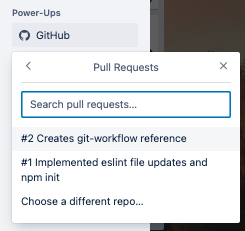
- Any other member of the team may pick up the PR for review by placing an emoji on the PR notification in the git Slack channel to note they are doing so.
That's ok, we start a new branch from this history of commits, and then reset your main branch back to the original commit. Here's how:
- From the main branch with recent accidental commits
git log --oneline
- Note down the commit hash of the commits you want to move.
4116a29 (HEAD -> main) Bad Commit
dffab65 (origin/main, origin/HEAD) Merge pull request #1 from PacificDevelopment/eslint
- Create your new feature branch
git checkout -b feature-b
- Now in your new feature branch, check the log, you should see the accidenal commits are part of both main and the new branch
git log --oneline
4116a29 (HEAD -> feature-b, main) Bad Commit
dffab65 (origin/main, origin/HEAD) Merge pull request #1 from PacificDevelopment/eslint
Great these commits are now part of the feature branch we made 5. Switch back to the main branch 6. Force reset main branch back to the original commit known as origin/main, origin/HEAD. Note: This is the dangerous part, back up your changes somewhere just in case!
git reset --hard dffab65
And that's it. Now your main branch is back to the original pulled commit, and your new branch should still have your recent commits.
That's ok, we can cherry pick commits from one branch to another, and then reset your main branch back to the original commit, here's how:
- From the main branch with recent accidental commits
git log --oneline
- Note down the commit hash of the commits you want to move.
cf9f2f0 (HEAD -> main) Mistaken commit 2
dffab65 (origin/main, origin/HEAD) Merge pull request #1 from PacificDevelopment/eslint
- Move to the branch you want to cherry-pick the commits to.
git checkout feature-b
- Now in the feature branch you want to move commits to, git cherry-pick the commit hash
git cherry-pick cf9f2f0
- Follow terminal instructions if necessary to deal with Merge Conflicts.
- Repeat for as many commits as necessary.
- When done cherry-picking confirm your commit history is what you want for the feature branch.
git log --oneline
6d4a25f (HEAD -> feature-b) Mistaken commit 2
4116a29 Bad Commit
dffab65 (origin/main, origin/HEAD) Merge pull request #1 from PacificDevelopment/eslint
- If done fixing feature branch, checkout main branch
git checkout main
- Force reset main branch back to the original commit known as origin/main, origin/HEAD. Note: This is the dangerous part, back up your changes somewhere just in case!
git reset --hard dffab65
And that's it. Now your main branch is back to the original pulled commit, and your feature branch should still have your cherry-picked commits.
npm docs: Occasionally, two separate
npm installwill create package locks that cause merge conflicts in source control systems. As of npm@5.7.0, these conflicts can be resolved by manually fixing any package.json conflicts, and then runningnpm install [--package-lock-only]again. npm will automatically resolve any conflicts for you and write a merged package lock that includes all the dependencies from both branches in a reasonable tree.