input.onGesture(Gesture.Shake, function () {
    moveSMART.increaseStepCount()
})
basic.forever(function () {
    moveSMART.showNumberOfSteps()
})
Here is the physical activity monitor you already wrote.
Click Next to to go to the next step.
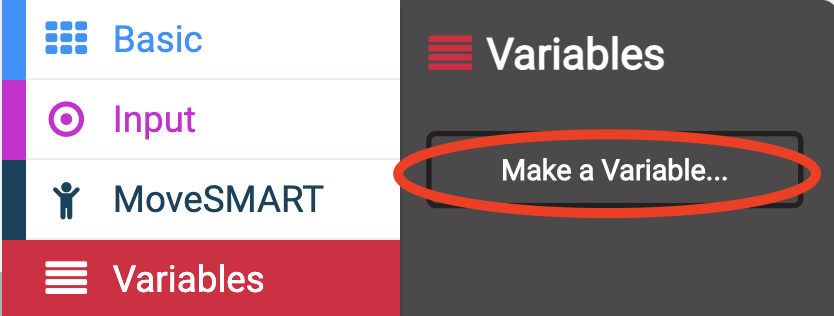
In the menu, find the icon with four red stripes. This is where you can create variables.
- Click on the four red stripes
- Click on the rectangle that says Make a Variable...
- In the box below New variable name, type step, and press Ok.
Several new blocks should appear.
You just created a variable with the name step!
The value stored in ||variables:step|| starts at 0, but it can change. Because its value can vary, ||variables:step|| is called a variable.
Click Next to to go to the next step.
In the previous tutorial, we used the ||moveSMART:MoveSmart|| blocks to measure our physical activity. Now we're going to use the ||variables:step|| variable.
Click Next to to go to the next step.
Delete ||moveSMART:show number of steps|| from the ||basic:forever|| block. (But don't delete the ||basic:forever|| block! If you accidentally do, you can find it again in the blue ||basic:Basic|| drawer.)
Delete ||moveSMART:increase step count|| from the ||input: on shake|| block. (But don't delete ||input: on shake||! If you accidentally do, you can find it again in the pink ||input:Input|| drawer.)
Find the ||basic:show number 0|| block in the blue ||basic:Basic|| drawer.
Drag the ||basic:show number 0|| into the mouth of ||basic:forever||.
basic.forever(function () {
    basic.showNumber(0)
})
Drag ||variables: step|| from the ||variables:Variables|| drawer into the bubble that shows 0 in the ||basic:show number 0|| block.
Now that it says "show number step", it should display the value of ||variables:step|| on the pretend @boardname@.
Look at the @boardname@ on the left. Does a red 0 appear?
basic.forever(function () {
    basic.showNumber(step)
})
If you test your program now by clicking on the white dot next to SHAKE on the @boardname@, the number doesn't change. Why?
Because we don't ever change the value of the step variable.
We'll fix this next.
We need to tell the program to increase (change) the ||variables:step|| variable by 1 when you "shake" the @boardname@.
Look into the red ||variables:Variables|| drawer. Can you figure out what to put into the mouth of the ||input: on shake|| block?
input.onGesture(Gesture.Shake, function () {
    step += 1
})
Now when you click on the white dot next to SHAKE on the pretend @boardname@, the number will change by 1.
Try changing the number in the bubble in ||variables: change step by 1|| into a different number.
Now, when you "shake" the @boardname@, the number will increase by that value.
Remember to change the number back to 1, though, so that it will only count once for every step you take!
The @boardname@ is a pedometer again. But now it uses a variable!. You can now flash your code into your real @boardname@!
Press the |Download| on the bottom left of your screen.
You should see the lights on your real @boardname@ flashing.
Unplug the USB cable and make sure the batteries are plugged in. Then test it out!
Remember to head back to the tutorial webpage, and complete the rest of the activity.