Notes: set up website before hand
(James) In addition to the skill level self-reporting you've been doing, now we've hit the half way point of Library Carpentry we'd like to know if you are feeling able to articulate ways in which what we've learnt thus far could be used in your daily practice. So for the next two minutes, please write briefly on a sticky note a scenario in which you imagine - that is, not necessarily right now but with a little practice - you or your team will be able to use what you've learnt thus far at work, in your libraries. And if you can't see an application, then tell us that!
begin to understand and use Git/Github. You will not be an expert by the end of the evening. You will probably not even feel very comfortable using Git. This is okay. We want to make a start but like any skill using Git takes practice.
- If you spot someone that is struggling with something and you think you know how to help give them a hand. Try not to do it for them but explain the steps they need to take and what these steps are doing.
- This is a big group, with different levels of knowledge, different computer systems.
- This isn't my full-time job (though if someone wants to pay me to play with computers all day I'd probably accept). I'll do my best to make this session useful.
- This is your session. If you feel we are going to fast then let me know. We can decide as a group what to cover.
- What is Git. What is GitHub. Basic language. Doin g the basics.
- Lesson based on Software Carpentry, Version Control with Git (Creative Commons Attribution 4.0 International)
- the problem? loose changes, collaboration, different versions?
- solution: Version control?
Git is a 'free and open source distributed version control system'. We probably know what free and open source means but we might be less sure about what a 'distributed version control system is'. One way to understand what Git and version control systems do is to look at the types of problems they are built to address.
<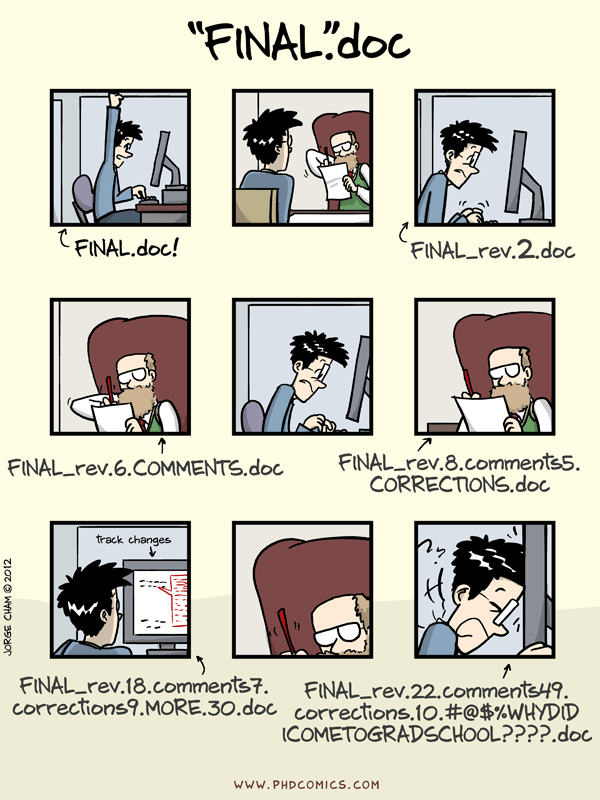
Many of us will have had an experience similar to this. We are working on an important piece of work and we attempt to maintain multiple version of this document in different stages of completeness.
Version control addresses this problem by recording the changes we make to a document as we proceed. Each of the 'commits' we make is recorded and we can go back across a document or a set of documents and look at what changes have been made.
Version control allow us to take this one step further and not only record changes to a document one person is working on but allows multiple people to work on a document and record the changes they make. It is then possible to merge these multiple documents. This developed out of a need for groups writing code together to be able to work on coding projects together without having to wait for someone else to finish working on something or having to manually compare changes that are made.
When we make 'commits' we record a range of metadata about that change. As librarians we might already be inclined to think creating metadata is useful but an example of what information is recorded will illustrate why the information recorded by version control systems in particular is useful. 'Commits' record the time and date of when a commit was made. Although we can often see inforamtion about when we last edited or saved a document this only shows us the most recent changes. When we make commits we can record a message explaining what changes we have made. This makes it especially useful for collaborating. Rather than sending an email with a document with track changes and some comments, we can include all that information with the document itself. This makes it easy to get an overview of changes that have been made to a document by looking at a log of all the changes that have been made.
We often hear the terms Git and Github used interchangeably but the are slightly different things. Git refers to the software and principles used for a particular flavour of version control (there are other systems like mercurial and SVN). Github is a popular site which hosts git repositories. The majority of the content that Github hosts is open source software though increasingly it is being used for other projects such as open access journals and constantly updated text books. Github is a great place to learn how to use Git but once you have learned the ideas and processes behind github you can used Git on other storage systems or host repositories on your own server if you wanted to keep code private or you wanted to encrypt your repository.
One of the main barriers to getting started with git is the language. Although some of the language used in Git is fairly self explanatory other terms are not so clear. The best way to get to learn Git language is to begin using it but having an overview of the language and way Git is used will provide a good starting point.
<!demonstrate git commands whilst outlining what they mean>
Repository A repository is the place where are projects and associated changes are stored. Repositories can contain one single readme file or hundreds of different folders making up the source code for extensive projects. We can create repositories in a number of different ways; we can make our own from scratch, we can fork (copy) an existing repository or we can create a git repository from an existing folder we have been working on.
init Create a repository
Whenever we use Git on the commnand line we begin our command with Git. This is so the computer knows we are trying to get Git to do something rather than another programme.
To try out some of the git commands we can make a repository for todays session. We can either delete this directory later or keep it as a place to test out new git commands.
We covered the command line last week but we will go over them again. <!explain commands as we go along>
$ mkdir git_test
$ cd git_test
$ git init
git status we can use git status at any time to let us know what git is up to.
if we try it now we should get something like this
$ On branch master
$ Initial commit
$ nothing to commit (create/copy files and use "git add" to track)
This is telling us that we are on the master branch (more on this later) and that we have nothing to commit (nothing to save changes from). If we use list directory we can see currently we don't have any files to track. Lets change that an add a txt file.
$ ls
$ touch git_test.txt
We now have a txt file. If we try git status again we will get the following
$ git status
On branch master
Initial commit
Untracked files:
  (use "git add <file>..." to include in what will be committed)

    git_test.txt

nothing added to commit but untracked files present (use "git add" to track)
This status is git telling us that it has noticed a new file in our directory that we currently aren't tracking.
To change this and to tell git we want to track changes we make to git_test.txt we can use git add
$ git add git_test.txt
This adds our txt file to the staging area (the area where git checks for file changes). Because we can't see that this has happened we might want to use git status again.
$ git status
On branch master

Initial commit

Changes to be committed:
  (use "git rm --cached <file>..." to unstage)

    new file:   git_test.txt
We can see that the file has changed colour and git also tells us that it has got a new file.
Lets make some changes to this file before we commit
$ open git_test.txt
We should now be able to add some text to our text file. For now lets just write 'hello world'. If we try git status again. We should get the following message
Changes not staged for commit:
  (use "git add <file>..." to update what will be committed)
  (use "git checkout -- <file>..." to discard changes in working directory)

    modified:   git_test.txt
This lets us know that Git has spotted changes to our txt file but that it hasn't yet 'staged them'. This means git won't currently record the changes we made. We can add the file to the staging area again
git add git_test.txt
We can now commit our first changes. Commit is similar to 'saving' a file to git. However compared to saving a lot more information about the changes we made is recorded and visible to us later.
git commit -m 'hello world'
[master (root-commit) 27c3f19] hello world
 1 file changed, 1 insertion(+)
 create mode 100644 git_test.txt
We can see that one file changed and we made one insertion which was our 'hello world'. We have now recorded our changes and we can later go back and see when we made changes to our file and decided to add 'hello world'. We do have a problem know though. At the moment our changes are only recorded on our computer. At the moment if we wanted to work with someone else they would have no way of seeing what we've done. Lets fix that. Lets jump to the github website where we could decide to host some of work. Hosting here will allow us to share our work with friend and collegues but also allow other people to use or build on our work.
When we have logged in to github we will see an option to create a new repository. Lets make one for the github experiments we are going to do today.
- new repository
- give it a name
once we have made our repository we still need to link the repository we have on our computer and the one we've just made.
$ git remote add origin <name of your repo.git>
This will add a repository on github for our changes to be commited to.
$ git push -u origin master
git push will add changes to our repository. The name of our remote is origin and the default local branch name is master. The -u tells Git to remember the parameters, so that next time we can simply run git push and Git will know what to do. Go ahead and push it!
When we type this command we will see git 'pushing' changes to github. Because our file is very small this won't take long but if we have made a lot of changes or are adding a very large repository we may have to wait a little longer. We can get to see where we're at with git status
On branch master
Your branch is up-to-date with 'origin/master'.

nothing to commit, working directory clean
This is letting us know where we are working (the master branch). We can also see that we have no changes to commit and everything is in order.
We can use git diff to see changes we have made before making a commit. Lets add another line to our text file.
$ open git_test.txt
$ git diff
diff --git a/git_test.txt b/git_test.txt
index 70c379b..1d55e1a 100644
--- a/git_test.txt
+++ b/git_test.txt
@@ -1 +1,2 @@
-Hello world
\ No newline at end of file
+Hello world
+More changes to my first github file
\ No newline at end of file
We can see the changes we have made.
- The first line tells us that Git is producing output similar to the Unix diff command comparing the old and new versions of the file.
- The second line tells exactly which versions of the file Git is comparing; df0654a and 315bf3a are unique computer-generated labels for those versions.
- The third and fourth lines once again show the name of the file being changed.
- The remaining lines are the most interesting, they show us the actual differences and the lines on which they occur. In particular, the + markers in the first column show where we have added lines.
We can now commmit these changes again
$ git add git_test.txt
$ git commit -m 'second line of changes'
Say we are very forgetful and have already forgotten what we changes we have made. git log allows us to look at what we have been doing to our git repository.
$ git status
commit 40d3f7af25e19c06fa839a570d51e38fdb374e80
Author: davanstrien <email@gmail.com>
Date:   Sun Oct 18 15:25:19 2015 +0100

    second line of changes

commit 27c3f19c3340d930234d592928b11b63403d0696
Author: davanstrien <email@gmail.com>
Date:   Sun Oct 18 13:27:31 2015 +0100

    hello world
This shows us the two commits we have made and shows the messages we wrote. It is important that we try and use meangiful commit messages when we make changes. This is especially important when we are working with other people who might not be able to guess as easily what our short cryptic messages might refer too.
We might get a lit bit lonely working away on our own and want to work with other people. Before we get to that it is worth learning one more command. git pull
We can try and see how this works by making changes on the github website and then 'pulling' them onto our computer.
Lets go to our respository. We can see our txt file and make changes. However, you may have noticed only our first change is there. This is because we didn't push our last commit yet. This might seem like a mistake in design but it is often useful to make a lot of commits for small changes so you are able to make careful revisions later and you don't necessarily want to push all these changes one by one.
Lets go back and push our changes
$ git push
now if we go back to our github repo we can see all our changes. Lets add an extra line of text and commit these changes. When we commit changes on github itself we don't have to push these.
Now lets get the third line onto our computer.
$ git pull
remote: Counting objects: 3, done.
remote: Compressing objects: 100% (2/2), done.
remote: Total 3 (delta 0), reused 0 (delta 0), pack-reused 0
Unpacking objects: 100% (3/3), done.
From https://github.com/davanstrien/git_lesson_example
   40d3f7a..ef95e51  master     -> origin/master
Updating 40d3f7a..ef95e51
Fast-forward
 git_test.txt | 3 ++-
 1 file changed, 2 insertions(+), 1 deletion(-)
If we open our text file again
$ open git_test.txt
we can see our new lines.
When we begin collobarating on more complex projects we may have to consider more aspects of git functionality but this should be a good start. In the second hour we can look more closely at collobarating and using github pages.
Git cheat sheet handouts
- https://training.github.com/kit/downloads/github-git-cheat-sheet.pdf
- http://www.git-tower.com/blog/git-cheat-sheet/
-
First 20 minutes or so - reinforcing how git works.
- Draw diagrams of things covered so far
- express language in 'non git' way.
-
Build on first hour and make pull requests to a github pages site. @davanstrien Setup before hand. site will link to some repositories useful for librarians/dh.
-
examples of collobarative working on github links
-
forking a github page.
It is likely that some things won't have stuck from the last hour. To try and reinforce how things work we can work in groups to develop diagrams to illustrate Git functions and language. This should make carrying out more complicated aspects of Git clearer in our heads.
In groups:
- illustrate the concepts discussed in the first hour
- try and 'draw' what different commands mean
- try and come up with synonyms for what the commands are doing.
Github Pages are websites hosted on Github. They allow you to build a repository that displays as a website. Github pages uses Jekyll, a 'blog aware static site generator' to turn a site of files and folders into a website.
Github pages allow you to version control your website. This is useful for a lot different reasons. It allows you to keep a record of what changes you have made. It allows people to reference your website at a particular point in time and (if you make you're source open) to see what it was like at that particular point in time. This is very useful for academic citations. Most people have had the experience of following up a reference to a website and either getting a 404 error or seeing something completely different. Although using version on your site doesn't guarantee this won't happen it does make it easier to manage old versions of your site.
Github pages also mean that you can collaborate on a website with a lot of people without everyone having to communicate back and forwards about what changes need to be made, or have been made already. You can create 'issues' (things that need fixing), list things to do in the future and allow other people visiting your website to quickly suggest, and help implement changes through pull requests.
Now we're all persuaded of how awesome Github pages are (or you've identfied some fatal flaws in my reasoning) it would be useful to try playing around with some things we can do with Github pages. This will help us cement what we have learned in the previous hour and may help spark discussion for the last section of this session.
Suggestion for second hour. Use github page generator to set up a github page site.
- clone repo (add instructions)
- add other users (perhaps start with teams of two)
- in Groups make sure everyone tries committing - pulling changes to their computer
- demonstrate how pull requests can be discussed.
- guidelines handout
- step by step
- Reflecting on what GitHub could be used for in local library setting. Free time to exploring more Software Carpentry lessons and adapting forked repo with suggestions for future Library Carpentry
- Helping each other out.
user contribution to collections?
- editing of resources?
- crowd sourcing - could be an issue?
- making pull requests.
- open access journals