A Visual Studio Code extension for the Glint language server.
See the Glint home page for a more detailed Getting Started guide.
- Add
@glint/core,@glint/templateand an appropriate environment package to your project'sdevDependencies. - Add a
"glint"key to your project'stsconfig.jsonorjsconfig.jsonspecifying your environment and any other relevant configuration. - Consider disabling the built-in
vscode.typescript-language-featuresextension for any workspaces where you use Glint to avoid extraneous diagnostics.
Instructions
- In your project workspace, bring up the extensions sidebar
Ctrl + Shift + X(macOS:Cmd + Shift + X). - Type
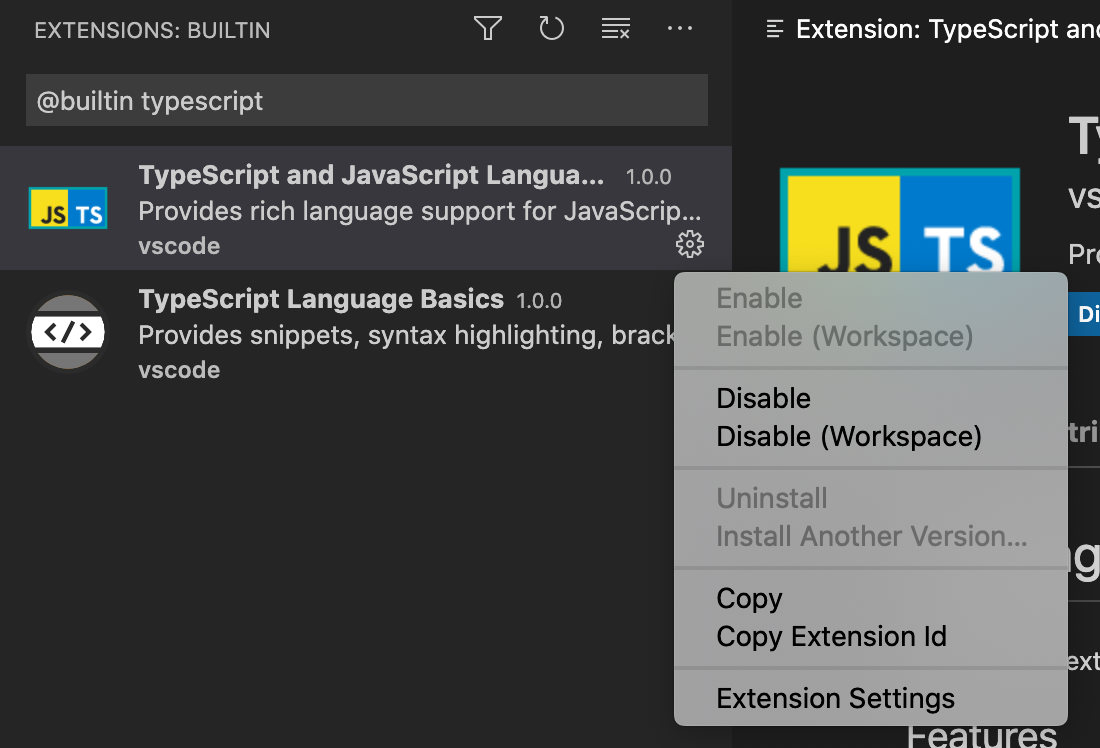
@builtin typescriptin the extension search box - Click the little gear icon of "TypeScript and JavaScript Language Features", and select "Disable (Workspace)".
- Reload the workspace. Glint will now take over TS language services.
If the location where @glint/core is installed isn't in the root of your Code workspace, you can inform the extension on a per-workspace basis where to locate the language server in the Glint extension settings under Glint: Library Path.

For example, if your dependency on @glint/core were declared in frontend/package.json in your workspace, you could set the library path to ./frontend in order for the extension to be able to locate it.
The Glint language server incorporates Glimmer templates into TypeScript-powered tooling for a project, enabling them to participate in rich editor features such as:
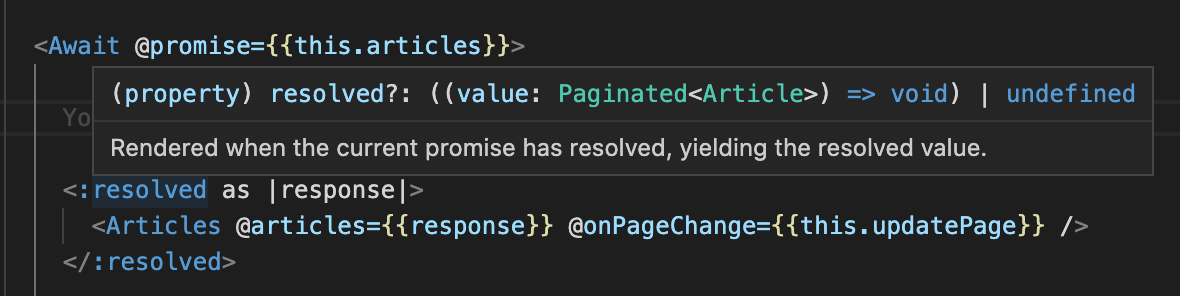
- Quickinfo on hover:
- Go to definition:

- Symbol renaming:

- Find references:

- Completions:
