Generates nice videos from Google's Location History data by combining Processing and Latitude (now called Location History).
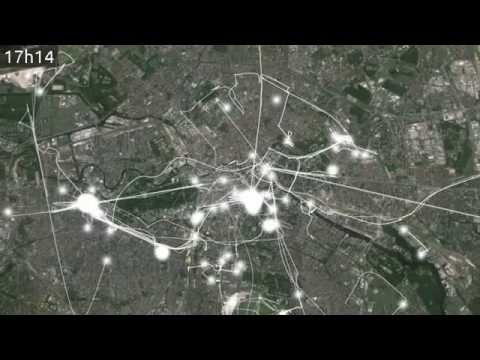
- Download your Location History data from Google Takeout (LocationHistory.json) and copy it to the data folder.
- Find the area or view that your are interested in using Google Earth, and define it using four placemarks (Ctrl+Shift+P) roughly in the corners of your area. Note that you can drag around the placemarks with the mouse while the placemark dialog is shown.
- Note down the geographic coordinates of all of the four placemarks (right-click on Placemark -> Properties). The coorinates kinda look like this: 52°31'14.87" N 13°24'34.00" E. They are expressed using a degrees°minutes’seconds” notations, but we need tham in decimal (looking like this: 52.520797222, 13.409444444). You can easily convert them using decimal = degrees + minutes/60 + seconds/3600. All decimal coordinates should be saved linewise to data/view*/calib-geo.csv (see view1 folder).
- Now export two versions of your current view, one that includes the placemarks and one that does not using the Copy Image feature (Ctrl+Alt+C). Save the image without placemarks to data/view*/map.png (see view1 folder).
- Open the exported image that includes the placemarks in an image editor and extract the pixel coordinates of the placemarkers. Save them to data/view*/calib-pixel.csv in the same order that you used for the geographic coordinates.
- Adjust the view varibale in Proctitude.pde
- Run in Processing!
- Convert the image sequence to a video file using
avconv -i flow-%06d.png -b 8000k flow.avi