This project is a re-implementation of the old Star Wars Battlefront II (2005) game, utilizing the Unity game engine.
It does so by loading all assets and scripts from the original game files at runtime, providing a compatible API layer for the original, compiled Lua scripts.
This project aims for full compatibility with the vanilla game files, and as best as possible with custom maps.
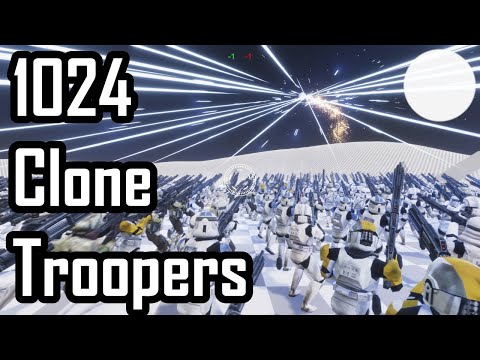
Click image to view Video
- Git. Must be either included in PATH or installed with Git Bash.
- Visual Studio 2022 with the following:
- Workloads:
- .NET desktop development
- Desktop development with C++
- Components:
- .NET Framework 4.5 targeting pack
- .NET SDK (should be selected by default)
- MSBuild (should be selected by default)
- Workloads:
- CMake 3.16 or above. Must be included in PATH!
- Unity 2020.3.x with Windows Build Support (IL2CPP)
- Clone the repository to a directory of your choice using
git clone https://github.com/Ben1138/SWBF2Phoenix --recurse-submodules. If your forgot to clone with submodules, dogit submodule update --init --recursive - Execute
BuildAndCopyLibsWin.bat(double click) - Choose your build type. For now, Debug is recommended
- Choose the number of threads used for compilation. Recommended is the number of your CPU cores.
- Wait for the batch to complete. There should be no red text outputs! Yellow is ok.
- Three files should've been successfully copied to
UnityProject/Assets/Lib:LibSWBF2.dllLibSWBF2.NET.dlllua50-swbf2-x64.dll
- Add the
UnityProjectdirectory to UnityHub and open it. This might take a while. - Open the package manager in Windows -> Package Manager and select the "High Definition RP" package. On the right side, expand "Samples" and import "Particle System Shader Samples"
- Navigate to
Runtime/Scenesand open PhxMainScene - In the hierarchy, select Game and set in the inspector:
Game Path Stringto your Star Wars Battlefront II installation directory. E.g.:C:\Program Files (x86)\Steam\steamapps\common\Star Wars Battlefront IIMission List Pathto empty!
- Go to File -> Build Settings, select PC, Max & Linux Standalone and choose
Windowsas Target Platform andx86_64as Architecture. - Click Build and Run and choose the
BUILDdirectory, residing in the root of this repository
- Install via your respective package manager (e.g.
pacmanorapt):git gcc make cmake mono msbuild - Unity 2020.3.x with Linux Build Support (IL2CPP)
- Clone the repository to a directory of your choice using
git clone https://github.com/Ben1138/SWBF2Phoenix --recurse-submodules. If your forgot to clone with submodules, dogit submodule update --init --recursive - [ARCH USERS ONLY] If you're on an Arch based system, the current mono package is not correctly installed, which will cause to
LibSWBF2.NET.dllto not build. Runarch_mono_4.5_fix.shto fix that issue - Execute
BuildAndCopyLibsUnix.shin your terminal - Choose your build type. For now, Debug is recommended
- Choose the number of threads used for compilation. Recommended is the number of your CPU cores.
- Wait for the batch to complete. There should be no red text outputs! Yellow is ok.
- Three files should've been successfully copied to
UnityProject/Assets/Lib:libSWBF2.soLibSWBF2.NET.dllliblua50-swbf2-x64.so
- Add the
UnityProjectdirectory to UnityHub and open it. This might take a while. - Open the package manager in Windows -> Package Manager and select the "High Definition RP" package. On the right side, expand "Samples" and import "Particle System Shader Samples"
- Navigate to
Runtime/Scenesand open PhxMainScene - In the hierarchy, select Game and set in the inspector:
Game Path Stringto your Star Wars Battlefront II installation directory.Mission List Pathto empty!
- Go to File -> Build Settings, select PC, Max & Linux Standalone and choose
Linuxas Target Platform andx86_64as Architecture. - Click Build and Run and choose the
BUILDdirectory, residing in the root of this repository
The Terrain has no shader and just appears in purple.
- In Unity, navigate to
LVLImport/LVLImport/ConversionAssetsand open SWBFTerrainHDRP in ShaderGraph - Select the BlendTerrainLayers shader node and check whether Source is set to
BlendTerrainLayers. If it'sNone, drag and dropBlendTerrainLayers.hlsl(resides right next toSWBFTerrainHDRP.shadergraph) into it. - Navigate deeper into
LVLImport/LVLImport/ConversionAssets/Resourcesand selectHDRPTerrain - Make sure its shader is set to:
Shader Graphs/SWBFTerrainHDRP
Please note that this re-implementation is neither developed by, nor endorsed by LucasArts, Lucasfilm Games or its parent company Disney.
This project does not distribute any original game files, neither full nor partial, and does not include any other Assets that might belong to the trade mark "Star Wars" in any way.