Warning
Oculus Killer has been retired, I no longer offer any support for it. I haven't offered official support in nearly 2 years, it is finally time to move on. Thanks to everyone who has supported this project and/or used it.
Please note that although Oculus Killer is retired now, it should continue to work without my support for many years to come. If you want something like Oculus Killer but still being actively maintained, you should check out ReLinked VR on my Patreon.
PLEASE NOTE THAT RELINKED VR IS ALPHA-GRADE SOFTWARE AND WILL/MAY HAVE ISSUES, OFTEN REQUIRING RUNTIME UPDATES. OCULUS KILLER ITSELF SHOULD CONTINUE TO WORK WITHOUT MY SUPPORT, IF IT DOESN'T THERE IS ANOTHER METHOD TO ACHIEVE ROUGHLY THE SAME THING AS OCULUS KILLER.
If you do not want to pay for/subscribe to my Patreon to acquire ReLinked VR and do not want to risk it not working and/or Oculus Killer doesn't work or you just don't want to use this piece of software, there is another alternative method to achieving roughly the same thing as Oculus Killer.
Do note that this alternative method will not auto-start SteamVR, you will have to manually start SteamVR yourself:
- Open "Registry Editor", go to
HKEY_LOCAL_MACHINE\SOFTWARE\WOW6432Node\Oculus VR, LLC\Oculus\Config. - Inside the view with the keys and values, right click and create a new
DWORDcalledPreventDashLaunchand set it to1(this will prevent dash from starting entirely). - Done! Make sure you restart your Oculus runtime (go into Task Manager, Services, find
OVRService, right click on it, and click restart).
Completely kill the Oculus Dash and auto-launch SteamVR, with my newest discovery.

Yep, it's finally a reality. You can now make your Oculus headset into an almost-native SteamVR headset, this simple replacement for Oculus Dash will make it so that as soon as you put your headset on (or launch Link), SteamVR will launch!
Not only does this boost performance by considerable amounts by killing Oculus Dash entirely (seriously, Oculus Dash was eating 200 MB of memory + GPU, even when not in use) so this should help with performance issues with SteamVR on Oculus headsets too. But this also means the Oculus button on your controller does nothing, as there is literally no dash.
There MIGHT be some bugs, if you experience anything you think is a bug, please create a new issue inside this repo.
This breaks Oculus based games, as in you might be able to launch Oculus games, but due to the Oculus Dash being quite literally killed you will be forever stuck in that game. It is recommended to use Revive if you need to play the Oculus version of a game, period.
- Open Task Manager, go to Services and look for OVRService, right click on it and stop it. (If you have the Oculus app or any VR games open, they WILL close when stopping OVRService.)
- Go to C:\Program Files\Oculus\Support\oculus-dash\dash\bin in Explorer.
- Rename the original OculusDash.exe to OculusDash.exe.bak and move my replacement OculusDash.exe into the folder you just opened in Explorer.
- Go back to Task Manager, look for OVRService again, right click on it and start it.
Enjoy your completely yeeted Oculus Dash with SteamVR auto-start, and the extra performance!
Here is a list of common issues and their respective fixes/workarounds!
Blocking Oculus updates is extremely easy, as long as you know how to use the registry editor in Windows:
- Open "Registry Editor" (regedit)
- Go to
HKEY_LOCAL_MACHINE\SOFTWARE\WOW6432Node\Oculus VR, LLC\Oculus\Config - Double-click on
CoreChanneland set it toNO_UPDATES - Restart OVRServer
Updates should now be blocked, and Oculus Killer should not be wiped anymore every update.
This issue can occur when you do not have "File name extensions" enabled when renaming OculusDash.exe. To fix this:
- Open "File Explorer"
- Click the "View" tab (at the top)
- Enable "File name extensions"
- Follow the installation instructions
You can verify that you installed it succesfully if "OculusDash.exe.bak" is the "BAK File" type. And looks like the below screenshot.

This is a very common issue, and has to do with OpenXR prefering the use of Oculus over SteamVR. The fix is very simple:
- Open SteamVR settings (with headset connected)
- Press "Show" under "Advanced Settings"
- Open the "Developer" tab
- Click "Set SteamVR as OpenXR runtine"
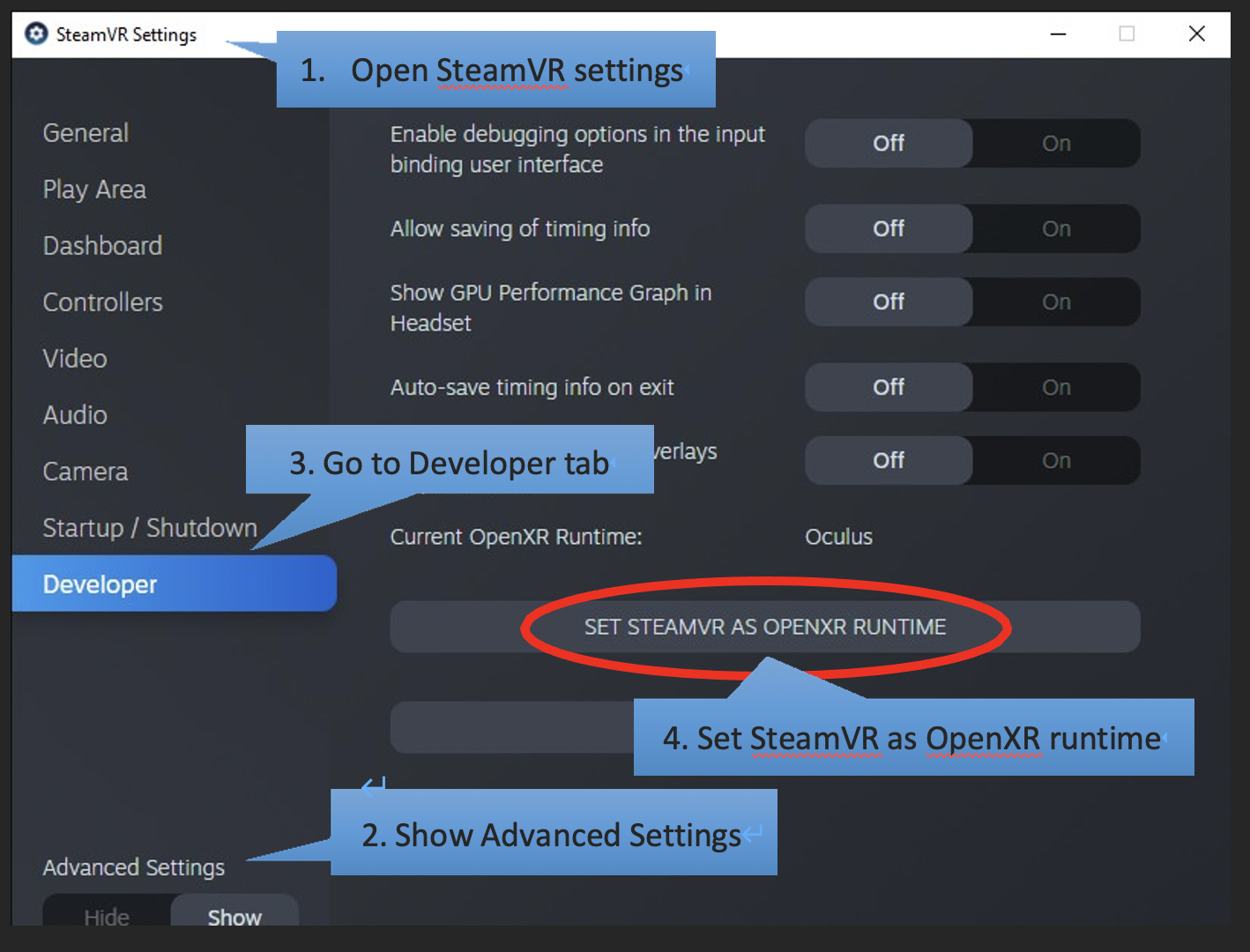
Image Source: Viveport
This is another very common issue, some games manually check for Oculus instead of following your preferences. A workaround can be found by using OVR Advanced Settings.
DISCLAIMER: This workaround may prevent some SteamVR games from launching, make sure to undo this fix if you are having trouble launching games.
- Install OVR Advanced Settings and launch it.
- Open the new overlay (found next to the desktop button)
- Open the overlay settings (bottom left)
- Turn on "Autostart"
- Turn on "Force Use SteamVR (Disable Oculus API [expiremental])"
