


See a Loom Demo of NovaAI here
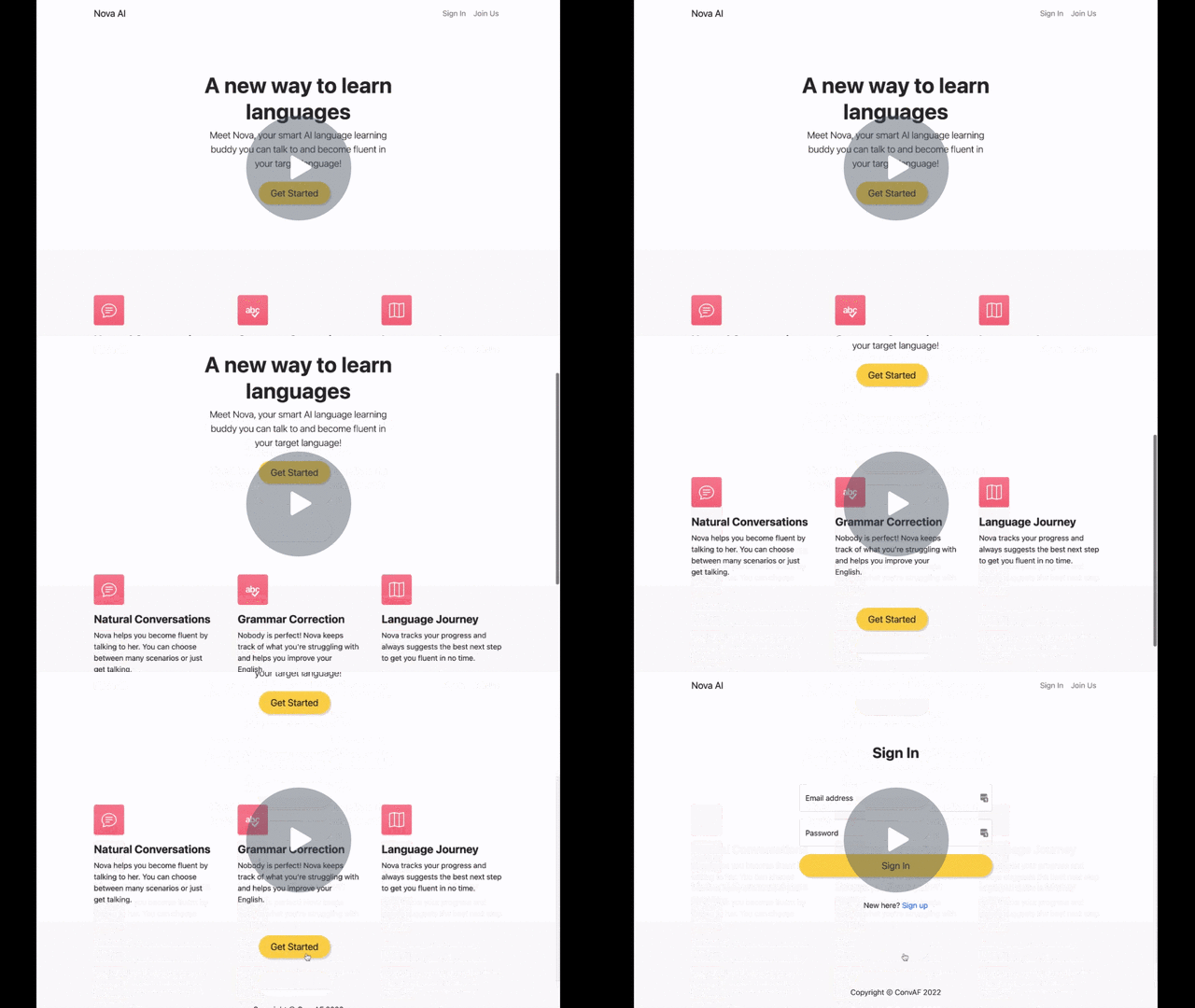
Try out Nova at:
http://nova-ai.net/ (Udpate: no longer active)
Nova is an application that uses conversational AI for language learning to help users gain fluency in their target language (work in progress).
Users can chat with Nova, practice specific scenarios, and track their learning progress.
Features:
- A language learning website implemented Flask
- Chats with a conversational AI powered by GPT-3
- Grammar correction and other learning features
The package uses python3.9.
First clone the repo:
git clone git@github.com:ConvAF/NovaAI.git
cd chatbot
It is recommended to also set up and activate a virtual environment, for example using
pip install virtualenv
virtualenv venv
source venv/bin/activate
Then, install the application and dependencies as a package in development mode using
make installwhich is equivalent to running
pip install -e .which installs the application as a package in developer (local edit) mode.
Create a file .env at the project root (if it doesn't exist yet)
and specify the following variables before running the application:
Several variables are stored in the .env file and should be configured
before running the application:
OPENAI_API_KEY: The api key for OpenAi.OPENAI_ENGINE: Which GPT-3 engine to use. For testing, a simpler engine is used. Can be one of: ada (cheapest), babbage, curie, davinci (most expensive, most powerful)
Before running the application, initialize the user database
flask init-dbStart the application from the root project directory using
flask runIf the application is installed, you can also start it from anywhere using
export FLASK_APP=chatbot
flask runThis describes how to deploy the app on an AWS EC2 instance using docker.
First clone the repo:
git clone git@github.com:ConvAF/NovaAI.git
cd chatbot
Then build the image using
docker build . --tag chatbotTo run the app (and keep running in background), start the container as
docker run -d chatbot:latestBe sure that the correct port (80 by default) is exposed on your instance such that the application is accessible from the outside (see notes below).
flask run: Run the application.flask init-db: Initialize the database.flask shell: Start an interactive Python shell in the application context, with an app instance imported
You can run tests using
pytestAdd the -v flag to show the result for each test function.
To measure the code coverage of the tests, use the coverage command:
coverage run -m pytestYou can view the coverage report using
coverage report
# or
coverage htmlThe flask application can also be tested from the shell.
Start the shell with
flask shellIn the shell, you can test endpoints like so:
>>> client = app.test_client()
>>> client.get('/')
<WrapperTestResponse streamed [200 OK]>
>>> client.post(
      '/auth/register',
      data={'username': username, 'password': password}
)To test the application under user traffic, do
cd tests/
locust
which will open a dashboard at http://0.0.0.0:8089/. There you can simulate users retrieving different endpoints. More complex fuctionality can be added in tests/locustfile.py.
To profile the app, first get the process id (pid) of the running flask app, for example using
ps | grep flaskThen you can record the app's activity using
py-spy record -o profile.svg --pid <pid>You can interact with the app for a while (or run a locust load test), after a while stop the py-spy process, which will save a flame graph of the apps activity.
The following outlines some steps if not using docker as described above
We encountered a bug when installing pytorch on an AWS EC2 instance, where the installation with pip did not finish. To circumvent this, use
pip install --no-cache-dir torchor, for all requirements,
pip install -e . --no-cache-dirwaitress-serve --call 'chatbot:create_app'waitress serves the app on port 8080. To redirect to port 80, use
sudo iptables -t nat -I PREROUTING -p tcp --dport 80 -j REDIRECT --to-ports 8080Docker image is specified in the docker file.
Build the image using
docker build . --tag chatbotStart the container (and keep running in background)
docker run -dp 80:80 chatbot:latestFor testing, run the container and delete after user with
docker run -p 80:80 --rm chatbot:latest(ports are not necessary on the server, but on mac you have to specify the ports 8080:80 because 80 is already in use).
or in interactive mode to inspect the contents:
docker run -it --rm chatbot:latest bash