


Integration for Meural Canvas digital art frame in Home Assistant
The NETGEAR Meural Canvas is a digital art frame with both a local interface and a cloud API.
Home Assistant is an open source home automation platform that puts local control and privacy first.
This integration leverages Meural's API and local interface to control the Meural Canvas as a media player in Home Assistant.
Go to the HACS interface. Search for HA-meural to find this repository, select it and install.
Restart Home Assistant after installation.
Copy the meural folder inside custom_components to your Home Assistant's custom_components folder.
Restart Home Assistant after copying.
After restarting go to Settings, Devices & Services, Integrations, and click + Add Integration in the bottom right to add a new integration and find the Meural integration to set up.
Log in with your NETGEAR account.
Note 1: This integration does not yet support NETGEAR's two-step verification method of logging in. Please use the standard login and password method to use this integration.
Note 2: If you are upgrading to v2.0.0 from v1.x, the upgrade is fully backward compatible — no re-configuration or re-authentication is needed. Home Assistant will handle the migration automatically on restart. However, if you are upgrading from v0.x, you have to delete this integration in Settings, Devices & Services, Integrations, and then re-add it to log in again. This will set up the configuration entries required by v1.0.0 and later.
The integration will detect all Canvas devices registered to your account. Each Canvas will become a Media Player entity and can be added to your dashboard using any component that supports it, for example the standard Media Control card. By default your entity's name will correspond to the name of the Canvas, which out-of-the-box consists of a painter's name and 3 digits like picasso-428 - resulting in the entity media_player.picasso-428 being created. You can override the name and entity ID in Home Assistant's entity settings.
It supports built-in media player service calls to pause, play, play a specific item or playlist/album, go to the next/previous track (artwork), select a source (playlist/album), set shuffle mode, and turn on or turn off.
media_player.media_pausemedia_player.media_playmedia_player.play_mediamedia_player.media_next_trackmedia_player.media_previous_trackmedia_player.select_sourcemedia_player.shuffle_setmedia_player.turn_onmedia_player.turn_off
Service media_player.play_media can be used in 3 different ways:
- Temporarily displays an image from a specified URL on your Canvas.
Set parametermedia_content_typetoimage/jpgorimage/png, depending on your image type, and setmedia_content_idto the URL of the image you want to display. The amount of time these images will display can be set with parameterpreviewDurationusing servicemeural.set_device_option. This is most suitable for use in automations when you wish to display images temporarily on the Canvas without uploading them as artwork to the Meural servers. - Displays artwork hosted on the Meural servers on your Canvas.
Set parametermedia_content_typetoitemand set parametermedia_content_idto the item ID of the artwork you wish to display. You will only be able to play artwork that you have permission for, i.e. that you have uploaded yourself or that your current Meural membership gives you access to. If the artwork is not in the currently selected playlist or album, the Canvas will also switch to an 'All works' playlist that contains all individual artwork you have played in this manner. - Displays a playlist/album from your Meural account on your Canvas.
Set parameter
media_content_typetoplaylistand parametermedia_content_idto the gallery ID of the playlist or album that you wish to display. If the playlist is already loaded on the Canvas it will be selected directly; if it is only available in the cloud (i.e. not yet pushed to the Canvas), the integration will load it onto the Canvas via the cloud API first. When typing in gallery IDs manually, please note that albums are represented by a gallery ID on your Canvas that is not the same as their album ID on the Meural servers. To find out the gallery ID on your canvas, browse tohttp://YOUR-CANVAS-IP/remote/get_galleries_json/and locate theidtag next to the album or playlist name to use in the service call.
A Light entity is created for each Canvas to control the backlight brightness. This gives you a familiar light-style interface with a brightness slider, and also allows turning the Canvas on and off from the Lights dashboard or light automations.
- Turn on: Wakes the Canvas device and optionally sets a specific brightness level.
- Turn off: Suspends the Canvas device (same as
media_player.turn_off). - Brightness: Sets the backlight level from 0–100%. Note that setting brightness via the
meural.set_brightnessservice or the media player card simultaneously keeps both entities in sync.
The backlight entity stays in sync with the media player entity — both reflect the same sleep/wake state.
Four sensor entities are created for each Canvas:
- Ambient Light — Illuminance in lux from the local device API. Useful for automations that respond to room lighting conditions. Updates every 10 seconds, including while the Canvas is sleeping.
- Free Space — Available Canvas storage in megabytes from the local device API. Diagnostic; disabled by default.
- WiFi Signal — WiFi signal strength in dBm from the local device API. Diagnostic; disabled by default.
- Last Seen by Cloud — Timestamp of the last time the device contacted the Meural cloud, from the cloud API. Useful for connectivity monitoring. Diagnostic; disabled by default.
To enable a disabled diagnostic sensor, go to Settings → Devices & Services → Meural → select the Canvas device → click on the sensor entity → toggle "Enable entity".
Additional services built into this integration are:
meural.set_device_optionmeural.set_brightnessmeural.reset_brightnessmeural.toggle_informationcardmeural.synchronizemeural.preview_imagemeural.play_random_playlistmeural.load_playlist
These services are fully documented in services.yaml.
Tip: The official Meural settings for the sensitivity of the ambient light sensor reading are limited to high (100), medium (20) or low (4). But you can make it any value of sensitivity, on a scale of 0 to 100, using meural.set_device_option and setting parameter alsSensitivity. I find Meural's low value still makes the screen too bright for my room, so I keep alsSensitivity set to 2. You can experiment with this setting to fine-tune a perfect brightness to match your room.
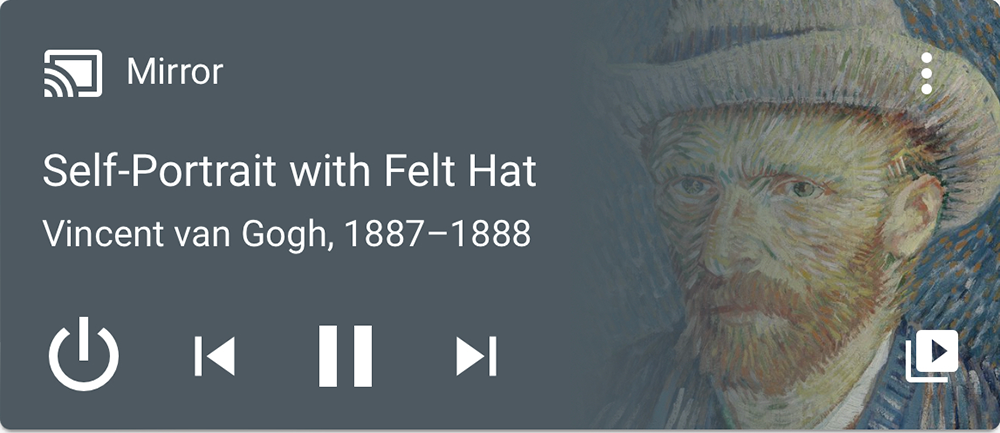
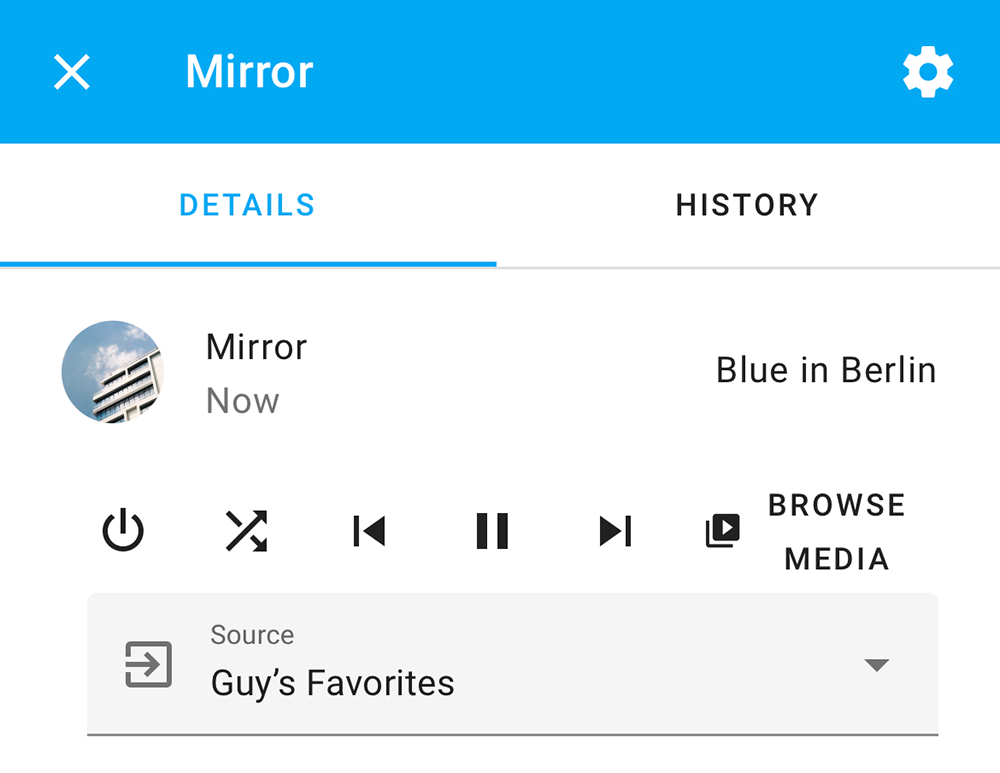
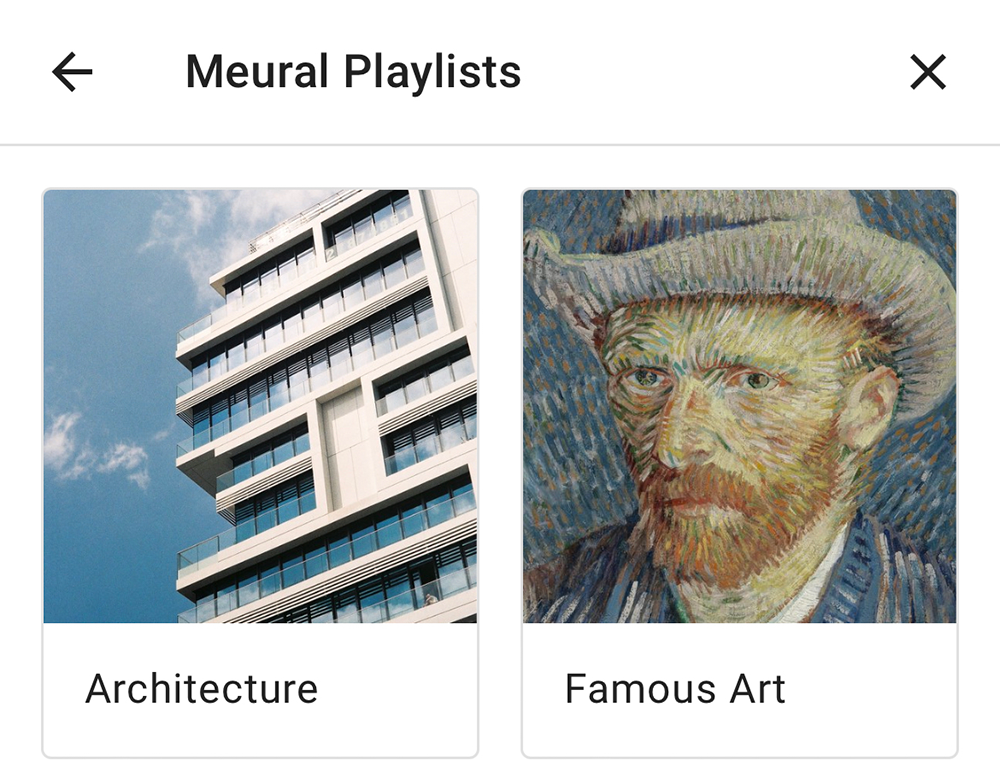
Home Assistant's Media Browser is supported by this integration. This gives you two methods to change playlist/albums: you can still switch using the text-only source drop-down in the entity's settings, but now you can also visually browse your playlists and albums using the media browser button on the media control card or the entity's settings. Playlists and albums that are in your Meural account but not yet loaded onto the Canvas appear under a "Meural Playlists" section; selecting one will load it onto the Canvas automatically.
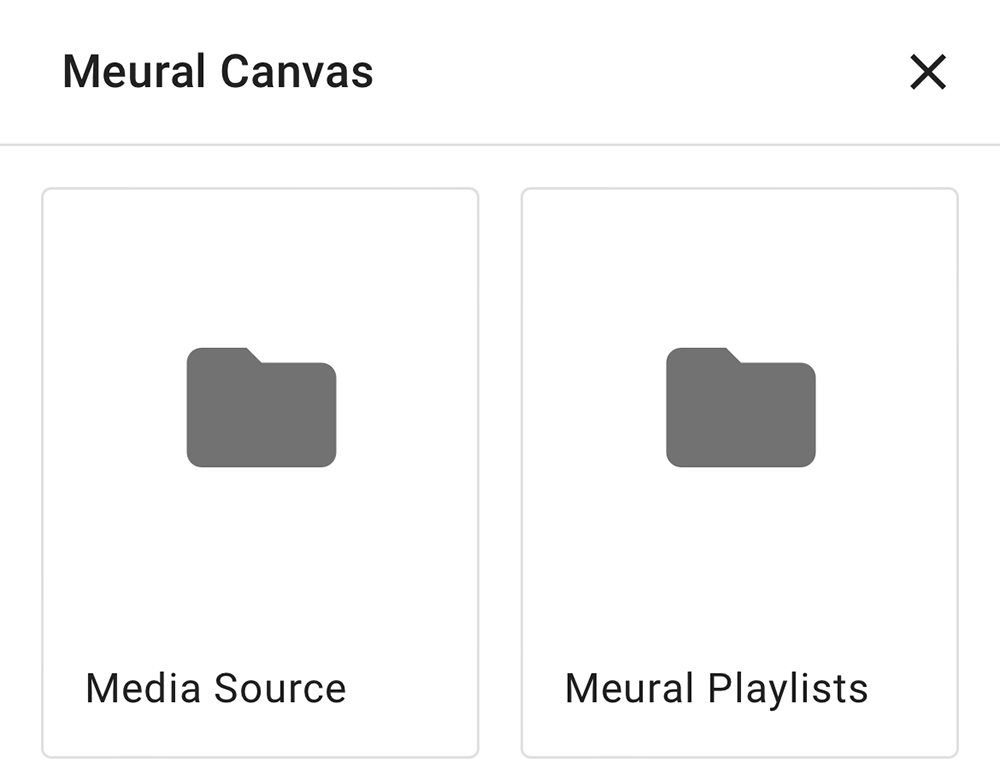
HA-meural also supports displaying images from Home Assistant's Media Sources through the same Browser interface. If a source in Home Assistant, like the media folder of your installation, contains JPG or PNG files they can be displayed on the Canvas. Please note: this makes use of the preview functionality of the Canvas, and will only display the image temporarily. If you wish to increase the amount of time these images display you can set parameter previewDuration using service meural.set_device_option.
The integration does not support offering the artwork displayed on the Canvas as a Media Source to other Home Assistant components.
This integration supports the use of SD card folders on your Canvas. The Canvas can display images from a maximum of 4 local folders named meural1, meural2, meural3 and meural4. You will be able to switch between these folders, select them in the Media Browser, and go to next or previous images in them using the normal controls. However, no additional artwork information is made available by the Canvas for these images and the integration will be unable to display details such as artwork name or thumbnail.
Meural currently only supports Alexa voice commands. However, if your Home Assistant supports Google Home / Google Assistant - either configured manually or via Nabu Casa - you can expose a Canvas entity and control it via Google.
Media players in Home Assistant support OnOff, Modes, TransportControl and MediaState traits for Google Assistant. This means you can turn the Canvas on or off, select different playlist/albums for the Canvas to display, and perform basic controls like next/previous artwork, pause/play or enabling shuffle - though oddly Google does not support disabling shuffle.
To make it easier to command your Canvas change the name to something you can pronounce and Google can recognize as a word - e.g. if you want to call your Canvas 'Meural', spell it 'Mural'.
For example, you can say:
"Hey Google, turn on (canvas name)."
"Hey Google, pause (canvas name)."
"Hey Google, set input to (playlist/album name) on (canvas name)."
"Hey Google, set (canvas name) to shuffle."
"Hey Google, next image on (canvas name)."
"Hey Google, play (canvas name)."
"Hey Google, turn off (canvas name)."
For other currently missing functionality, such as turning shuffle off, you can create scripts in Home Assistant that can be exposed to Google to trigger the corresponding services. These scripts are called by saying "Hey Google, activate (script name)."
Then write a script using the built-in editor such as:
'Disable shuffle on Meural Canvas':
  alias: Disable art shuffle
  sequence:
  - data:
      shuffle: false
    entity_id: media_player.meural-123
    service: media_player.shuffle_set
Which would work by saying:
"Hey Google, activate disable art shuffle."
It's not elegant, but it works.
Tip: A lot of problems between Home Assistant and Google Assistant stem from incorrectly synced entities between the two platforms. If you're having issues, try saying the following:
"Hey Google, sync devices."
Meural has a REST API that their mobile apps and web-interface run on. Unofficial documentation on this API can be found here: https://documenter.getpostman.com/view/1657302/RVnWjKUL
Netgear refers to a 'remote controller' in their Meural support documentation:
https://kb.netgear.com/000060746/Can-I-control-the-Canvas-without-a-mobile-app-or-gesture-control-and-if-so-how
This 'remote controller' is a local web server on the Canvas device available at: http://YOUR-CANVAS-IP/remote/
It runs on a javascript available at: http://YOUR-CANVAS-IP/static/remote.js
The available calls in this javascript are:
/remote/identify//remote/get_galleries_json//remote/get_gallery_status_json//remote/get_frame_items_by_gallery_json//remote/get_wifi_connections_json//remote/get_backlight//remote/control_check/sleep//remote/control_check/video//remote/control_check/als//remote/control_check/system//remote/control_command/boot_status/image//remote/control_command/set_key//remote/control_command/set_backlight//remote/control_command/suspend/remote/control_command/resume/remote/control_command/set_orientation//remote/control_command/change_gallery//remote/control_command/change_item//remote/control_command/rtc//remote/control_command/language//remote/control_command/country//remote/control_command/als_calibrate/off//remote/control_command_post/connect_to_new_wifi//remote/control_command_post/connect_to_exist_wifi//remote/control_command_post/connect_to_hidden_wifi//remote/control_command_post/delete_wifi_connection//remote/postcard/
Since v2.0.0, this integration is being maintained with help from Claude Code. If you are against using AI-generated code, please stay on a v1.x version or fork from that point to pursue your own development.