Home
Welcome to the My Level Mod wiki! Here you can find guides on how to use the My Level Mod to import levels, textures, splines, enemies, and more into Sonic Adventure 2. Please note that this wiki only goes over how to import these assets, and if you would like to learn more about how to create textures and splines, please visit the official Sonic Adventure 2 Modding wiki.
To start using My Level Mod, download the latest version, extract it, and drop it into your Sonic Adventure 2 mods folder. This will act as your template to work with for your custom level, so feel free to customize it by renaming the folder and editing the mod.ini file to better suit your mod.
After you've customized your mod, drag and drop your level files anywhere into your mod folder. This is included, but not limited to:
- An sa2blvl file.
- A PAK file.
If you do not have these files, please visit the Sonic Adventure 2 basic level modding tutorial to see how you can create them. Please note, without these files, the game will crash.
By default, My Level Mod automatically moves most files into the correct place, but it's a good idea to get familiar with how the file structure of your mod will look like.
The root mod folder:
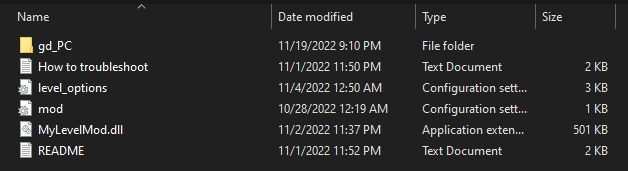
Here is where you can find mod-specific settings and info. A few important files are here:
- The DLL file, where the code for the mod lives.
- The mod.ini file, where you can control your mod's name, description, and more.
- The level_options.ini file, where you can control My Level Mod specific features.
- The gd_PC folder, where a majority of game assets are stored.
The gd_PC folder (contents may change in the future):
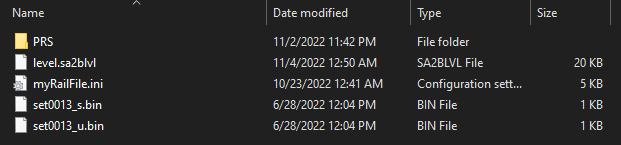
Here is where game assets are stored, and then imported into the game. These files are:
- An sa2blvl file, which represents a Sonic Adventure 2 level.
- Two SET files, which represent the enemies in your level (the game will crash without these).
- Optional Spline file(s), which can add rails or scripted loops to your level. (Can also be in a "Paths" folder)
- The PRS folder, where textures are stored.
The PRS folder:

This folder mostly just stores PAK files, which act as texture paks for your levels.
My Level Mod supports importing multiple levels into Sonic Adventure 2. To do this, add additional sa2blvl and texture PAK files to your mod folder, and add additional SET files based on the level ID's you are importing over (level ID list). Then, for each additional level you would like to import, include a new "Import_Level" statement specifying the sa2blvl and texture PAK file you would like to use. Read further in the "Level Options" section to learn more about the "Import_Level" statement.
Note: These level options are for editions of My Level Mod that are version 4 or older. For new instructions, please view the included README files with My Level Mod.
"level_options.ini" is the home for adding features and bonus levels to your mod. Here is a list of all the options currently available:
Performs a simple level import over a given level ID (level ID list). Importing by level ID will use any sa2blvl and PAK file available in the mod folder, making this the recommended choice for basic use.
Usage:
- Level_Import_Id=13
- This will replace City Escape with any sa2blvl and PAK file in your mod folder.
Notes:
- Automated level features, such as the simple death plane, currently only work with levels imported by ID. Automated level features for multiple levels is currently WIP.
- Chao gardens are not numbered like regular levels in Sonic Adventure 2. So to compensate, they have been renumbered, and if you would like to import over a Chao garden, please either use an ID from this list (Chao Garden level IDs), or use the Import_Level option instead.
Performs a level import over a given landTableName, using a given sa2blvl and PAK file. levelFileName and texturePakName are optional, with levelFileName defaulting to landTableName and texturePakName defaulting to levelFileName.
Usage:
-
Import_Level=objLandTable0013
- This will replace City Escape with given objLandTable0013.sa2blvl and objLandTable0013.pak files.
-
Import_Level=objLandTable0013,RockyMountain.sa2blvl
- This will replace City Escape with given RockyMountain.sa2blvl and RockyMountain.pak files.
-
Import_Level=objLandTable013,RockyMountain.sa2blvl,Mountain.pak
- This will replace City Escape with given RockyMountain.sa2blvl and Mountain.pak files.
Notes:
- File extensions are optional, and you can put spaces between commas if you'd like.
- Automated level features such as simple death plane do not work with levels imported with Import_Level.
- You can have multiple Import_Level statements, allowing you to import multiple levels into Sonic Adventure 2.
Spawns the player at the given coordinates. Note that these are Game Coordinates, meaning that if you are using Blender coordinates, you will have to swap y and z, and flip the sign of z. Example Blender Coordinates: 10, 20, 30 --> Game Coordinates: 10, 30, -20
Usage:
- Spawn_Coordinates=10,20,30
Has the player perform their victory celebration at the given coordinates. Note that these are Game Coordinates, meaning that if you are using Blender coordinates, you will have to swap y and z, and flip the sign of z. Example Blender Coordinates: 10, 20, 30 --> Game Coordinates: 10, 30, -20
Usage:
- Victory_Coordinates=10,20,30
Automatically kills the player once they go under the given y-level. This is a basic alternative to Death Zones, which are areas of collision that automatically kill the player upon entering.
Usage:
- Simple_Death_Plane=-15
While the mod is very automated, sometimes something can go wrong! If the game crashes, make sure that your file structure is good, the level file you created isn't corrupted, and your texture pak file exists.
My Level Mod automatically prints out debug information every time you run the mod, so if you would like to debug your mod, simply go to the debug menu in the SA2 Mod Loader and enable "File" in the debug section.
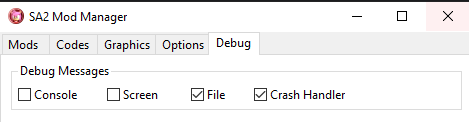
Debug logs will automatically be saved in a file called "SA2ModLoader.txt" in your mods folder.
If all else fails, feel free to ask around at the Sonic Adventure X-Hax discord.