Bot Setup (Windows)
This walkthrough is for setting up the Steamy bot on your Discord server
You'll need to install git to preform git commands in the terminal and thus clone (and future update) this repository. You can install it here and follow the installation keeping everything default.
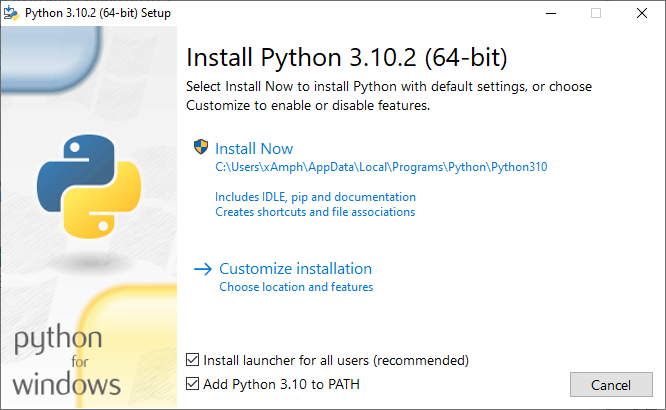
Next you'll need the latest version of Python from here. Make sure you check off Add Python to PATH at the bottom of the installer before proceeding :
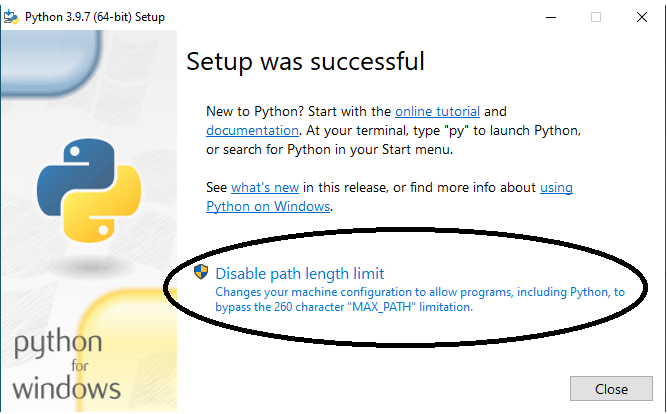
If at the end of the installation you see a Disable path length limit, you need click this! Otherwise python might not be set as an enviornment variable:
After installed type python in the command prompt to confirm proper setup. It should show your current Python version:

Note : If you have Microsoft Store version of Python installed this may cause issues running Poetry later on
Now you'll need to install Poetry which is a dependency management and packaging tool for Python. Poetry will be how you actually run the code for the Steamy bot. There's documentation you could follow here, or you can simply :
- Download the script from here
- Open the command prompt and change directories via
cdto where the script was installed (usuallycd desktop) - Execute the file with
python install-poetry.py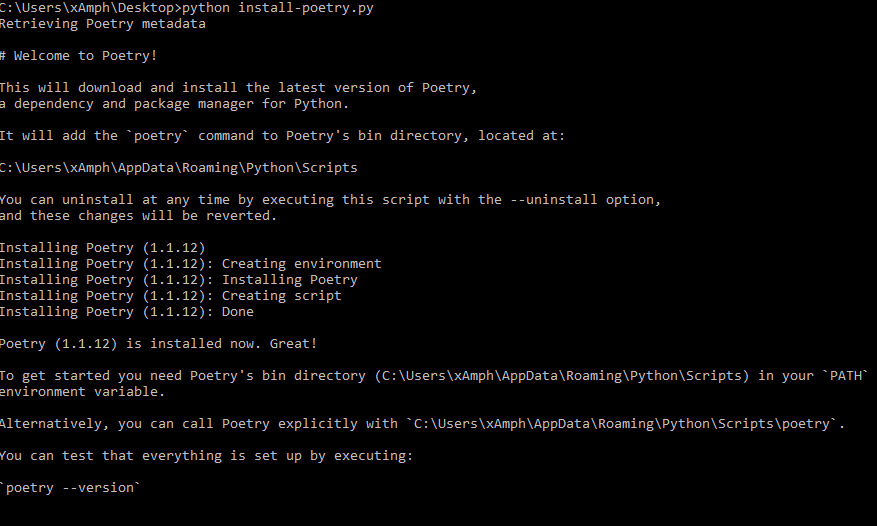
- As the installation print out on the terminal states, you'll need to add the Poetry directory as an environment variable in your PATH. Go to
View advanced system settings>Environment Variables...and findPathunderSystem variables. EditPath> ClickNew> and paste the Poetry bin directory specified in the installation print out on your terminal: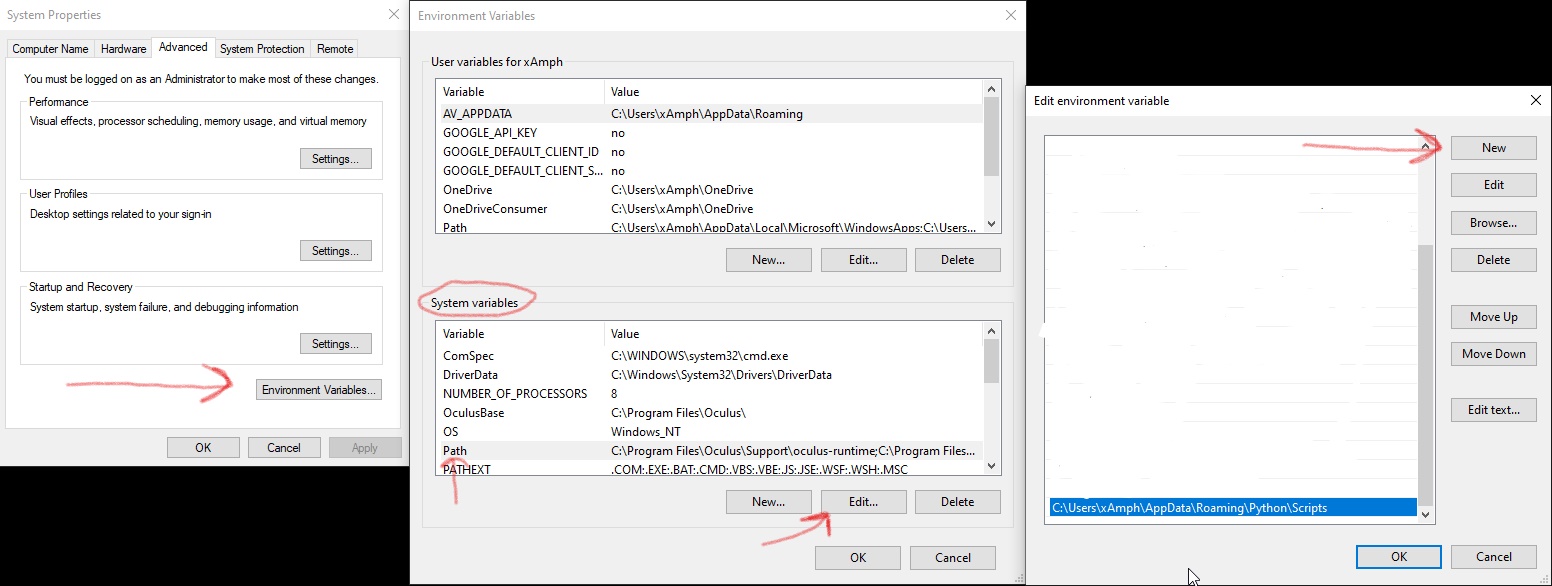
You can confirm success of these steps by opening a new terminal and typing poetry --version, which should show your Poetry version without any errors.
Now you're ready to clone the repository. Type git clone https://github.com/JDGiardino/Steamy.git into the command prompt and you should see :
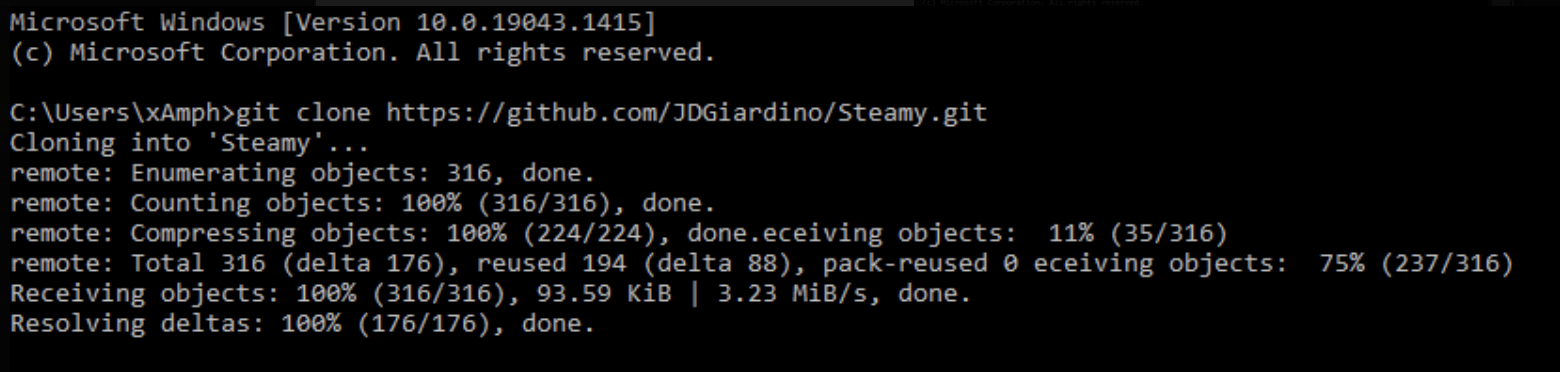
Then just change directories to Steamy folder cd steamy and type poetry update to install the project dependencies in this Poetry enviornment.
In order to run this bot, you'll need to setup a personal Steam API key from https://steamcommunity.com/dev/apikey. This is a sensitive secret key you should not share with anyone! Once you've copied the key you'll want to create a new environment variable to assign it to, similar to editing the Path environment variable in step 3. This newly created environment variable needs to be named STEAM_API_KEY and the value should be your Steam API key you copied.
Now you'll actually set up the bot user. Head to https://discordapp.com/developers and login. From there create a new application, set the name to Steamy and image to the Steam icon, and then click the Bot tab on the left. Click Add bot user and once that's created, copy the token. Similar to Step 5, create a new environment variable named 'DISCORD_BOT_TOKEN` and the value should be the token you copied.
With everything setup you'll now want to invite the bot user to your Discord server. You can invite it to your server by going to the OAuth2 tab on the bots application page you set up previously. Once you're there, under scopes check the box that says bot, and copy/paste the link it generates into your browser. There is also Discord documentation here that walks through this part.
You are all setup and finally ready to run the Steamy bot!
Simply open command prompt, cd steamy and start /b poetry run start-steamy. This runs Steamy in the background, so long as you keep the command prompt open the Steamy bot will be online. Likewise, closing the command prompt ends Steamy. If you restart your computer you'll just need to enter the command again.