This site is a fun tool for creating music from your web browser. It's comprised of 3 musical modules: Drum Machine, Ghost Machine, and the Mangle Machine.
The drum machine is based on a 16 step sequencer. There are 3 main sections in the drum machine: the control panel, the instrument panels, and the sequence panel.
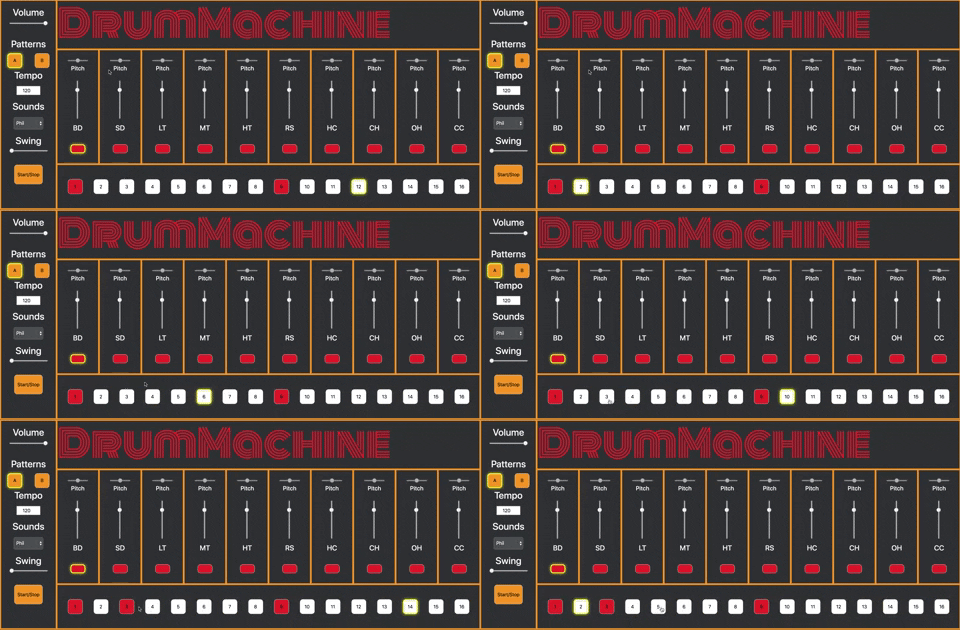
Control Panel:
Volume: this slider will control the master Volume of the entire machine.
Patterns: there are two 16 step sequences labeled "A" and "B". Choose which pattern is being played by pushing the desired button.
Tempo: Choose what tempo you want your pattern to play in. This is displayed in Beats Per Minute.
Sounds: this dropdown box gives you the option between "drum kits" which are essentially banks of sounds.
Swing: this will change the ratio of the length of each step in the sequence giving a "swung" feel on playback.
Start/Stop: this will start playing through the sequence and continue looping through it until pressed again.
Instrument Panel:
Pitch: this controls the pitch of the sound being played. It defaults to the center position which is the original recorded sound. Moving the pitch left will lower the pitch of the sound, right will increase the pitch of the tone.
Slider: this controls the volume of this particular instrument giving the ability to mix volume levels of each instrument as the sequence plays through with all of the instrument elements.
Selector Button: pressing this button will trigger a sound indicating which sound you are sequencing and will also be indicated by a yellow glow for selected instrument. Below in the sequencer panel you choose which step you want the sound to be triggered on.
Sequencer Panel:
This panel shows the steps of the sequence. The button are colored red when the step has been selected for the currently selected instrument. It will be white if the step hasn't been selected to be triggered. A yellow glow will move with the tempo displaying which step of the sequence is currently being triggered.
The Ghost Machine is inspired by the Roland 303 Synth. It is a sequenced melodic instrument that plays in time with the Drum Machine. It has 3 sections to control this instrument: the main Control panel, the Keyboard panel, and Sequencer panel.
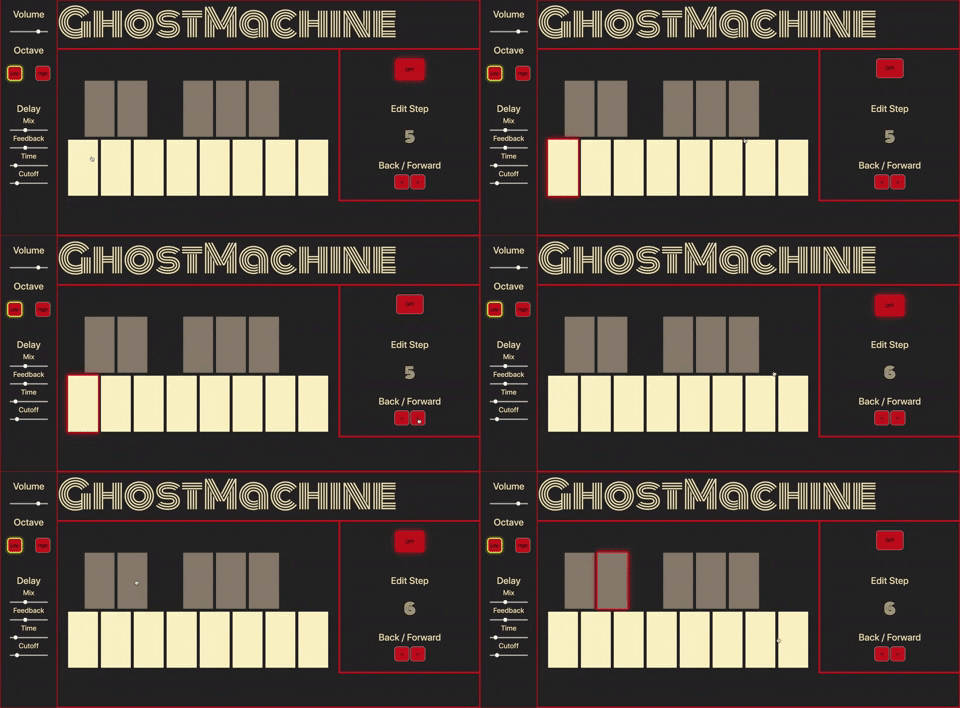
Control Panel:
Volume: this slider controls the volume of the Ghost Machine. Left is volume down, right is volume up.
Octave: these buttons select which octave the Ghost Machine is played in. "Low" indicates a low pitch, "High" indicates the pitch shifted up an octave.
Delay: this adds a dub delay effect to the sound being played on the Ghost Machine.
Mix: This slider controls the amount of the effect that you hear. Left brings the amount of the effect down, right increases.
Feedback: This slider controls the amount that the delayed effect repeats itself. Left is fewer repeats, Right increases.
Time: This slider controls the length of time of the delay effect. Left is shorter time, Right increases.
Cutoff: This slider controls a filter on the tone of the repeats. Left is "darker", Right is "brighter".
Keyboard: This Keyboard is laid out like one octave of a piano keyboard. As you select a note with your mouse the key will trigger the corresponding note and add a red glow around the button. When the sequence is played the red glow will follow along and show which note is being played.
Sequencer:
Off: This button is used to deselect a note in the sequence. If a note exists on a step that you want to remove, when that step is selected press the "off" button to remove that note.
Edit Step: The number displayed shows which step in the sequence you are on. This does not change as the sequencer plays.
Back/Forward: These button increment or decrement which step in the sequence you are on for editing your notes.
The Mangle Machine has 3 crazy sound generating modules that can be effected by manipulating the X and Y axis while clicking on the corresponding graphic. It has a Control Panel and Instrument Panel.
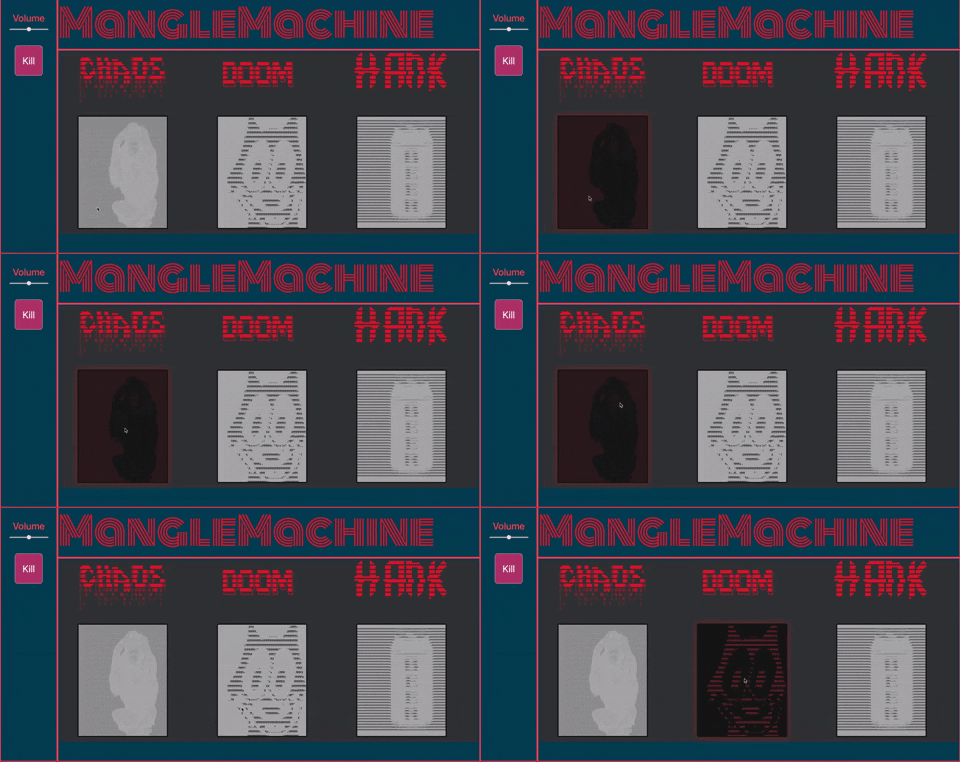
Control Panel:
Volume: This controls the overall volume of the module. Moving the slider left will decrease the volume, right will increase.
Kill: This button acts as a kill switch which when pressed will end any sound from the module if a note is getting too unruly or sustains infinitely.
Instrument Panel:
Chaos, Doom, and Hank: These graphics are interactive sound generators. Click on the graphic to start generating sounds and manipulate the sounds by moving your mouse around.
All faders are designed using a 127 value range for potential future midi implementation.
- Clone to local machine
- Navigate to the folder containing this README
- Run "npm i"
- Run "npm run start"
- This site can be viewed in it's current form at https://LiamPKenna.github.io/js-drumz
To explore the source code, feel free to browse on github or clone to your local machine
Audio will not play on iOS devices, soulutions are currently being investigated.
Any issues or concerns, please email liam@liamkenna.com
HTML, CSS, Bootstrap, jQuery, JavaScript, Pizzicato, Howler, Webpack
This software is available under the MIT License
Copyright (c) 2019 Liam Kenna, Jay Winebrenner, Casey Idsinga, Mikey Wells