An online Minivan plate configurator, hosted at http://MiniVanPlate.xyz/
This is a static site, all plate files and previews are pre-baked, meaning no computation is required on the server or client.
Plate source files are either manually scraped into /wiki_scrape from https://trashman.wiki/files/, or generated and saved to /cutouts using a combination of http://www.keyboard-layout-editor.com/, https://plate.keeb.io/, and http://builder.swillkb.com/.
Plate source files from /wiki_srape and /cutouts are combined manually using Fusion360, then saved into all_dxf
Plate previews are generated using https://github.com/Hamza442004/DXF2img, and saved under that same filename into all_preview
Open the /utils/All_Plates.f3d file in Fusion360
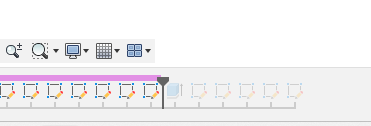
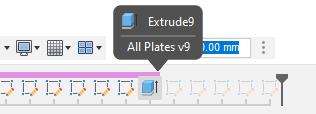
Take the timeline marker to just before the last extrude.
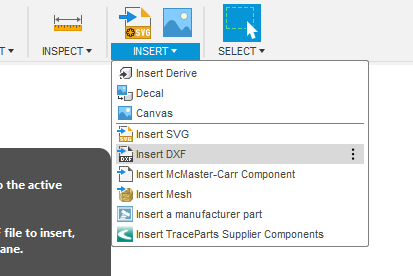
Insert your switch cutouts .dxf
Select the XZ Plane, and position the the .dxf such that the top-left switch (in 19.05mm spacing) is (or would be) centered on the Origin (or locate in a similar way).
Use the midpoint of the diagonal of the switch cutout to point-to-point move the sketch to the origin.
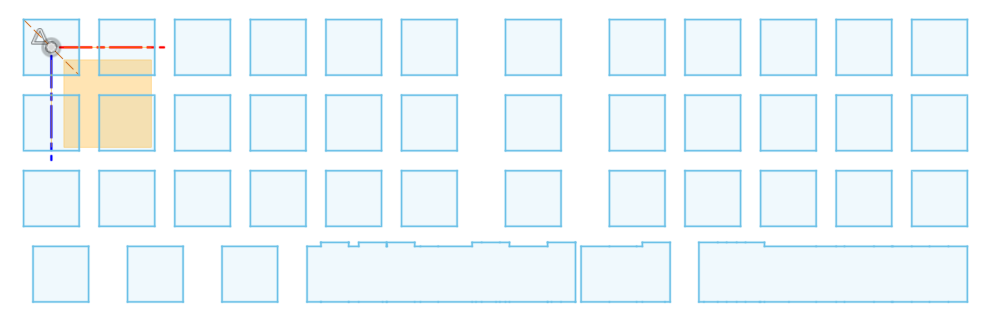
Select all elements in your cutouts sketch and Fix (Lock) them into place.
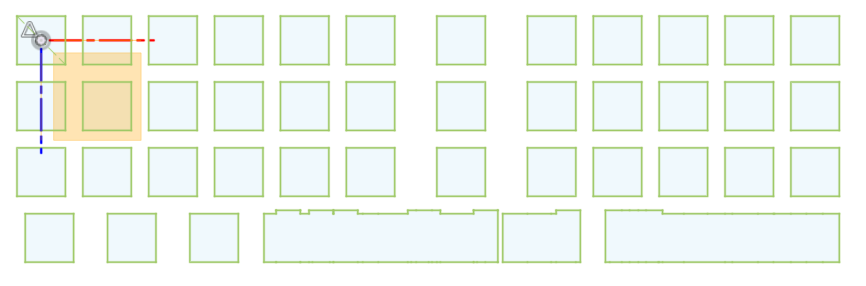
Finish sketch, progress the timeline forward, and edit the extrude.
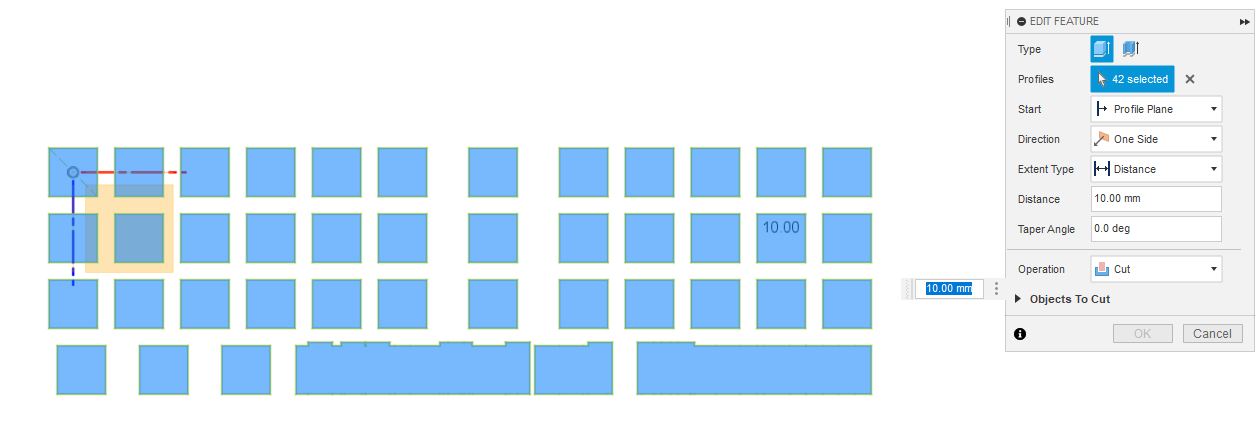
Unselect any profiles that are selected. Hide the Bodies group. Select the switch cutouts that correspond to your new layout.
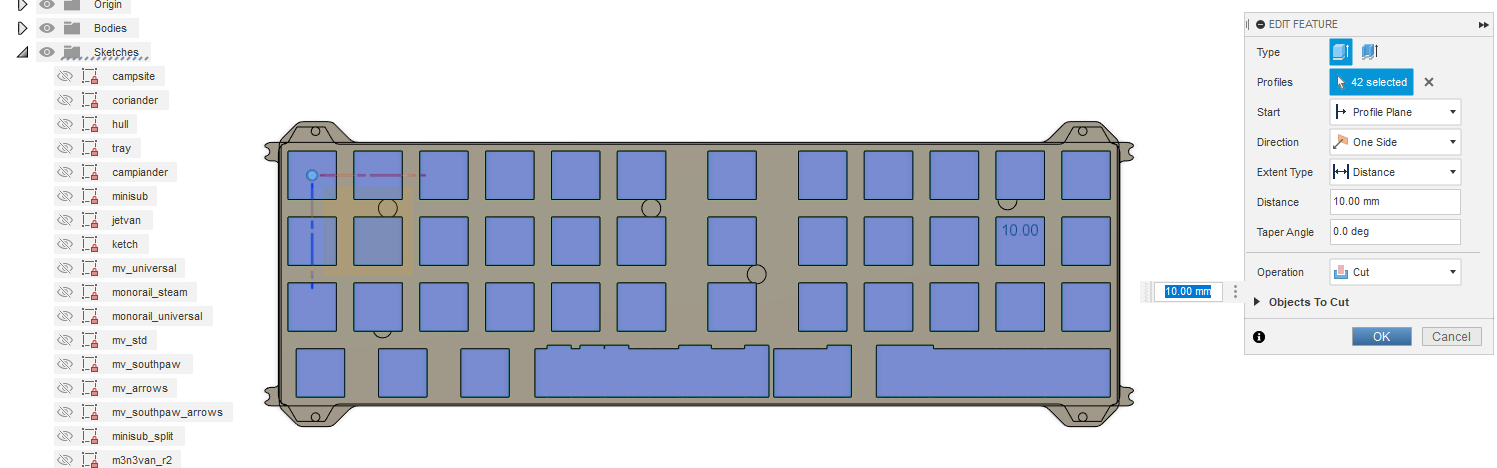
Un-hide the Bodies group, and OK the Edit Extrude window.
Progress the timeline marker forward, and plate_campiander, plate_campsite, plate_coriander, plate_hull, and plate_tray should be generated.
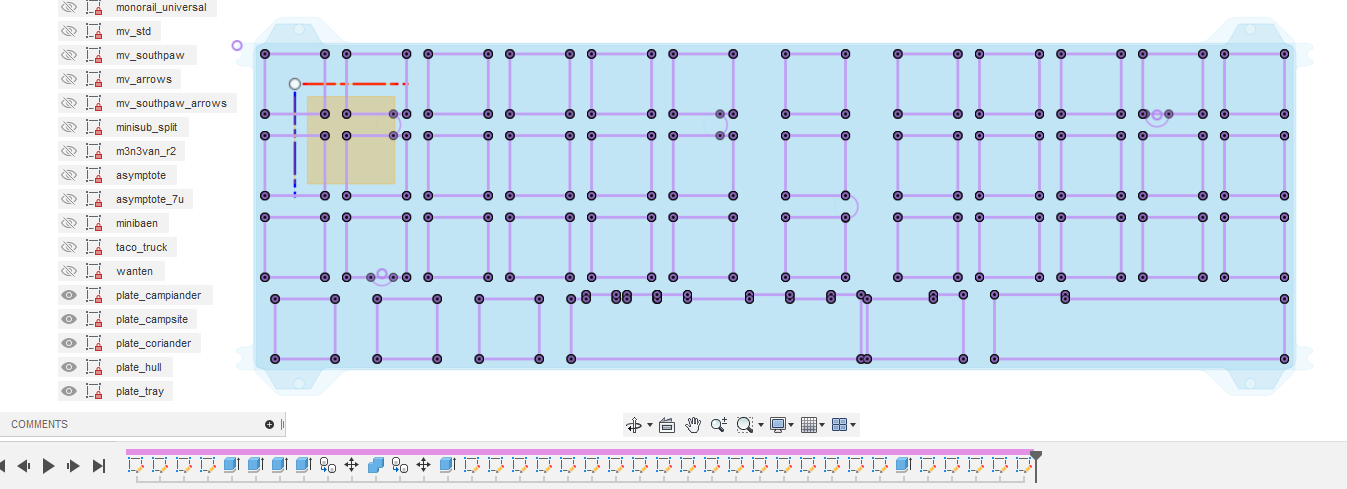
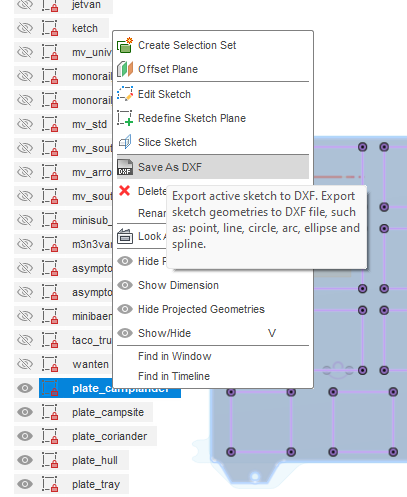
Right-click on those 5 sketches and save them as .dxf using a unique filename into /all_dxf
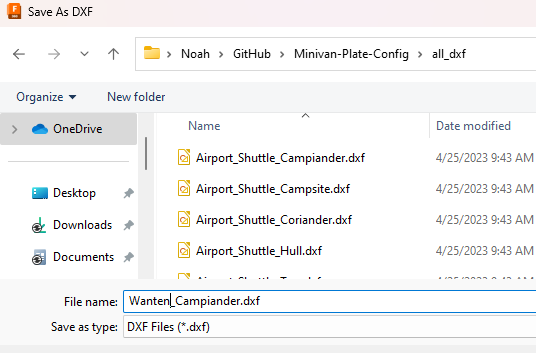
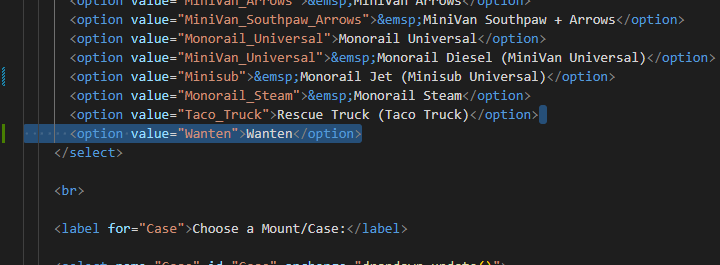
Add the layout entry in index.html, being sure the entry's value is the same as your filename component.