
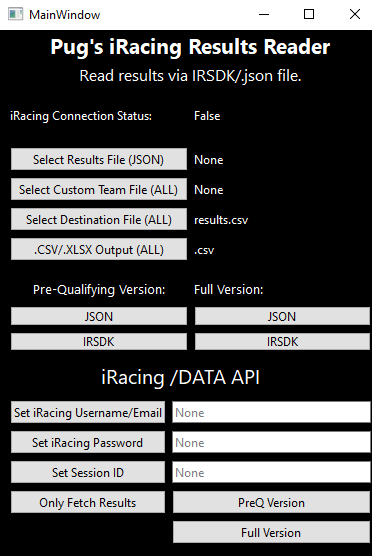
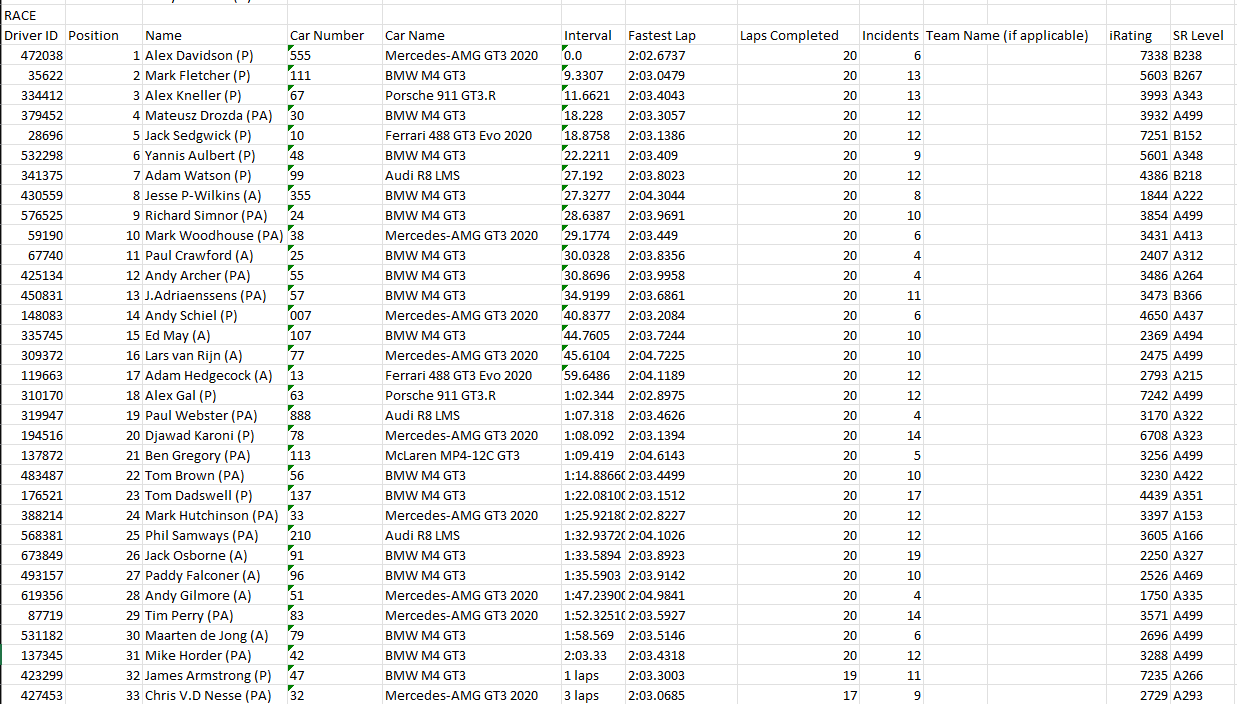
Pug's iRacing Results Reader is meant to make it easier for league owners to export results from completed iRacing sessions.
What does it do:
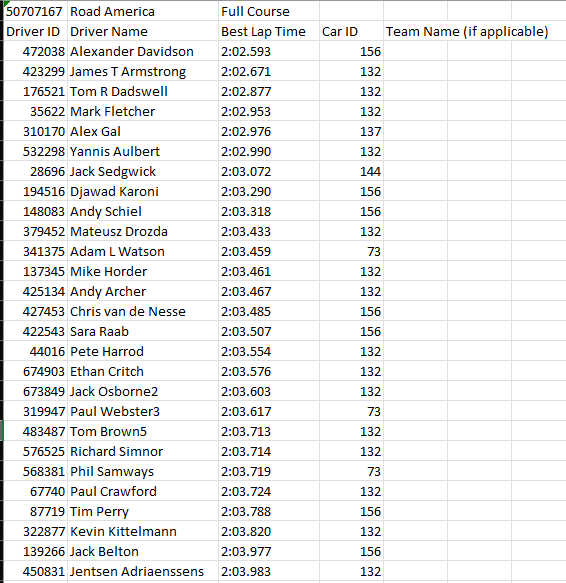
- Pre-qualifying Results (JSON Version = Looks for quali session else it takes the 1st session, IRSDK Version = Takes current session)
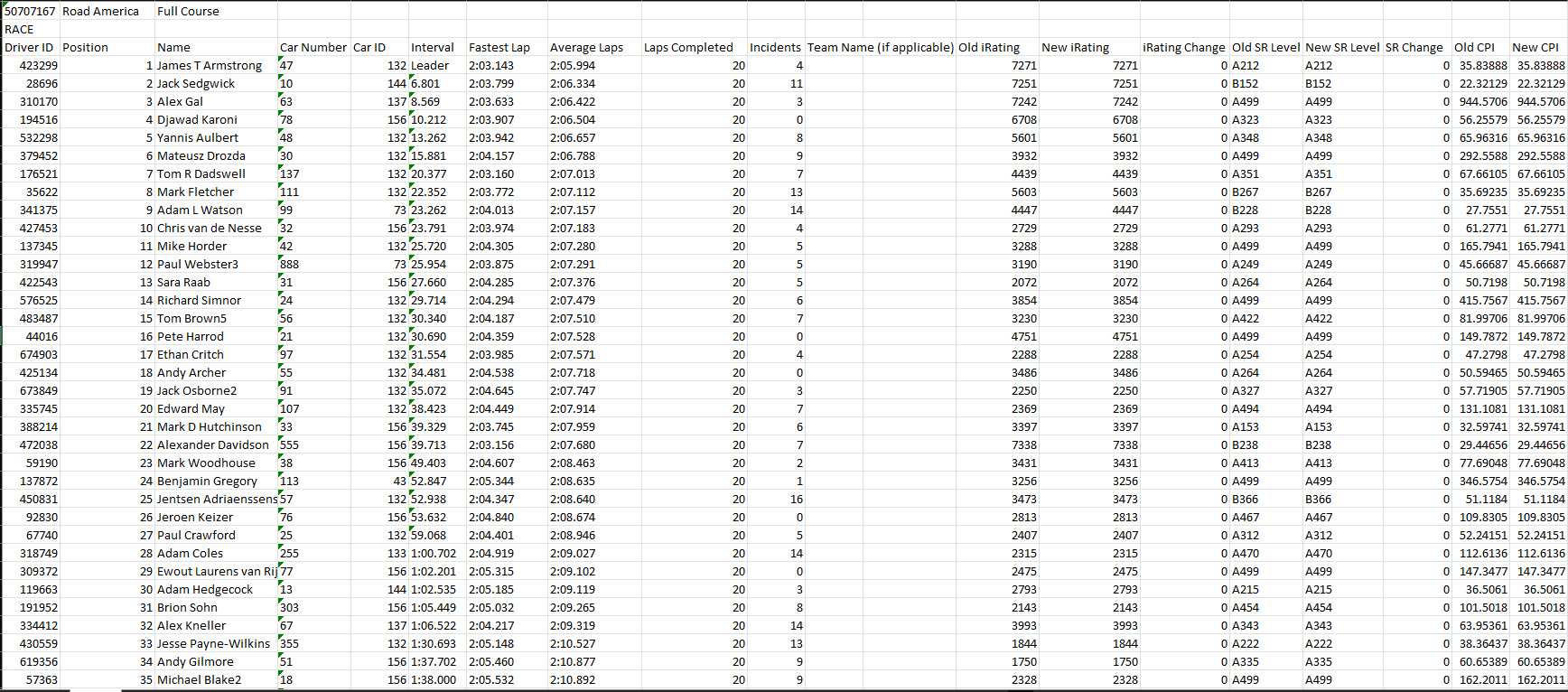
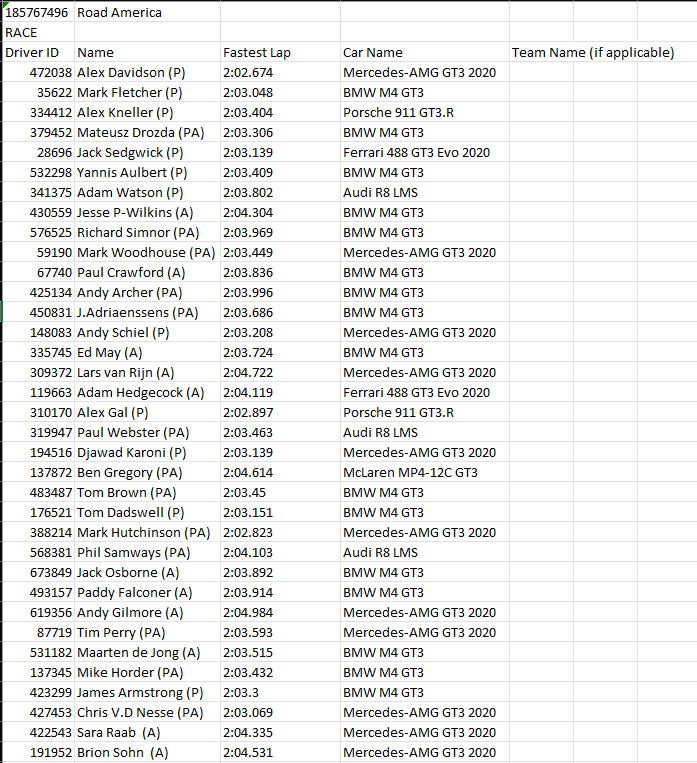
- Full Results (Goes through all sessions and exports most of the relevant data)
- Can match drivers to the correct teams by looking for them in a list of teams if provided
- Choice of output in .csv/.xlsx
- Mass file conversion via command line arguments
Simply download and run the .exe in Releases.
For all three versions you can select custom team files and destination files; file extensions are added automatically. Personally I'd recommend using the JSON versions as they offer more data and are a bit easier to read however the IRSDK version provides the same data although there are formatting imperfections that may show up.
Using the iRacing UI, download the results of the session you want to read (Export results button in the iRacing UI) and choose the results file. PreQ Version = Looks for qualifying session, else it uses the 1st session Full Version = Takes all sessions
Joining a session and pressing the IRSDK button while iRacing connection status says True exports results. PreQ Version - Takes the session you're currently in and data up to right now. Full Version - Takes all the sessions and data up to right now.
By providing your iRacing login details and the desired session ID, you can fetch the session results via the iRacing website instead of manually exporting them from the iRacing UI. Your login details are remembered for future use via the keyring library (https://github.com/jaraco/keyring).
It is the JSON version without the manual results fetching.
Here is a template for the custom team file. Team name is the key and the value is an array of driver names (use display names for the particular session you're in).

It is possible to fetch results of multiple sessions via /data API and convert them as normal. In a terminal of your choosing:
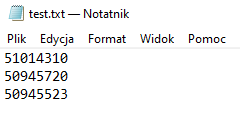
PiRRR.exe -mass -session_ids ".txt file directory"
You can also pass -csv to get all the results as a .csv file, otherwise they will be in .xlsx.
-h is available for a help message.
If you get a "Verification required" error, log in manually on this website to re-verify your account.
Example of valid .txt file:
If you'd like to modify the code, download the source code and run the following in Windows Terminal:
pip install -r requirements.txt
Source code was written with PyCharm on Python 3.10.