This extension adds a context menu item in the VS Code explorer and in the open file tab.
Select one or more files or folders, right-click, then "Add to Context".
The extension copies to your clipboard a text containing the relative path of each file and its content between triple quotes.
You can then paste this text wherever you need it as context for an LLM.
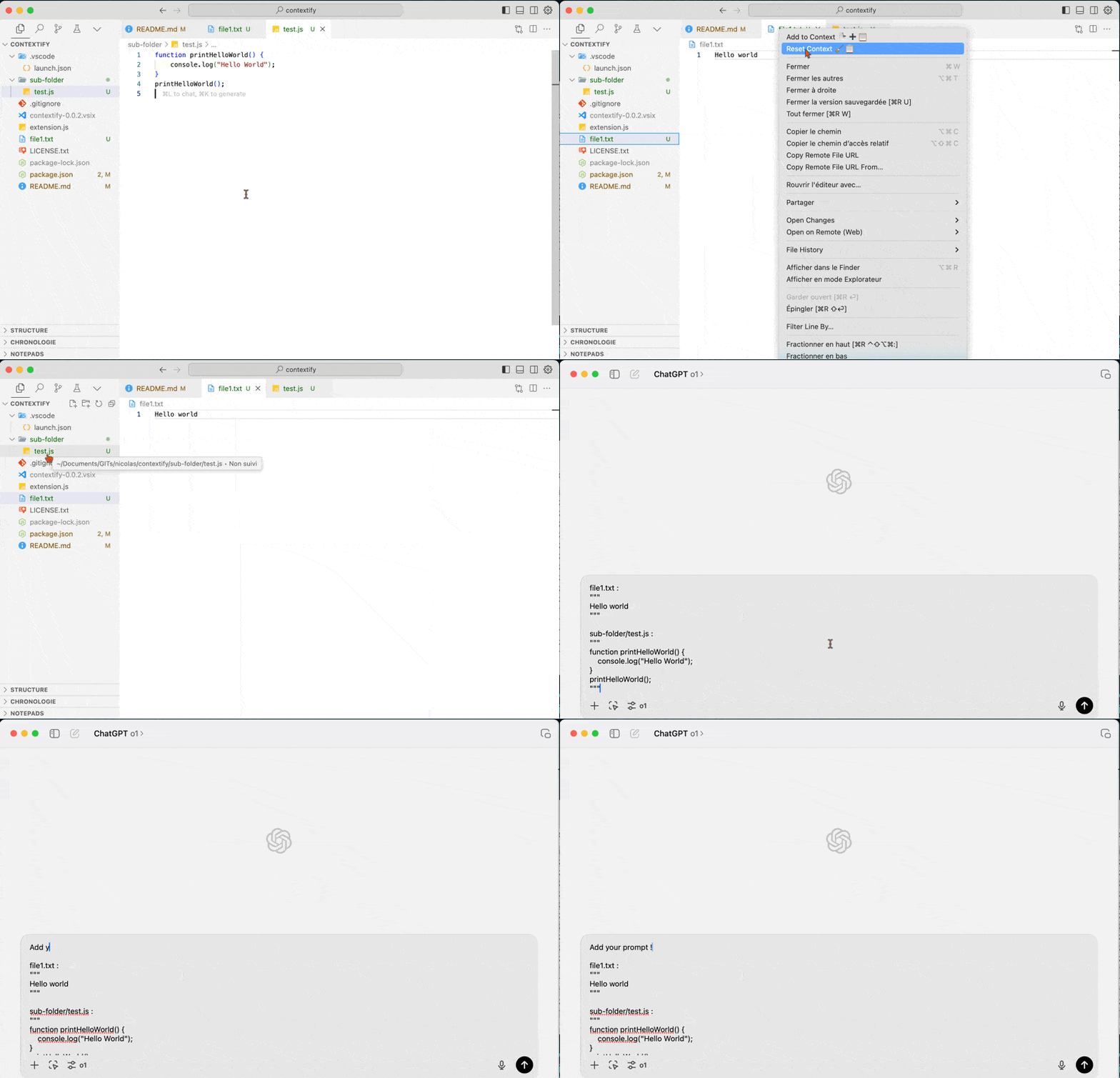
-
Select Files or Folders:
- In the VS Code file explorer, select one or more files or entire folders that you want to add to the context.
-
Add to Context:
- Right-click on the selection.
- Choose the option "Add to Context".
-
Result:
- The relative paths and contents of the selected files are copied to your clipboard. If you selected a folder, all files inside it (and its subfolders) are included.
- Files and folders listed in
.gitignoreare skipped by default when adding a directory. Individual files are always included even if they appear in.gitignore. - You can now paste this text where you need it.
- Clone this repository.
- Open in VS Code.
- Launch the extension with F5.
contextify.ignoreGitIgnore(boolean) : ignore les chemins listés dans.gitignorelors de l'ajout d'un dossier (activé par défaut ; n'affecte pas les fichiers individuels).
If you want to share your extension without going through the VS Code Marketplace, you can create a .vsix file that other users can install manually.
- Node.js and npm installed.
- Install the
vscetool to package the extension:npm install -g vsce
-
Check the Information in
package.json:- Ensure that all necessary fields are filled (name, version, description, etc.).
- For example, add a
repositoryfield if it is not already present:"repository": { "type": "git", "url": "https://github.com/Nicolas-nwb/contextify.git" }
-
Generate the
.vsixFile:- In the terminal, navigate to your extension's folder.
- Run the following command to package the extension:
vsce package
- This will generate a file
contextify-0.0.1.vsix(the name includes the version defined inpackage.json).
-
Distribute the
.vsixFile:- Share the
.vsixfile with users via your GitHub repository, a website, or any other means of distribution.
- Share the
To install an extension from a .vsix file:
-
Download the
.vsixFile:- Make sure you have downloaded the
.vsixfile of the extension.
- Make sure you have downloaded the
-
Install via VS Code:
- Open VS Code.
- Go to the Extensions menu (
Ctrl + Shift + X). - Click on the three dots at the top right of the extensions view.
- Select "Install from VSIX...".
- Navigate to the downloaded
.vsixfile and select it. - The extension will be installed and available immediately.