This is a Human Resources Information System (HRIS) originally built for internal usage by Momentum Internship Program employees and the Human Resources department. The HRIS consists of a desktop application (OrkaHR) that allows users to interact with a server and database hosted on Google Cloud Platform (GCP). The HRIS manages employee records, job candidates, attendance, and surveys, syncing data securely to the cloud.
- Frontend: Avalonia with WebView, Community Toolkit MVVM, Refit
- Backend: ASP.NET Core, AutoMapper, Entity Framework Core
- Database: PostgreSQL (Cloud SQL)
- DevOps: Docker, Google Artifact Registry, GitHub Actions
- Cloud Services: Google Cloud Run (Backend), Google Cloud SQL (DB), Google Cloud Storage (Files)
- Other Services/Tools: Google OAuth, Xunit
This HRIS is organized into a .NET solution containing two main projects (Client and CloudSync), a Shared library, and test projects.
The Client project contains the code for the Avalonia desktop frontend application. We use the MVVM (Model-View-ViewModel) design pattern with the Community Toolkit MVVM. MVVM separates concerns into different layers:
- View: Contains XML that defines the appearance of various components
- ViewModel: Responsible for event handling from the view and calls the model layer for data fetching
- Model: Handles data fetching and API calls to the backend server
More information about this design pattern can be found here.
- Configuration: The client is built as a single-file executable (
OrkaHR.exe). Configuration files (appsettings.json) are embedded within the assembly to simplify distribution. - Connectivity: The client connects to the CloudSync backend via REST API. File downloads are proxied through the backend to ensure secure access to private cloud storage.
The CloudSync project contains the code for the ASP.NET Core web API that serves as the backend. It is designed to be stateless and containerized for deployment on Google Cloud Run.
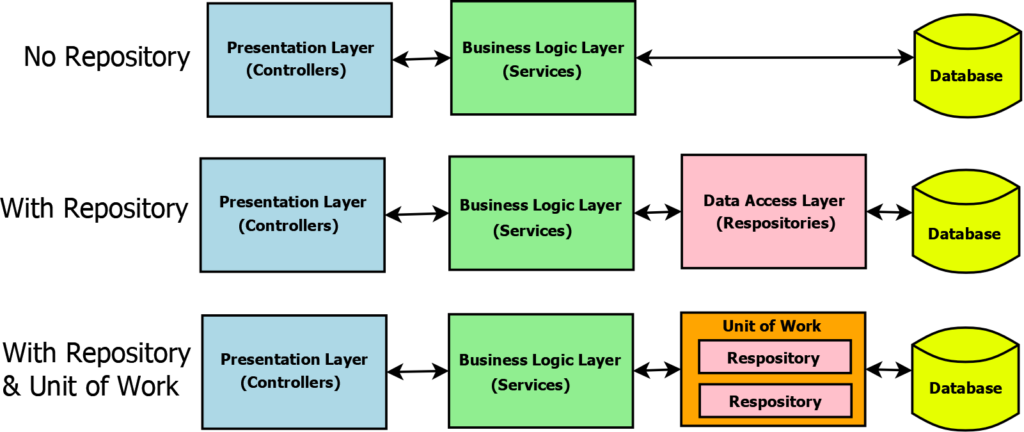
- Structure: Follows the Controller-Service-Repository pattern.
- Controllers: Define API endpoints for client interactions.
- Services: Handle business logic and data mapping. Includes
GcpFileStorageServicefor handling documents. Uses AutoMapper for mapping DTOs to database models and vice-versa. - Repositories: Handle Database interactions via EF Core, fetching or sending data to and from PostgreSQL.
- File Storage: Uses the Strategy pattern to switch between Local Storage (Development) and Google Cloud Storage (Production).
- Security: Validates Google OAuth tokens and enforces role-based access control.
Program.cs: The entry point for the application, which instantiates services, middleware, Swagger, and other necessary resources.CloudSync.csproj: The project file containing all dependencies and properties needed to run or publish the project.- Exceptions: Contains a base exception class and concrete exception types.
- Infrastructure: Contains the DatabaseContext (DbContext) configuration file. A DbContext instance represents a session with the database.
- Middleware: Contains classes defining how errors/exceptions should be handled.
- Migrations: Holds all migrations created by Entity Framework Core using
dotnet ef migration create <migration-name>. Migrations are like version control for database schema changes. - Modules: Contains subdirectories for application modules (CandidateManagement, EmployeeManagement, UserManagement) that follow the controller-service-repository pattern.
The Shared project contains Enums, DTOs (Data Transfer Objects), and Request/Response models shared between Client and CloudSync to ensure contract consistency. These shared resources are organized into directories based on the module they match in the CloudSync project. Base DTOs contain fields used in both requests and responses, while request and response classes contain fields specific to one or the other.
- Language/runtime: .NET SDK 9.0
- Tools: Docker Desktop, Git
- Run
git clone git@github.com:PROJXON/PROJXON-HRIS.git cd PROJXON-HRIS- Run
dotnet restorein both the CloudSync and Client directories. - Add environment variables and config files from the next section. Be sure to fill in fields that are missing data.
These files are not saved to source control. Get missing information from existing team members.
- A
.envfile in the root of the solution that contains aDB_PASSWORDenvironment variable to be used by Docker - A file named
appsettings.Development.jsonin the Client project directory with the following content:{ "AppName": "Projxon HRIS", "Logging": { "LogLevel": { "Default": "Information" } }, "CloudSyncURL": "http://localhost:8080", "Auth": { "ClientId": "Google OAuth client ID" } } - A file named
appsettings.Production.jsonin the CloudSync project directory with the following content:{ "Logging": { "LogLevel": { "Default": "Information", "Microsoft.AspNetCore": "Warning" } }, "AllowedHosts": "*", "JWT": { "Key": "Some random string is fine here for development", "Issuer": "HRISApp", "Audience": "HRISClient", "ExpiresInMinutes": 10080 } }
Production configuration is managed via Environment Variables in the Cloud Run instance. The following secrets are stored in Google Secret Manager and injected at runtime:
- Database connection string
- Google Cloud Storage bucket configuration
- JWT signing key
- Google OAuth credentials
The backend is designed to run via Docker.
- Run
docker compose up --buildto start the API and a local PostgreSQL instance. - The API will be available at
http://localhost:8080/swagger.
To run the client in development mode:
cd Clientdotnet watch run
To build the standalone production executable (OrkaHR.exe):
- Run the publish command:
dotnet publish Client\Client.csproj -c Release -r win-x64 -p:PublishSingleFile=true -p:IncludeNativeLibrariesForSelfExtract=true --self-contained - The executable will be located in
Client\bin\Release\net9.0\win-x64\publish\.
Run unit tests for both projects using:
dotnet test- Adding dependencies: Run
dotnet add package <package-name>in the corresponding project directory - Creating a migration: Run
dotnet ef migrations add <migration-name>in the CloudSync directory - Updating the database: Run
dotnet ef database updatein the CloudSync directory (development only)
The application is deployed to Google Cloud Platform with automated CI/CD through GitHub Actions.
- Backend: Packaged as a Docker container, pushed to Google Artifact Registry, and deployed to Cloud Run
- Database: Hosted on Cloud SQL (PostgreSQL)
- Storage: Files are stored in a private Google Cloud Storage bucket
- Secrets: Managed via Google Secret Manager
The repository includes automated workflows that trigger on pushes to the main branch:
- Build: Builds the CloudSync Docker image
- Push: Pushes the image to Google Artifact Registry
- Deploy: Deploys the new image to Cloud Run with:
- Environment variables from GitHub Secrets
- Connection to Cloud SQL instance
- Access to Cloud Storage bucket
- Auto-scaling configuration
- Build: Compiles the single-file executable for Windows
- Test: Runs unit tests
- Release: Creates a GitHub release with the executable as an asset
The following secrets must be configured in the GitHub repository settings:
GCP_PROJECT_ID: Google Cloud Project IDGCP_SA_KEY: Service Account JSON key with necessary permissionsCLOUD_RUN_SERVICE_NAME: Name of the Cloud Run serviceARTIFACT_REGISTRY_REPO: Artifact Registry repository nameGCP_REGION: Deployment region (e.g.,us-central1)
For manual deployment or troubleshooting, refer to the internal company documentation repository for specific CLI commands and credentials.
- Database Connection Failures: Ensure the
.envfile contains the correctDB_PASSWORDand that Docker is running - Client Can't Connect to Backend: Verify that
CloudSyncURLinappsettings.Development.jsonmatches the running backend URL - Build Errors: Run
dotnet restoreanddotnet cleanbefore rebuilding - Migration Issues: Ensure your database is up to date with
dotnet ef database update
For additional support, contact the senior application developer.
We utilize feature branching. Feature branching involves creating a branch for each task that a developer works on. The developer makes changes in that branch, separate from the main branch, and then creates a pull request (PR). A pull request is essentially a request for code changes to be merged into the main branch. Pull requests are reviewed by another team member before they can be merged.
More information can be found here and online. Ask the senior app developer if this is unclear.
Feature branches should follow the naming convention:
<first-name-last-name>/<short-description>
Example: john-doe/add-attendance-module
When finished making changes to a branch:
- Verify Locally: Make sure that the application still runs correctly in your feature branch.
- Create Pull Request:
- Create a PR to the
mainbranch - Request a reviewer (typically the senior app developer)
- Provide a clear summary of changes made in bullet points
- Include information about files added, modified, or removed
- Create a PR to the
- Address Feedback:
- Reviewer may request changes by commenting within the pull request
- Make the requested changes and push them to your branch
- Request another review once changes are complete
- Merge:
- Upon successful review, the branch can be merged into
main - The feature branch will be automatically deleted after merge
- The GitHub Actions workflow will trigger deployment if applicable
- Upon successful review, the branch can be merged into
- Follow C# coding conventions and .NET best practices
- Write unit tests for new features
- Ensure all tests pass before creating a PR
- Keep commits focused and write clear commit messages
- Update documentation when adding new features or changing behavior