Configure Settings
Learn how to configure the settings to your liking.
Note
Customization of the settings are not required. For most people the default settings will do.
- Locate the icon: Look in the bottom-right corner of your taskbar (near the clock).
You may need to click the upward arrow (^) icon to show hidden icons.
- Right-click: Find the DualSense Battery Monitor icon and right-click it.
- Select settings: Click on 'Settings' from the context menu that appears.
You should now have something like this on screen:
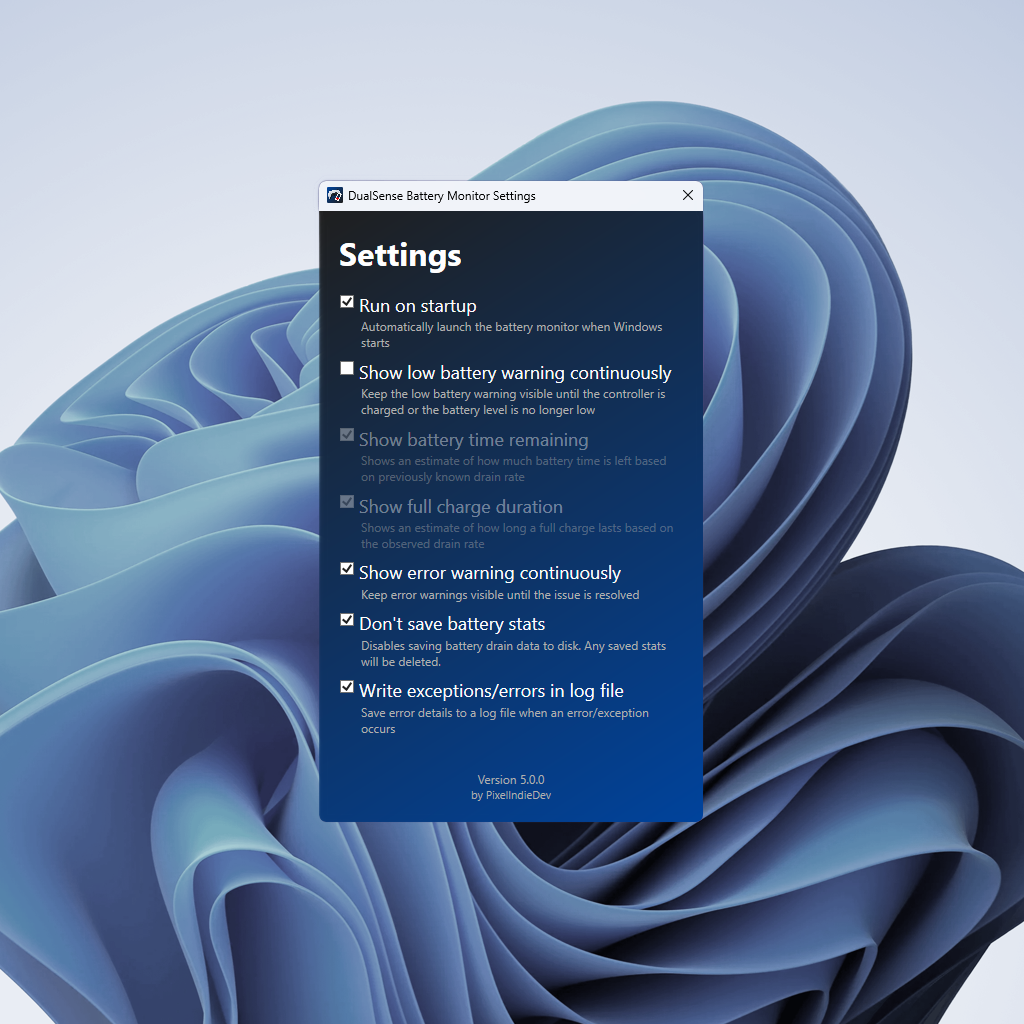
When checked, the application will automatically launch every time you log into Windows. This ensures your battery is always being monitored without you needing to remember to open the app manually.
By default, the "Low Battery" alert will only appear once per battery value for 5 seconds. As soon as the battery value gets lower, the application alerts you again. Checking this box keeps the warning visible on your screen until you either plug in the controller to charge or the battery level increases to a non-low battery level.
Shows an estimate of how much battery playtime is left based on previously known drain rate.
Important
This setting ^ requires time to calibrate. PS5 controllers only report battery levels in increments of 12.5%, so the application must wait for the level to drop by at least 37.5% before it can calculate a reliable estimate. Progress is saved between sessions, as long as at least one chunk has been lost. Until enough data has been collected, the remaining time will display as ~--h --m.
Shows an estimate of how long a full charge (from 100% -> 0%) lasts based on the observed drain rate.
Important
This setting ^ requires time to calibrate. PS5 controllers only report battery levels in increments of 12.5%, so the application must wait for the level to drop by at least 37.5% before it can calculate a reliable estimate. Progress is saved between sessions, as long as at least one chunk has been lost. Until enough data has been collected, the remaining time will display as ~--h --m.
If the application encounters a error or exception, it will display a error code. Enabling this setting keeps that error alert on-screen until the problem is resolved. Otherwise the alert stays on screen for 5 seconds.
Disables saving battery drain data to disk. Any saved stats will be deleted when turned off.
When enabled, the app will log technical details about any exception/errors into a log file named DualSenseExceptionLog.log. This will only happen when the application encounters exceptions or errors, if none are present, the file will not be created.
Note
If you ever need to report a bug on GitHub, attaching the log file sometimes helps the developer fix the issue much faster