School project. Java mobile programming course, Data Storage. Group work
		UNIVERSITY OF BUEA

	FACULTY OF ENGINEERING AND TECHNOLOGY

	DEPARTMENT OF COMPUTER ENGINEERING
Course Title: Java Mobile Programming
Course Code: CEF402
Course Instructor: Mme. Fani Michelle
GROUP 2: Data Storage(Files, Saving State and Preferences)
Group Members
-
Fru Kerick Jheff Buahab FE14A083
-
Tigpezeghe Rodrige Kwenchu FE14A214
-
Tafang Joshua Ngufor Nkongho FE14A201
-
James Takor Ako-Egbe JR. FE13A097
Data Storage(Files, Saving State and Preferences)
Almost any application, big or small, requires saving data. Android offers many options. From saving a simple value to creating full databases using SQLite. Data storage options include the following: Shared preferences: simple name/value pairs Internal storage: data files in private storage External storage: data files in private or public storage SQLite database: private data can expose the data through a Content Provider Cloud storage: Private server or Service Provider
SQLite database and Cloud storage are advance storage structures and both provide and require advance mechanism for storing data.
For the purpose of this project we shall cover Shared preferences, Internal storage and external storage.
Screenshot of the app when it is launched

Preferences
We will begin by looking at Shared preferences. It is a common requirement to store simple data. Android makes it simple using the Preferences API. It is not limited to just user preferences either; any of the primitive data types can be stored using a name/value pair.
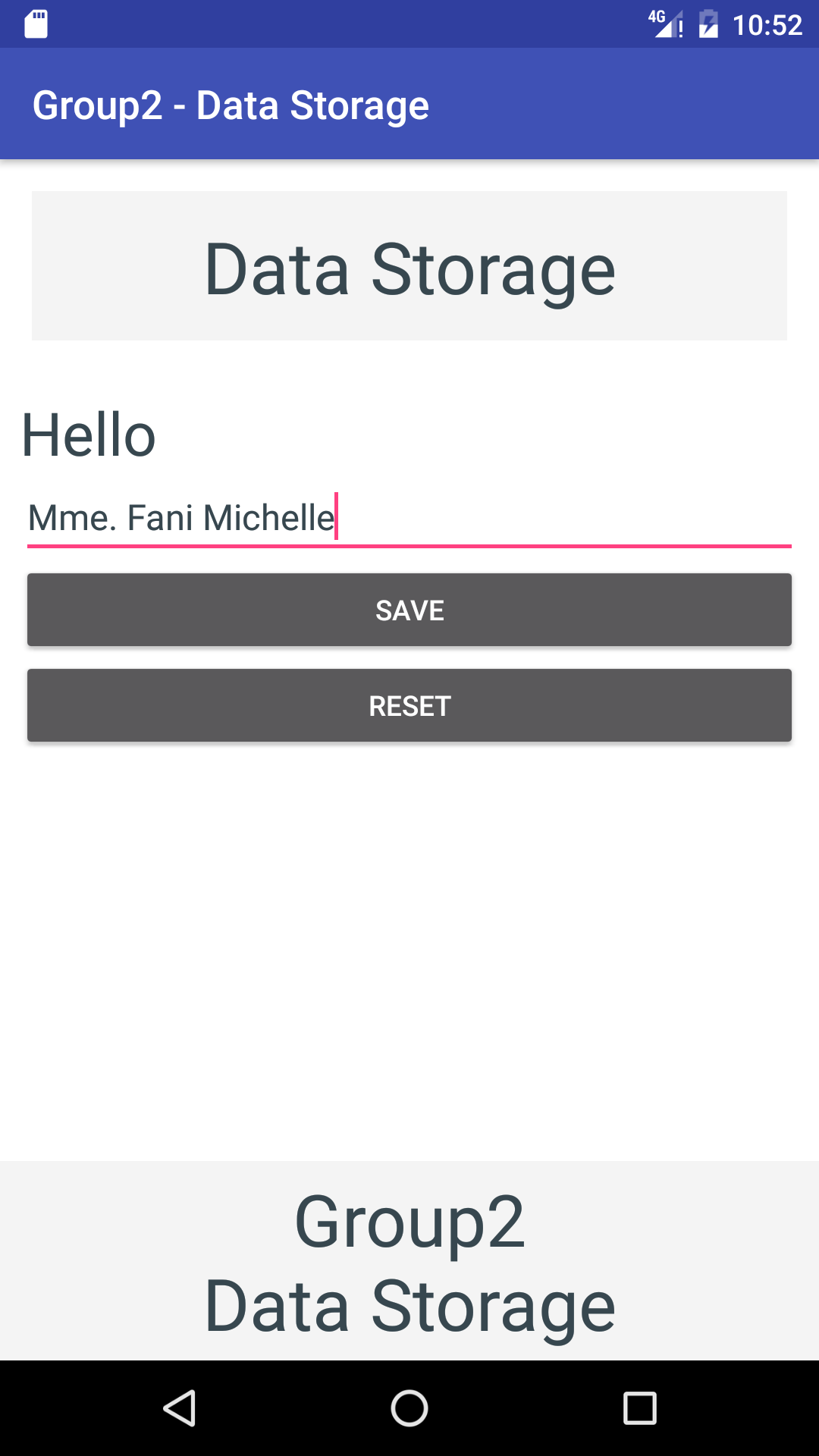
We willl demonstrate saving a name from an EditText and displaying it in the application. The following screenshots show how the application looks the first time with no saved name, and then, after a name has been saved:

Internal Storage
When simple name/value pairs are not sufficient, Android also supports regular file operations including working with text and binary data.
The InputStream and OutputStream classes can be used to read and write, respectively. Writing to a file is as simple as setting data or collecting it from a widget and calling the write() method. Reading back the contents requires a little more effort. We could use the FileInputStream class for reading, but when working with text, the helper classes make it easier. In this project, we open the file with openFileInput() , which returns an InputStream object.
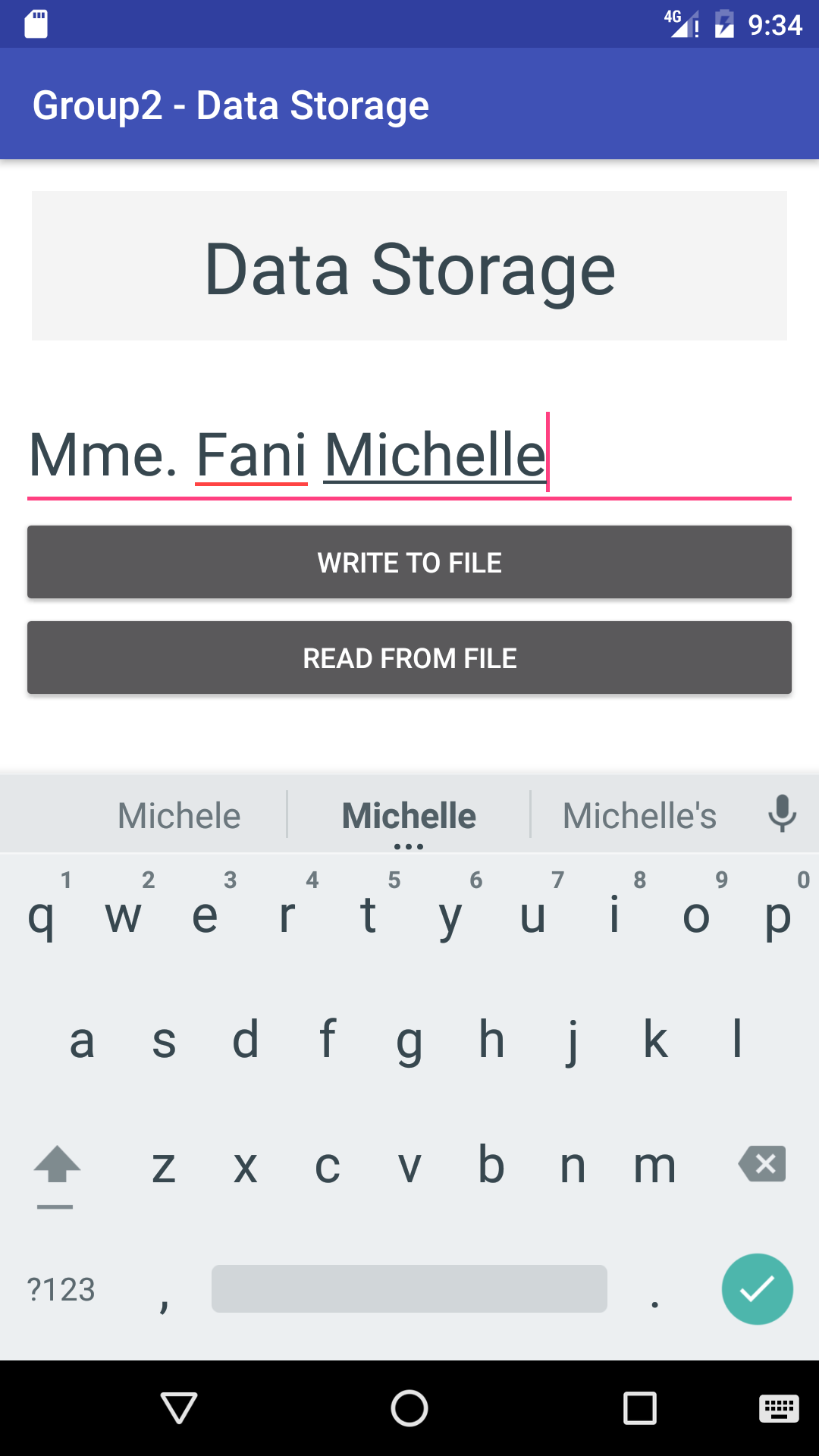
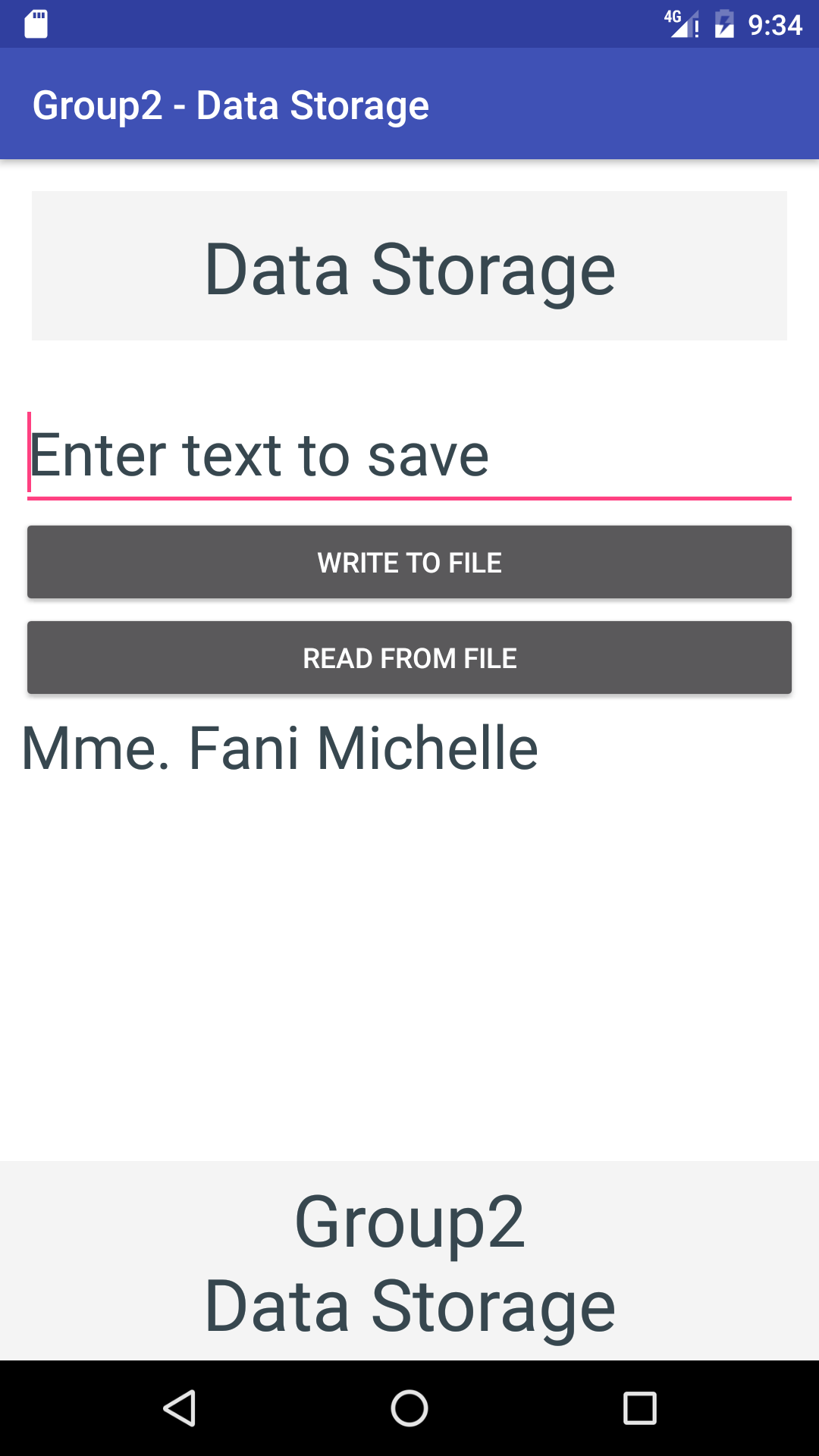
We then use the InputStream to get a BufferedReader , which offers the ReadLine() method. We loop through each line in the file and append it to our StringBuilder . The StringBuilder object can then be used to display the data read from storage. In our case, when we're finished reading the file, we assign the text to an EditText object. We can see this from the screen shots below. The left screen shot indicates when a user enters data into an EditText and writes it to internal storage and the right screen shot shows when a user retrieves already stored data and displays in a TextView.
Cache Files
If all you need is to temporarily store data, you can also use the cache folder. The getCacheDir() method returns the cache folder as a File object.
The main benefit of using the cache folder is that the system can clear the cache if storage space becomes a limiting constrain. (The user can also clear the cache folder from Apps Management in Settings)
For example, if an app downloads news articles, these articles could be stored in the cache. When the app starts, the already downloaded articles can be displayed.
We will now look at External Storage.
External Storage
The process of reading and writing files to external storage is basically the same as using internal storage. The difference is in obtaining a reference to the storage location. Also, external storage may not be available, so it is important to check its availability before attempting to access it. This can be done by checking if it is mounted, if it is read-only, if it is writable...
The first thing to do is to add permissions to write and read to external storage. This permissions can be added in the AndroidManifest.xml file using the tag.
The demo for the external storage is implemented the same as that for internal storage.
Choosing storage type
There are benefits and trade-offs to using internal and/or external storage. We will list some of the differences here to help an Android developer decide whether to use internal or external storage.
Internal storage
Unlike external storage, internal storage is always available, but generally has less free space. Files are not accessible to the user (unless the device has root access). Files are automatically deleted when your app is uninstalled (or with the Clear Cache/Cleanup File option in the App Manager).
External storage
The device may not have external storage or it may be inaccessible (such as when it's connected to a computer). Files are accessible to the user (and other apps) without requiring root access. Files are not deleted when your app is uninstalled (unless you use getExternalFilesDir() to get app-specific public storage).
Saving State
The mobile environment is very dynamic, with users changing tasks much more often than on desktops. With generally fewer resources on a mobile device, it should be expected that an application will be interrupted at some point. It is also very possible that the system will shut down an app completely to give additional resources to the task at hand. It is the nature of mobiles. A user might start typing something in an app, be interrupted by a phone call, or switch over to another app to send a text message, and by the time they get back to the first app, the system may have closed it down completely to free up the memory. To provide the best user experience, there is need to expect such behavior and make it easier for users to resume from where they left off. The good thing is that the Android OS makes this easier by providing callbacks to notify an app of state changes.
Simply rotating a mobile device will cause the OS to destroy and recreate an activity. This might seem a bit heavy-handed, but it's done for good reason—it is very common to have different layouts for portrait and landscape, so this ensures that an app is using the correct resources.
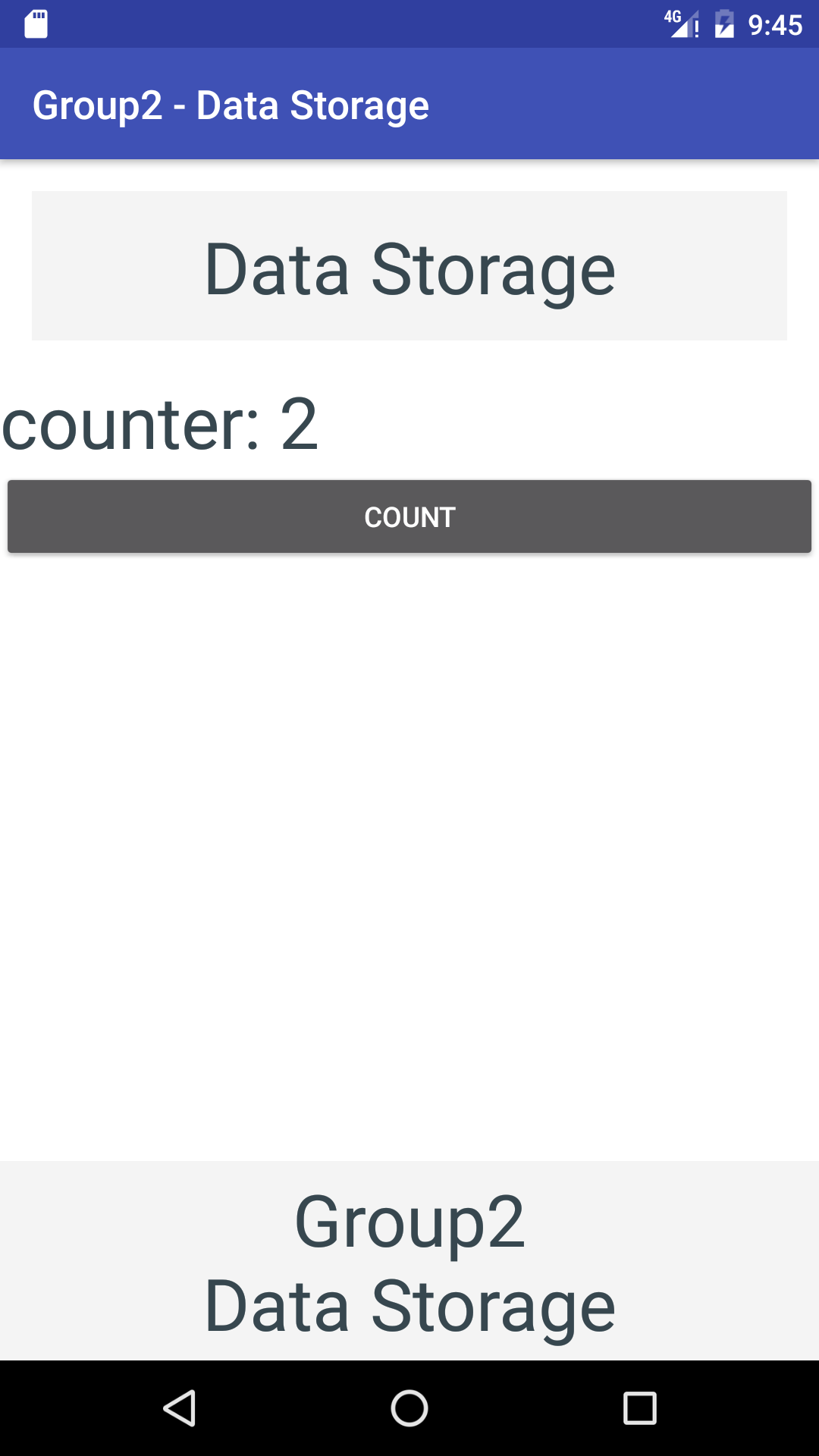
We will demonstrate this by creating a counter variable and increment it each time the Count button is pressed. We will also have an EditText and a TextView widget to see their default behavior.
Saving an activity’s state can be accomplished by a Bundle object(a data object that also uses name/value pairs). We use the onSaveInstanceState() callback to save the data and pull it out in the onRestoreInstanceState() callback.
Note that for Android to automatically save and restore the state of a view, it must have a unique ID (specified with the android:id= attribute in the layout). Beware; not all view types automatically save and restore the state of a view.
The onRestoreInstanceState() callback is not the only place where the state can be restored. It can also be done in the onCreate() method. Both methods receive the same Bundle instance named savedInstanceState . The restore code could be moved to the onCreate() method and it would work the same. But one catch is that the savedInstanceState bundle will be null if there is no data, such as during the initial creation of the activity. If the code is moved from the onRestoreInstanceState() callback, it is important to check to make sure that the data is not null, as follows:
if (savedInstanceState!=null) { mCounter = savedInstanceState.getInt(KEY_COUNTER); }
Below are screen shots showing the demos for saving an activity’s state. The first set of screenshots labelled “Saving state not implemented” illustrate the behavior of the activity’s state and its data when saving state has not been taken into consideration.
The other set of screenshots labelled “Saving state implemented” show the behavior of the activity’s state and its associated data when saving state has been taken into consideration during design.
Saving state not implemented


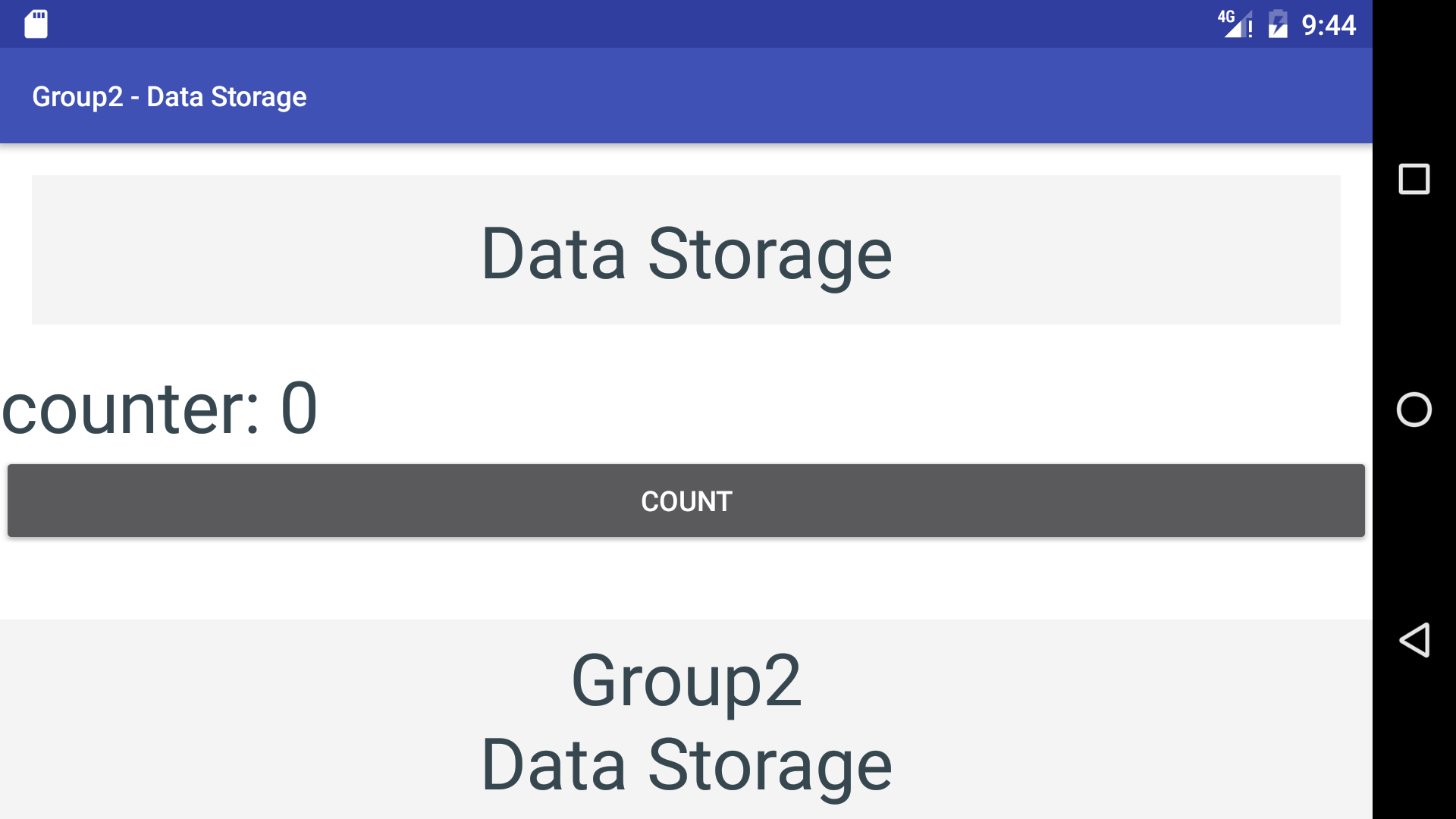
From the screen shots above, we can easily notice that when saving state is not implemented, if the activity needs to be recreated for some reason, the activity loses its previous data and the user is returned to an initial state. In some applications, this may not be a desirable effect. In our case, the count variable is the activity’s data that needs to be maintained.
When saving state is implemented, on recreation of an activity, the activity’s initial data is restored and manipulated appropriately. This can be seen from the screenshots below:
Saving state implemented

References:
- Android Application Development Cookbook, 2nd edition by Rick Boyer and Kyle Mew
- Android developer documentation available @ https://developer.android.com