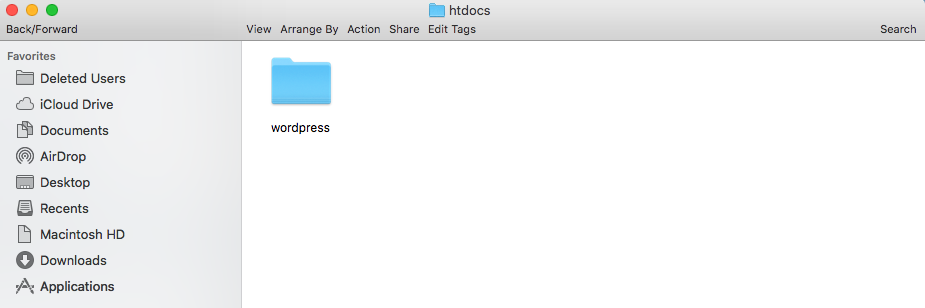
Now go to the MAMP directory in your computer’s system drive. Open “htdocs” folder (found inside the MAMP directory) and paste unpacked WordPress folder in there.
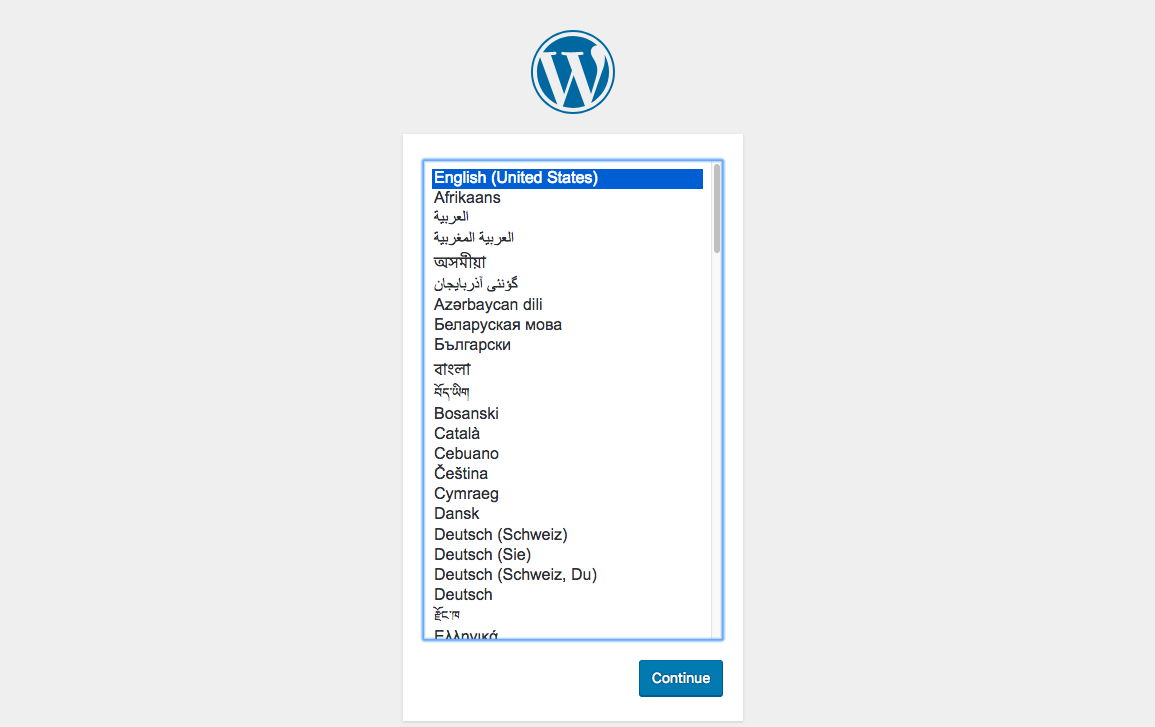
Type localhost/wordpress (name of your WordPress file in the htdocs) on your browser’s address bar and hit enter. Now perform a few more actions to complete the WordPress installation on localhost. Select language and click “Continue“.
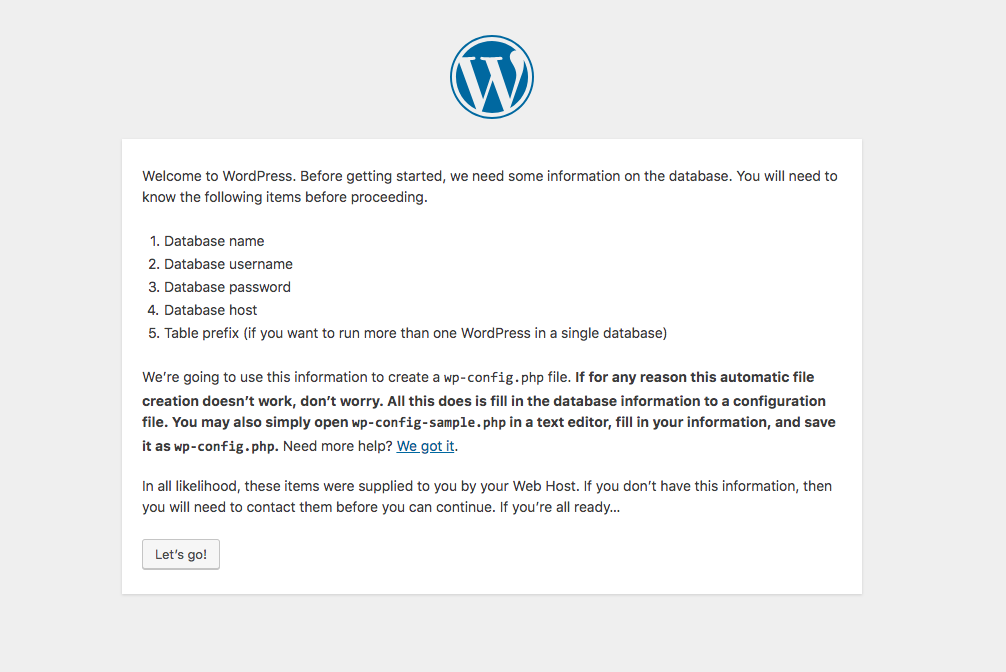
Click on “Let’s go!” button on the following page.
##Give all Required Information This page requires “Database Name” (the database you’ve created earlier in Step 3). Username and Password both will be “root” as mentioned in the MAMP installation success page.
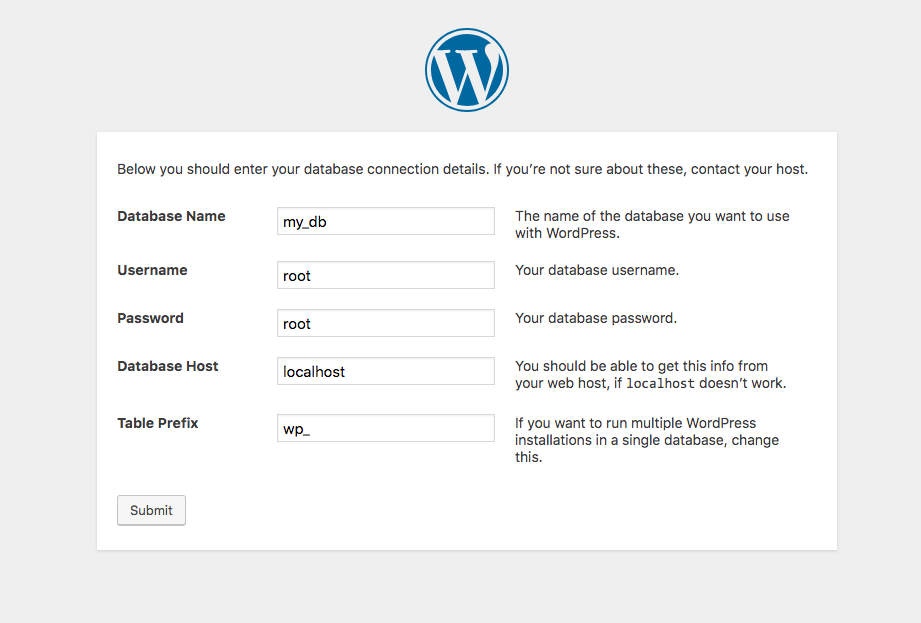
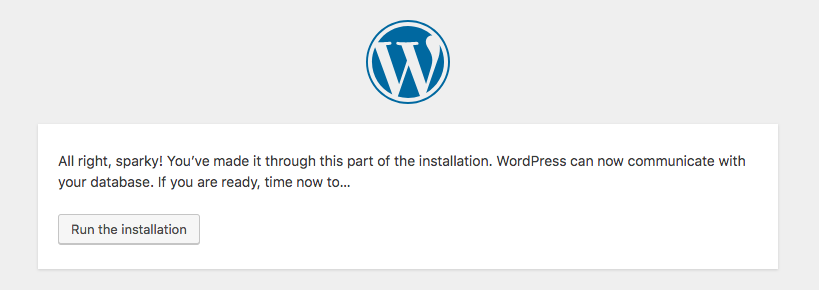
Hit the “Submit” button at the bottom and click “Run the installation” on the very next page.
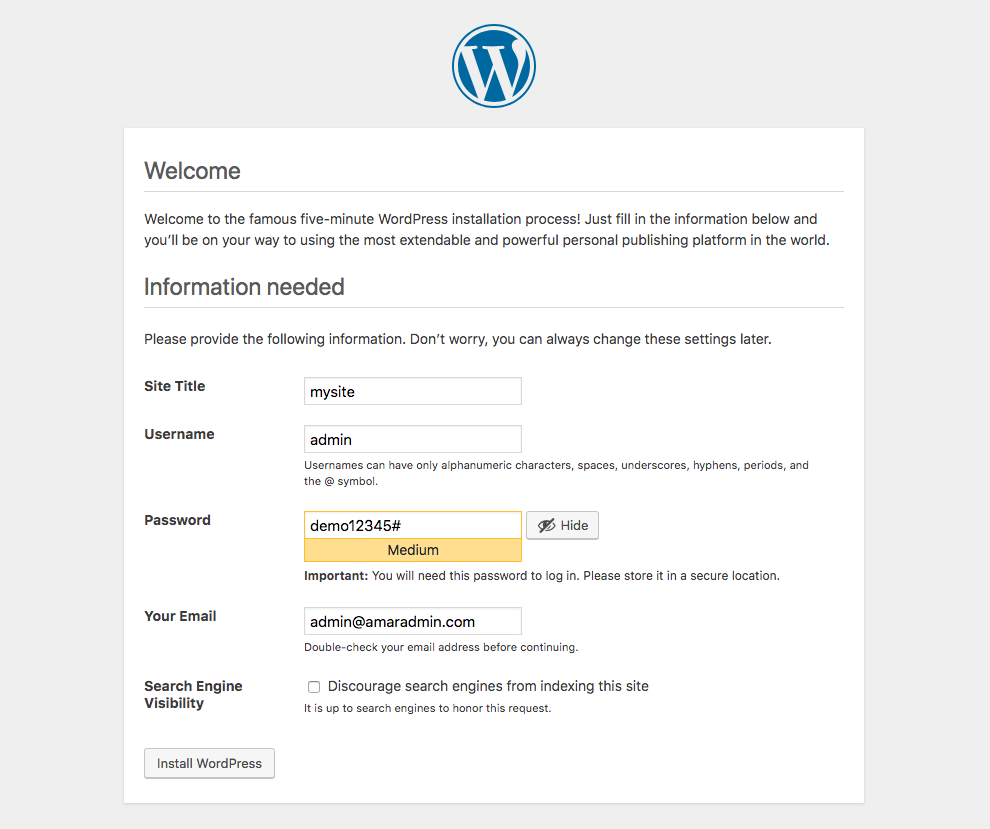
Give your site a title, username, password, and email address. Finally hit the “Install WordPress” button at the bottom.
You have successfully installed WordPress on your computer. Log into your locally hosted WordPress site now.