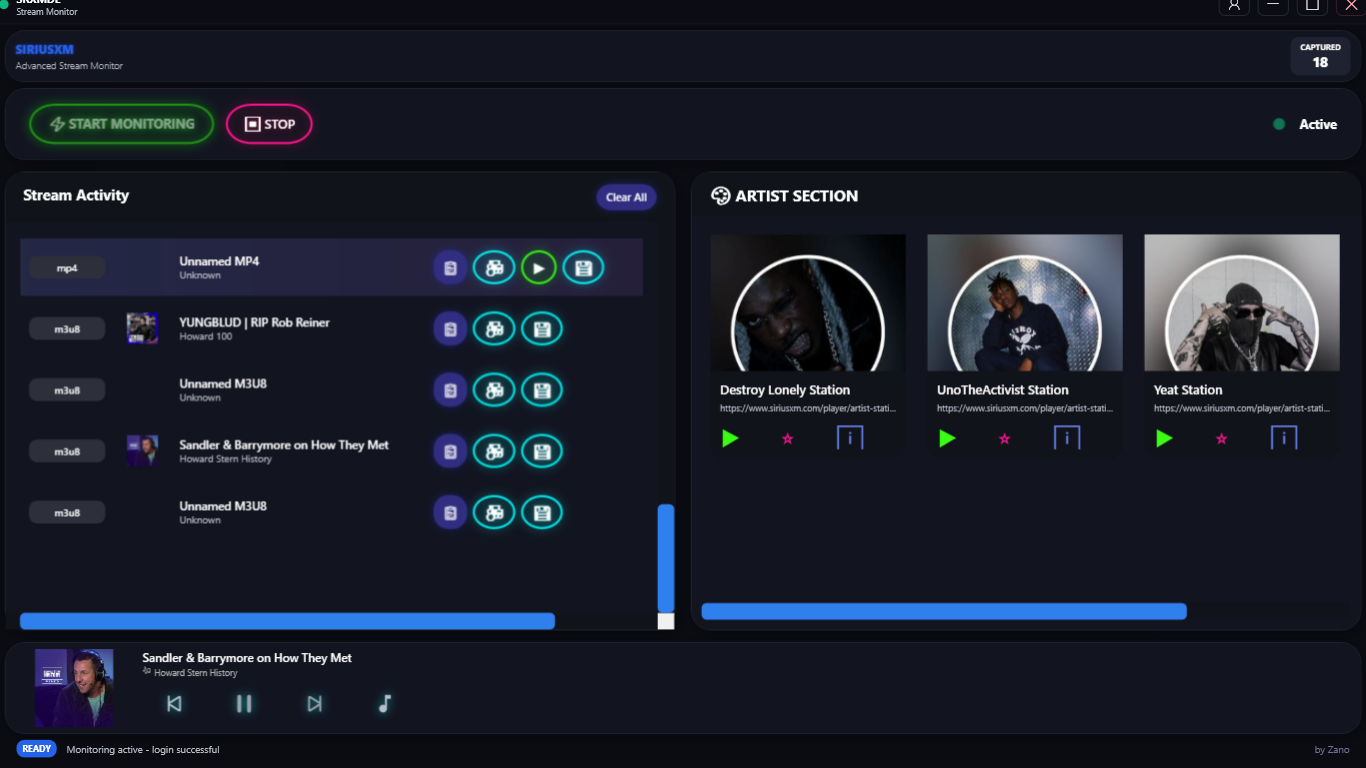
Application to Download Podcast & Music Content From Sirius XM 📻
- Active SiriusXM subscription 📻
- Google Chrome 🌐
- .NET 9 SDK (for build/run) 🟪
- ffmpeg ( for playback, downloads & conversions) ♻
- yt-dlp (For Podcast downloads & Video Downloads) ⬇
- pycryptodomex (optional but yt-dlp will download AES protected m3u8's faster if installed) ⚠
Download and install the .NET 9.0 SDK for Windows:
Verify installation:
dotnet --versionDownload and install yt-dlp for Windows:
- Option 1: Download the
.exefile from yt-dlp Releases and place it in your PATH - Option 2: Install via pip:
pip install yt-dlp
For faster AES-protected m3u8 downloads:
pip install pycryptodomexInstall ffmpeg for Windows:
- Option 1: Download from ffmpeg.org
- Option 2: Use Windows Package Manager:
winget install ffmpeg
After installing all prerequisites:
dotnet rundotnet build-
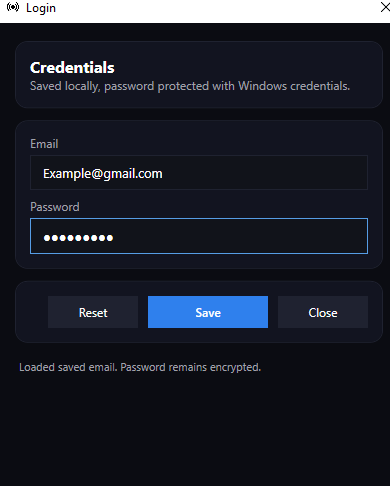
Enter your SiriusXM credentials in the login window. Your password will be saved as a hash for future use and security.

-
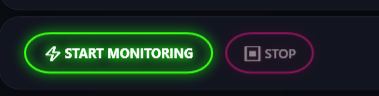
Launch the app and click Start Monitoring - a Chrome window will open.
-
After entering your credentials, start monitoring. The app will create a cookie file for automatic login on future sessions.
-
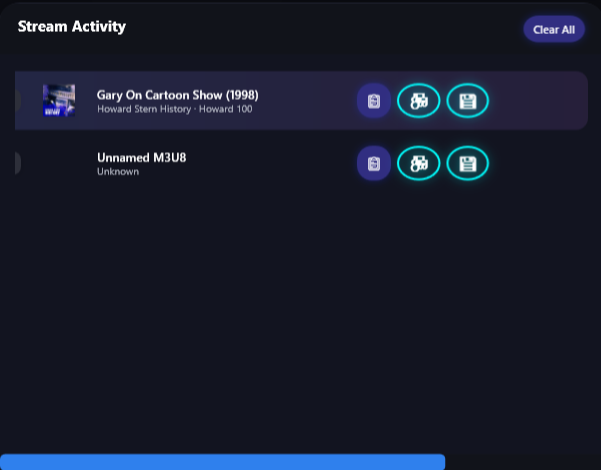
Once auto-logged in, simply use the app normally. Capture begins automatically - anything you play will be monitored and sent to the Stream Activity.
-
Captured streams will have the following action buttons:
- Copy URL: Copy the stream URL to your clipboard
- Download: Download the captured stream to your local storage
- Play: Play the stream directly in the app (Note: Some streams won't have this button due to AES encryption)
- Copy Metadata: Copy metadata from now playing stream information for streams with uncaptured metadata
-
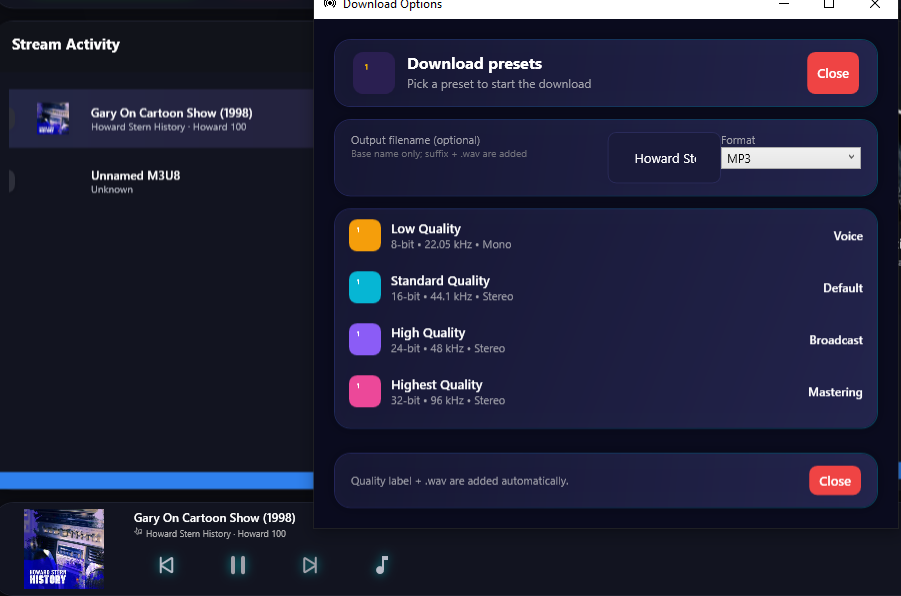
In the download window, you can:
- Select different audio quality options for audio streams
- For video streams, select MP4 format from the dropdown menu
-
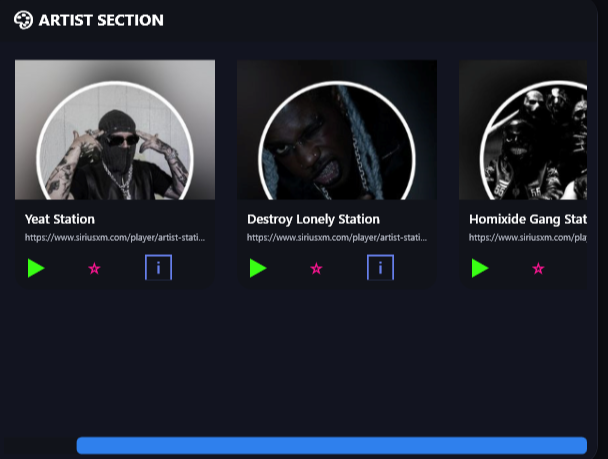
When you visit any artist page in SiriusXM, the artist will automatically appear in the Artist window for easy access and favoriting.
Currently Working & Improving on :
🛠Better Metadata Captures
🛠Full Channel Track list coming soon
🛠Mac OS Version
🛠CLI commands