

- Overview
- Prerequisites
- Installation
- Launching the Application
- Uninstallation
- Troubleshooting
- License
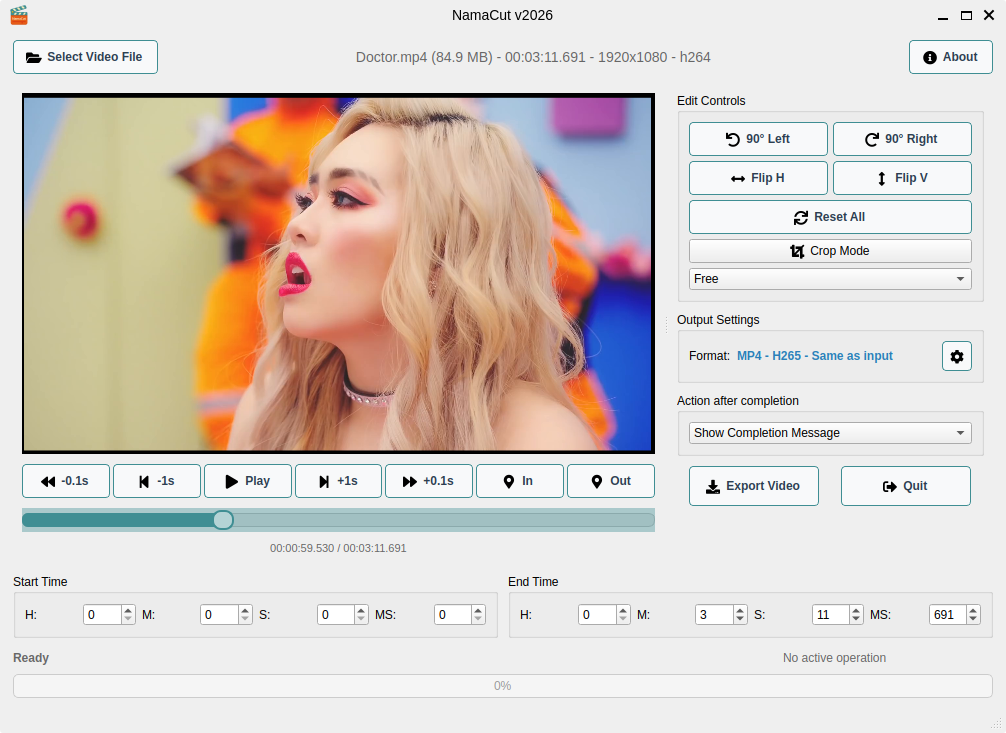
NamaCut is a simple, cross-platform video cutter and editor built with Python and PyQt5. It allows you to:
- Cut and trim video files
- Rotate, flip, and crop videos
- Export in various formats (MP4, MKV, WebM, MP3, AAC, FLAC)
- Process videos with FFmpeg in the background
Before installation, ensure you have:
- Python 3.8 or higher
- pip (Python package manager)
- FFmpeg (for video processing)
On Ubuntu/Debian, you can install prerequisites with:
sudo apt update
sudo apt install python3 python3-pip ffmpeg- Download or clone the NamaCut repository:
git clone https://github.com/abdulhalim/NamaCut.git
cd namacut- Make the installation script executable:
chmod +x install.sh- Run the installation script:
./install.shThe installer will:
- Check for Python 3 and install python3-venv if needed
- Create a Python virtual environment
- Install all required dependencies
- Create a desktop entry
- Add "Open with NamaCut" to the right-click context menu
- Set up file associations for video files
If you prefer manual installation:
- Create a virtual environment:
python3 -m venv venv- Activate the virtual environment:
source venv/bin/activate- Install dependencies:
pip install --upgrade pip
pip install -r requirements.txt- Make the start script executable:
chmod +x start.shYou can launch NamaCut in several ways:
- Search for "NamaCut" in your application menu/dashboard
- Click on the NamaCut icon
- Double-click the "NamaCut" shortcut on your desktop
./start.sh- Right-click on any video file (MP4, MKV, AVI, MOV, etc.)
- Select "Open with NamaCut" from the context menu
- Drag a video file and drop it onto the NamaCut window
./start.sh /path/to/video.mp4After installation, NamaCut is associated with these video formats:
- MP4 (.mp4, .m4v)
- MKV (.mkv)
- AVI (.avi)
- MOV (.mov, .qt)
- WebM (.webm)
- WMV (.wmv)
- FLV (.flv)
- MPEG (.mpeg, .mpg, .mpe)
- 3GPP (.3gp, .3g2)
- Ogg (.ogv, .ogg)
- Make the uninstall script executable (if not already):
chmod +x uninstall.sh- Run the uninstall script:
./uninstall.shThis will remove:
- The virtual environment
- Desktop menu entry
- Desktop shortcut
- Context menu entries
- File associations
- Remove the virtual environment:
rm -rf venv- Remove desktop entries:
rm -f ~/.local/share/applications/namacut.desktop
rm -f ~/Desktop/namacut.desktop
sudo rm -f /usr/share/applications/namacut.desktop- Remove context menu scripts:
rm -f ~/.local/share/nautilus/scripts/Open\ with\ NamaCut
rm -f ~/.local/share/kservices5/ServiceMenus/namacut.desktop- Update desktop database:
update-desktop-database ~/.local/share/applicationsSolution: Install Python 3.8 or higher:
sudo apt install python3Solution: Install python3-venv:
sudo apt install python3-venvSolution: Install FFmpeg:
sudo apt install ffmpegSolution:
- Log out and log back in
- Update icon cache:
sudo update-desktop-databaseSolution:
- Restart your file manager (nautilus, dolphin, thunar)
- Log out and log back in
- Run the context menu setup again:
./context-menu.shSolution: Reinstall using the install script:
./install.shSolution:
- Check dependencies:
pip list | grep -E "PyQt5|qtawesome|opencv"- Reinstall dependencies:
source venv/bin/activate
pip install --force-reinstall PyQt5 qtawesome opencv-pythonIf you want to contribute to NamaCut:
- Clone the repository:
git clone https://github.com/abdulhalim/NamaCut.git
cd namacut- Create and activate virtual environment:
python3 -m venv venv
source venv/bin/activate- Install development dependencies:
pip install -r requirements.txt
pip install pytest black flake8 mypy- Run tests:
pytest- Format code:
black .namacut/
├── install.sh # Installation script
├── start.sh # Launch script
├── uninstall.sh # Uninstallation script
├── main.py # Main application
├── requirements.txt # Python dependencies
├── namacut.svg # Application icon
├── namacut.xml # MIME type definitions
├── ui/ # User interface files
│ ├── main_window.py
│ ├── widgets.py
│ ├── dialogs.py
│ ├── media_player.py
│ ├── crop_widget.py
│ └── advanced_settings.py
├── core/ # Core functionality
│ ├── video_processor.py
│ ├── video_transformer.py
│ ├── settings_manager.py
│ └── utils.py
└── img/ # Images and icons
NamaCut saves output files in the following directories:
- Video files:
~/Videos/NamaCut_Output/ - Audio files:
~/Music/NamaCut_Output/
Files are automatically named to avoid overwriting existing files.
- Video Cutting: Precise cut/trim with millisecond accuracy
- Transformations: Rotate, flip, and crop videos
- Multiple Formats: Export to MP4, MKV, WebM, MP3, AAC, FLAC
- Quality Settings: Adjust resolution and compression
- Drag & Drop: Simple drag and drop interface
- Progress Tracking: Real-time export progress
- Presets: Quick access to common settings
- OS: Linux, macOS
- RAM: 2GB minimum, 4GB recommended
- Storage: 500MB free space
- Python: 3.8 or higher
- FFmpeg: Latest version recommended
For issues and questions:
- Check the troubleshooting section above
- Check console output for error messages
- Ensure all dependencies are installed
- Try reinstalling with
./install.sh
NamaCut is released under the MIT License. See LICENSE file for details.
Developed by Abdulhalim Pourdaryaei Website: https://pourdaryaei.ir
Note: After installation, you may need to log out and log back in for all context menu changes to take effect.