Developer: appsoftware.com






Install: AS Notes on VS Code Marketplace
AS Notes is a VS Code extension that turns your editor into a Personal Knowledge Management System (PKMS).
(Click for 1 minute Youtube video demo)
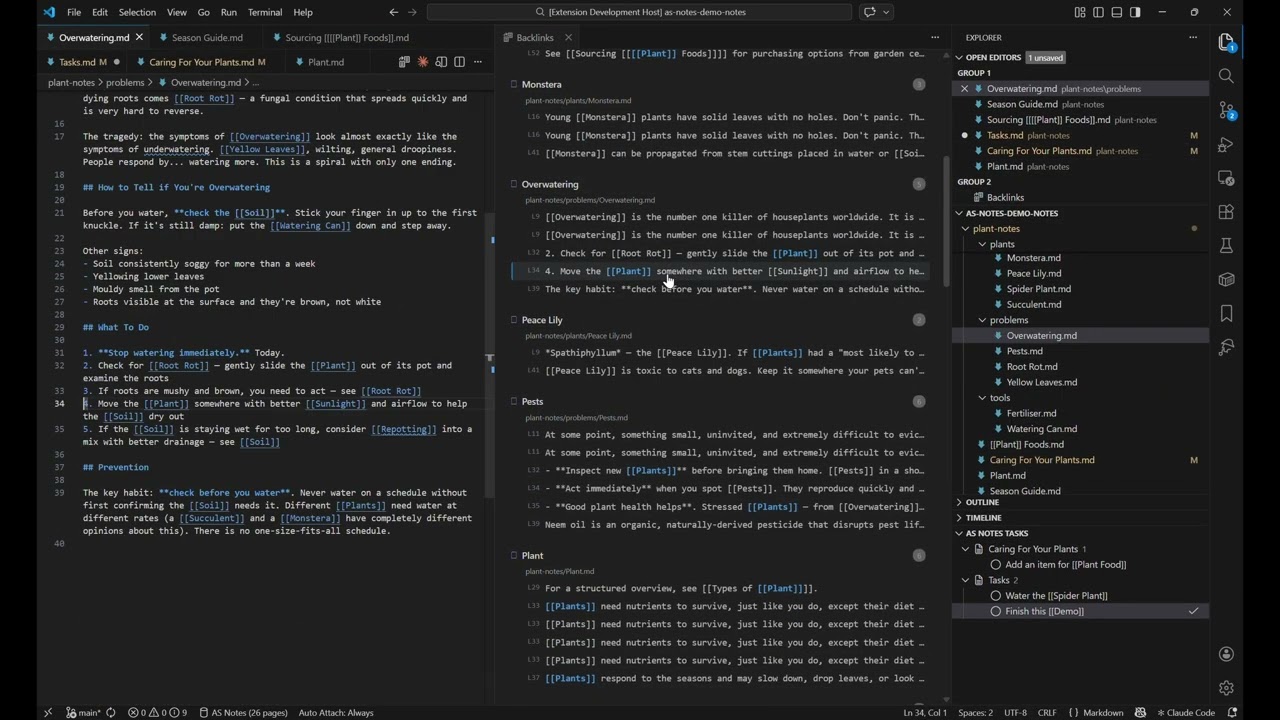
Using VS Code as your main notes application gives you so much for free, even before using AS Notes features:
- Cross platform + Web (via Workspaces)
- UI features such as Tabs, File Explorer, Themes
- Huge extension library that can be used along side AS Notes (Mermaid diagramming, Vim etc)
- AI Chat (GitHub CoPilot / Claude etc.) you can use to work with your notes
- Multiline editing Outliner functionality via
Ctrl + [ / ] - Code highlighting
- And all of the many features that VS Code has
- Privacy focused - does not send your data anywhere
- Version control friendly (e.g. Git)
- Lightweight indexing of your notes (local sqlite3 WASM)
- Automatic wikilink / file rename tracking
- Performant on large (~20k markdown files) knowledge bases
- Logseq / Roam / Obsidian style
[[wikilinks]]with nested link support e.g.[[[[AS Notes]] Page]] - Links resolve to the target page anywhere in your workspace
- Renaming a link updates the target file and all matching references
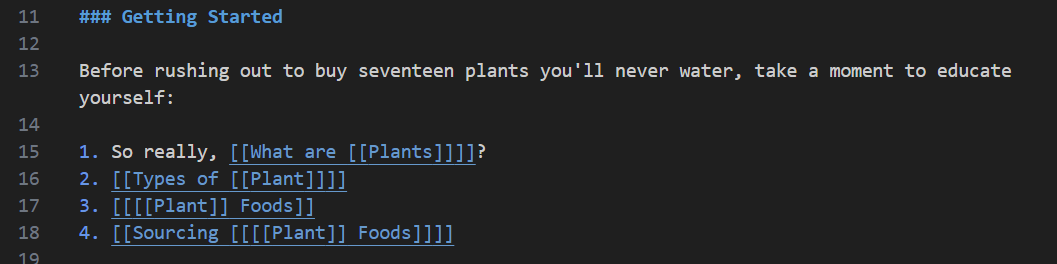
Toggle markdown TODOs with a keyboard shortcut:
- [ ] Marker for todo added
- [x] Marker for todo marked done
Marker for todo removed
Ctrl+Shift+Enter (Windows/Linux) / Cmd+Shift+Enter (macOS)
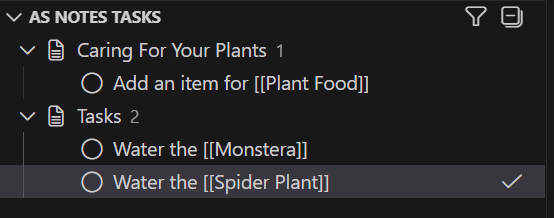
Add structured hashtag metadata anywhere in a task line to categorise and organise tasks. Tags are stripped from the displayed task text — only the clean description is shown.
| Tag | Description |
|---|---|
#P1 |
Priority 1 — Critical |
#P2 |
Priority 2 — High |
#P3 |
Priority 3 — Normal |
#W |
Waiting — task is blocked or waiting on someone/something |
#D-YYYY-MM-DD |
Due date — e.g. #D-2026-03-15 |
#C-YYYY-MM-DD |
Completion date — e.g. #C-2026-03-15 |
Tags can be placed anywhere on the task line:
- [ ] #P1 Fix the critical production bug
- [ ] #P2 #W Waiting on design sign-off for the new dashboard #D-2026-03-20
- [ ] #D-2026-03-10 Submit the quarterly report
Multiple tags can be combined. Only one priority tag is used — if more than one is present, the first wins.
The AS Notes activity bar icon opens the Tasks sidebar, which shows all tasks across your entire workspace.
Group By — choose how tasks are grouped:
| View | Description |
|---|---|
| Page | Tasks grouped alphabetically by source page |
| Priority | Tasks grouped by priority level (P1 → P2 → P3 → No Priority), sorted by due date within each group |
| Due Date | Tasks grouped into buckets: Overdue / Today / This Week / Later / No Due Date |
| Completion Date | Tasks grouped into buckets: Completed Today / This Week / Earlier / No Completion Date |
Filters:
- TODO ONLY — show only incomplete tasks (default on)
- WAITING ONLY — show only tasks tagged
#W - Filter by page — type to narrow tasks to pages whose name contains the search text (case-insensitive)
Ctrl+Alt+B (Windows/Linux) / Cmd+Alt+B (macOS)
Press Ctrl+Alt+J (Cmd+Alt+J on macOS) to create or open today's daily journal page.
Journal files are created as YYYY_MM_DD.md in a dedicated journals/ folder (configurable). New pages are generated from a journal_template.md template - edit it to add your own sections and prompts. The YYYY-MM-DD placeholder in the template is replaced with today's date on creation.
Note: Daily journal requires an initialised workspace (
.asnotes/directory). See Getting started.
Type / in any markdown file to open a quick command menu. The following commands are available:
| Command | Action |
|---|---|
| Today | Inserts a wikilink for today's date, e.g. [[2026_03_06]] |
| Date Picker | Opens a date input box pre-filled with today's date — edit the date or press Enter to insert it as a wikilink |
| Code (inline) | Inserts ` ` with the cursor placed between the backticks |
| Code (multiline) | Inserts a fenced code block with the cursor after the opening ``` — type the language identifier (e.g. js) then press Enter |
| Table | Prompts for column and row count, then inserts a formatted markdown table |
| Table: Add Column(s) | Prompts for count, then adds columns after the cursor's current column in the surrounding table |
| Table: Add Row(s) | Prompts for count, then adds rows after the cursor's current row in the surrounding table |
| Table: Format | Normalises all column widths in the surrounding table to the longest cell content |
| Table: Remove Row (Current) | Removes the row at the cursor (refuses header/separator) |
| Table: Remove Column (Current) | Removes the column at the cursor (refuses single-column tables) |
| Table: Remove Row(s) Above | Prompts for count, then removes data rows above the cursor (clamps to available) |
| Table: Remove Row(s) Below | Prompts for count, then removes rows below the cursor (clamps to available) |
| Table: Remove Column(s) Right | Prompts for count, then removes columns to the right of the cursor (clamps to available) |
| Table: Remove Column(s) Left | Prompts for count, then removes columns to the left of the cursor (clamps to available, preserves indent) |
Table commands are labelled (Pro) for free users. Pro users see clean names.
The following commands only appear in the slash menu when the cursor is on a task line (- [ ] or - [x]). Tags are inserted after the checkbox and after any existing hashtags already on the line.
| Command | Action |
|---|---|
| Task: Priority 1 | Inserts #P1 at the start of the task text. Replaces any existing priority tag (#P1–#P9) on the line |
| Task: Priority 2 | Inserts #P2, replacing any existing priority tag |
| Task: Priority 3 | Inserts #P3, replacing any existing priority tag |
| Task: Waiting | Toggles #W at the start of the task text (inserts if absent, removes if present) |
| Task: Due Date | Opens a date input pre-filled with today (YYYY-MM-DD). Confirms and inserts #D-YYYY-MM-DD at the start of the task text. Replaces any existing due date tag |
| Task: Completion Date | Opens a date input pre-filled with today (YYYY-MM-DD). Confirms and inserts #C-YYYY-MM-DD at the start of the task text. Replaces any existing completion date tag |
Priority and waiting tags toggle: issuing the same tag again removes it. Issuing a different priority replaces the existing one. Due date and completion date tags replace any existing tag of the same type.
The menu appears inline as you type and supports filtering — just keep typing to narrow the list. Press Escape or any non-matching key to dismiss and keep the / as-is.
Slash commands are suppressed inside fenced code blocks, inline code spans, and YAML front matter.
Drag files from your file manager onto a markdown editor, or paste images from the clipboard - VS Code's built-in markdown editor handles the copy and link insertion automatically.
AS Notes configures the built-in markdown.copyFiles.destination workspace setting so that dropped/pasted files are saved to a dedicated asset folder instead of next to your markdown file.
| Setting | Default | Description |
|---|---|---|
as-notes.assetPath |
assets/images |
Workspace-relative folder where dropped/pasted files are saved |
The setting is applied automatically when AS Notes initialises or the value changes. The destination folder is created by VS Code on first use.
Tips:
- Drag position indicator: Hold Shift while dragging a file to see a cursor position guide before releasing - useful for placing the link precisely within your text.
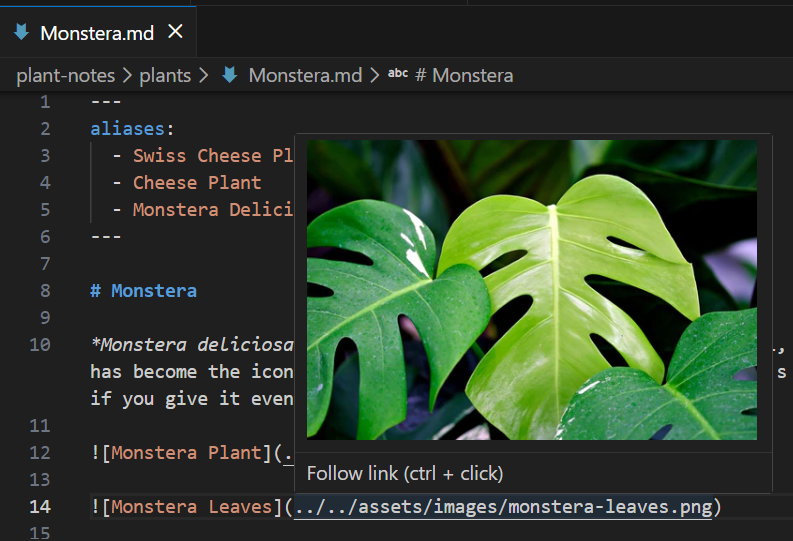
Hover over any image link in a markdown file to see a preview of the image inline. This is provided by VS Code's built-in markdown extension and requires no configuration - it works with both standard  links and dropped/pasted images.
AS Notes can work alongside knowledge bases created in Obsidian or Logseq due to similar file structures. Be aware there are format and behavioural differences differences however.
Enable Outliner Mode (as-notes.outlinerMode setting or the AS Notes: Toggle Outliner Mode command) to turn the editor into a bullet-first outliner. Every line begins with - and custom keybindings keep you in flow:
| Key | Action |
|---|---|
| Enter | Inserts a new bullet at the same indentation. Todo lines (- [ ]) continue as unchecked todos. |
| Tab | Indents the bullet one level (capped at one level deeper than the bullet above). |
| Shift+Tab | Outdents the bullet one level. |
| Ctrl+Shift+Enter | Cycles: plain bullet → - [ ] → - [x] → plain bullet. |
| Ctrl+V / Cmd+V | Multi-line paste: each clipboard line becomes a separate bullet. |
Code block completion works in all markdown files — outliner mode is not required.
When you type ``` (with optional language, e.g. ```javascript) and press Enter, AS Notes automatically inserts the closing ``` and places the cursor inside the block. On a bullet line the content is indented to match markdown list continuation.
The extension is aware of existing fence pairs: if the backticks are already balanced (i.e. there is a matching closing fence at the same indentation), Enter simply inserts a newline instead of a second skeleton.
In outliner mode, pressing Enter on a closing ``` line that belongs to a bullet code block inserts a new bullet at the parent's indentation.
A Pro licence unlocks premium features. Enter your licence key in VS Code settings under as-notes.licenceKey. When a valid key is active the status bar shows AS Notes (Pro).
To obtain a licence key, contact appsoftware.com.
Pro users can store sensitive notes in encrypted files. Any file with the .enc.md extension is treated as an encrypted note - it is excluded from the search index and never read as plain text by the extension.
Getting started with encryption:
- Run AS Notes: Set Encryption Key from the Command Palette. Your passphrase is stored securely in the OS keychain (VS Code SecretStorage) - it is never written to disk or settings files.
- Create an encrypted note with AS Notes: Create Encrypted Note (or AS Notes: Create Encrypted Journal Note for a dated journal entry).
- Write your note in the editor. When you want to lock it, run AS Notes: Encrypt [All|Current] Note(s) - all plaintext
.enc.mdfiles will be encrypted in place. - To read a note, run AS Notes: [All|Current] Note(s) - files are decrypted in place using your stored passphrase.
Encryption details:
- Algorithm: AES-256-GCM with a per-encryption random 12-byte nonce
- Key derivation: PBKDF2-SHA256 (100,000 iterations) from your passphrase
- File format: a single-line
ASNOTES_ENC_V1:<base64url payload>marker - used to help prevent accidental commits via a Git pre-commit hook.
Commands:
AS Notes: Set Encryption Key- save passphrase to OS keychainAS Notes: Clear Encryption Key- remove the stored passphraseAS Notes: Create Encrypted Note- create a new named.enc.mdfileAS Notes: Create Encrypted Journal Note- create today's journal entry as.enc.mdAS Notes: Encrypt All Notes- encrypt all plaintext.enc.mdfilesAS Notes: Decrypt All Notes- decrypt all encrypted.enc.mdfilesAS Notes: Encrypt Current Note- encrypt the active.enc.mdfile (reads unsaved editor content)AS Notes: Decrypt Current Note- decrypt the active.enc.mdfile (reads from disk)
Install from VS Code Marketplace
For a sample knowledge base, clone https://github.com/appsoftwareltd/as-notes-demo-notes and follow the instructions there to initialise.
AS Notes activates when it finds a .asnotes/ directory in your workspace root (similar to .git/ or .obsidian/). Without it, the extension runs in passive mode — commands show a friendly notification prompting you to initialise, and the status bar invites you to set up.
To initialise:
- Open the Command Palette (
Ctrl+Shift+P) - Run AS Notes: Initialise Workspace
This creates the .asnotes/ directory, builds a SQLite index of all markdown files, and activates all features. The index file (.asnotes/index.db) is excluded from git by an auto-generated .gitignore.
If the index becomes stale or corrupted, run AS Notes: Rebuild Index from the Command Palette. This drops and recreates the entire index with a progress indicator.
If the extension is in a bad state (e.g. persistent WASM errors after a crash), run AS Notes: Clean Workspace from the Command Palette. This:
- Removes the
.asnotes/directory (index database, logs, git hook config) - Releases all in-memory state and switches to passive mode
.asnotesignore at the workspace root is intentionally preserved. Run AS Notes: Initialise Workspace afterwards to start fresh.
When AS Notes initialises a workspace it creates a .asnotesignore file at the workspace root. This file uses .gitignore pattern syntax and controls which files and directories are excluded from the AS Notes index.
Default contents:
# Logseq metadata and backup directories
logseq/

# Obsidian metadata and trash directories
.obsidian/
.trash/
Patterns without a leading / match at any depth - logseq/ excludes logseq/pages/foo.md and vaults/work/logseq/pages/foo.md equally. Prefix with / to anchor a pattern to the workspace root only (e.g. /logseq/).
Edit .asnotesignore at any time. AS Notes watches the file and automatically re-scans the index when it changes - newly ignored files are removed from the index and un-ignored files are added.
Note:
.asnotesignoreis a user-editable, version-controlled file. AS Notes will never overwrite it after initial creation.
Every [[wikilink]] in a markdown file is highlighted in blue. When your cursor is inside a link, that specific link is highlighted with a brighter blue, bold, and underlined - so you always know which link you're about to interact with.
Links can contain other links:
[[Specific [[Topic]] Details]]
[[Specific [[[[Topic]] Variant]] Details]]
This creates three navigable targets:
| You click on... | You navigate to... |
|---|---|
[[Topic]] |
Topic.md |
[[Specific or Details]] (the outer portions) |
Specific [[Topic]] Details.md |
[[[[Topic]] Variant]] (the outer portions) |
[[Topic]] Variant.md |
Nesting works to arbitrary depth. The extension always identifies the innermost link under your cursor for highlighting, hover, and click targets.
Ctrl+Click (Cmd+Click on macOS) on any wikilink to open the target .md file. Links resolve globally across the workspace (see Subfolder link resolution).
Navigating to a page that doesn't exist creates it automatically, so you can write forward-references before the target page exists.
Hover over any wikilink to see:
- The target filename (e.g.
My Page.md) - Whether the file already exists or will be created on click
- The number of backlinks (other pages that link to this target)
When you edit a wikilink's text and move your cursor away (or switch files), AS Notes detects the change and offers to:
- Rename the corresponding
.mdfile (if it exists) - Update every matching link across all markdown files in the workspace
A single confirmation dialog covers all affected nesting levels. For example, editing [[Inner]] inside [[Outer [[Inner]] text]] offers to rename both the inner and outer pages.
You can decline - the link text change is kept but files and other links are left untouched.
[[my page]] resolves to My Page.md regardless of OS. On case-sensitive filesystems (Linux), a directory scan finds the match. On Windows and macOS the filesystem handles it natively.
Invalid filename characters (/ ? < > \ : * | ") are replaced with _:
[[What is 1/2 + 1/4?]] → What is 1_2 + 1_4_.mdDefine alternative names for a page using YAML front matter at the top of any markdown file:
---
aliases:
  - Short Name
  - Another Name
---
Or inline array style:
---
aliases: [Short Name, Another Name]
---
Linking to [[Short Name]] or [[Another Name]] navigates to the page that declares those aliases - no extra file is created.
- Hover tooltips show alias resolution:
Short Name.md → ActualPage.md - Rename tracking is alias-aware - editing an alias link offers to update front matter and all matching references
- Backlink counts include both direct and alias references
- Alias values are plain strings; accidental
[[/]]brackets are stripped automatically
Wikilinks resolve globally across the workspace, not just in the current directory. The extension uses the persistent index to find matching files anywhere in the folder tree.
Resolution order:
- Direct filename match -
[[My Page]]findsMy Page.mdanywhere in the workspace - Alias match - if no file matches, check page aliases
- Auto-create - if nothing matches, create the file in the same directory as the source
Disambiguation - when multiple files share the same name (e.g. notes/Topic.md and archive/Topic.md):
- A file in the same directory as the source always wins
- Otherwise, the closest folder is preferred (measured by directory distance)
Type [[ in any markdown file to trigger autocomplete, listing all indexed pages and aliases. The list filters as you type.
- Page suggestions show the page name (without
.md), with folder paths for disambiguation when names collide - Alias suggestions show the alias with an arrow to the canonical page (e.g.
→ ActualPage) - Auto-close - selecting a suggestion inserts the name and appends
]] - Nested wikilinks -
[[inside an unclosed[[...starts a new autocompletion for the inner link - Completions are suppressed inside front matter blocks
AS Notes maintains a SQLite database (.asnotes/index.db) that indexes all markdown files in the workspace. The index tracks:
- Pages - file paths, filenames, titles (extracted from the first
# heading) - Links - every wikilink in every file, with line, column, nesting depth, and parent references
- Aliases - alternative names declared in YAML front matter, with sanitised filenames
- Backlinks - reverse lookups for hover tooltips (including alias references)
The index is kept up-to-date automatically:
- On file save, create, delete, or rename
- On editor switch (captures unsaved edits)
- Via a configurable periodic background scan
Press Ctrl+Shift+Enter (Cmd+Shift+Enter on macOS) on any line in a markdown file to cycle through todo states:
| Current state | After toggle |
|---|---|
buy milk |
- [ ] buy milk |
- [ ] buy milk |
- [x] buy milk |
- [x] buy milk |
buy milk |
- List-aware:
- some textbecomes- [ ] some text(no re-wrapping) - Indentation preserved: works correctly on indented/nested lines
- Multi-cursor: each cursor's line is toggled independently
- Configurable keybinding: search for "AS Notes: Toggle Todo" in Keyboard Shortcuts (
Ctrl+K Ctrl+S)
The AS Notes Tasks panel appears in the Explorer sidebar when the workspace is initialised. It provides a tree view of all todo items across your markdown files, grouped by page.
- Show TODO only (default: on) - filters the list to show only unchecked (
- [ ]) tasks. Toggle this with the filter icon in the panel title bar or via the AS Notes: Toggle Show TODO Only command. - Click to navigate - clicking a task opens the file and scrolls to the exact line.
- Inline toggle - each task has a check button that toggles its done/todo state directly from the panel, without stealing focus from your active editor.
- Keyboard shortcut - press
Ctrl+Alt+T(Cmd+Alt+T on macOS) to toggle the task panel's visibility. - Live sync - the panel refreshes automatically on file save, edit, create, delete, rename, todo toggle, and periodic background scans.
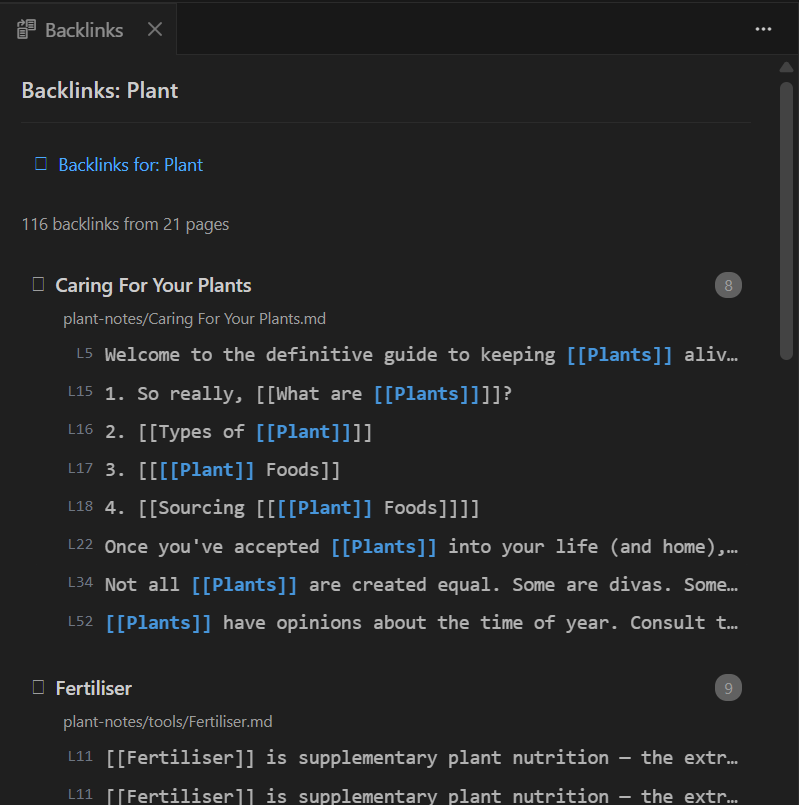
The Backlinks panel shows all incoming links to a target page. Open it with Ctrl+Alt+B (Cmd+Alt+B on macOS) for the active file, or right-click any wikilink and choose "View Backlinks" to see backlinks for that specific page (including forward references to pages that don't exist yet).
Every backlink is displayed as a chain - the full outline context path from root to the link. A standalone mention (with no outline nesting) is simply a chain of length 1.
The panel supports two view modes, toggled via a button in the panel header:
- Flat by page (default) - all backlink instances sorted alphabetically by source page name. Gives a linear timeline view where journal files sort chronologically.
- Grouped by chain - backlinks grouped by their chain pattern (the sequence of page names), with collapsible headers. Useful for concept-based exploration.
The default mode is configured via as-notes.backlinkGroupByChain (default false).
A separate toggle controls context verbosity - compact (single-line, truncated) or wrapped (full text visible). Default configured via as-notes.backlinkWrapContext (default false).
- Pattern grouping - backlinks are grouped by their chain pattern (e.g. all
[[Project]] → [[Tasks]] → [[NGINX]]from different files appear in one group). - Standalone mentions - direct
[[wikilink]]references appear as single-link chains, sorted first. - Outline context - if a wikilink is indented below another wikilink, the full hierarchy is shown as a chain (e.g.
Page A → Page B → Page C), with each link clickable. - Per-link line numbers - each chain link shows its line number (e.g.
[L12]) for precise navigation. - Line context - each chain instance shows the surrounding line text with the wikilink highlighted, giving immediate context without opening the file.
- Case-insensitive grouping -
[[server]]and[[Server]]produce the same chain pattern.
Right-click any wikilink in the editor to open backlinks for that specific page:
- Works with aliases - if the wikilink targets an alias, backlinks for the canonical page are shown.
- Works with forward references - pages that don't exist yet still show any incoming links.
Common features:
- Alias-aware - includes links that target the page via its aliases, not just direct filename references.
- Live sync - the panel auto-updates when you switch files, save, or when the index changes.
- Editor-side display - opens beside your active editor, giving you a spacious view of backlink context.
- Collapsible groups - click a chain group header to expand or collapse its instances.
Press Ctrl+Alt+J (Cmd+Alt+J on macOS) to create or open today's daily journal. The extension creates a dated markdown file in a dedicated journal folder - one file per day.
- Filename format:
YYYY_MM_DD.md(e.g.2026_03_02.md) - Journal folder: defaults to
journals/(configurable viaas-notes.journalFolder) - Template-based: new files are created from
journal_template.md, withYYYY-MM-DDreplaced by the current date. Edit the template to customise future pages. - Auto-setup: the journal folder and default template are created on first use
- Instant indexing: new journal files are indexed immediately for wikilink completion and backlinks
- Idempotent: pressing the shortcut again on the same day opens the existing file
The AS Notes Kanban sidebar and editor panel let you manage work visually with cards organised into lanes.
A workspace can contain any number of named boards, stored as plain files in a kanban/ directory at the workspace root. Each board has its own lanes and set of cards.
- Create a board — run AS Notes: Create Kanban Board from the Command Palette and enter a name. The first board is selected automatically on activation.
- Switch board — type in the board-switcher field in the sidebar to filter and select from existing boards. The editor panel opens automatically.
- Rename board — click Rename in the sidebar board header, or run AS Notes: Rename Kanban Board.
- Delete board — click Delete in the sidebar board header, or run AS Notes: Delete Kanban Board. Requires confirmation; all cards and assets are removed.
Each board starts with three lanes: TODO, DOING, and DONE. TODO and DONE are protected and cannot be removed or renamed.
In the editor panel:
- Add lane — click + Lane in the board header.
- Rename lane — click the pencil icon on any non-protected lane header.
- Remove lane — click the × button; if the lane contains cards a confirmation is shown and cards are deleted along with it.
- Reorder lanes — drag a lane header to a new position.
Cards are the primary unit of work. Each card is stored as a Markdown file with YAML front-matter for structured fields (title, lane, priority, assignee, labels, due date) and a Markdown body for free-form description. This means every card is a readable .md file you can open, edit, and diff with standard tools.
- Create card — click + Card in any lane, or run AS Notes: New Kanban Card.
- Move card — drag a card between lanes, or use the lane drop-down in the card editor.
- Open card editor — click a card to open an inline modal with all fields editable.
- Delete card — click the trash icon in the card editor.
- Open card file — click the Open File button in the card editor to open the Markdown file directly.
Priority levels: critical · high · medium · low · none
Each card has a log of timestamped entries. Type in the entry field at the bottom of the card modal and press Add Entry (or Ctrl+Enter). Entries show the author name (optional) and date in reverse-chronological order.
Files can be attached to a card. In the card editor, drag and drop a file onto the attachment area, or click Add Files. Images render as thumbnails; other files show as named links. Clicking a file opens it in VS Code. Assets are stored in kanban/<board>/assets/<card-id>/.
A size warning is shown for files exceeding as-notes.kanbanAssetSizeWarningMB (default: 10 MB).
All kanban data is plain-text, version-control friendly, and human-readable. Board configuration uses YAML; cards are Markdown files with YAML front-matter:
kanban/
  <board-slug>/
    board.yaml              ← board name, lanes, users, labels
    card_YYYYMMDD_HHmmssfff_<id>_<slug>.md   ← card (front-matter + body)
    assets/
      <card-id>/
        <filename>
A typical card file looks like:
---
title: Implement search
lane: doing
priority: high
assignee: gareth
labels:
  - backend
  - v2
dueDate: "2026-03-20"
created: "2026-03-12T10:00:00.000Z"
updated: "2026-03-13T09:15:00.000Z"
---
Acceptance criteria:
- Full-text index across all notes
- Results ranked by relevance

## entry 2026-03-13T09:00:00.000Z
Started on the indexing module today.
Front-matter holds the structured fields; the Markdown body is the card description. Entries (timestamped comments) are appended as ## entry <ISO-timestamp> sections, keeping the entire card history in one diffable file.
| Command | Description |
|---|---|
| AS Notes: Open Kanban Board | Open the editor panel for the current board |
| AS Notes: New Kanban Card | Open the editor panel with the create-card modal pre-opened |
| AS Notes: Switch Kanban Board | Switch to a board by slug (used internally by the sidebar) |
| AS Notes: Select Kanban Board | Pick a board from a quick-pick list |
| AS Notes: Create Kanban Board | Create a new board |
| AS Notes: Rename Kanban Board | Rename the current board |
| AS Notes: Delete Kanban Board | Delete the current board and all its data |
| Setting | Default | Description |
|---|---|---|
as-notes.periodicScanInterval |
300 |
Seconds between automatic background scans for file changes. Set to 0 to disable. Minimum: 30. |
as-notes.journalFolder |
journals |
Folder for daily journal files, relative to workspace root. |
as-notes.licenceKey |
(empty) | AS Notes Pro licence key. Scope: machine (not synced). |
as-notes.enableLogging |
false |
Enable diagnostic logging to .asnotes/logs/. Rolling 10 MB files, max 5. Requires reload after changing. Also activated by setting the AS_NOTES_DEBUG=1 environment variable. |
The extension activates for files with .md and .markdown extensions.
A wikilink is any text enclosed in double square brackets:
See [[Page Name]] for details.The text between the brackets becomes both the display text and the page name. The target file is Page Name.md in the same directory.
Wikilinks can be nested by adding more bracket pairs:
[[Outer [[Inner]] text]]The parser uses a stack-based bracket matching algorithm. Each pair of [[ and ]] that balances correctly forms a valid wikilink. See docs/TECHNICAL.md for a detailed explanation of the parsing algorithm and edge cases.
It has been observed that the VS Code editor can feel slower when the directory is under management by some sync tools (e.g. MS OneDrive, Google Drive, Dropbox etc).
AS Notes directories can be managed via sync, though Git is recommended as it does not watch files like the sync tools do and has full conflict resolution features.
The backlinks panel shows this message when the current file is not in the AS Notes index. Common causes:
- VS Code
files.exclude/search.excludesettings - AS Notes usesvscode.workspace.findFiles()to discover markdown files, which respects these VS Code settings. Files in excluded folders (e.g.logseq/version-files/) are silently omitted from the scan and will never be indexed. Check Settings → Files: Exclude and Settings → Search: Exclude if a file you expect to be indexed is missing. .asnotesignorepatterns - Files matching patterns in.asnotesignoreat the workspace root are excluded from the index. See Excluding files from the index above.- File not yet saved - New unsaved files are not indexed until they are saved to disk for the first time.
To resolve, check your workspace settings and .asnotesignore file. If the file should be indexed, ensure it is not matched by any exclusion pattern, then run AS Notes: Rebuild Index from the Command Palette.
The repository is structured as a monorepo with three packages:
| Package | Description |
|---|---|
common/ |
Shared wikilink parsing library (Wikilink, WikilinkService, MarkdownItWikilinkPlugin) |
vs-code-extension/ |
The VS Code extension |
html-conversion/ |
CLI utility that converts an AS Notes notebook (markdown + wikilinks) to static HTML |
Documentation source lives in docs-src/ (an AS Notes workspace). The html-conversion tool converts it to docs/.
cd vs-code-extension
npm install
npm run build    # Build the extension
npm run watch    # Watch mode (rebuilds on changes)
npm test         # Run unit tests
npm run lint # Type-checkcd html-conversion
npm install
npm run build
npm run convert -- --input ../docs-src/pages --output ../docsThe conversion:
- Scans the input directory for
.mdfiles - Resolves
[[wikilinks]]to relative.htmllinks - Generates a
<nav>sidebar on each page - Creates placeholder pages for missing wikilink targets with a "This page has not been created yet" message
- Wipes the output directory before each run
Styling (optional):
| Flag | Description |
|---|---|
--stylesheet <url> |
Injects a <link rel="stylesheet"> into every page's <head>. Repeatable; tags appear in order. Accepts CDN URLs or relative paths (e.g. docs.css). |
--asset <file> |
Copies a local file into the output directory. Use with --stylesheet to reference local CSS by filename. Repeatable. |
Example with github-markdown-css and a custom local stylesheet:
npm run convert -- \
  --input ../docs-src/pages \
  --output ../docs \
  --stylesheet https://cdn.jsdelivr.net/npm/github-markdown-css/github-markdown-light.css \
  --stylesheet docs.css \
  --asset ../docs-src/docs.css
Content is always wrapped in <article class="markdown-body">, making it natively compatible with github-markdown-css.
In CI, the build-docs job runs the same steps automatically on push/PR to main (see .github/workflows/ci.yml).
Press F5 in VS Code to launch the Extension Development Host with the extension loaded.
The debug version takes precedence over the marketplace install, so both can coexist.
VS Code remembers the last folder opened in the Extension Development Host. The demo knowledge base is designed to cover common usage scenarios.
Unit tests use vitest and cover the wikilink parser, offset-based lookup, segment computation, index service CRUD, title extraction, rename detection data flow, and nested link indexing. Run with npm test.
Releases are published to the VS Code Marketplace manually, then a GitHub Release is created automatically when a version tag is pushed.
Step 1 - bump the version
Update version in package.json and add an entry to CHANGELOG.md.
Step 2 - publish to the VS Code Marketplace
npm run build
npx @vscode/vsce package
npx @vscode/vsce login appsoftwareltd   # enter PAT token if auth expired
npx @vscode/vsce publish
Step 3 - tag and push
git add .
git commit -m "Release v2.2.1"   # change version
git tag v2.2.1                   # change version
git push origin main --tags
Pushing the tag triggers the Release workflow, which creates a GitHub Release automatically with auto-generated release notes and the VS Code Marketplace install link.
An agent skill is available for AS Notes. Install it to give your AI assistant (GitHub Copilot, Claude, etc.) full knowledge of the extension — wikilink syntax, commands, settings, keyboard shortcuts, and more.
npx skills add appsoftwareltd/as-notes/skills/as-notes-agent-useOnce installed, your AI assistant can answer questions about AS Notes, help configure settings, explain features, and assist with your notes workflow.
This software is provided "as is", without warranty of any kind, express or implied. The authors and contributors accept no responsibility or liability for any loss, corruption, or damage to data, files, or systems arising from the use or misuse of this extension, including but not limited to operations that create, rename, move, or modify files in your workspace.
You are solely responsible for maintaining backups of your data. It is strongly recommended to use version control (e.g. git) or another backup strategy for any notes or files you manage with this extension.
This extension is licensed under the Creative Commons Attribution-NonCommercial-ShareAlike 4.0 International License (CC BY-NC-SA 4.0).
You are free to use, share, and adapt this extension for non-commercial purposes with attribution. Commercial use requires a separate commercial license. See LICENSE for full terms or contact us https://www.appsoftware.com/contact.