Frequently Asked Questions
To find and install the mod, download the .zip file from the most recent post in the updates channel. Open the .zip file, and copy the .json (and optionally the .png thumbnail) into your TTS saves directory. The mod can then be loaded from the Games > Save & Load screen like any saved game.
Location of the TTS Saves Directory:
- Windows: Documents > My Games > Tabletop Simulator > Saves
- Mac: Library > Tabletop Simulator > Saves (in Finder open the Go menu, hold option and select "Library")
- Linux: ~/.local/share/Tabletop Simulator/Saves
Why are the images loading as solid black or as yellow/black stripes? Why are some objects not loading at all?
That's probably a problem with the mod cache. To fix this, go to Options > Configuration, turn off "Mod Caching", and reload the mod. If it fixes the problem, turn mod caching back on.
This is a TTS bug. To fix it, have everyone stay in the game and have the host reload the save or rewind.
In the upper-left corner of the table, you can find the Playercard Panel. It contains buttons for these ("Other" section).
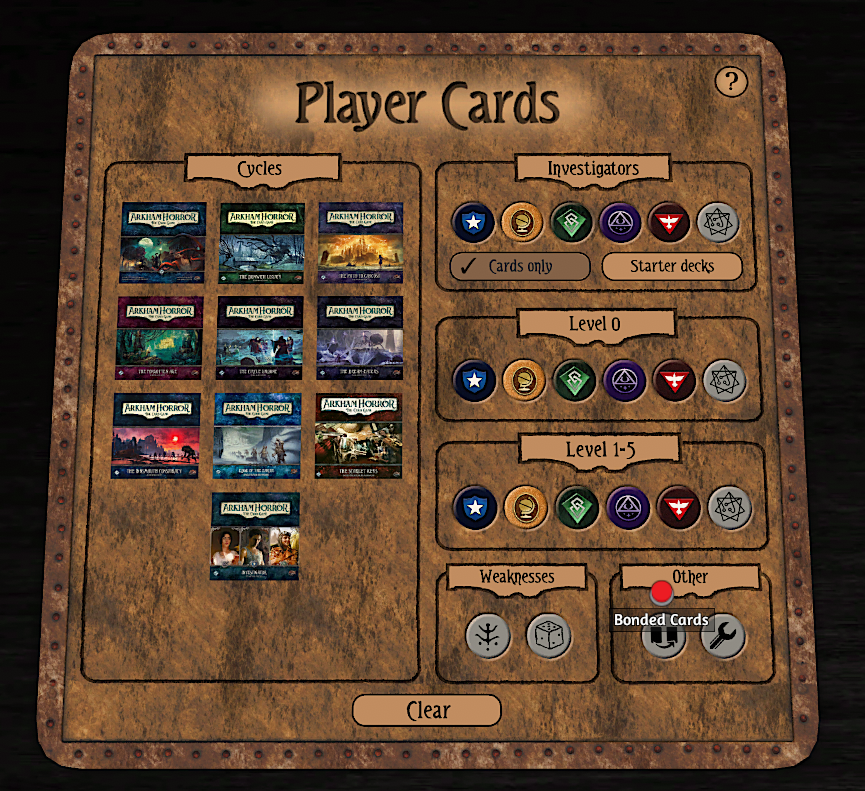
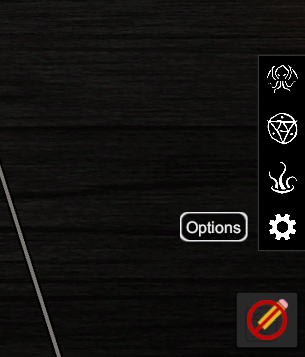
Chances are that it is spawnable via the option panel. It can be found in the bottom right corner (gear icon). Alternatively, they might be placed in the barrel in the bottom right corner of the table.
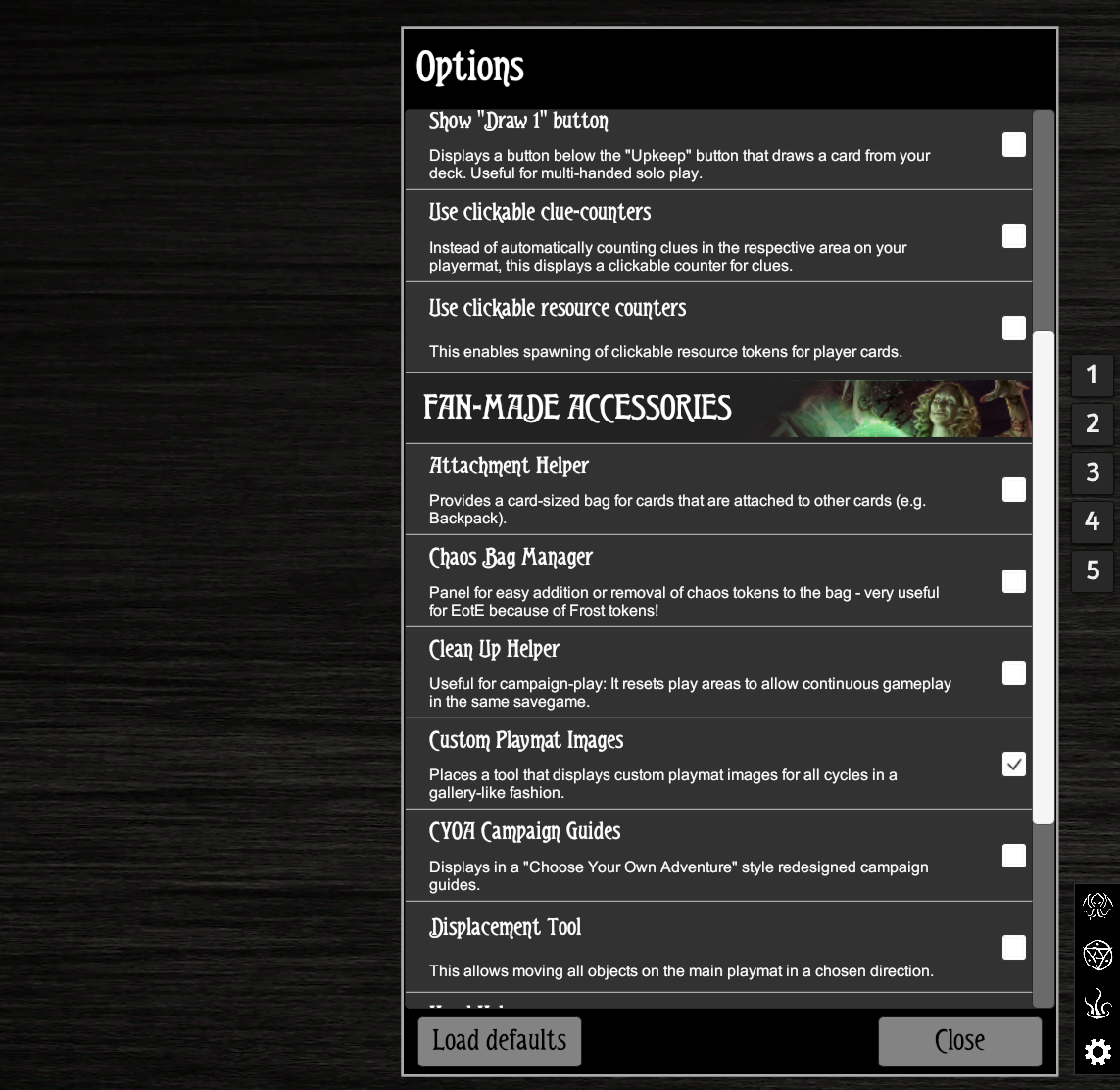
Yes. Open "Play Area Image Gallery" and select a fitting image. At the top you will find the option to supply your own image if you wish so.


Note that the "Option Panel" also has an option to automatically pick an image when a scenario is placed.

The size can not be changed, but the image / texture can.
When an investigator card is placed in the investigator area of a player mat, the player mat image will automatically change to a class-specific image (this can be disabled in the options).
You can also manually choose a specific texture via the player mat specific options (click the gear icon on the left or right of the player mat, near your set-aside area).
Additionally, the asset slots that are displayed on the mat can be edited by enabling "Slot Edit Mode" in that menu.

To attach two cards to each other, take the two cards you want attached and position them. Then go to the sidebar on the left side of the screen, go to the Combine tool, and click Attach. Click and hold on the bottom card, and let go over the top card to attach the bottom card to the top one. Be sure to change back to the grab tool. To reverse this, go back to Attach, click and hold on the card and let go over blank table space.
There's some very new player cards that are supposed to be in the mod, but they aren't with the other cards?
If they're incredibly recent, leaked, or print-and-play beta cards, they might be placed in the "Additional Cards" box or available via a sepearate downloadable item in the "Downloadable Content" menu. If you can't find them, feel free to ask around and someone will be able to help you.
