

Sync and back up your OpenClaw agent workspace to cloud storage via rclone.
Sync your workspace to Dropbox, Google Drive, OneDrive, S3, or 70+ providers with mailbox, mirror, or bisync modes. Back up your entire agent system — workspace, config, sessions, memory — as encrypted snapshots to S3, R2, B2, or any rclone backend.
| Feature | What it does | Cost |
|---|---|---|
| Sync | Live mirror of your workspace to/from cloud storage. Three modes: mailbox (safest), mirror, bisync. | Zero LLM cost — pure file ops |
| Encrypted Backup | Streaming encrypted snapshots of your entire agent system to your own bucket. Automatic retention. | Zero LLM cost, zero extra disk |
Both features use rclone under the hood and share provider credentials. You can use sync alone, backup alone, or both together with different providers — e.g. sync to Dropbox for daily access, backup to R2 for disaster recovery.
openclaw plugins install openclaw-workspace-syncOr clone into your extensions directory:
cd ~/.openclaw/extensions
git clone https://github.com/ashbrener/openclaw-workspace-sync workspace-sync
cd workspace-sync && npm install --omit=dev# Interactive setup wizard (recommended)
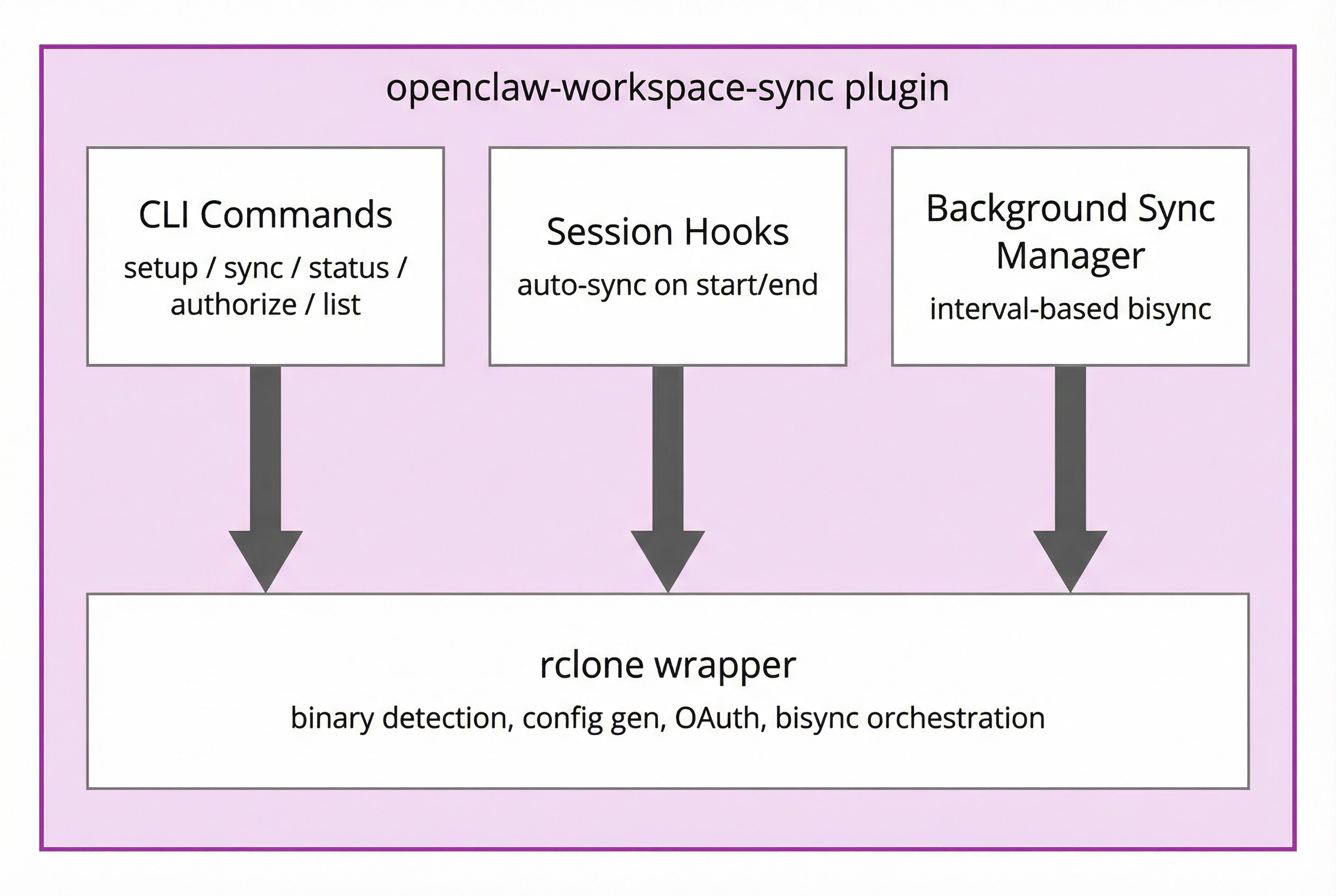
openclaw workspace-sync setupThe setup wizard guides you through:
- Checking/installing rclone
- Selecting cloud provider
- Choosing sync mode
- Dropbox app folder option (for scoped access)
- Background sync interval
- OAuth authorization
- First sync
Or configure manually — see Configuration below.
Add to your openclaw.json. The sync and backup blocks are independent — use one or both:
{
  "plugins": {
    "entries": {
      "openclaw-workspace-sync": {
        "enabled": true,
        "config": {
          "sync": {
            "provider": "dropbox",
            "mode": "mailbox",
            "remotePath": "",
            "interval": 180,
            "onSessionStart": true,
            "exclude": [".git/**", "node_modules/**", "*.log"]
          },
          "backup": {
            "enabled": true,
            "provider": "s3",
            "bucket": "my-backups",
            "prefix": "habibi/",
            "interval": 86400,
            "encrypt": true,
            "passphrase": "${BACKUP_PASSPHRASE}",
            "include": ["workspace", "config", "cron", "memory"],
            "retain": 7
          }
        }
      }
    }
  }
}
Flat format still works. Putting
provider,mode, etc. at the config root (withoutsync) is supported for backwards compatibility. The nested{ sync, backup }format is recommended for clarity.
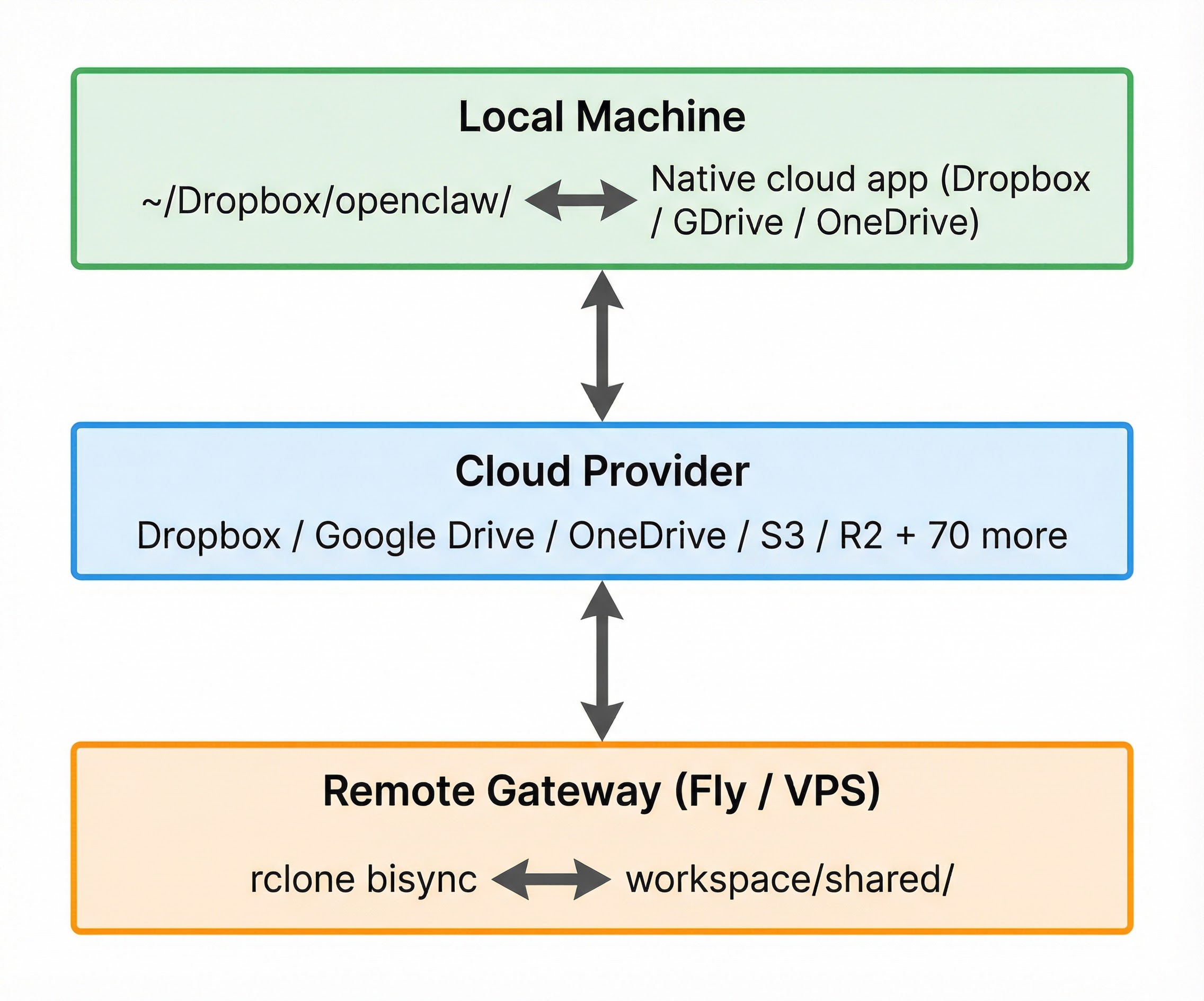
Live workspace mirroring via rclone. The remote gateway workspace is the source of truth. Changes made by the agent flow down to your local machine through cloud storage. You can send files to the agent through an optional inbox.
mode is now required. Previous versions used bidirectional bisync implicitly. Starting with v2.0, you must explicitly set "mode" in your config. The plugin will refuse to start and log an error until mode is set. This prevents accidental data loss from an unexpected sync direction.
| Mode | Direction | Description |
|---|---|---|
mailbox |
Push + inbox/outbox | Workspace pushes to cloud; users drop files in _outbox to send them to the agent. Safest. |
mirror |
Remote → Local | One-way sync: workspace mirrors down to local. Safe — local can never overwrite remote. |
bisync |
Bidirectional | Full two-way sync. Powerful but requires careful setup. |
Upgrading from a previous version? If you were using bisync before, add "mode": "bisync" to your config to preserve the existing behavior. For the safest option, use "mode": "mailbox".
The agent workspace is the source of truth. Each sync cycle:
- Push:
rclone syncpushes the workspace to the cloud (excluding_inbox/and_outbox/) - Drain:
rclone movepulls files from the cloud_outbox/into the workspace_inbox/, deleting them from the cloud after transfer

This creates a clean separation:
- Your local machine gets a live mirror of the workspace via your cloud provider's desktop app (e.g., Dropbox). You also see an
_outbox/folder — drop files there to send them to the agent. - The agent workspace has an
_inbox/folder where incoming files land. The agent (or a skill) can process them from there.
On startup, the plugin bootstraps both directories:
rclone mkdir cloud:_outbox— ensures the cloud_outboxexists so your desktop app creates the local foldermkdir -p <workspace>/_inbox— ensures the agent's landing zone exists
Because the push explicitly excludes _inbox/** and _outbox/**, there is no risk of sync loops or accidental overwrites. Files only flow in one direction through each channel.
By default, mailbox mode is silent — files land in _inbox without waking the agent. This keeps costs at zero.
If you want the agent to react when files arrive, set "notifyOnInbox": true. After each drain that moves files, the plugin injects a system event like:
[workspace-sync] New files in _inbox: report.pdf, data.csv
This wakes the agent on its next heartbeat. The agent sees the message and can process the files — for example, reading, summarizing, or filing them.
This costs credits. Each notification triggers an agent turn. Only enable it if you want the agent to actively respond to incoming files.
{
  "mode": "mailbox",
  "provider": "dropbox",
  "remotePath": "",
  "interval": 180,
  "notifyOnInbox": true
}The agent workspace is the source of truth. Every sync cycle copies the latest workspace state down to your local folder. Local files outside the workspace are never sent up.

This is safe: even if something goes wrong, only your local copy is affected — the workspace stays untouched.
Want to send files to the agent while using mirror mode? Enable the ingest option. This creates a local inbox/ folder (sibling to the sync folder) that syncs one-way up to the workspace. Drop a file in the inbox — it appears on the remote workspace. The inbox is separate from the mirror, so there is no risk of overwriting workspace files.
{
  "mode": "mirror",
  "ingest": true,
  "ingestPath": "inbox"
}
When enabled, a local inbox/ folder syncs its contents to <remotePath>/inbox/ on the workspace. This is additive only — files are copied up, never deleted from the remote side.
For a more robust file-exchange pattern, consider
mailboxmode instead. Mailbox usesrclone moveto drain files (deleting from the source after transfer), which prevents duplicates and is easier to reason about.
Full bidirectional sync using rclone bisync. Changes on either side propagate to the other.

Use this only if you understand the trade-offs:
- Both sides must be in a known-good state before starting
- A
--resyncis required once to establish the baseline — and it copies everything - If bisync state is lost (e.g., after a deploy that wipes ephemeral storage), you must
--resyncagain - Deleted files can reappear if the other side still has them during a resync
- On container platforms (Fly.io, Railway), bisync state lives in ephemeral storage and is lost on every deploy
If you are running on a container platform, mailbox mode is strongly recommended.
| Key | Type | Default | Description |
|---|---|---|---|
provider |
string | "off" |
dropbox | gdrive | onedrive | s3 | custom | off |
mode |
string | required | mailbox | mirror | bisync — see Sync modes |
ingest |
boolean | false |
Enable local inbox for sending files to the agent (mirror mode only) |
ingestPath |
string | "inbox" |
Local subfolder name for ingestion (relative to localPath) |
notifyOnInbox |
boolean | false |
Wake the agent when files arrive in _inbox (mailbox mode). Off by default — enabling this costs LLM credits per notification. |
remotePath |
string | "openclaw-share" |
Folder name in cloud storage |
localPath |
string | "" (workspace root) |
Relative subfolder within the workspace to sync. Defaults to the workspace root (e.g. /data/workspace). Must be a relative path — absolute paths like "/" are rejected. Set to a subfolder name like "shared" to sync only that directory. |
interval |
number | 0 |
Background sync interval in seconds (0 = manual only, min 60) |
timeout |
number | 1800 |
Max seconds for a single rclone sync operation (min 60) |
onSessionStart |
boolean | false |
Sync when an agent session begins |
onSessionEnd |
boolean | false |
Sync when an agent session ends |
remoteName |
string | "cloud" |
rclone remote name |
configPath |
string | auto | Path to rclone.conf |
conflictResolve |
string | "newer" |
newer | local | remote (bisync only) |
exclude |
string[] | see below | Glob patterns to exclude |
copySymlinks |
boolean | false |
Follow symlinks during sync |
Default excludes: **/.DS_Store
# Interactive setup wizard
openclaw workspace-sync setup

# Check sync status
openclaw workspace-sync status

# Sync (behavior depends on mode)
openclaw workspace-sync sync

# Preview changes without syncing
openclaw workspace-sync sync --dry-run

# One-way sync (explicit, overrides mode for this run)
openclaw workspace-sync sync --direction pull   # remote -> local
openclaw workspace-sync sync --direction push   # local -> remote

# Force re-establish bisync baseline (bisync mode only)
openclaw workspace-sync sync --resync

# Authorize with cloud provider
openclaw workspace-sync authorize
openclaw workspace-sync authorize --provider gdrive

# List remote files
openclaw workspace-sync listSync automatically when sessions start or end. These run during existing agent activity and incur zero LLM cost:
{
  "onSessionStart": true,
  "onSessionEnd": false
}Set interval to enable automatic background sync (in seconds):
{
  "interval": 300,
  "timeout": 3600
}
The gateway runs sync in the background at this interval. Minimum interval is 60 seconds. The timeout controls how long each sync operation is allowed to run (default: 1800s / 30 min). Increase this for large workspaces or slow connections.
In mailbox mode, periodic sync pushes the workspace to the cloud and drains the _outbox. In mirror mode, periodic sync pulls the latest workspace state down to local. In bisync mode, it runs a full bidirectional sync.
# Add to crontab (crontab -e)
*/5 * * * * openclaw workspace-sync sync >> /var/log/openclaw-sync.log 2>&1Getting the initial state right prevents data loss. Each mode has different requirements:
The first sync pushes your local workspace to the cloud. This means rclone makes cloud match local exactly — any files on cloud that don't exist locally will be deleted.
Recommended starting state: Local workspace is the source of truth (the agent has been writing here), or local and remote are already identical.
If remote is the source of truth (e.g. you've been syncing manually or switching from another mode), pull first:
rclone sync <remote>:<path> /data/workspace/ --config <config-path> \
  --exclude '**/.DS_Store' --exclude '**/.git/**' \
  --exclude '**/__pycache__/**' --exclude '**/node_modules/**' \
  --verbose
Then verify local matches remote before enabling the plugin.
The first sync pulls from cloud to local. Local can be empty, stale, or corrupted — the pull simply overwrites it. No preparation needed.
The first sync requires --resync, which copies everything from both sides to the other. Any stale or unwanted files on either side will propagate.
Recommended starting state: Both sides are identical, or one side is empty and the other has the data you want. Verify both before running --resync.
- Run a
--dry-runfirst to see what would happen:openclaw workspace-sync sync --dry-run - Check the output for unexpected deletions
- If everything looks right, run the actual sync
- Only then enable periodic sync (
intervalin config)
For maintenance, recovery, and common problems, see TROUBLESHOOTING.md.
Cloud sync involves two copies of your data. When things go wrong, one side can overwrite the other. Here is what to keep in mind:
Mailbox mode is the safest. The workspace pushes to the cloud; users send files via _outbox. The two streams never overlap. Even if your local folder is wiped, the next push re-creates everything. Even if the _outbox has stale files, they just land in _inbox for the agent to handle.
Mirror mode is safe by design. The remote workspace is the authority. Local is a read-only copy. Even if your local folder is empty, stale, or corrupted, the next sync just re-downloads the workspace. The agent's work is never affected by local state.
Bisync requires both sides to agree. Bisync tracks what changed since the last sync. If that tracking state is lost (deploy, disk wipe, moving to a new machine), rclone does not know what changed and requires a --resync. A resync copies everything from both sides — if one side has stale or unwanted files, they propagate to the other.
Common pitfalls to avoid:
- Setting
localPathto an absolute path like"/"— this syncs your entire filesystem, not your workspace. The plugin now rejects absolute paths with a clear error. Use""for the workspace root or a relative subfolder like"shared". - Changing
remotePathorlocalPathwhile periodic sync is enabled - Running
--resyncwithout checking both sides first - Using
bisyncon container platforms where state is ephemeral - Syncing very large directories (use
excludepatterns liberally)
If in doubt, use mailbox mode. It gives you a live local mirror of the workspace and a clean way to send files to the agent, with no risk of data loss.
For recovery procedures, mode switching, and maintenance tips, see TROUBLESHOOTING.md.
Never use --resync unless you know exactly what it does. The --resync flag tells rclone to throw away its knowledge of what has changed and do a full reconciliation — it copies every file that exists on either side to the other side. This means:
- Files you deleted remotely will come back from local (and vice versa)
- It transfers your entire sync scope, not just recent changes
- On a large Dropbox, this can take 30+ minutes and fill your disk
Normal bisync (without --resync) only transfers files that changed since the last sync. The plugin never auto-resyncs. If bisync's internal state gets corrupted, it will log a message telling you to run --resync manually — but only do this after confirming both sides are in the state you want.
# Only when you explicitly need to re-establish the baseline:
openclaw workspace-sync sync --resyncopenclaw workspace-sync authorizeFiles modified on both sides get a .conflict suffix. The winner is determined by conflictResolve (default: newer). To find conflict files:
find <workspace>/shared -name "*.conflict"The plugin automatically handles stale rclone lock files. If a sync is interrupted (timeout, crash, kill), the next run detects the stale lock, clears it, and retries. Lock files older than 15 minutes are treated as expired by rclone's --max-lock flag.
If you still see lock errors, you can manually clear them:
rclone deletefile ~/.cache/rclone/bisync/<lockfile>.lckIncrease the timeout config (in seconds). The default is 1800 (30 min). For large workspaces:
{
  "timeout": 3600
}chmod -R 755 <workspace>/sharedDropbox enforces API rate limits (too_many_requests). If your workspace has many files (10k+), each sync cycle can consume a large number of API calls just for checking. To avoid hitting limits:
- Set
intervalhigh enough for the sync to complete between cycles. A workspace with ~40k files takes ~2 minutes to scan. Anintervalof 180 (3 min) is the minimum; 300 (5 min) is safer. - Use
excludepatterns liberally — skipnode_modules,.git,__pycache__, build output, and anything you don't need synced. Fewer files = fewer API calls. - If you see
too_many_requestserrors in the logs, increase the interval and add more excludes.
Back up your entire agent system — workspace, config, cron jobs, memory, sessions — as encrypted snapshots to your own cloud storage. Your bucket, your encryption key, zero monthly fees.

- Streams directly —
tar | [openssl enc] | rclone rcatpiped straight to the remote. Zero local temp files, zero extra disk needed. A 10 GB workspace on a 1 GB free volume? No problem. - Optionally encrypts with AES-256 (client-side, before upload) via
openssl - Uploads via rclone to any supported provider (S3, R2, Backblaze B2, Dropbox, etc.)
- Prunes old snapshots based on your retention policy
Disk-constrained? Because backups stream directly, you don't need any free disk space for the backup itself. Only the restore downloads to a staging directory.
| Key | Type | Default | Description |
|---|---|---|---|
enabled |
boolean | false |
Enable scheduled backups |
provider |
string | parent provider | Cloud provider for backup storage |
bucket |
string | — | S3/R2 bucket name |
prefix |
string | "" |
Path prefix within the bucket (e.g., habibi/) |
interval |
number | 86400 |
Backup interval in seconds (86400 = daily; clamped to min 300) |
encrypt |
boolean | false |
Encrypt snapshots with AES-256 before upload |
passphrase |
string | — | Encryption passphrase (use ${BACKUP_PASSPHRASE} env var) |
include |
string[] | see below | What to back up |
retain |
number or object | 7 |
Retention: 7 = keep 7 latest, or { daily: 7, weekly: 4 } |
exclude |
string[] | parent excludes | Glob patterns to exclude from workspace backup |
| Item | What gets backed up |
|---|---|
workspace |
The workspace directory (agent files, projects, etc.) |
config |
openclaw.json |
cron |
Cron job schedules and state |
memory |
Memory files (MEMORY.md, etc.) |
sessions |
Session metadata and store |
credentials |
Auth profile credentials |
skills |
Skill files |
hooks |
Webhook configurations and state (Gmail watch, custom hooks) |
extensions |
Installed plugins/extensions (for reproducible restores) |
env |
Environment variables file (.env) |
agents |
Multi-agent state (per-agent sessions, subagent registry) |
pages |
Custom pages served by the gateway |
transcripts |
Full conversation logs (JSONL session transcripts) |
Default: ["workspace", "config", "cron", "memory"]
# Create a backup now
openclaw workspace-sync backup now

# List available snapshots
openclaw workspace-sync backup list

# Restore the latest snapshot
openclaw workspace-sync backup restore

# Restore a specific snapshot
openclaw workspace-sync backup restore --snapshot backup-20260310T020000Z.tar.gz.enc

# Restore to a specific directory (safe — doesn't overwrite live data)
openclaw workspace-sync backup restore --to /tmp/restore-test

# Check backup service status
openclaw workspace-sync backup statusBy default, restore extracts to a staging directory (~/.openclaw/.backup-restore/), not directly over your live workspace. This lets you inspect the contents before copying them into place. Use --to to control where files land.
Cloudflare R2 (free tier: 10GB):
{
  "backup": {
    "enabled": true,
    "provider": "s3",
    "encrypt": true,
    "passphrase": "${BACKUP_PASSPHRASE}",
    "s3": {
      "endpoint": "https://<account-id>.r2.cloudflarestorage.com",
      "bucket": "openclaw-backups",
      "region": "auto",
      "accessKeyId": "${R2_ACCESS_KEY}",
      "secretAccessKey": "${R2_SECRET_KEY}"
    }
  }
}
AWS S3:
{
  "backup": {
    "enabled": true,
    "provider": "s3",
    "encrypt": true,
    "passphrase": "${BACKUP_PASSPHRASE}",
    "s3": {
      "bucket": "my-openclaw-backups",
      "region": "us-east-1",
      "accessKeyId": "${AWS_ACCESS_KEY_ID}",
      "secretAccessKey": "${AWS_SECRET_ACCESS_KEY}"
    }
  }
}
Backblaze B2:
{
  "backup": {
    "enabled": true,
    "provider": "s3",
    "encrypt": true,
    "passphrase": "${BACKUP_PASSPHRASE}",
    "s3": {
      "endpoint": "https://s3.us-west-002.backblazeb2.com",
      "bucket": "openclaw-backups",
      "region": "us-west-002",
      "accessKeyId": "${B2_KEY_ID}",
      "secretAccessKey": "${B2_APP_KEY}"
    }
  }
}These provider blocks work for both sync and backup. Place them inside the sync or backup config block as needed.
Dropbox with app folder (recommended for security):
{
  "provider": "dropbox",
  "remotePath": "",
  "dropbox": {
    "appFolder": true,
    "appKey": "your-app-key",
    "appSecret": "your-app-secret",
    "token": "{\"access_token\":\"...\"}"
  }
}
With appFolder: true, set remotePath to "". The app folder root is your sync root — do not repeat the app folder name in remotePath or rclone will fail with "directory not found."
Google Drive:
{
  "provider": "gdrive",
  "remotePath": "openclaw-sync",
  "gdrive": {
    "token": "{\"access_token\":\"...\"}",
    "teamDrive": "0ABcDeFgHiJ",
    "rootFolderId": "folder-id"
  }
}
teamDrive and rootFolderId are optional — omit them for personal Google Drive.
OneDrive:
{
  "provider": "onedrive",
  "remotePath": "openclaw-sync",
  "onedrive": {
    "token": "{\"access_token\":\"...\"}",
    "driveId": "drive-id",
    "driveType": "business"
  }
}
driveType can be personal, business, or sharepoint. Both fields are optional.
S3 / Cloudflare R2 / Minio:
{
  "provider": "s3",
  "remotePath": "openclaw-sync",
  "s3": {
    "endpoint": "https://s3.us-east-1.amazonaws.com",
    "bucket": "your-bucket",
    "region": "us-east-1",
    "accessKeyId": "AKID...",
    "secretAccessKey": "SECRET..."
  }
}
Any rclone backend (SFTP, B2, Mega, pCloud, etc.):
{
  "provider": "custom",
  "remotePath": "openclaw-sync",
  "custom": {
    "rcloneType": "sftp",
    "rcloneOptions": {
      "host": "example.com",
      "user": "deploy",
      "key_file": "/path/to/key"
    }
  }
}
The custom provider accepts any rclone backend type and passes rcloneOptions directly to the rclone config. This gives you config-driven access to all 70+ providers without manually editing rclone.conf.
| Provider | Config value | Auth method | Config-driven |
|---|---|---|---|
| Dropbox | dropbox |
OAuth token | Full (token, appKey, appSecret, appFolder) |
| Google Drive | gdrive |
OAuth token | Full (token, teamDrive, rootFolderId) |
| OneDrive | onedrive |
OAuth token | Full (token, driveId, driveType) |
| S3/R2/Minio | s3 |
Access keys | Full (endpoint, bucket, region, credentials) |
| Any rclone backend | custom |
Varies | Full (rcloneType + rcloneOptions) |
All providers are fully config-driven — no manual rclone.conf editing needed. The custom provider gives access to all 70+ rclone backends (SFTP, B2, Mega, pCloud, Azure Blob, etc.).
For better security, create a scoped Dropbox app that only accesses a single folder:
- Go to Dropbox App Console
- Click Create app > Scoped access > App folder
- Name it (e.g.,
openclaw-sync) - In Settings tab, add a Redirect URI:
http://localhost:53682/- This is required for rclone's OAuth flow to work. Without it, Dropbox returns "Invalid redirect_uri" during authorization.
- In Permissions tab, enable:
files.metadata.read/files.metadata.writefiles.content.read/files.content.write
- Copy App key and App secret from Settings
Important: When using an app folder scoped app, set
"remotePath": ""(empty string) in your config. The app folder is the root — rclone sees it as/. If you setremotePathto your app folder name (e.g.,"openclaw-sync"), rclone will look for a subfolder inside the app folder with that name and fail with "directory not found."
Benefits:
- Token only accesses one folder, not your entire Dropbox
- If token is compromised, blast radius is limited
- Clean separation — sync folder lives under
Apps/<your-app-name>/
If you are running OpenClaw on a cloud container (Fly.io, Railway, Render) or a VPS:
- Use a separate persistent volume for the workspace. Container root filesystems are ephemeral — a redeploy wipes everything. Mount a dedicated volume (e.g., Fly.io volumes, EBS, DigitalOcean block storage) at your workspace path so data survives deploys and restarts.
- Enable daily volume snapshots. Most cloud providers offer automated snapshots (Fly.io does this by default with 5-day retention). If something goes wrong — a bad sync, accidental deletion, or a failed reorganization — a recent snapshot lets you restore in minutes instead of rebuilding from scratch.
- Test your restore process. A backup you have never restored is a backup you do not have. Create a volume from a snapshot at least once to confirm the process works and you know the steps.
- Use encrypted backups for off-site disaster recovery. Volume snapshots protect against accidental deletes, but not against provider outages or account issues. Streaming encrypted backups to a separate provider (e.g., R2, B2) gives you a fully independent recovery path.
- Token storage: rclone tokens are stored in
rclone.confwith0600permissions - Sensitive files: Don't sync secrets, API keys, or credentials
- Encryption: Backups support AES-256 client-side encryption. For sync, consider rclone crypt for sensitive data.
- App folder: Use Dropbox app folder access for minimal permissions
- Passphrase safety: Use environment variables (
${BACKUP_PASSPHRASE}) — never hardcode passphrases in config files
# Install dependencies
npm install

# Run tests
npm test

# Type check
npx tsc --noEmitMIT