A docker image to run Interactive Brokers Gateway and TWS without any human interaction on a docker container
It includes:
- IB Gateway (stable or latest)
- Trader Workstation TWS (stable or latest), from
10.26.1h - IBC - to control TWS/IB Gateway (simulates user input).
- TOTP (Mobile Authenticator) Automation - automated TOTP code entry for 2FA, eliminating manual authentication (optional).
- Xvfb - a X11 virtual framebuffer to run IB Gateway Application without graphics hardware.
- x11vnc - a VNC server to interact with the IB Gateway user interface (optional, for development / maintenance purpose).
- xrdp/xfce enviroment for TWS. Build on top of linuxserver/rdesktop.
- socat a tool to accept TCP connection from non-localhost and relay it to IB Gateway from localhost (IB Gateway restricts connections to container's 127.0.0.1 by default).
- Optional remote SSH tunnel
to provide secure connections for both IB Gateway and VNC. Only available for
10.19.2g-stableand10.25.1o-latestor greater. - Support parallel execution of
liveandpapertrading mode. - Secrets support (latest
10.29.1e, stable10.19.2mor greater) - Experimental aarch64 support, ex raspberry pi, M1,M2,M3,.., since
10.37.1l/10.39.1e - Execution of custom scripts during star-up process.
- Works well together with Jupyter Quant docker image.
Images are provided for IB gateway and TWS. With the following tags:
| Image | Channel | IB Gateway Version | IBC Version | Docker Tags |
|---|---|---|---|---|
| ib-gateway | latest |
10.44.1g |
3.23.0 |
latest 10.44 10.44.1g |
| ib-gateway | stable |
10.37.1p |
3.23.0 |
stable 10.37 10.37.1p |
| tws-rdesktop | latest |
10.44.1g |
3.23.0 |
latest 10.44 10.44.1g |
| tws-rdesktop | stable |
10.37.1p |
3.23.0 |
stable 10.37 10.37.1p |
All tags are available in the container repository for ib-gateway and tws-rdesktop. IB Gateway and TWS share the same version numbers and tags.
Create a docker-compose.yml file (or include ib-gateway services on your existing
one). The sample files provided can be used as starting point,
ib-gateway-compose and
tws-rdesktop-compose.
name: algo-trader
services:
  ib-gateway:
    restart: always
    build:
      context: ./stable
      tags:
        - "ghcr.io/gnzsnz/ib-gateway:stable"
    image: ghcr.io/gnzsnz/ib-gateway:stable
    environment:
      TWS_USERID: ${TWS_USERID}
      TWS_PASSWORD: ${TWS_PASSWORD}
      TWS_PASSWORD_FILE: ${TWS_PASSWORD_FILE}
      TRADING_MODE: ${TRADING_MODE:-paper}
      TWOFACTOR_CODE: ${TWOFACTOR_CODE:-}
      TWOFACTOR_CODE_FILE: ${TWOFACTOR_CODE_FILE:-}
      TWS_SETTINGS_PATH: ${TWS_SETTINGS_PATH:-}
      TWS_ACCEPT_INCOMING: ${TWS_ACCEPT_INCOMING:-}
      TWS_MASTER_CLIENT_ID: ${TWS_MASTER_CLIENT_ID:-}
      READ_ONLY_API: ${READ_ONLY_API:-}
      VNC_SERVER_PASSWORD: ${VNC_SERVER_PASSWORD:-}
      TWOFA_TIMEOUT_ACTION: ${TWOFA_TIMEOUT_ACTION:-exit}
      BYPASS_WARNING: ${BYPASS_WARNING:-}
      AUTO_RESTART_TIME: ${AUTO_RESTART_TIME:-}
      AUTO_LOGOFF_TIME: ${AUTO_LOGOFF_TIME:-}
      TWS_COLD_RESTART: ${TWS_COLD_RESTART:-}
      SAVE_TWS_SETTINGS: ${SAVE_TWS_SETTINGS:-}
      RELOGIN_AFTER_TWOFA_TIMEOUT: ${RELOGIN_AFTER_TWOFA_TIMEOUT:-no}
      TWOFA_EXIT_INTERVAL: ${TWOFA_EXIT_INTERVAL:-60}
      TWOFA_DEVICE: ${TWOFA_DEVICE:-}
      EXISTING_SESSION_DETECTED_ACTION: ${EXISTING_SESSION_DETECTED_ACTION:-primary}
      ALLOW_BLIND_TRADING: ${ALLOW_BLIND_TRADING:-no}
      TIME_ZONE: ${TIME_ZONE:-Etc/UTC}
      TZ: ${TIME_ZONE:-Etc/UTC}
      CUSTOM_CONFIG: ${CUSTOM_CONFIG:-NO}
      JAVA_HEAP_SIZE: ${JAVA_HEAP_SIZE:-}
      SSH_TUNNEL: ${SSH_TUNNEL:-}
      SSH_OPTIONS: ${SSH_OPTIONS:-}
      SSH_ALIVE_INTERVAL: ${SSH_ALIVE_INTERVAL:-}
      SSH_ALIVE_COUNT: ${SSH_ALIVE_COUNT:-}
      SSH_PASSPHRASE: ${SSH_PASSPHRASE:-}
      SSH_REMOTE_PORT: ${SSH_REMOTE_PORT:-}
      SSH_USER_TUNNEL: ${SSH_USER_TUNNEL:-}
      SSH_RESTART: ${SSH_RESTART:-}
      SSH_VNC_PORT: ${SSH_VNC_PORT:-}
      START_SCRIPTS: ${START_SCRIPTS:-}
      X_SCRIPTS: ${X_SCRIPTS:-}
      IBC_SCRIPTS: ${IBC_SCRIPTS:-}
#    volumes:
#      - ${PWD}/jts.ini:/home/ibgateway/Jts/jts.ini
#      - ${PWD}/config.ini:/home/ibgateway/ibc/config.ini
#      - ${PWD}/tws_settings/:${TWS_SETTINGS_PATH:-/home/ibgateway/Jts}
#      - ${PWD}/ssh/:/home/ibgateway/.ssh
#      - ${PWD}/init-scripts:/home/ibgateway/init-scripts
    ports:
      - "127.0.0.1:4001:4003"
      - "127.0.0.1:4002:4004"
      - "127.0.0.1:5900:5900"
Create an .env on root directory. You can use the provided .env-dist as a starting point. Example .env file:
TWS_USERID=myTwsAccountName
TWS_PASSWORD=myTwsPassword
# see credentials section
#TWS_PASSWORD_FILE
#TWS_USERID_PAPER=
#TWS_PASSWORD_PAPER=
#TWS_PASSWORD_PAPER_FILE=
# TOTP automation (optional, for automated 2FA)
#TWOFACTOR_CODE=ABCDEFGH12345678IJKLMNOP90QRSTUV
#TWOFACTOR_CODE_FILE
# ib-gateway
#TWS_SETTINGS_PATH=/home/ibgateway/Jts
# tws
#TWS_SETTINGS_PATH=/config/tws_settings
TWS_SETTINGS_PATH=
TWS_ACCEPT_INCOMING=
TRADING_MODE=paper
READ_ONLY_API=no
VNC_SERVER_PASSWORD=myVncPassword
TWOFA_TIMEOUT_ACTION=restart
TWOFA_DEVICE=
BYPASS_WARNING=
AUTO_RESTART_TIME=11:59 PM
AUTO_LOGOFF_TIME=
TWS_COLD_RESTART=
SAVE_TWS_SETTINGS=
RELOGIN_AFTER_TWOFA_TIMEOUT=yes
EXISTING_SESSION_DETECTED_ACTION=primary
ALLOW_BLIND_TRADING=no
TIME_ZONE=Europe/Zurich
CUSTOM_CONFIG=
SSH_TUNNEL=
SSH_OPTIONS=
SSH_ALIVE_INTERVAL=
SSH_ALIVE_COUNT=
SSH_PASSPHRASE=
SSH_REMOTE_PORT=
SSH_USER_TUNNEL=
SSH_RESTART=
SSH_VNC_PORT=
#START_SCRIPTS=init-scripts/start_scripts
#X_SCRIPTS=init-scripts/x_scripts
#IBC_SCRIPTS=init-scripts/ibc_scripts
Once docker-compose.yml and .env are in place you can start the container with:
docker compose upTo get a GUI you can use vnc for ib-gateway or RDP for TWS.
Looking for help? Please keep reading below, or go to discussion section for common problems and solutions. If you have problems please go through the troubleshooting guide
All environment variables are common between ibgateway and TWS image, unless specifically stated. The container can be configured with the following environment variables:
| Variable | Description | Default |
|---|---|---|
TWS_USERID |
The TWS username. | |
TWS_PASSWORD |
The TWS password. | |
TWS_PASSWORD_FILE |
The file containing TWS password. See credentials section. | |
TRADING_MODE |
live or paper. From 10.26.1k it supports both which will start ib-gateway or TWS in live AND paper mode in parallel within the container. |
paper |
TWS_USERID_PAPER |
If TRADING_MODE=both, then this is required to pass paper account user |
not defined |
TWS_PASSWORD_PAPER |
If TRADING_MODE=both, then this is required to pass paper account password |
not defined |
TWS_PASSWORD_PAPER_FILE |
If TRADING_MODE=both, then this is required to pass paper account password. See credentials section. |
not defined |
READ_ONLY_API |
yes or no. See IBC documentation | not defined |
VNC_SERVER_PASSWORD |
VNC server password. If not defined, then VNC server will NOT start. Specific to ibgateway, ignored by TWS. See credentials section. | not defined (VNC disabled) |
VNC_SERVER_PASSWORD_FILE |
VNC server password. If not defined, then VNC server will NOT start. Specific to ibgateway, ignored by TWS. | not defined (VNC disabled) |
TWOFACTOR_CODE |
Base32 TOTP secret for automated Mobile Authenticator authentication. When set, the container will automatically generate and enter TOTP codes during login. See TOTP Automation section. | not defined (manual 2FA) |
TWOFACTOR_CODE_FILE |
File containing base32 TOTP secret. Use with Docker secrets for secure TOTP secret storage. See credentials section. | not defined |
TWOFA_TIMEOUT_ACTION |
'exit' or 'restart', set to 'restart if you set AUTO_RESTART_TIME. See IBC documentation |
exit |
TWOFA_DEVICE |
second factor authentication device. See IBC documentation | not defined |
TWOFA_EXIT_INTERVAL |
It controls how long (in seconds) IBC waits for login to complete after the user acknowledges the second factor authentication. See IBC documentation | 60 seconds |
BYPASS_WARNING |
Settings relate to the corresponding 'Precautions' checkboxes in the API section of the Global Configuration dialog. Accepted values yes, no if not set, the existing TWS/Gateway configuration is unchanged |
not defined |
AUTO_RESTART_TIME |
time to restart IB Gateway, does not require daily 2FA validation. format hh:mm AM/PM. See IBC documentation | not defined |
AUTO_LOGOFF_TIME |
Auto-Logoff: at a specified time, TWS shuts down tidily, without restarting | not defined |
TWS_COLD_RESTART |
IBC >= 3.19 set this value to hh:mm | not defined |
SAVE_TWS_SETTINGS |
automatically save its settings on a schedule of your choosing. You can specify one or more specific times, ex SaveTwsSettingsAt=08:00 12:30 17:30 |
not defined |
RELOGIN_AFTER_TWOFA_TIMEOUT |
support relogin after timeout. See IBC documentation | no |
EXISTING_SESSION_DETECTED_ACTION |
Set Existing Session Detected Action. See IBC documentation | primary |
ALLOW_BLIND_TRADING |
TWS displays a dialog to warn you against blind trading.See IBC documentation | no |
TIME_ZONE |
Support for timezone, see your TWS jts.ini file for valid values on a tz database. This sets time zone for IB Gateway. If jts.ini exists it will not be set. if TWS_SETTINGS_PATH is set and stored in a volume, jts.ini will already exists so this will not be used. Examples Europe/Paris, America/New_York, Asia/Tokyo |
"Etc/UTC" |
TWS_SETTINGS_PATH |
Settings path used by IBC's parameter --tws_settings_path. Use with a volume to preserve settings in the volume. If TRADING_MODE=both this will be the prefix four your settings. ex /config/tws_settings_live and /config/tws_settings_paper. |
|
TWS_ACCEPT_INCOMING |
See IBC documentation, possible values accept, reject, manual |
manual |
TWS_MASTER_CLIENT_ID |
See IBC documentation | not defined |
CUSTOM_CONFIG |
If set to yes, then run.sh will not generate config files using env variables. You should mount config files. Use with care and only if you know what you are doing. |
NO |
JAVA_HEAP_SIZE |
Set Java heap, default 768MB, TWS might need more. Proposed value 1024. Enter just the number, don't enter units, ex mb. See Increase Memory Size for TWS | not defined |
SSH_TUNNEL |
If set to yes then socat won't start, instead a remote ssh tunnel is started. if set to both then socat AND remote ssh tunnel are started. SSH keys should be provided to container through ~/.ssh volume. |
not defined |
SSH_OPTIONS |
additional options for ssh client | not defined |
SSH_ALIVE_INTERVAL |
ssh ServerAliveInterval setting. Don't set it in SSH_OPTIONS as this behavior is undefined. |
20 |
SSH_ALIVE_COUNT |
ssh ServerAliveCountMax setting. Don't set it in SSH_OPTIONS as this behavior is undefined. |
not defined |
SSH_PASSPHRASE |
passphrase for ssh keys. If set the container will start ssh-agent and add ssh keys | not defined |
SSH_PASSPHRASE_FILE |
file containing passphrase for ssh keys. If set the container will start ssh-agent and add ssh keys | not defined |
SSH_REMOTE_PORT |
Remote port for ssh tunnel. If TRADING_MODE=both then SSH_REMOTE_PORT is set to paper port 4002/7498 |
Same port than IB gateway 4001/4002 or 7497/7498 |
SSH_USER_TUNNEL |
user@server to connect to |
not defined |
SSH_RESTART |
Number of seconds to wait before restarting tunnel in case of disconnection. | 5 |
SSH_VNC_PORT |
If set, then a remote ssh tunnel will be created with remote port equal to SSH_VNC_PORT. Specific to ibgateway, ignored by TWS. |
not defined |
SSH_RDP_PORT |
If set, then a remote ssh tunnel will be created with remote port equal to SSH_RDP_PORT. Specific to TWS, ignored by ibgateway. |
not defined |
PUID |
User uid for user abc (linuxserver default user name). Specific to TWS, ignored by ibgateway. |
1000 |
PGID |
User gid for user abc (linuxserver default user name). Specific to TWS, ignored by ibgateway. |
1000 |
PASSWD |
Password for user abc (linuxserver default user name). Specific to TWS, ignored by ibgateway. |
abc |
PASSWD_FILE |
File containing password for user abc (linuxserver default user name). Specific to TWS, ignored by ibgateway. See credentials section. |
abc |
START_SCRIPTS |
Directory with bash scripts to run before X environment is up. See start-up scripts | not defined |
X_SCRIPTS |
Directory with bash scripts to run after X environment is running. See start-up scripts | not defined |
IBC_SCRIPTS |
Directory with bash scripts to run after IBC is running. See start-up scripts | not defined |
The following ports will be ready for usage on the ib-gateway container and docker host:
| Port | Description |
|---|---|
| 4003 | TWS API port for live accounts. Through socat, internal TWS API port 4001. Mapped externally to 4001 in sample docker-compose.yml. |
| 4004 | TWS API port for paper accounts. Through socat, internal TWS API port 4002. Mapped externally to 4002 in sample docker-compose.yml. |
| 5900 | When VNC_SERVER_PASSWORD was defined, the VNC server port. |
TWS image uses the following ports
| Port | Description |
|---|---|
| 7498 | TWS API port for live accounts. Through socat, internal TWS API port 7496. Mapped externally to 7496 in sample tws-docker-compose.yml. |
| 7499 | TWS API port for paper accounts. Through socat, internal TWS API port 7497. Mapped externally to 7497 in sample tws-docker-compose.yml. |
| 3389 | Port for RDP server. Mapped externally to 3370 in sample tws-docker-compose.yml. |
Utility socat is used to publish TWS API port from container's 127.0.0.1:4001/4002 to container's 0.0.0.0:4003/4004, the sample docker-file.yml maps ports to the host back to 4001/4002. This way any application can use the "standard" IB Gateway ports. For TWS 127.0.0.1:7496/7497 to container's 0.0.0.0:7498/7499, and tws-docker-file.yml will map ports to host back to 7496/7497.
Note that with the above docker-compose.yml, ports are only exposed to the docker host (127.0.0.1), but not to the host network. To expose it to the host network change the port mappings on accordingly (remove the '127.0.0.1:'). Attention: See Leaving localhost
The container can automatically handle IBKR Mobile Authenticator 2FA by generating and entering TOTP codes, eliminating the need for manual authentication or mobile push notifications.
- Automatic TOTP Generation: Uses
oathtoolto generate 6-digit codes from your TOTP secret - Automated Entry: X11 automation (via
xdotool) automatically enters codes into the 2FA dialog - Fast Authentication: Completes 2FA in approximately 6 seconds
- Dual Mode Support: Handles
TRADING_MODE=both— automatically authenticates both live and paper sessions - Zero Touch: No manual intervention required once configured
- Works on ARM64: Tested on Apple Silicon (M1/M2/M3) and Raspberry Pi
- IBKR Mobile Authenticator Setup: You must have Mobile Authenticator (TOTP) enabled on your IBKR account
- TOTP Secret: You need the base32 TOTP secret from IBKR. See Getting Your TOTP Secret below
Add the TWOFACTOR_CODE environment variable to your .env file:
# TOTP Secret (base32 format)
TWOFACTOR_CODE=ABCDEFGH12345678IJKLMNOP90QRSTUV

# Recommended: Set to restart on 2FA timeout
TWOFA_TIMEOUT_ACTION=restart
And in your docker-compose.yml:
services:
  ib-gateway:
    environment:
      TWS_USERID: ${TWS_USERID}
      TWS_PASSWORD: ${TWS_PASSWORD}
      TWOFACTOR_CODE: ${TWOFACTOR_CODE}
      TWOFA_TIMEOUT_ACTION: ${TWOFA_TIMEOUT_ACTION:-restart}
# ... other settingsWhen setting up IBKR Mobile Authenticator, IBKR provides a QR code and a text version of the secret key. The secret is a base32-encoded string (typically 32 characters with uppercase letters and numbers 2-7).
Option 1: During Initial Setup
- In IBKR Client Portal, go to Settings → Security → Secure Login System
- Choose "Mobile Authentication (IBKR Mobile)"
- IBKR will display a QR code and a text secret
- Save the text secret - this is your
TWOFACTOR_CODE - Complete setup by scanning QR code with your authenticator app
Option 2: Extract from Existing Setup
If you already have IBKR Mobile Authenticator configured in an app like Google Authenticator or Authy, you can extract the secret:
- Google Authenticator: Use export feature or a QR code reader
- Authy: Secrets are encrypted and cannot be easily extracted
- Most Apps: The secret is embedded in the QR code shown during setup
Security Note: The TOTP secret is equivalent to your password. Store it securely and never commit it to version control. Use environment variables or Docker secrets.
- Container starts and runs the TOTP automation handler in the background
- Handler monitors for "Second Factor Authentication" dialogs
- When detected, generates current TOTP code using your secret
- Automatically enters the code and presses Enter
- Authentication completes in ~6 seconds
- In dual mode (
TRADING_MODE=both), the handler detects and authenticates both the live and paper sessions independently - IB Gateway API becomes available
- Handler continues running to handle any re-authentication events (e.g. weekly re-login)
Successful TOTP automation:
.> Starting TOTP automation handler
[TOTP] TOTP automation enabled, monitoring for 2FA dialog...
[TOTP] 2FA dialog detected (window 12345678)!
[TOTP] Generated TOTP code, entering into window 12345678...
[TOTP] Code entered and submitted for window 12345678
[TOTP] TOTP automation completed successfully for window 12345678
IBC: Second Factor Authentication; event=Closed
IBC: Duration since login: 6 seconds
IBC: Login has completed
Dual mode (TRADING_MODE=both) — both sessions authenticate:
[TOTP] 2FA dialog detected (window 12345678)!
[TOTP] Generated TOTP code, entering into window 12345678...
[TOTP] Code entered and submitted for window 12345678
[TOTP] TOTP automation completed successfully for window 12345678
[TOTP] 2FA dialog detected (window 87654321)!
[TOTP] Generated TOTP code, entering into window 87654321...
[TOTP] Code entered and submitted for window 87654321
[TOTP] TOTP automation completed successfully for window 87654321
TOTP codes not working:
- Ensure your Docker host system time is accurate (TOTP is time-based)
- Verify the TOTP secret is correct (test with an authenticator app)
- Check that the secret is in base32 format (uppercase letters A-Z and digits 2-7)
Container restarts after 2FA:
- This is expected behavior when
TWOFA_TIMEOUT_ACTION=restartand authentication fails - Check container logs for error messages
- Verify VNC (port 5900) to see the actual IBKR interface
Multiple 2FA devices enrolled:
- Set
TWOFA_DEVICEto the exact name shown in IBKR's device selection dialog - Example:
TWOFA_DEVICE=Authenticator App
TOTP Secret Storage:
- Use Docker secrets for production:
TWOFACTOR_CODE_FILE=/run/secrets/totp_secret - Never commit
.envfiles containing secrets to version control - Restrict file permissions:
chmod 600 .env
Disabling TOTP Automation:
- Simply remove or comment out
TWOFACTOR_CODEin your.envfile - The container will fall back to manual 2FA (IBKR Mobile push notification)
From 10.26.1h it's possible to run TWS in a container. tws-rdesktop image provides a desktop environment that allows to use TWS.
tws-rdesktop has the following recomended settings.
- set
/dev/dri:/dev/dri - shm_size: "1gb"
seccomp:unconfinedJAVA_HEAP_SIZE, depending your TWS you might need to increase it. See Increase Memory Size for TWS- Volumes, set a volume for
/tmp. extws_tmp:/tmp - Volumes, set a volumen for
/config
The start up script will disable xfce compositing, as this has a significant impact on performance.
Most if not all of the settings needed to run IB Gateway in a container are available as environment variables.
However, if you need to go beyond what's available, the image can be customized by overwriting the default configuration files with custom ones. To do this you must set environment variable CUSTOM_CONFIG=yes. By setting CUSTOM_CONFIG=yes run.sh script will not replace environment variables on config files. You must provide config files ready to be used by IB gateway/TWS and IBC, please make sure that you are familiar with IBC settings.
Image IB Gateway and IBC config file locations:
| App | Config file | Default |
|---|---|---|
| IB Gateway | /home/ibgateway/Jts/jts.ini | jts.ini |
| IBC | /home/ibgateway/ibc/config.ini | config.ini |
For TWS image config file locations are:
| App | Config file | Default |
|---|---|---|
| TWS | /opt/ibkr/jts.ini | jts.ini |
| IBC | /opt/ibc/config.ini | config.ini |
Sample settings:
...
    environment:
      - CUSTOM_CONFIG: yes
...
    volumes:
      - ${PWD}/config.ini:/home/ibgateway/ibc/config.ini
      - ${PWD}/jts.ini:/home/ibgateway/Jts/jts.ini # for IB Gateway
      - ${PWD}/jts.ini:/opt/ibkr/jts.ini # for TWS
      - ${PWD}/config.ini:/opt/ibc/config.ini # for TWS
...You can preserve IB Gateway configuration by setting environment variable
$TWS_SETTINGS_PATH and setting a volume
...
    environment:
      - TWS_SETTINGS_PATH: /home/ibgateway/tws_settings # IB Gateway
      - TWS_SETTINGS_PATH: /config/tws_settings # tws rdesktop
...
    volumes:
      - ${PWD}/tws_settings:/home/ibgateway/tws_settings # IB Gateway
      - ${PWD}/config:/config # for TWS we use linuxserver /config volume
...
For TWS it's recommended to use TWS_SETTINGS_PATH, as there is a good amount
of data written to disk.
Important: when you save your config in a volume, file jts.ini will be
saved. TIME_ZONE will only be applied to jts.ini if the file does not
exists (first run) but not once the file exists. This is to avoid overwriting
your settings.
You can run scripts during start up to automate tasks or install additional
tools. This can be done by setting environment variables START_SCRIPTS,
X_SCRIPTS and IBC_SCRIPTS with a path containing start-up scripts.
Scripts files should have .sh extension. Files will be executed in
order, so 00-script.sh will be executed before that 99-other-script.sh.
Start-up directory should be available in the container through a volume.
For example for ibgateway:
# .env file
START_SCRIPTS=init-scripts/start_scripts
X_SCRIPTS=init-scripts/x_scripts
IBC_SCRIPTS=init-scripts/ibc_scripts
and a volume in docker-compose.yml
  volume:
    - ${PWD}/init-scripts:/home/ibgateway/init-scripts
For TWS you can set your .env file as in the example and create a directory
with your scripts in /config/init-scripts/. In TWS $HOME=/config/, while
ib-gateway uses $HOME=/home/ibgateway.
The start up process will search for start-up scripts in $HOME/START_SCRIPTS,
$HOME/X_SCRIPTS and $HOME/IBC_SCRIPTS.
Scripts in directory $HOME/START_SCRIPTS will run before the X environment is
up. Scripts in $HOME/X_SCRIPTS will run once X environment is up, and
$HOME/IBC_SCRIPTS once IBC runs. Take into account that scripts will run as
soon as possible, so you might need to wait for X environment to be fully up or
IBC to complete ibgateway/TWS start-up process.
The IB API protocol is based on an unencrypted, unauthenticated, raw TCP socket connection between a client and the IB Gateway. If the port to IB API is open to the network, every device on it (including potential rogue devices) can access your IB account via the IB Gateway.
Because of this, the default docker-compose.yml only exposes the IB API port
to the localhost on the docker host, but not to the whole network.
If you want to connect to IB Gateway from a remote device, consider adding an additional layer of security (e.g. TLS/SSL or SSH tunnel) to protect the 'plain text' TCP sockets against unauthorized access or manipulation.
Some examples of possible configurations
-
Available to
localhost, this is the default setup provided in docker-compose.yml. Suitable for testing. It does not expose API port to host network, host must be trusted. -
Available to the host network. Unsecure configuration, suitable for short tests in a secure network. Not recommended.
ports:
  - "4001:4003"
  - "4002:4004"
  - "5900:5900"
-
Available for other services in same docker network. Services with access to
tradernetwork can access IB Gateway through hostnameib-gateway(same than service name). Secure setup, although host should be trusted.services: ib-gateway: networks: - trader # ports: # commented out # - "4001:4003" # - "4002:4004" # - "5900:5900" networks: trader:
-
SSH Tunnel, enable ssh tunnel as explained in ssh tunnel section. This will only make IB API port available through a secure SSH tunnel. Secure option if utilized correctly.
You can optionally setup an SSH tunnel to avoid exposing IB Gateway port. The container DOES NOT run an SSH server (sshd), what it does is to create a remote tunnel using ssh client. So basically it will connect to an ssh server and expose IB Gateway port there.
An example setup would be to run ib-gateway-docker with a sidecar ssh bastion and a jupyter-quant, which provides a fully working algorithmic trading environment. In simple terms ib gateway opens a remote port on ssh bastion and listen to connections on it. While jupyter-quant will open a local port that is tunneled into bastion on the same port opened by ib-gateway-docker. This combination of tunnels will expose IB API port into jupyter-quant making it available for use with ib_insync. The only port available to the outside world is the ssh bastion port, which has hardened security defaults and cryptographic key authentication.
Sample ssh tunnels for reference.
# on ib gateway - this is managed by the container
ssh -NR 4001:localhost:4001 ibgateway@bastion
# on juypter-quant container.
eval $(ssh-agent) # start agent
ssh-add # add keys to agent
#  -f will send it to foreground
ssh -o ServerAliveInterval=20 -o ServerAliveCountMax=3 -fNL 4001:localhost:4001 jupyter@bastion
# on desktop connect to VNC
ssh -o ServerAliveInterval=20 -o ServerAliveCountMax=3 -NL 5900:localhost:5900 trader@bastion
It would look like this
       _____________
      |  IB Gateway | \   :4001
       -------------  |
                      |
      _____________   |
      | SSH Bastion | /   :4001
      -------------   \
                       |
                       |
      _______________  |
     | Jupyter Quant |/  :4001
      ---------------
ib-gateway-docker is using ServerAliveInterval and ServerAliveCountMax
ssh settings to keep the tunnel open. Additionally it will restart the tunnel
automatically if it's stopped, and will keep trying to restart it.
Minimal ssh tunnel setup:
SSH_TUNNEL: set it toyes. This will NOT startsocatand only start an ssh tunnel.SSH_USER_TUNNEL: The user name that ssh should use. It should be in the formuser@serverSSH_PASSPHRASE: Not mandatory, but strongly recommended. If set it will startssh-agentand add ssh keys to agent.sshwill usessh-agent.
In addition to the environment variables listed above you need to pass ssh keys
to ib-gateway-docker container. This is achieved through a volume mount
...
    volumes:
      - ${PWD}/ssh:/home/ibgateway/.ssh # IB Gateway
      - ${PWD}/config/ssh:/config/.ssh # TWS
...
TWS image will search ssh keys on HOME directory, so store keys on /config/.ssh
Make sure that:
- you copy ssh keys with a standard name, ex ~/.ssh/id_rsa, ~/.ssh/id_ecdsa, ~/.ssh/id_ecdsa_sk, ~/.ssh/id_ed25519, ~/.ssh/id_ed25519_sk, or ~/.ssh/id_dsa
- keys should have proper permissions. ex
chmod 600 -R $PWD/ssh/* - you would need a
$PWD/ssh/known_hostsfile. Or passSSH_OPTIONS=-o StrictHostKeyChecking=no, although this last option is NOT recommended for a production environment. - and please make sure that you are familiar with ssh tunnels
This image does not contain nor store any user credentials.
They are provided as environment variable during the container startup and the host is responsible to properly protect it.
From 10.29.1e and 10.19.2m it's possible to use docker secrets. If the
_FILE environment variable is defined, then that file will be used to get
credentials.
Sample docker-compose.yml:
name: algo-trader
services:
  ib-gateway:
  ...
  environment:
    ...
    TWS_PASSWORD_FILE: /run/secrets/tws_password
    SSH_PASSPHRASE_FILE: /run/secrets/ssh_passphrase
    VNC_SERVER_PASSWORD_FILE: /run/secrets/vnc_password
    ...
  secrets:
    - tws_password
    - ssh_passphrase
    - vnc_password
  ...
secrets:
  tws_password:
    file: tws_password.txt
  ssh_passphrase:
    file: ssh_password.txt
  vnc_password:
    file: vnc_password.txt
In "discussion" section you will find full examples for ib-gateway and tws-rdesktop
tws-rdesktop will create a new TLS certificate every time the container starts. You can create your own certificate following this instructions. Once this steps are put in place the same TLS certificate will be used every time, which will allow you to trust it in your RDP client.
In case you experience problems with the API connection, you can restart the socat process
docker exec -it algo-trader-ib-gateway-1 pkill -x socatAfter SSH_RESTART seconds socat will restart the connection. If SSH_RESTART
is not set, by default the restart period will be 5 seconds.
For ssh tunnel,
docker exec -it algo-trader-ib-gateway-1 pkill -x sshThe ssh tunnel will restart after 5 seconds if SSH_RESTART is not set, or the
value in seconds defined in SSH_RESTART.
This is experimental, so expects bugs.
Please go to discussions section to see common problems. Avoid creating issues unless you have empirically probed that is a bug, ie it does not work to me is not a bug.
To use aarch64 you just need to run:
# ib-gateway
docker compose up

# TWS
docker compose -f tws-docker-compose.yml up
This will pull the right image for aarch64 architecture.
Note that the Dockerfile does not download IB Gateway installer files from IB homepage but from the github-releases of this project.
This is because it shall be possible to (re-)build the image, targeting a
specific Gateway version,
but IB only provide download links for the latest or stable version (there
is no 'old version' download archive).
The installer files stored on releases have been downloaded from IB homepage and renamed to reflect the version.
IF you feel adventurous and you want to download Gateway installer from IB
homepage directly, or use your local installation file, change this line
on Dockerfile
RUN curl -sSL https://github.com/gnzsnz/ib-gateway-docker/raw/gh-pages/ibgateway-releases/ibgateway-${IB_GATEWAY_VERSION}-standalone-linux-x64.sh --output ibgateway-${IB_GATEWAY_VERSION}-standalone-linux-x64.sh to download
(or copy) the file from the source you prefer.
Example: change to RUN curl -sSL https://download2.interactivebrokers.com/installers/ibgateway/stable-standalone/ibgateway-stable-standalone-linux-x64.sh --output ibgateway-${IB_GATEWAY_VERSION}-standalone-linux-x64.sh for using current stable version from IB homepage.
-
Clone this repo
git clone https://github.com/gnzsnz/ib-gateway-docker
-
Change docker file to use your local IB Gateway installer file, instead of Loading it from this project releases: Open
Dockerfileon editor and replace this lines:RUN curl -sSL https://github.com/gnzsnz/ib-gateway-docker/raw/gh-pages/ibgateway-releases/ibgateway-${IB_GATEWAY_VERSION}-standalone-linux-x64.sh \ --output ibgateway-${IB_GATEWAY_VERSION}-standalone-linux-x64.sh RUN curl -sSL https://github.com/gnzsnz/ib-gateway-docker/raw/gh-pages/ibgateway-releases/ibgateway-${IB_GATEWAY_VERSION}-standalone-linux-x64.sh.sha256 \ --output ibgateway-${IB_GATEWAY_VERSION}-standalone-linux-x64.sh.sha256with
COPY ibgateway-${IB_GATEWAY_VERSION}-standalone-linux-x64.sh -
Remove
RUN sha256sum --check ./ibgateway-${IB_GATEWAY_VERSION}-standalone-linux-x64.sh.sha256from Dockerfile (unless you want to keep checksum-check) -
Download IB Gateway and name the file
ibgateway-${IB_GATEWAY_VERSION}-standalone-linux-x64.sh, where{IB_GATEWAY_VERSION}must match the version as configured on Dockerfile (first line) -
Download IBC and name the file
IBCLinux-3.23.0.zip, where{IBC_VERSION}must match the version as configured on Dockerfile -
Build and run:
docker-compose up --build
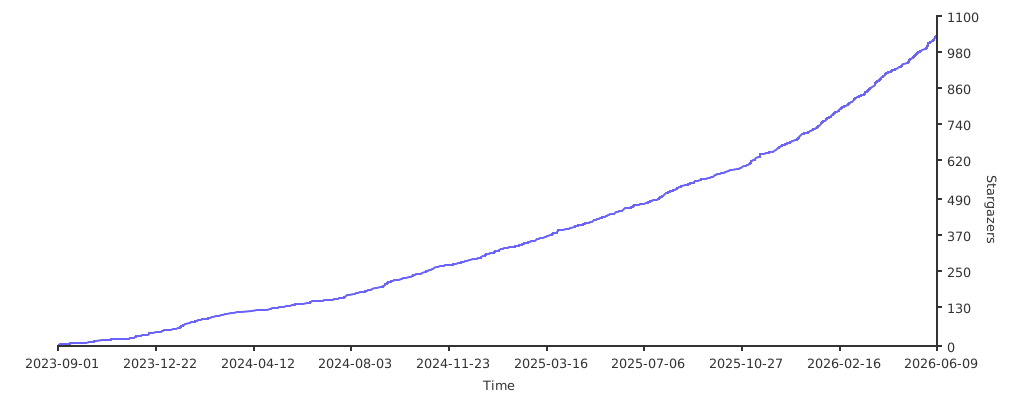
Repository stars overtime.