A lightweight utility that automatically pauses and resumes Wallpaper Engine based on percentage desktop visibility, using an efficient, event-driven library. The goal is to save CPU/GPU resources when your desktop is obscured (e.g., by fullscreen apps or windows).
Wallpaper Engine has basic occlusion detection (pausing for maximized windows on a monitor), but it doesn't handle advanced scenarios like multiple side-by-side windows obscuring the desktop.
This tool enables using more resource-intensive wallpapers by pausing rendering when they're not visible as well as allowing the user to specify a threshold for what percentage of the desktop needs to be visible for the rendering to continue.
It is recommended to specify your main monitor with -m (e.g., -m 1); if its visibility drops below the threshold, all wallpapers pause. The code supports per-monitor pause/resume, which can be enabled if Wallpaper Engine adds support for per-monitor external control in the future.
Note: Wallpaper Engine currently only supports pausing/resuming all monitors at once—no per-monitor control via CLI.
- Event-Driven Monitoring: Uses libvisdesk for real-time desktop visibility tracking—no wasteful polling.
- Flexible Controls: Global or per-monitor modes (note: per-monitor pausing not yet supported by Wallpaper Engine).
- Customizable Thresholds: Pause when visibility drops below a set percentage (0-100).
- Throttle Updates: Configurable max frequency for visibility checks (default: 1000ms).
- 32/64-Bit Support: Compatible with both Wallpaper Engine versions.
- Graceful Shutdown: Auto-resumes wallpapers on exit.
- Startup Integration:
- Windows Service mode (requires Wallpaper Engine’s own service).
- Windows Scheduled Task mode (runs at user logon, highest privileges).
- Windows (tested on Windows 11).
- Wallpaper Engine installed.
- For Windows Service startup: enable Wallpaper Engine’s “High Priority mode (Run as service)” in WE settings (this installs the service and
C:\WINDOWS\SysWOW64\wallpaperservice32.exe). In the Wallpaper Engine UI, this is called “High Priority mode.”
- For Windows Service startup: enable Wallpaper Engine’s “High Priority mode (Run as service)” in WE settings (this installs the service and
- Non-web based Wallpaper (Not all web-based wallpapers support being paused)
- Rust (only if building from source; see below).
- Download the latest pre-built binary from Releases and simply double-click
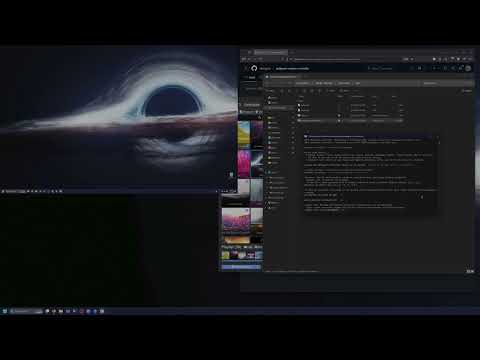
wallpaper-controller.exe.- Launching with no arguments opens the interactive installer (TUI).
- Alternatively, run from a terminal with:
wallpaper-controller --install-tui
The installer guides you through:
- Install directory: Provide a folder; the tool copies itself there as
wallpaper-controller.exe. - Startup mode:
- Windows Service (recommended if you’ve enabled Wallpaper Engine’s “High Priority mode”).
- Scheduled Task (recommended if you are not using WE’s service) at user logon
- Runtime settings: monitors to watch, visibility threshold, update rate, 64-bit WE, etc.
- Windows Service:
- Start/Stop via Services (services.msc) or PowerShell/CMD:
sc start WallpaperControllerServicesc stop WallpaperControllerServicesc delete WallpaperControllerService(removes the service)
- Start/Stop via Services (services.msc) or PowerShell/CMD:
- Scheduled Task:
- Delete via Task Scheduler UI or:
schtasks /Delete /TN "WallpaperControllerAtLogon" /F
- Delete via Task Scheduler UI or:
git clone https://github.com/dnetguru/wallpaper-engine-controller.git
cd wallpaper-engine-controller
cargo build --release
Cross-compilation on Linux:
rustup target add x86_64-pc-windows-gnu
sudo apt install -y gcc-mingw-w64-x86-64 g++-mingw-w64-x86-64
cargo build --target x86_64-pc-windows-gnu --releasewallpaper-controller -m all -t 10- Monitors all displays; pauses if <10% visible.
List monitors first:
wallpaper-controller --list-monitorsThis pauses Wallpaper Engine if less than 15% of your desktop is visible across all monitors and won’t update more frequently than every 0.5 seconds.
wallpaper-controller --threshold 15 --update-rate 500Pause Wallpaper Engine if less than 20% is visible across monitors 1 and 3 (numbers match Windows Display Settings).
wallpaper-controller -m 1,3 --64bitSpecify a custom Wallpaper Engine install path if not using the default.
wallpaper-controller --wallpaper-engine-path "D:\\Games\\WallpaperEngine" --64bitBased on the current binary’s help output (summarized):
Usage: wallpaper-controller.exe [OPTIONS]

Options:
  -m, --monitors <MONITORS>
          Monitors to watch, use numbers shown in Display Settings or use -L to list monitors (comma-separated, or "all" for all monitors) [default: all]
  -t, --threshold <THRESHOLD>
          Minimum visibility threshold percentage (0-100) to pause the wallpaper engine [default behavior: 20 if not provided]
  -p, --per-monitor
          Per-monitor mode - track visibility for each monitor separately (THIS IS NOT SUPPORTED BY WALLPAPER ENGINE, YET)
  -u, --update-rate <UPDATE_RATE>
          Maximum update frequency in milliseconds [default: 1000]
  -w, --wallpaper-engine-path <WALLPAPER_ENGINE_PATH>
          Path to Wallpaper Engine executable [default: "C:\\Program Files (x86)\\Steam\\steamapps\\common\\wallpaper_engine"]
      --64bit
          Use the 64-bit version of Wallpaper Engine (wallpaper64.exe), otherwise use 32-bit (wallpaper32.exe)
  -L, --list-monitors
          List all available monitors and their IDs, then exit
      --disable-sentry
          Disable Sentry error reporting
      --sentry-dsn <SENTRY_DSN>
          Override the default Sentry error reporting DSN (for debugging purposes)
      --install-tui
          Launch interactive installer (TUI)
      --install-dir <DIR>
          Copy the assembly into the specified directory and exit (non-interactive install)
      --add-startup-service
          Add a Windows service to run this program with the specified flags and exit
      --add-startup-task
          Add a Windows Scheduled Task to run this program at user logon and exit
  -h, --help
          Print help
  -V, --version
          Print version
Notes:
- The recommended setup path is the interactive installer (double-click the EXE or use
--install-tui). - For Service installs, enable Wallpaper Engine’s “High Priority mode (Run as service)” in WE settings first (this is what WE calls the service mode).
- For Scheduled Task installs, the installer automatically adds
-silent.
You can launch this application with -silent to run in the background without showing a console window. This is the default behavior when installed as a scheduled task, and service mode runs headless as well.
Pull requests are welcome! See CONTRIBUTING.md for guidelines.
MIT – see LICENSE.