https://cloud.google.com/docs/authentication/getting-started#windows
Activate you have to activate your key in the shell the project is running in with:
set GOOGLE_APPLICATION_CREDENTIALS=C:/path/to/auth/file.json
Download driver from this url, check your chrome version before.
- ffmpeg
- https://vb-audio.com/Cable/
- OBS
Audio and video is extracted from files in videos:
common.mp4contains idle actionshere.mp4is used as a response you want to execute successfullytest.mp4is video that is used before disconnecting you from a call
Import obs_scene.json to OBS and enable virtual camera. Set OBS's monitor output to "VB-cable".
python main.py
Your attention givin mock should now be available on VB-cable audi device and OBS virtual cam webcam
Enable Stereo Mix in windows sound settings. Then check the device index of stereo mix (there is a tool in speect_to_text.py) and set it in speech_stream_to_text.pi as a global variable.
start chrome and script
google-chrome --remote-debugging-port=9222 --user-data-dir="~/ChromeProfile"
main.py
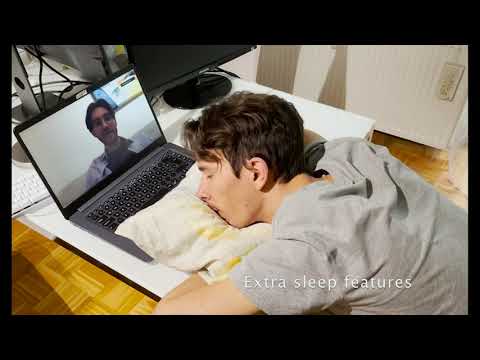
login to zoom meeting in browser, set correct audio/video devices, open the chat and go back to bed :)
For some reason (only on Windows), you must build AudioPy from a wheel file, the default pip install does not work.