A dotnet client library for accessing the Danish CPR register via the Logic platform.
In projects or components where you need to access the register, add a NuGet package reference to Kmd.Logic.Cpr.Client.
The simplest example to get a citizens details is:
using (var httpClient = new HttpClient())
using (var tokenProviderFactory = new LogicTokenProviderFactory(configuration.TokenProvider))
{
    var cprClient = new CprClient(httpClient, tokenProviderFactory, configuration.Cpr);
    var citizen = await cprClient.GetCitizenByCprAsync(configuration.CprNumber).ConfigureAwait(false);
}
The LogicTokenProviderFactory authorizes access to the Logic platform through the use of a Logic Identity issued client credential. The authorization token is reused until it expires. You would generally create a single instance of LogicTokenProviderFactory.
The CprClient accesses the Logic CPR service which in turn interacts with one of the data providers.
Logic CPR requires two certificates i.e. FOCES/MOCES for creating CPR configuration.
- FOCES certificate is needed in order to authenticate and use DataFordeler
- MOCES certificate is needed in order to authenticate and use ServicePlatform
Follow the below steps, to create a FOCES/MOCES certificate
- Raise certificate request on Service Portal
and then navigate to
IT Service-->Certificate request

- Enter the required information for the certificate.
- Enter user details and project cost.
- Choose 'environment' based on your needs.
- Select certificate according to your requirement, here we choose
MOCESorFOCEScertificate. - Add
technical contactand name of person responsible forfunctional certificate. - Specify the name of the certificate.
- Click on submit button to create request.

-
You will receive two emails one with a temporary password and the other with a link to a new certificate.


Follow the below steps, mapping of the certificate to the user and the service methods:
- Create a user on selfservice.datafordeler.dk
- Login using your credentials and upload your certificate.

- Subsequently when you call the datafordeler endpoint by authenticating with the certificate, user will be recognized as the certificate is already mapped to user.
- Get the access to the services(private/public methods) by creating a request on datafordeler support with service name, webbrugger and user.


Perhaps the easiest way to configure the CPR client is from Application Settings.
{
  "TokenProvider": {
    "ClientId": "",
    "ClientSecret": "",
    "AuthorizationScope": ""
  },
  "Cpr": {
    "SubscriptionId": "",
    "CprConfigurationId": ""
  }
}
To get started:
- Create a subscription in Logic Console. This will provide you the
SubscriptionId. - Request a client credential. Once issued you can view the
ClientId,ClientSecretandAuthorizationScopein Logic Console. - Create a CPR configuration. Select the CPR provider you have an agreement with and upload the access certificate. If you haven't done this already, you can begin testing with the Fake CPR Provider. This will give you the
CprConfigurationId.
A simple console application is included to demonstrate how to call Logic CPR API. You will need to provide the settings described above in appsettings.json.
When run you should see the details of the Citizen for the nominated CPR number is printed to the console.
The Datafordeler service is available to any organisation which require access to the CPR register.Additionally access to private companies is also supported.
To gain access, you must:
- Create a user in the Self Service Portal
- Add a Service User by supplying a FOCES certificate.
- Request access to the CPR Service
CprPersonFullComplete - Request access to
CprPrivatePNR, can also be made in case if you are a private company. - Optionally, request access to CPR Events
CprHaendelseusing a subscription inPULLmode andJSONformat.
Useful links:
- Datafordeler Website
- Self Service Portal (Production)
- Self Service Portal (Test)
- Requesting Access
- CPR Service Details
- CPR Service Details for private companies
The Service Platform provider is for exclusive use by municipalities.
For CPR purposes Logic connects to PersonBaseDataExtended service.
To gain access, a user with a MOCES certificate must send the request for a Service Agreement in the STS Administration portal for the required environment (Test or Production).
The process of Service Agreement approval can be sometimes accelerated up by sending e-mail to the Service Platform Help-desk, including service agreement UUID. When service agreement is approved, the client must create the configuration at Logic Console.
Logic CPR configuration parameters for Service Platform:
- Name: your customer name in Service Platform which identifies specific configuration within all resources
- Certificate: The
p12certificate which has been uploaded during configuration of IT-Service at STS Administration portal - Municipality CVR: The CVR of the municipality that you will be requesting access to Service Platform on behalf of
Useful links:
- Service Platform (Production)
- Service Platform (Test)
- STS Administration Portal
- General technical documentation
- More specific documentation files
- Service Platform Help-desk
The Fake Provider is a great solution for use in Demo or Test environments and also allows you to begin development immediately whilst you wait for your formal credentials.
The Fake Provider will return well-described test data for a large number of CPR numbers and identifiers. These can be viewed in the fake folder of this repository. This includes the CPR test data set plus additional examples that have been requested by developers.
If not one of the well-described tests, the Fake Provider exhibits the following behaviour:
- The CPR number must be 10 digits long, with the first 6 digits being a valid
ddMMyyformatted date - If the CPR number ends in
000,001or002it returns NotFound - The Fake provider returns random data, using the CPR number as the seed. This ensures recurring calls return the same response
NOTE: While every attempt is made to keep the generated random data consistent, this is not guaranteed. If you need a reliable response, please use a well-known test or request for a suitable one to be added.
When requesting CPR details by id, the same process applies. If it is not one of the well-described test identifiers then the id must be in the format "fa4e2c<CPR number>fa4e2c<CPR number>". For example, the CPR 0301821005 has a corresponding id of fa4e2c03-0182-1005-fa4e-2c0301821005. All other identifiers will return NotFound.
CPR change notification events are supported by the Datafordeler and Fake Providers. Service Platform is not supported as it only provides CPR delta files.
In the case of Datafordeler we recommend you read:
- Guide to Registering for Events in the Self Service Portal
- How Events are handled by Datafordeler
- CPR Event Details
NOTE: When registering to receive events in Datafordeler, please ensure your subscription is in
PULLmode andJSONformat.
You may apply any appropriate restrictions at this point to limit the stream of events being received. Please be aware that you will only receive events that occur after the Datafordeler subscription has been created.
Whenever there is a change in information about a citizen the provider will raise an event.
Each event includes:
- The Person ID of the citizen
- Broad details of what was changed
- When the changed occurred
NOTE: The event does not include the CPR number or any other personally identifiable information.
To fetch the details of CPR changes, you may call GetAllCprEvents or GetSubscribedCprEvents. The correct option will depend on how you wish to filter the stream to find the events you are interested in.
- Call
GetAllCprEventsand determine the applicable events yourself - Use the event subscribe/unsubscribe feature in Logic to specify the citizens you care about and then call
GetSubscribedCprEvents
GetSubscribedCprEvents returns ActualCount which indicates total records before filter based on subscription. To get all events keep fetching records until ActualCount is zero
On receiving the change notification you will then need to fetch the updated details of the citizen from the register by calling GetCitizenByIdAsync.
The sample folder also includes a web application for receiving Experian events.
Following is how one may use this application
-
Host the application anywhere that can be accessed over the internet.
-
Configure the callbackUri of the Experian configuration(the one that you create with the Logic CPR service). The Url to use would be the FQDN of the hosted application suffixed with "/events".
For e.g. if the url of the sample application is https://www.experian-sample-client.com, then the value you configure as callbackUri would be https://www.experian-sample-client.com/events
-
If configured right, you will be able to see the events in the dashboard of the sample application when the Logic CPR service starts posting them.
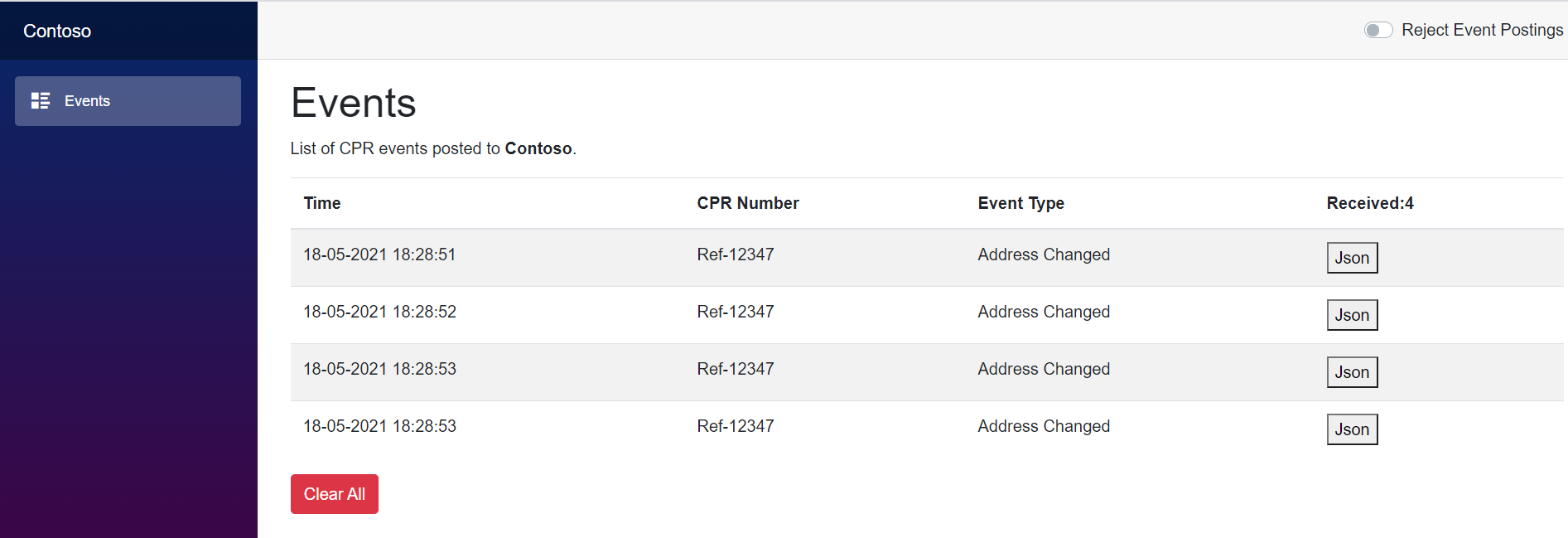
Note: Optionally you may add the TenantName setting in the appsettings.json to get a personalized experience with the application. For e.g. the above screenshot was taken from an application with the TenantName set as below in the appsettings.json

CPR for private companies is also supported by the Datafordeler and Fake Providers.
To gain access , a user with FOCES certificate and request access to CprPrivatePNR is required from datafordeler.
Some useful links if you are a private company:
- Datafordeler Website
- Self Service Portal (Production)
- Self Service Portal (Test)
- Requesting Access
- CPR Service Details for private companies
In case you are a private company call GetCitizenPrivateByCprAsync method, to fetch details of CPR. Below is the eg snippet for usage.
using (var httpClient = new HttpClient())
using (var tokenProviderFactory = new LogicTokenProviderFactory(configuration.TokenProvider))
{
    var cprClient = new CprClient(httpClient, tokenProviderFactory, configuration.Cpr);
    var citizen = await cprClient.GetCitizenPrivateByCprAsync(configuration.CprNumber).ConfigureAwait(false);
}