Installing Python 2022
With improvements to pip, installing via anaconda is overkill for installing python these days. This is how I've been doing it on lab PCs and new arrivals since 2020.
-
Remove all existing python installations. While not strictly necessary, this can sidestep potential issues later.
-
Navigate to https://www.python.org/downloads/ and click the latest version. Note: Newer versions may not have been tested, but should be backwards compatible. Issues can come from some packages not supporting python 3.x yet, this will become clear when installing the required packages later. Download the x64 windows installer(or relevant version)

-
Run the setup wizard. NB: check the "add to path" checkbox.
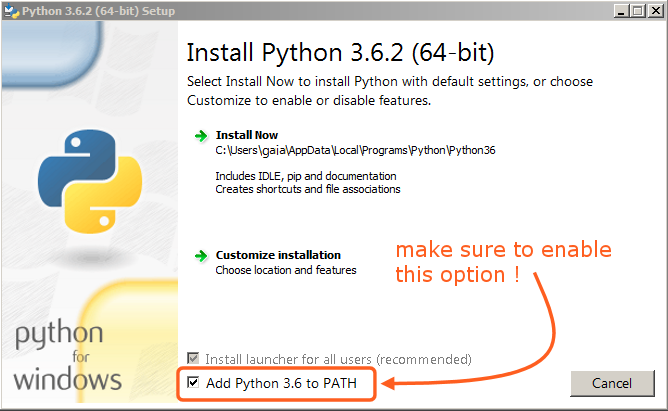
- Open a command prompt (search 'cmd' on windows searchbar) and type in python. Check the version matches the one you meant to install!. If this doesn't work it's probably because you missed step 3.

Congratulations, you've installed python! Next we want to clone this repository, to take advantage of all the super cool code in here.
-
Download github desktop https://desktop.github.com/ and install it.
-
Open the nplab repository homepage and click 'open with github desktop'.
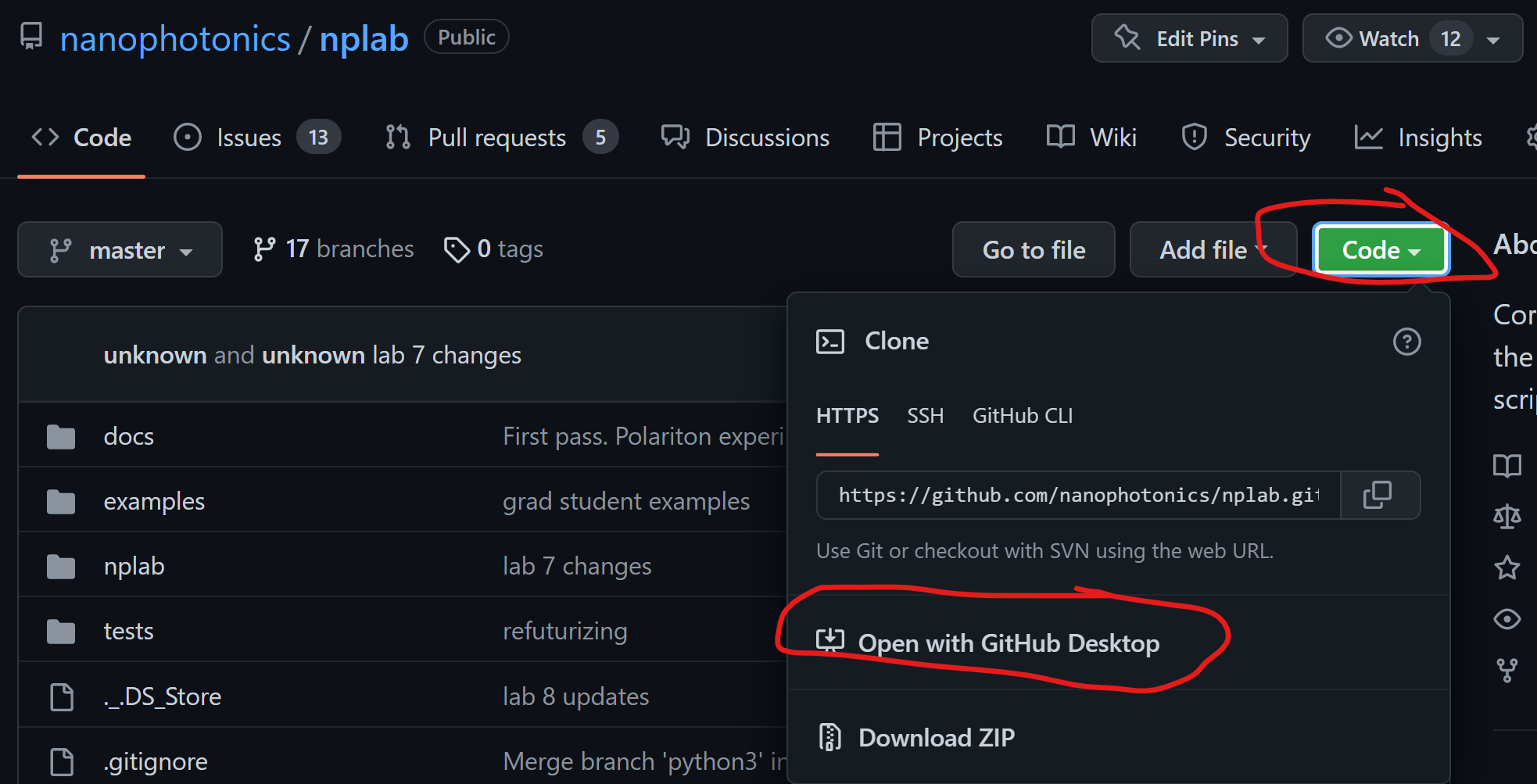
Follow the prompts, and clone it in the default path (Documents/Github/). Now to install some essential modules for using the h5 data browser, and spyder.
-
Open a new command prompt (or type
exit()in the existing one), and typepip install spyder h5py pyqtgraph numpy matplotlib scipy. The last 3 aren't strictly necessary but you'll probably use them at some point. -
You should be able to open spyder in a new command prompt by typing
spyder. We're going to use the PYTHONPATH manager to add nplab to, well, the python path. This lets you typeimport nplab, and import nplab. Otherwise python doesn't know where to look! Click the buttons circled below in order, adding the repository folder, and synchronizing it (so it works outside of spyder too). Note: make sure the path has only one 'nplab', not Documents/Github/nplab/nplab.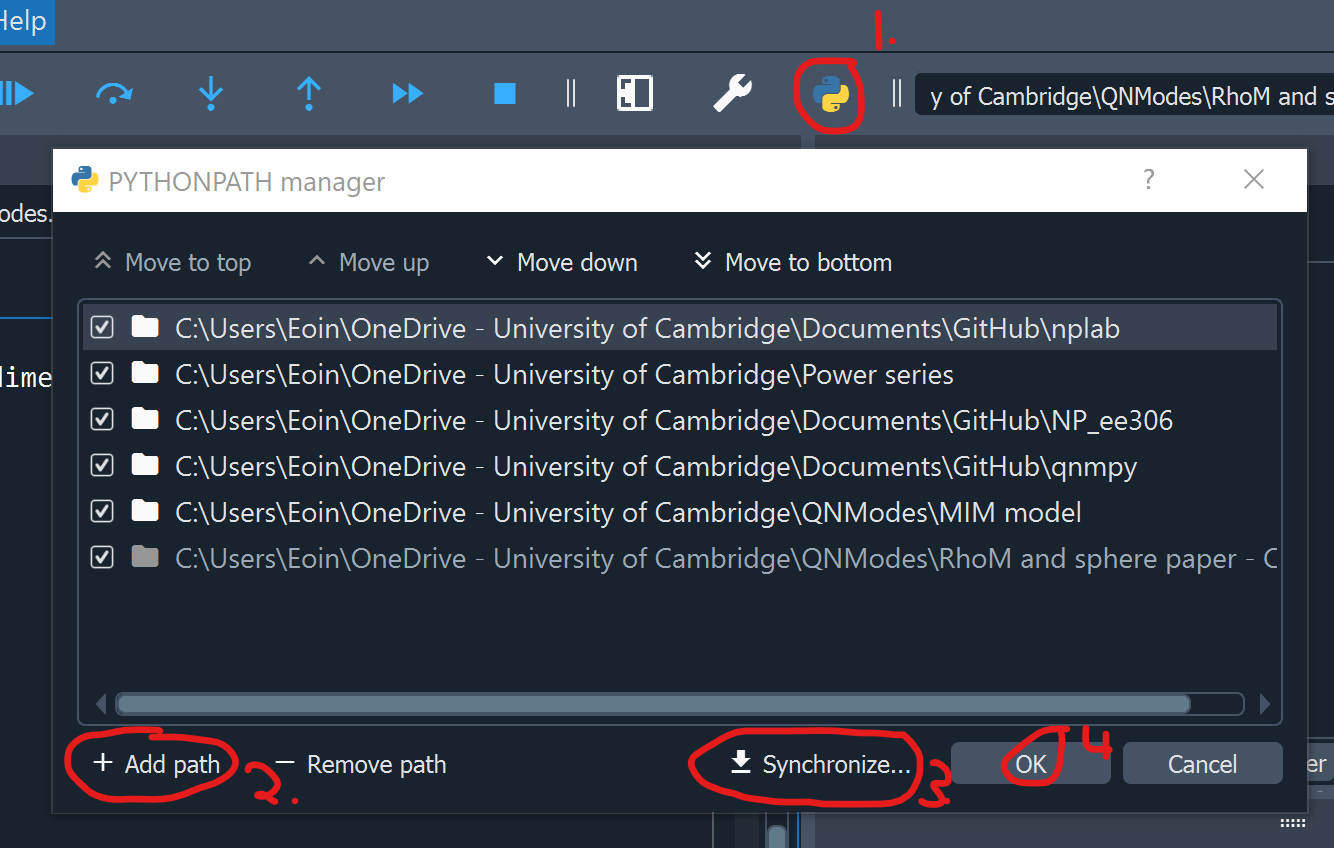
-
Navigate to a .h5 file of your choice, or use nplab/nplab/examples/example_h5.h5. Right click, select open with, scroll to the bottom of the options and choose 'look for another app on this pc'. Navigate to ...Documents\GitHub\nplab\nplab\ui\open_browser_cmd.bat and select it.

I think that's everthing...
xoxo Eoin