This repository serves as a robust, modular boilerplate for Bash configuration files, optimized for a modern development workflow. The setup is designed to be portable, maintainable, and strictly compliant with the XDG Base Directory Specification.
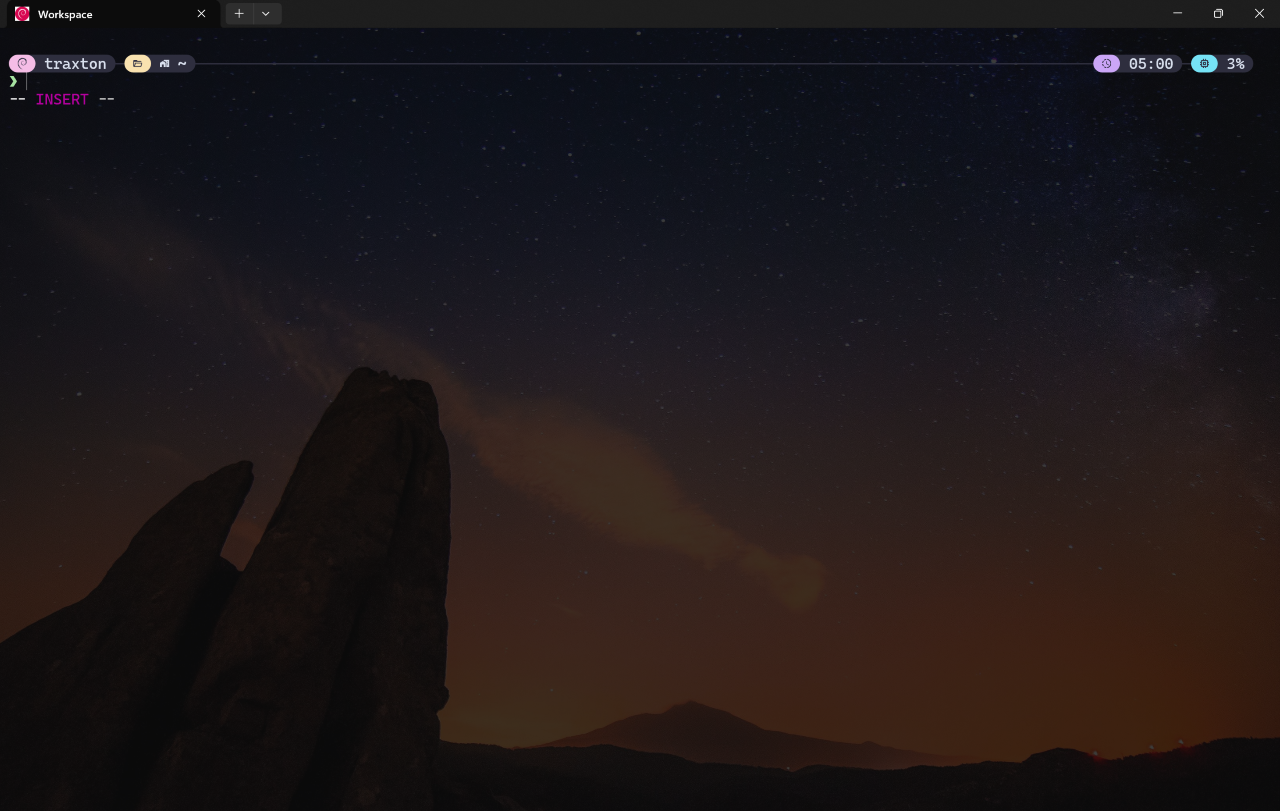
- Modern Prompt: Styled with Starship, providing rich, context-aware information.
- Enhanced Shell Experience: Powered by ble.sh for syntax highlighting, auto-suggestions, and an advanced line editor with Vi mode.
- Fuzzy Search Everywhere: fzf integration for blazing-fast history search (Ctrl+R) and file finding.
- Smart Directory Navigation: zoxide learns your habits, allowing you to jump to frequent directories with short commands.
- XDG Compliance: Keeps your
$HOMEdirectory clean by storing configuration, data, and cache files in standard locations (~/.config,~/.local/share, etc.). - Multi-Identity Git: Easily manage work and personal Git profiles using conditional includes.
- Automated Setup: A single script to install tools and set up configurations across different systems (supports Debian/Ubuntu, Fedora, Arch Linux, and macOS).
To ensure you can manage your own configurations and sync them across your machines, do not clone this repository directly. Instead, follow the steps below to create your own copy.
-
Create Your Repository
Click the
button on GitHub to generate a new repository from this template. This detaches your dotfiles from the upstream, allowing you to push changes and maintain your own version.
-
Clone and Install
Once you have your own repository, clone it to your local machine. It is recommended to clone into
~/dotfilesto keep your home directory organized.-
Clone your repository to a hidden directory. (Replace
<YOUR_USERNAME>with your actual GitHub username)git clone https://github.com/<YOUR_USERNAME>/dotfiles.git ~/dotfiles
-
Navigate to the directory.
cd ~/dotfiles
-
Execute the installation script.
chmod u+x install.sh
./install.sh
Starship Installation: The script prioritizes installing starship via your system's package manager. If your distribution is older (e.g., Debian 12, Ubuntu 24.04) and does not include Starship in its repositories, the script will automatically fallback to the official Starship installer script. No manual action is required.
The script will:
- Install necessary dependencies (starship, fzf, zoxide, etc.) via your system's package manager.
- Back up any existing configuration files to
~/dotfiles_backup_<timestamp>. - Create symlinks from
~/dotfilesto the appropriate locations (mostly~/.config/).
-
-
Restart Shell
Open a new terminal window or run
source ~/.bashrcto apply the changes.
This setup is designed to be extensible without modifying the core files, preventing merge conflicts when you update the core logic.
The proper way to add your own configurations is to create a new file in the config/bash/rc.d/ directory. The scripts are loaded in lexicographical order.
For example, create config/bash/rc.d/99-local.sh:
# My custom aliases
alias k="kubectl"

# My custom functions
my_func() {
  echo "Hello from my local config!"
}
Then, run ./install.sh again to ensure symlinks are correct (though for rc.d files, no new symlinks are needed as the directory is already linked).
This template uses a split-config approach for Git to separate personal and work identities.
- Primary Identity: Edit
config/git/config.iniin your repo. Change the[user]section to your default Git profile. - Work Identity: Edit
config/git/work.ini. This file is conditionally included. - Activation: In
config/git/config.ini, update the path in[includeIf "gitdir:~/workspace/"]to match your work projects directory.
Important
Any git repository inside ~/workspace/ (or your chosen path) will automatically use the configuration defined in config/git/work.ini.
The script automatically detects if you are running inside WSL and attempts to retrieve your Windows User Profile path to enable integration with tools like VS Code (code).
However, for this to work flawlessly while keeping your environment clean, it is recommended to disable the default Windows PATH appending in /etc/wsl.conf and allow Interop:
[interop]
enabled = true
appendWindowsPath = false
Note
The config/bash/rc.d/30-wsl.sh script will explicitly add the necessary VS Code paths and aliases (like explorer.exe) only if Interop works, preventing errors if you have disabled it.
Since you have cloned your own repository, you can now track changes to your configuration:
cd ~/dotfiles
git add .

# Replace `<COMMIT_MSG>` with your actual commit message, e.g., "feat: added new alias for kubectl"
git commit -m <COMMIT_MSG>

git push
On a new machine, simply repeat the Installation steps using your repository URL to synchronize your environment.