DroidRun GUI 是对 droidrun 命令行工具的可视化封装,支持一键操作 Android 设备,无需命令行基础。
- 多设备管理与选择
- 任务输入与模板快捷填充
- 历史任务一键复用
- AI模型与API Key管理
- Portal APK/ADBKeyboard自动安装与环境检测
- 任务执行进度与结果实时输出
- 安装依赖并激活虚拟环境:
pip install -r requirements.txt source ../venv/bin/activate - 一键运行 GUI:
或手动:
./run_local_gui.sh
PYTHONPATH=. python3 droidrun_gui/gui_main.py
- 支持中文/英文任务输入,自动适配输入法
- Portal APK/ADBKeyboard 一键安装与切换
- 任务执行全程可视化,历史可追溯





DroidRun is a powerful framework for controlling Android devices through LLM agents. It allows you to automate Android device interactions using natural language commands.
- Control Android devices with natural language commands
- Supports multiple LLM providers (OpenAI, Anthropic, Gemini, Ollama, DeepSeek)
- Planning capabilities for complex multi-step tasks
- LlamaIndex integration for flexible LLM interactions
- Easy to use CLI with enhanced debugging features
- Extendable Python API for custom automations
- Screenshot analysis for visual understanding of the device
- Execution tracing with Arize Phoenix
pip install droidrungit clone https://github.com/droidrun/droidrun.git
cd droidrun
pip install -e .- An Android device connected via USB or ADB over TCP/IP
- ADB (Android Debug Bridge) installed and configured
- DroidRun Portal app installed on your Android device
- API key for at least one of the supported LLM providers:
- OpenAI
- Anthropic
- Google Gemini
ADB (Android Debug Bridge) is required for DroidRun to communicate with your Android device:
-
Install ADB:
- Windows: Download Android SDK Platform Tools and extract the ZIP file
- macOS:
brew install android-platform-tools - Linux:
sudo apt install adb(Ubuntu/Debian) orsudo pacman -S android-tools(Arch)
-
Add ADB to your PATH:
- Windows: Add the path to the extracted platform-tools folder to your system's PATH environment variable
- macOS/Linux: Add the following to your ~/.bashrc or ~/.zshrc:
export PATH=$PATH:/path/to/platform-tools
-
Verify ADB installation:
adb version
-
Enable USB debugging on your Android device:
- Go to Settings → About phone
- Tap Build number 7 times to enable Developer options
- Go to Settings → System → Developer options (location may vary by device)
- Enable USB debugging
DroidRun requires the DroidRun Portal app to be installed on your Android device:
- Download the DroidRun Portal APK from the DroidRun Portal repository
- Use DroidRun to install the portal app:
droidrun setup --path=/path/to/droidrun-portal.apk
Alternatively, you can use ADB to install it manually:
adb install -r /path/to/droidrun-portal.apkCreate a .env file in your working directory or set environment variables:
# Choose at least one of these based on your preferred provider
export OPENAI_API_KEY="your_openai_api_key_here"
export ANTHROPIC_API_KEY="your_anthropic_api_key_here"
export GEMINI_API_KEY="your_gemini_api_key_here"
export DEEPSEEK_API_KEY="your_deepseek_api_key_here"
# For Ollama, no API key is needed
To load the environment variables from the .env file:
source .envConnect your device via USB or set up wireless ADB:
# List connected devices
droidrun devices

# Connect to a device over Wi-Fi
droidrun connect 192.168.1.100DroidRun's CLI is designed to be simple and intuitive. You can use it in two ways:
# Format: droidrun "task description" [options]
droidrun "Open the settings app"# Using OpenAI
droidrun "Open the calculator app" --provider OpenAI --model gpt-4o-mini
# Using Anthropic
droidrun "Check the battery level" --provider Anthropic --model claude-3-sonnet-20240229
# Using Gemini
droidrun "Install and open Instagram" --provider Gemini --model models/gemini-2.5-pro-preview-05-06
# Using Ollama (local)
droidrun "Check battery level" --provider Ollama --model llama2# Specify a particular device
droidrun "Open Chrome and search for weather" --device abc123
# Enable vision capabilities
droidrun "Analyze what's on the screen" --vision
# Enable planning for complex tasks
droidrun "Find and download a specific app" --reasoning
# Enable execution tracing (requires Phoenix server running)
droidrun "Debug this complex workflow" --tracing
# Set maximum number of steps
droidrun "Open settings and enable dark mode" --steps 20If you want to use DroidRun in your Python code rather than via the CLI, you can create a minimal test script:
#!/usr/bin/env python3
import asyncio
from droidrun.agent.droid import DroidAgent
from droidrun.agent.utils.llm_picker import load_llm
from droidrun.tools import load_tools

async def main():
    # Load tools
    tool_list, tools_instance = await load_tools()

    # Load LLM
    llm = load_llm(
        provider_name="Gemini",  # Case sensitive: OpenAI, Ollama, Anthropic, Gemini, DeepSeek
        model="models/gemini-2.5-pro-preview-05-06",
        temperature=0.2
    )

    # Create and run the agent
    agent = DroidAgent(
        goal="Open the Settings app and check the Android version",
        llm=llm,
        tools_instance=tools_instance,
        tool_list=tool_list,
        vision=True,      # Enable vision for screen analysis
        reasoning=True    # Enable planning for complex tasks
    )

    # Run the agent
    result = await agent.run()
    print(f"Success: {result['success']}")
    if result.get('reason'):
        print(f"Reason: {result['reason']}")

if __name__ == "__main__":
    asyncio.run(main())
You can also use LlamaIndex directly:
import asyncio
from llama_index.llms.gemini import Gemini
from droidrun.agent.droid import DroidAgent
from droidrun.tools import load_tools

async def main():
    # Load tools
    tool_list, tools_instance = await load_tools()

    # Create LlamaIndex LLM directly
    llm = Gemini(
        model="models/gemini-2.5-pro-preview-05-06",
        temperature=0.2
    )

    # Create and run the agent
    agent = DroidAgent(
        goal="Open the Settings app and check the Android version",
        llm=llm,
        tools_instance=tools_instance,
        tool_list=tool_list
    )

    # Run the agent
    result = await agent.run()
    print(f"Success: {result['success']}")

if __name__ == "__main__":
asyncio.run(main())If you encounter errors about missing API keys, ensure:
- You've set the correct environment variable for your chosen provider
- The API key is valid and has appropriate permissions
- You've correctly sourced your
.envfile or exported the variables manually
If you have trouble connecting to your device:
- Ensure USB debugging is enabled on your Android device
- Check that your device is recognized by ADB:
adb devices - For wireless connections, make sure your device and computer are on the same network
If DroidRun is using the wrong LLM provider:
- Explicitly specify the provider with
--provider(in CLI) orllm_provider=(in code) - When using Gemini, ensure you have set
GEMINI_API_KEYand specified--provider gemini
If you're using the tracing feature:
- Make sure to install Arize Phoenix:
pip install "arize-phoenix[llama-index]" - Start the Phoenix server before running your command:
phoenix serve - Access the tracing UI at http://localhost:6006 after execution
-
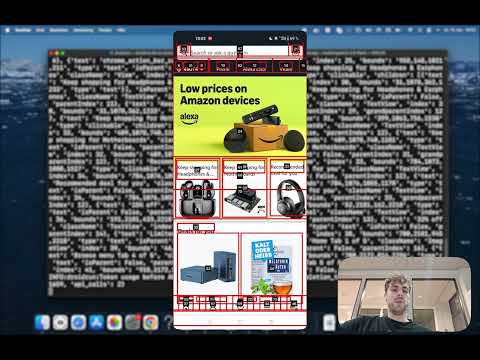
Shopping Assistant: Watch how DroidRun searches Amazon for headphones and sends the top 3 products to a colleague on WhatsApp.
Prompt: "Go to Amazon, search for headphones and write the top 3 products to my colleague on WhatsApp."
-
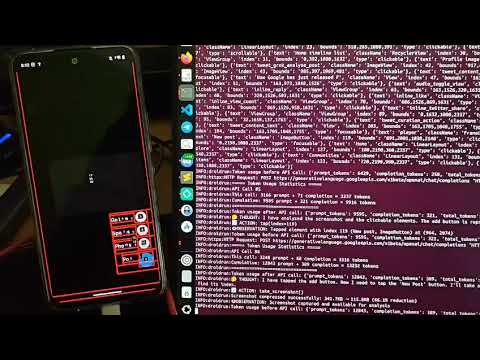
Social Media Automation: See DroidRun open X (Twitter) and post "Hello World".
Prompt: "Open up X and post Hello World."
- Automated UI testing of Android applications
- Creating guided workflows for non-technical users
- Automating repetitive tasks on Android devices
- Remote assistance for less technical users
- Exploring Android UI with natural language commands
- Improve memory: Enhance context retention for complex multi-step tasks
- Expand planning capabilities: Add support for more complex reasoning strategies
- Add Integrations: Support more LLM providers and agent frameworks (LangChain, Agno etc.)
- Create Automation Scripts: Generate reusable scripts from agent actions that can be scheduled or shared
- Hosted version: Remote device control via web interface without local setup
- Add-Ons: Marketplace for extensions serving specific use cases
- Proxy Hours: Cloud compute time with tiered pricing for running automations
- Droidrun AppStore: Simple installation of Apps on your hosted devices
Contributions are welcome! Please feel free to submit a Pull Request.
This project is licensed under the MIT License - see the LICENSE file for details.