The JavaScript testing stack
We are using a distributed, browser based test runner, based on a server-client model. It is distributed because it runs the tests on several machines at the same time. It is browser based because all the test are executed inside a browser, as opposite to other solutions where the test can be executed directly on JavaScript engines or other environments like Rhino or Node.js

The server acts as a dynamic pool of browsers. You can add or remove any browser at any moment. Ideally, this pool should contain at least one supported browser version and vendor.
You should set up a global server, used by all the developers in your team. This global server will be used also for continuous integration tests, so it should be online 24/7. Our recommendation is to have a dedicated machine to host this server (in this article, this server is called ‘testserver’)
After downloading JsTestDriver from the JSTestDriver official page, you can start the server using the command:
java -jar path/to/JsTestDriver-1.3.4.b.jar --port 9876Now you need to populate that JsTestDriver instance with browsers to run the tests into. You can do this in two ways:
- Client browsers. Just open http://testserver:9876/capture in your browser. You can also ask other developers to do the same, even set up a few virtual machines with different browsers/versions that will point to that address. When a browser is in a pool, all you need to do is to keep that browser tab open. JsTestDriver will send the tests to your browser as requested, and they will run unattended and without disturb or interfere with other tabs in the browser.
- Headless browser. You can use a headless browser like PhantomJS. You can download the source code from the page, or if you are using Debian, install it with apt-get. After installing it, you need to create a small script that instructs PhantomJS to connect to your JsTestDriver pool. You can use the script phantomjs-jstd.js from the project js-test-driver-phantomjs.
At this point you will have a global JsTestDriver instance with at least one browser (the PhantomJS instance).
You can also start your own local pool to run the tests in your machine, to debug them, etc. To do so, you only need to run:
java -jar path/to/JsTestDriver-1.3.4.b.jar --port 9876It will create a new pool on http://localhost:9876/. Then, you can point any browser you want to that address, so it becomes part of your local pool. Also, you can ask other developers to help you out and point their browsers to that pool.
As a side note, there are plugins for Eclipse and IntelliJ that allows you to start a local pool and run the tests directly from your IDE.

With the client, you can ask any pool to run a set of tests. It will send all your test files and the JavaScript source code you are testing to all browsers in the pool, and collect the results, that will be displayed in the console (or in your IDE if you are using the plugin).
In order to specify the JavaScript files to be loaded by the test (i.e. the source code and the test files), you need to create a JsTestDriver config file. That file is formatted in YAML, and it must contain at least:
# filename core_tests.jstd # server: http://testserver:9876load: - src/source1.js - src/source2.jstest: - test/test1.js - test/test2.js
- server: URL of the JsTestDriver pool to be used
- load: list of JavaScript files with the source code to be tested. They will be loaded in order, so be careful about dependencies between files or modules. (Note: the paths are relative to the JsTestDriver config file location)
- test: list of JavaScript files with the test cases to execute. (Note: the paths are relative to the JsTestDriver config file location)
Then, you can run the tests from the command line:
java -jar path/to/JsTestDriver-1.3.4.b.jar --config yourconfigfile.jstd --test allThere are some useful flags that can be used, be sure to check them with --help. For example, you can override the configured server with --server http://address:port
The tests will be sent to the pool, and you will get the results grouped by browser, so it is very easy to know if a particular test is failing in a particular browser.
By default, JsTestDriver provides a testing framework based on jUnit syntax (i.e. test cases and direct assertions). But the good thing about JsTestDriver is that you can load any other testing framework as long as you have or write an adapter to convert the new testing framework syntax and output format to the format used by the default testing framework.
This is the case for Jasmine. There is a JsTestDriver adapter, so we can use Jasmine testing framework in our tests. This is transparent to JsTestDriver itself, and no matter if we run a mixed set of tests, it will run them all and group the results.
In both cases, you can use any mock library. We recommend to use Sinon.JS as the mocking library.
This is how a test case looks like:
TestCase("HelloWorldTest", { testBasicGreet: function() { var subject = new HelloWorld();assertEquals("Hello World!", subject.greet()); },"test it greets to everyone": function() { var subject = new HelloWorld();assertEquals("Hello everyone!", subject.greet("everyone")); },"test it fails it try to greet to empty string": function() { var subject = new HelloWorld();assertEquals(null, subject.greet("")); } });
You define a new test using TestCase()2. Each test will be defined by a function which name starts with @test. Please, note that you can use phrases to name the function as long as you surround it with quotes. This will be used as the test name for the reports, so it is a good idea to write a very descriptive name. Don’t be afraid of use a full phrase and remember to start with the word test. You can also use the common functions setUp() and tearDown() to run code before or after each test case.
There are a full collection of assertions. Please, check the JsTestDriver wiki page about TestCase. We can also expand the set of available assertions just defining a function before of after the case, or even create a common utility file with all assertions and load it using the JsTestDriver config file.
This is how a test case looks like:
describe("HelloWorld", function() {it("should perform a basic greet", function() { var subject = new HelloWorld();expect(subject.greet().toBe("Hello World!"); });it("should greet to any provided argument", function() { var subject = new HelloWorld(); expect(subject.greet("everyone").toBe("Hello everyone!"); });it("test it fails it try to greet to empty string", function() { var subject = new HelloWorld();expect(subject.greet("")).toBeNull(); }); });
You define a new suite using describe(). A suite is just a function that gets executed. Inside that function, you should use calls to it() function to describe each spec in your test. Please, note that those are actual statements executed by the test suite function, so you can use variables, define your own functions, and in general, use lots of language constructions to control your test suite. If you take a look to the jUnit syntax, you will notice that each test is just a property declared in an object, so you don’t have a lot of control about how and when each individual test is executed.
As in jUnit, there is a beforeEach() and afterEach() functions that will be executed before/after each testing each spec (i.e. before/after executing the function passed to it() ). There is also a complete set of matchers to use in your tests.
Sinon.JS provides a very nice library to create mocks, stubs and other artifacts that are very useful when testing your methods. As in JavaScript almost everything can be overwritten and redefined; technically you can isolate and mock your components as much as you want without using a mock library. But using a library will make your life lots easier:
describe('Testing if MyStatic.method calls MyStatic.method2', function() {//Whitout Sinon.JS it('check if function has been called', function() { //Prepare substitute of MyStatic.method2 var oldMethod2 = MyStatic.method2; var f = function( ) { f.called = true; //Be sure to pass this scope, all arguments and return the //original value return oldMethod2.call(this, Array.prototype.concat.apply(arguments) } f.called = false; MyStatic.method2 = f;//Do the test MyStatic.method() expect(MyStatic.method2.called).toBe(true);//And clean-up everything MyStatic.method2 = oldMethod2; delete f; });//With Sinon.JS it('check if function has been called v2', function() { //Prepare substitute of MyStatic.method2 sinon.spy(MyStatic, "method2")//Do the test MyStatic.method() expect(MyStatic.method2.called).toBe(true);//Clean MyStatic.method2.reset() }); });
We encourage you to read Sinon.JS documentation (which also happen to be a very good introduction about how and when to use mocks in your tests). Here we only shown a very basic example, but with Sinon.JS you can do very powerful stuff (mock XHR connections, fake timers, pre-programmed response for your stubs functions and more)
If you want to use Sinon in your tests, you just need to add Sinon source to the JsTestDriver config file (very much like adding Jasmine).
server: http://testbox:9876
load:
  #Add Jasmine support
  - vendors/jasmine-1.1.0.js
  - vendors/JasmineAdapter.js
  #Add Sinon.JS support
  - vendors/sinon-1.3.2.js
  #Your actual source code to be tested
  - src/js/Player.js
  - src/js/User.js
test:
  - tests/js/Player.js
  - tests/js/User.js
You can follow this system (add the source code on your JsTestDriver config) if you need to load any other test utilities or frameworks you may want to use to write your tests.
You can integrate the JavaScript tests with yout Hudson installation in order to have nice reports about passed and failed tests in each iteration.
Go to your project task in Hudson and edit its configuration. In the Build section, add a new Execute Shell step. Enter this shell script to run the JavaScript tests:
java -jar $WORKSPACE/path/to/JsTestDriver-1.3.4.b.jar \
     --config $WORKSPACE/tests/js/core_tests.jstd \
     --server http://testbox:9876 \
     --tests all \
     --testOutput $WORKSPACE/. \
     --browserTimeout 15000 \
     --reset
Feel free to change these values to match your setup:
- config: should point to your JSTestDriver config file.
- server: JSTD pool used for the tests.
- tests: lists of tests cases, use ‘all’ for run all tests.
- testOutput: where to store the results of the tests. We suggest to not change this.
- browserTimeout: time (in milliseconds) before marking a browser in the pool as dead.
- reset: tell the browser to drop any file received from previous runs.
When you run the tests, you’ll see the following output in the console:
setting runnermode QUIET
Safari: Reset
.....................
Total 21 tests (Passed: 21; Fails: 0; Errors: 0) (138.00 ms)
  Safari 534.34 Linux: Run 21 tests (Passed: 21; Fails: 0; Errors 0) (138.00 ms)
It means your tests was run, and all of them passed on a Safari browser. If there are more browsers in that JSTD pool, you’ll see a list of passed/failed tests per browser.
You also need tell Hudson to get the tests results and display them in a nice graph in the task’s main page. To do so, edit your Hudson task and mark ‘Publish JUnit tests results report’. Also, enter *.xml as a value for ‘Test report XMLs’ (actually, you should set the same path you set for --testOutput flag).
Then, after you Hudson task is run, you will a graph like this:
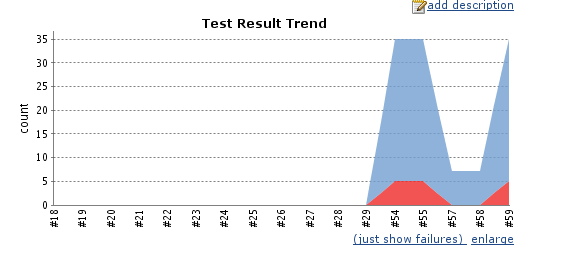
As a bonus point, if you already have other jUnit plugins (for example, phpunit), that graph will aggregate all the results (as long as all the xml files with the results are in the same folder).
JSTestDriver can generate code coverage information for our tests. It’s very useful as you will have a good insight about the code being actually tested, and more importantly, the code that is not being tested.
You will need to install the coverage plugin. Just download it from the JsTestDriver download page. You only need to place it on the client machine (i.e. the machine running jstestdriver in client mode). Then, add the following lines to your JSTD config file:
plugin:
 - name: "coverage"
   jar: "path/to/coverage-1.3.4.b.jar"
   module: "com.google.jstestdriver.coverage.CoverageModule"
After JsTestDriver finishes running your test suite, you will get a file named *-coverage.dat in the output directory (specified by the --testOutput flag). At this point, you have to options to see the results:
- Convert the coverage data into a HTML report: The coverage data file is compatible with the LCOV visualizer. After installing LCOV, you can generate a HTML report with the command:
genhtml jsTestDriver.conf-coverage.dat- Integrate coverage reports into Hudson: You need to use lcov-to-cobertura-xml. This python script will convert your coverage data into a file compatible with Cobertura, the format used by Hudson. After downloading it, you’ll need to add a new Build Step to Hudson with the following shell script:
python /path/to/lcov-to-cobertura-xml.py $WORKSPACE/jsTestDriver.conf-coverage.datThen, tell Hudson to publish your Cobertura reports: mark “Publish Cobertura coverage report”, and enter coverage.xml as input file. You might need to install the Cobertura plugin.
- Create a new JS file, and write your testcase there
- Open the JsTestDriver config file related to your project (eg:
tests/js/core_tests.jstd) - Add a reference to the file created in the first step in the
testsection
- Start your own JsTestDriver pool in your computer:
java -jar path/to/JsTestDriver-1.3.4.b.jar- Navigate to the pool using your browser: http://localhost:9876/capture
- Ask your local pool to run a suite of tests
java -jar path/to/JsTestDriver-1.3.4.b.jar \
     --config tests/js/core_tests.jstd \
     --server http://localhost:9876 \
--test allShort answer: use Jasmine always, and use Sinon.JS for any non-trivial test.
Long answer: all combinations will work, so ultimately is up to you which combination to use. My recommendation is to stick with Jasmine (as the syntax is a bit more readable) and use Sinon.JS (because if not, probably your test is not as complete as it can be). However, if somehow you can’t use Jasmine for a particular test, (or don’t know how to use it and can’t invest a few minutes learning it), a test based on jUnit is better than having no test at all.
- Open the JsTestDriver config file related to your project (eg:
tests/js/core_tests.jstd) - Search for the filename you want to disable
- Comment it using
#. Remember to include some comment about why and when it was commented.
- Edit the test file and add a
debugger;statement at the point you want to pause the execution. - Run that test using a local pool with a local browser with debugging tools activated (i.e. Firefox+Firebug or Chrome).
- Your browser will stop in the
debugger;statement, no matter the code was executed through the test runner.
Remember to resume the code execution before trying to send another suite of tests to the same pool. If a new tests is received while the browser is paused, the client and server usually become confused and you need to restart everything (browser, server and IDE) to be able to continue testing.
Warning – don’t do this with a shared pool, as you may disrupt other browsers that happen to have the debug tools activated. Always use your own pool if you plan to use breakpoints in order to debug a test.
- Test runner: JsTestDriver
- Headless browser: PhantomJS
- Test framework: JsTestDriver testing framework and Jasmine
- Mock Library: Sinon.JS
- CI Server: Jenkins and Cobertura plugin
- Coverage reports: lcov-to-cobertura-xml, LCOV
- How do I Jasmine: a tutorial | Evan Hahn dot com
- Testing Your JavaScript with Jasmine | Nettuts+
- Testing Backbone applications with Jasmine and Sinon – Part 1 – Tinned Fruit
- Getting Started with JsTestDriver IntelliJ plugin – Web IDE – Confluence
- Higer-level Stubbing and Mocking Tools in Sinon / JavaScript – cjohansen.no
- JavaScript Test Spies, Stubs and Mocks / JavaScript – cjohansen.no