An MCP (Model Context Protocol) server that enables AI assistants like Claude to control Pro Tools via the PTSL (Pro Tools Scripting Library) gRPC API.
⚠️ Experimental Project: This is a work in progress and not all Pro Tools features are implemented yet. Use at your own risk!
The server provides AI assistants with the following capabilities:
- Session Management - Query session info, save sessions, get comprehensive session overview
- Timeline Navigation - Browse tracks and clips with pagination, search by name, navigate the timeline (audio clips only)
- Track Control - List, select, mute, solo, and manage tracks
- Clip Management - Find and work with audio clips on the timeline
- Editing Operations - Cut, copy, paste, clear, undo/redo with timeline selections
- Markers - Create, list, and navigate session markers
- Transport Control - Play, stop, record, and control playback
- Visual Analysis - Generate waveform images and analyze audio content (onsets, peaks, silence detection)
- Raw PTSL Access - Send custom PTSL commands for advanced use cases
- Diagnostics - Test and verify PTSL connection status
- MIDI Clips: The timeline indexing only captures audio clips. MIDI clip positions cannot be queried due to PTSL API limitations. MIDI clips can be seen in the clip list but their timeline positions are not available.
The server uses a granular permission system to protect your Pro Tools sessions. By default, it runs in read-only mode with safe audio analysis enabled.
Always allowed:
- Read operations (queries, track lists, clip info, session info)
- Playback control (play, stop, toggle)
- UI state changes (mute/solo, timeline selection, edit tools)
- Copy to clipboard (non-destructive)
- Export audio to temp directories only (enables audio analysis)
Blocked by default (require ALLOW_WRITES to enable):
- Creating/editing markers (
memory) - Cut/paste/clear operations (
clipboard) - Exporting to custom paths (
export) - Creating/deleting tracks (
track_structure) - Saving/opening sessions (
session) - Recording (
recording)
Use the ALLOW_WRITES environment variable to enable specific permission groups:
Claude Desktop (~/Library/Application Support/Claude/claude_desktop_config.json):
{
  "mcpServers": {
    "protools": {
      "command": "node",
      "args": ["/absolute/path/to/protools-mcp-server/dist/index.js"],
      "env": {
        "PTSL_PROTO_PATH": "/absolute/path/to/PTSL.proto",
        "ALLOW_WRITES": "memory,clipboard"
      }
    }
  }
}
Command Line:
# Allow markers and clipboard editing
ALLOW_WRITES=memory,clipboard PTSL_PROTO_PATH=/path/to/PTSL.proto node dist/index.js

# Allow everything (use with caution)
ALLOW_WRITES=all PTSL_PROTO_PATH=/path/to/PTSL.proto node dist/index.js| Group | Operations | Risk Level |
|---|---|---|
memory |
Create/edit/delete markers | 🟢 Safe |
export |
Export audio to any location | 🟡 Moderate |
clipboard |
Cut/paste/clear audio | 🟠 Destructive |
track_structure |
Create/delete tracks | 🟠 Destructive |
session |
Save/open/close sessions | 🔴 High |
recording |
Record audio | 🔴 High |
Since AI models like Claude cannot directly listen to audio, this server provides several methods to help the AI "understand" audio content through visual and textual analysis. The analyze_audio tool can bounce any region of your Pro Tools session and analyze it in multiple ways:
Isolated Mode: Analyzes a single track by soloing it, bouncing the region, and generating analysis. Perfect for examining individual instruments or vocals.
Mix Mode: Analyzes the full mix as it currently sounds in Pro Tools, respecting all mute/solo states, automation, and plugin processing.
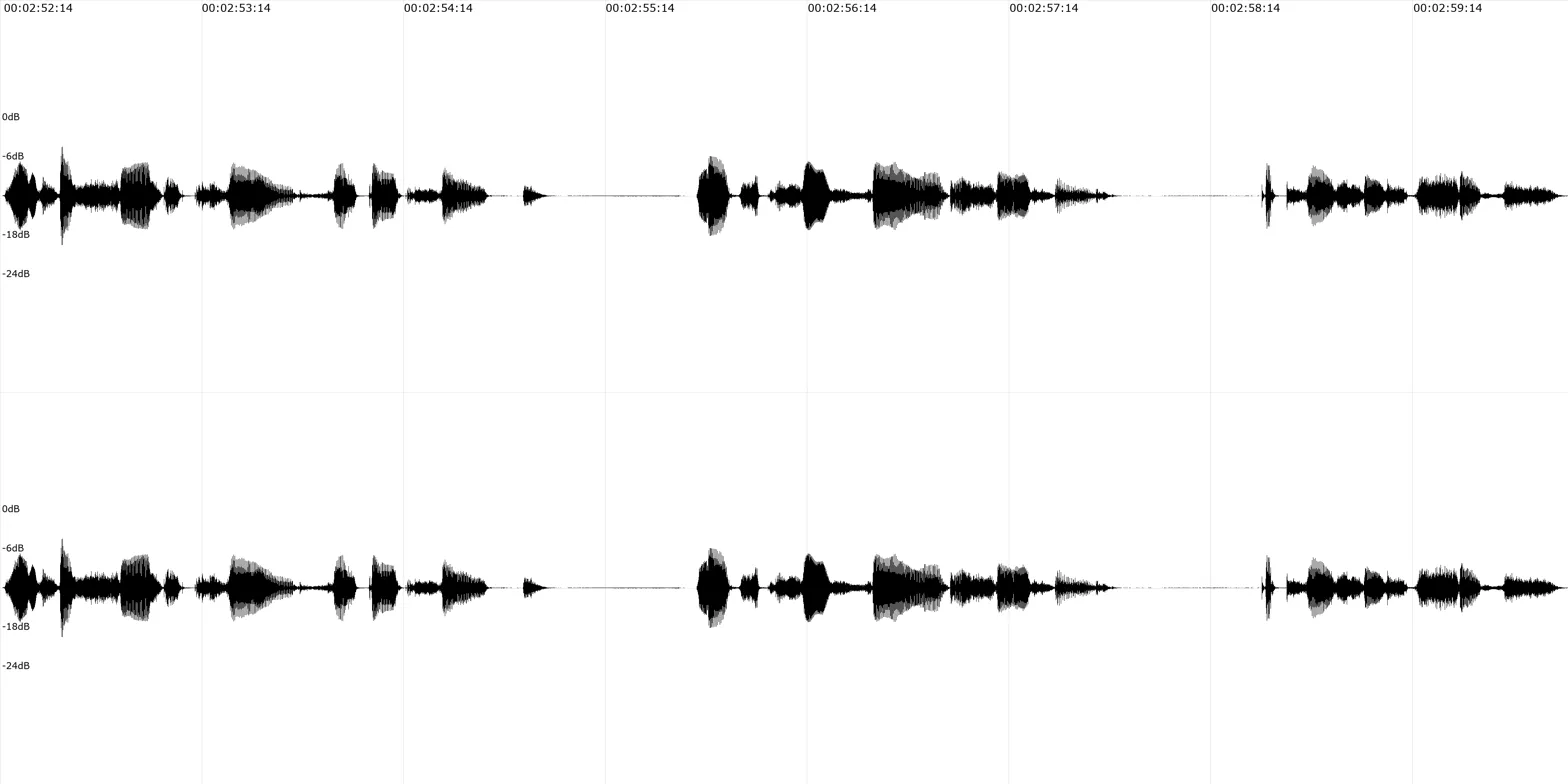
Generates a high-resolution waveform image with amplitude over time. The visualization includes:
- Stereo channels displayed separately (top/bottom)
- Time markers in Pro Tools timecode format (HH:MM:SS:FF)
- Amplitude scale in dB (-24dB to 0dB reference)
- Grid lines for visual orientation
Use cases: Identifying clip boundaries, seeing dynamics, spotting silence or loud sections, understanding rhythm patterns
Example waveform output (4096x2048 pixels):
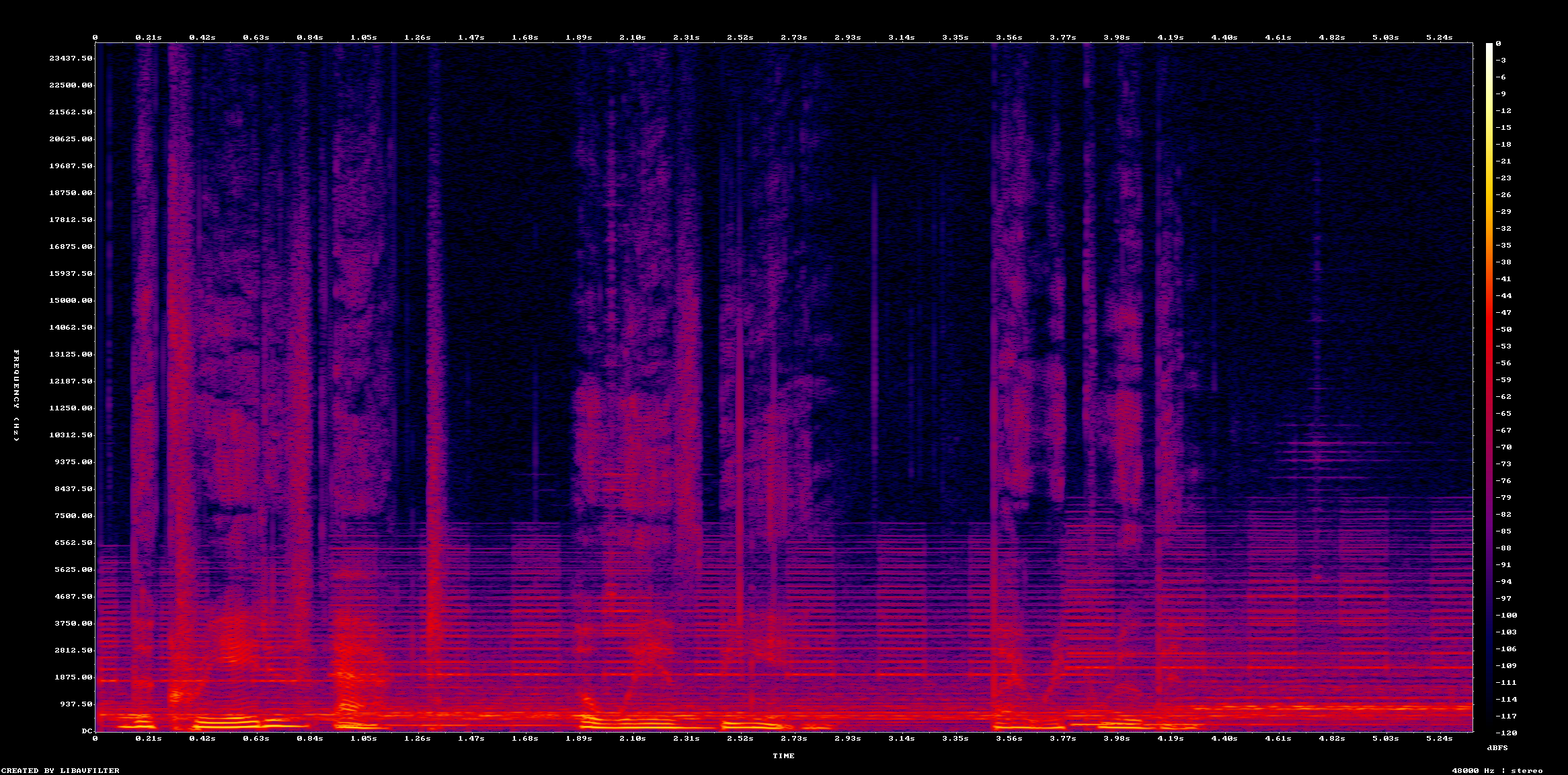
Generates a frequency spectrum visualization showing frequency content over time. Colors represent amplitude at each frequency.
Use cases: Identifying frequency ranges, spotting harmonics, seeing tonal vs percussive content, detecting resonances
Example spectrogram output (2048x1024 pixels):
Provides overall amplitude statistics for the selected audio region.
Use cases: Checking overall levels, understanding average loudness, verifying headroom
Example peak analysis output:
**Overall Audio Statistics:**
RMS Level: -27.46 dB
Peak Level: -12.09 dB

This represents the average loudness (RMS) and maximum peak across the entire selected region.
Uses the Aubio library to detect transients and rhythmic events (drum hits, note attacks, etc.).
Use cases: Finding hit points for editing, understanding rhythm, identifying beats for marker placement
Example event detection output:
**Event/Onset Analysis**

Mode: mix
Time range: 00:00:10:00 - 00:00:15:00
Detected events: 24

**Onset Times:**
1. 00:00:10:02 (sample 480,960)
2. 00:00:10:17 (sample 488,160)
3. 00:00:11:02 (sample 495,360)
4. 00:00:11:17 (sample 502,560)
...
Detects periods of silence or low-level audio based on configurable threshold and duration.
Use cases: Finding gaps between takes, identifying cleanup opportunities, detecting section boundaries
Parameters:
silence_threshold_db: Amplitude threshold (default: -40dB)silence_min_duration: Minimum duration in seconds (default: 0.3s)
Example silence detection output:
**Silence Analysis**

Mode: isolated (track: Verse Lead Vocal)
Time range: 00:00:00:00 - 00:01:00:00
Threshold: -40dB, Min duration: 0.3s
Silent periods detected: 8

**Silent Periods:**
1. 00:00:05:12 - 00:00:08:23 (3.37s)
   Samples: 259,200 - 421,440
2. 00:00:19:04 - 00:00:20:15 (1.50s)
   Samples: 915,840 - 988,800
...
Runs all available text-based analyses (peaks, events, and silence) in one operation, providing a comprehensive overview of the audio content.
Use cases: Initial exploration of unfamiliar audio, getting complete context before making editing decisions
Bounces a region to WAV format and returns it as base64-encoded data (limited to 10 seconds due to MCP message size limits).
Use cases: Archival, external processing, or future use with audio-capable AI models
Note: Claude and most current AI models cannot directly analyze audio files. This mode is included for future compatibility and external tool integration.
- ffmpeg: Required for waveform, spectrogram, peaks, and silence detection
- Install:
brew install ffmpeg(macOS) orapt-get install ffmpeg(Linux)
- Install:
- aubio: Required for event/onset detection
- Install:
brew install aubio(macOS) orapt-get install aubio(Linux)
- Install:
The server will automatically detect which tools are available and provide appropriate error messages if required dependencies are missing.
This project does NOT include the PTSL.proto file from Avid's SDK.
Due to licensing restrictions, users must download the Pro Tools Scripting Library SDK from Avid and provide their own PTSL.proto file. The SDK is available for registered Avid developers.
To obtain the SDK:
- Register for an Avid developer account at avid.com
- Download the Pro Tools Scripting Library SDK
- Extract
PTSL.protofrom the SDK
- Node.js >= 18
- Pro Tools 2024.10 or later
- Pro Tools Scripting Library SDK (for PTSL.proto)
- Pro Tools must be running
According to Avid's documentation, the PTSL server should be automatically available when Pro Tools is running - no special configuration is needed. The server runs on localhost:31416 by default.
Note: Make sure Pro Tools is actually running before attempting to connect!
Get up and running in 5 minutes:
- Get the PTSL SDK - Download from Avid and extract
PTSL.proto - Clone and build:
git clone <repository-url>
cd protools-mcp-server
npm install
npm run build
- Test the connection:
npm run test-cli -- /path/to/PTSL.proto
- Configure Claude Desktop - Add to
claude_desktop_config.json:{ "mcpServers": { "protools": { "command": "node", "args": ["/absolute/path/to/protools-mcp-server/dist/index.js"], "env": { "PTSL_PROTO_PATH": "/absolute/path/to/PTSL.proto" } } } } - Restart Claude Desktop and start using Pro Tools with AI!
Note: The server starts in read-only mode by default, which prevents any modifications to your session. This is perfect for exploring and learning. See the Safety Features section to enable write operations when ready.
npm install
npm run buildBefore using the MCP server, test that you can connect to Pro Tools:
# Run the test CLI with path to your PTSL.proto file
npm run test-cli -- /path/to/PTSL.proto
# Example (if SDK is in ptsl_sdk directory):
npm run test-cli -- ptsl_sdk/Source/PTSL.protoThe test CLI will:
- Connect to the PTSL server on localhost:31416
- Register a connection
- Query session information
- List tracks
If Pro Tools is not running or PTSL is not enabled, you'll see connection errors.
To use the MCP server with Claude Desktop, add it to your Claude Desktop configuration file:
macOS: ~/Library/Application Support/Claude/claude_desktop_config.json
Windows: %APPDATA%\Claude\claude_desktop_config.json
{
  "mcpServers": {
    "protools": {
      "command": "node",
      "args": ["/absolute/path/to/protools-mcp-server/dist/index.js"],
      "env": {
        "PTSL_PROTO_PATH": "/absolute/path/to/PTSL.proto"
      }
    }
  }
}Example (macOS):
{
  "mcpServers": {
    "protools": {
      "command": "node",
      "args": ["/Users/username/protools-mcp-server/dist/index.js"],
      "env": {
        "PTSL_PROTO_PATH": "/Users/username/protools-mcp-server/ptsl_sdk/Source/PTSL.proto"
      }
    }
  }
}
After adding the configuration:
- Restart Claude Desktop
- Make sure Pro Tools is running
- Ask Claude to help you with Pro Tools tasks!
⚠️ Note: The Cowork connector has not been extensively tested. Claude Desktop is the recommended approach.
Claude Cowork requires HTTPS. The server will use self-signed SSL certificates for local development.
-
Start the HTTPS server:
export PTSL_PROTO_PATH=/path/to/PTSL.proto ./start-cowork.sh -
In Claude Cowork:
- Click "Add custom connector"
- Name:
Pro Tools - Remote MCP server URL:
https://localhost:3000/sse - Click "Add"
- Accept the security warning (self-signed certificate is safe for localhost)
Custom port:
PORT=3443 PTSL_PROTO_PATH=/path/to/PTSL.proto npm run start:http
# Then use: https://localhost:3443/sseHere are some things you can ask Claude to do with your Pro Tools session:
Analysis & Navigation:
- "Show me a waveform of the vocal track from 1 minute to 1:30"
- "Find all the silent parts in the lead vocal track longer than 1 second"
- "Where are the drum hits in the kick track between bars 8 and 16?"
- "What clips are on the timeline between 30 seconds and 1 minute?"
Editing & Organization:
- "Create markers at every vocal phrase in the lead vocal track"
- "Find the clip named 'Guitar Solo 3' and select it"
- "Mute all the drum tracks"
- "Copy the selection and paste it at 2 minutes"
Session Management:
- "What's the current session name and sample rate?"
- "List all the tracks in my session"
- "Save the session"
Playback Control:
- "Play from 1 minute to 1:30"
- "Stop playback"
- "Start recording"
The MCP server provides 36 tools across multiple categories:
- get_session_info - Get current session name, path, and sample rate
- get_session_length - Get total session duration
- get_session_overview - Comprehensive session information
- save_session - Save the current session
- get_track_list - List all tracks with their properties
- select_tracks - Select tracks by name or pattern
- set_track_mute - Mute/unmute tracks
- set_track_solo - Solo/unsolo tracks
- refresh_pro_tools_index - Sync timeline cache with Pro Tools session
- get_timeline_tracks - Browse tracks with pagination
- get_timeline_clips - Browse clips with pagination
- search_timeline - Search for tracks/clips by name
- get_clip_list - List clips in the clip bin
- select_clip_on_timeline - Select a specific clip on the timeline
- get_timeline_selection - Get current timeline selection range
- set_timeline_selection - Set timeline selection to specific time range
- play - Start playback
- stop - Stop playback/recording
- toggle_play - Toggle play/stop
- record - Start recording
- set_playback_mode - Configure loop/dynamic transport mode
- cut - Cut selected audio
- copy - Copy selected audio
- paste - Paste from clipboard
- clear - Clear/delete selected audio
- undo - Undo last operation
- redo - Redo last undone operation
- get_markers - List all memory locations/markers
- create_marker - Create a new marker at specified time
- edit_marker - Modify existing marker name/time
- delete_marker - Delete a specific marker
- delete_all_markers - Remove all markers
- select_marker - Navigate to and select a marker
- analyze_audio - Analyze audio regions with multiple analysis types:
- Waveform visualization
- Spectrogram (frequency analysis)
- Peak/RMS amplitude data
- Event/onset detection (requires aubio)
- Silence detection
- Combined analysis
- Raw audio delivery
- ptsl_command - Send raw PTSL commands directly
- sample_ptsl_responses - View example PTSL API responses
# Install dependencies
npm install

# Build TypeScript
npm run build

# Test PTSL connection
npm run test-cli -- /path/to/PTSL.proto

# Test MCP server
export PTSL_PROTO_PATH=/path/to/PTSL.proto
./test-mcp.sh
./test-tools.sh

# Test write protection safety mechanism
node test-write-protection.js                           # Test read-only mode
ALLOW_WRITE_OPERATIONS=true node test-write-protection.js # Test with writes enabledprotools-mcp-server/
├── src/
│ ├── index.ts # MCP server entry point
│ ├── test-cli.ts # Test CLI for PTSL connection
│ ├── grpc/
│ │ ├── client.ts # PTSL gRPC client wrapper
│ │ └── commands.ts # CommandId enum
│ ├── tools/ # MCP tools (TBD)
│ └── resources/ # MCP resources (TBD)
├── package.json
├── tsconfig.json
└── README.md
User Request (Claude/AI)
    ↓
MCP Server (TypeScript - this project)
    ↓
gRPC Client (generated from user's PTSL.proto)
    ↓
Pro Tools PTSL Server (localhost:31416)
    ↓
Pro Tools Application
- ✅ Basic session management (info, save, navigation)
- ✅ Track control (list, select, mute, solo)
- ✅ Timeline navigation and search (audio clips only)
- ✅ Transport control (play, stop, record)
- ✅ Basic editing operations (cut, copy, paste, clear, undo/redo)
- ✅ Marker management (create, list, edit, delete, navigate)
- ✅ Audio analysis (waveforms, spectrograms, peaks, events, silence detection)
- ✅ Timeline selection management
⚠️ MIDI clip timeline positions cannot be indexed (PTSL API limitation)⚠️ Some advanced Pro Tools features not yet exposed via PTSL⚠️ Audio analysis requires external dependencies (ffmpeg, aubio)⚠️ Raw audio delivery limited to 10 seconds due to MCP message size constraints
- 🔮 Plugin parameter control
- 🔮 Automation read/write
- 🔮 Send/aux routing management
- 🔮 I/O configuration
- 🔮 Mixer snapshots
- 🔮 Batch processing operations
- 🔮 Session template creation
- 🔮 Extended MIDI support (if PTSL API expands)
- Make sure Pro Tools is running
- Verify PTSL is enabled in Pro Tools Preferences
- Check that nothing else is using port 31416
- This usually means Pro Tools is not running
- Try restarting Pro Tools
- Make sure you're using the correct PTSL.proto version
- The proto version should match your Pro Tools version
- Download the matching SDK from Avid if needed
- Make sure you're using the correct PTSL.proto version
- The proto file should match your Pro Tools version
- Download the latest SDK from Avid if needed
Contributions are welcome! Here's how you can help:
- Use GitHub Issues to report bugs or request features
- Include Pro Tools version, PTSL SDK version, and OS details
- Provide session details if reporting behavior issues
- Include error messages and logs when applicable
- Fork the repository
- Create a feature branch (
git checkout -b feature/amazing-feature) - Make your changes and test thoroughly
- Follow the existing code style (TypeScript, ESLint)
- Update documentation as needed
- Commit your changes (
git commit -m 'Add amazing feature') - Push to your branch (
git push origin feature/amazing-feature) - Open a Pull Request
- All new tools should follow the existing tool structure in
src/tools/ - Add appropriate error handling and validation
- Include JSDoc comments for public APIs
- Test with a real Pro Tools session when possible
- Update the README if adding new capabilities
Before submitting a PR, ensure:
npm run build          # Build succeeds
npm run test-cli       # PTSL connection works
./test-mcp.sh          # MCP server initializes
./test-tools.sh # Tool registration worksMIT License - see LICENSE file
Pro Tools and PTSL are trademarks of Avid Technology, Inc. This is an independent open-source project and is not affiliated with or endorsed by Avid.
- Issues: Report bugs and request features via GitHub Issues
- Discussions: Ask questions and share workflows in GitHub Discussions
- PTSL Documentation: Refer to Avid's official PTSL documentation from the SDK
This project is experimental and community-driven. Help make it better by contributing code, reporting issues, or sharing your use cases!