

PowerFlow Bar is a custom Home Assistant Lovelace card that shows live power flow in a single animated segmented bar.
- Single-row power-flow layout for PV, battery, home, and grid
- Separate
Grid ImportandGrid Exportsegments with configurable ordering - Per-segment visibility thresholds and hysteresis to avoid flicker around zero
- Shared preset-based color themes with optional manual overrides
- Smooth width/value transitions for live power updates
- Built-in visual editor for layout, colors, entities, and visibility thresholds
- Clickable segment values that open Home Assistant
more-info - Missing or unavailable configured entities stay visible as
—instead of collapsing the full card - Uses Home Assistant's native localized state formatting
- Adjustable height, radius, spacing, and background behavior for dashboard integration
- Adjustable height and corner radius to match Bubble Card layouts cleanly
PowerFlow Bar is designed to pair with Battery Bar and House Energy Bar when you want a compact 3-card energy stack.
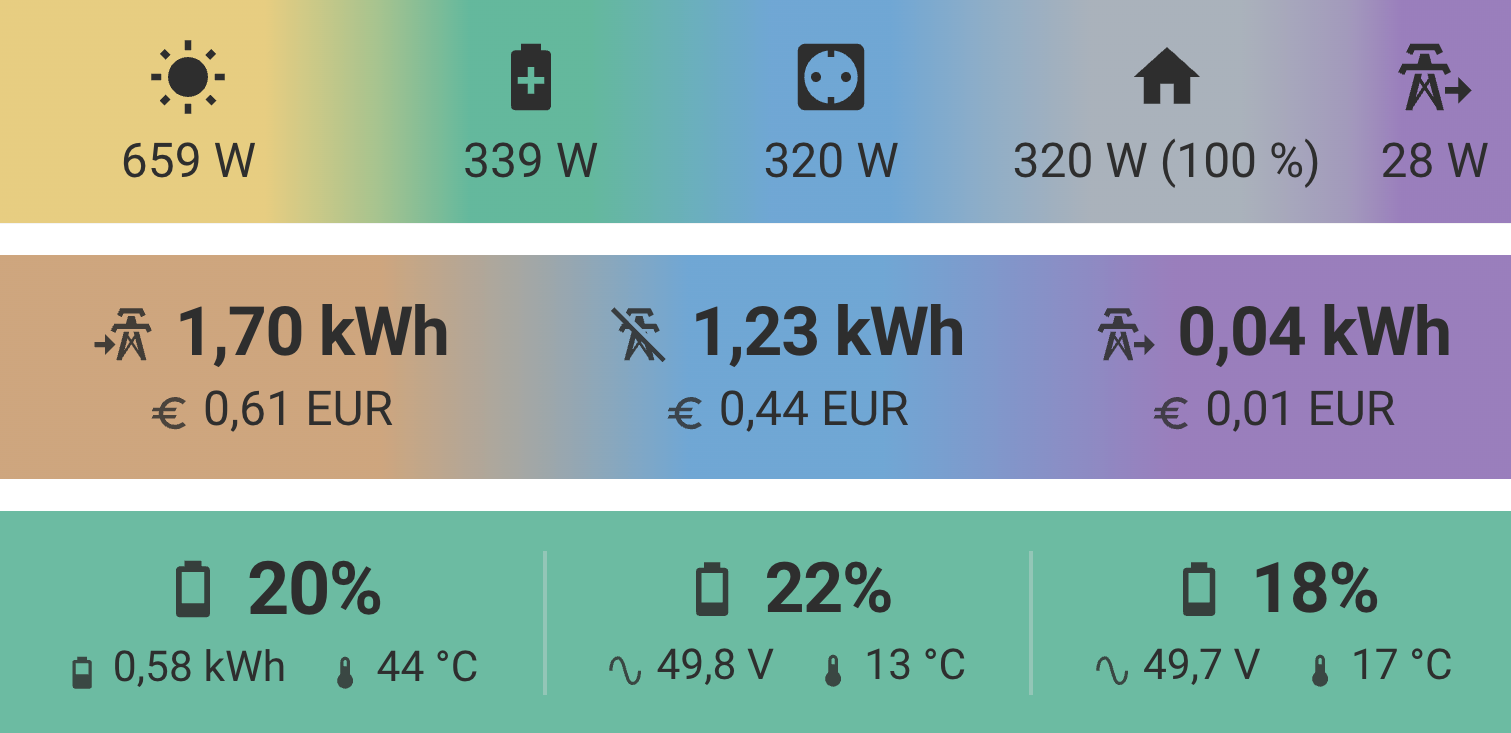
For the complete setup, also see:
- Battery Bar for per-battery SoC, voltage, and temperature details.
- House Energy Bar for daily consumed/saved/returned totals.
- Add this repository via the link in Home Assistant.

- PowerFlow Bar should now be available in HACS. Click
INSTALL. - The Lovelace resource is usually added automatically.
- Reload the Home Assistant frontend if prompted.
- Ensure HACS is installed.
- Open HACS and add
https://github.com/uwebaierl/powerflow_baras a custom repository. - Select category
Dashboard. - Search for PowerFlow Bar and install it.
- Reload resources if prompted.
If HACS does not add the resource automatically, add this Dashboard resource manually:
url: /hacsfiles/powerflow_bar/powerflow_bar.js
type: module- Download
powerflow_bar.jsfrom the Releases page. - Upload it to
www/community/powerflow_bar/in your Home Assistant config directory. - Add this resource in Dashboard configuration:
url: /local/community/powerflow_bar/powerflow_bar.js
type: moduletype: custom:powerflow-bar
bar_height: 56
corner_radius: 28
row_gap: 0
order_mode: auto
color_preset: preset_1
# Optional: only set this when overriding the preset-driven track blend
track_blend: 0.15
fade_between_segments: false
spring_stiffness: 210
spring_damping: 26
value_tween_ms: 180
background_transparent: true
# Optional: add this block only when customizing segment visibility thresholds
hysteresis:
pv:
show_threshold: 0
hide_threshold: 0
battery:
show_threshold: 0
hide_threshold: 0
battery_output:
show_threshold: 0
hide_threshold: 0
grid_import:
show_threshold: 0
hide_threshold: 0
grid_export:
show_threshold: 0
hide_threshold: 0
# Optional: add this block only when using manual color overrides
colors:
energy_source: "#E6C86E"
energy_storage_in: "#4CAF8E"
energy_storage_out: "#2E8B75"
energy_storage_supply: "#5B9BCF"
home_load: "#9FA8B2"
grid_import: "#C99A6A"
grid_export: "#8C6BB3"
background: "#000000"
track: "#EAECEF"
text_light: "#F4F7FA"
text_dark: "#2E2E2E"
entities:
pv: sensor.pv_w
battery_charge: sensor.battery_charge_w
battery_discharge: sensor.battery_discharge_w
battery_output: sensor.battery_output_w
home_consumption: sensor.home_consumption_w
grid_import: sensor.grid_import_w
grid_export: sensor.grid_export_w
home_coverage: sensor.home_coverage_percent| Option | Type | Default | Notes |
|---|---|---|---|
type |
string | required | Must be custom:powerflow-bar |
bar_height |
number | 56 |
Range: 24..72 |
corner_radius |
number | 28 |
Range: 0..30 |
row_gap |
number | 0 |
Range: 0..4 |
order_mode |
string | auto |
auto uses `PV |
color_preset |
string | preset_1 |
Global semantic preset baseline shared across all three cards |
track_blend |
number | preset-dependent | Range: 0.10..0.40; optional manual override for track/color mixing |
fade_between_segments |
boolean | false |
If true, visible segments fade into neighboring colors; default is solid segment boundaries |
spring_stiffness |
number | 210 |
Range: 80..420 |
spring_damping |
number | 26 |
Range: 10..60 |
value_tween_ms |
number | 180 |
Range: 150..250 |
background_transparent |
boolean | true |
If true, card background is transparent |
hysteresis |
object | optional | Per-segment hysteresis for pv, battery, battery_output, grid_import, and grid_export |
colors |
object | optional | Segment and card colors |
entities |
object | required | Sensor mapping |
| Entity key | Required |
|---|---|
entities.pv |
yes |
entities.home_consumption |
yes |
entities.grid_import |
yes |
entities.grid_export |
yes |
Battery/system requirement:
- Provide
entities.battery_output - Or provide both
entities.battery_chargeandentities.battery_discharge
| Entity key | Purpose |
|---|---|
entities.home_coverage |
Optional suffix shown after home value if > 0 |
entities.battery_charge |
Battery charging power |
entities.battery_discharge |
Battery discharging power |
energy_source, energy_storage_in, energy_storage_out, energy_storage_supply, home_load, grid_import, grid_export, background, track, text_light, text_dark
Color resolution priority for preset-controlled colors: selected color_preset < manual colors.* overrides.
The card picks whichever of text_light or text_dark gives better contrast for the active segment background. Legacy colors.text is still accepted and is migrated to both text tokens.
colors.background stays separate from presets and controls only the outer card background. In the visual editor it is only written to YAML when you explicitly set a non-default background override.
In the visual editor, fade_between_segments is always available in Colors, while Use custom color overrides turns manual semantic colors and track_blend on or off. Background stays independent in Layout & Motion, so changing the card background does not activate manual color overrides or block presets.
Preset styles: preset_1 Classic, preset_2 Industrial, preset_3 Coffee, preset_4 Ocean, preset_5 Forest.
Visible segment icons always come from the configured Home Assistant entities. There is no separate icon override block.
The card and visual editor no longer prefill entity ids.
hysteresis.pv.show_threshold/hysteresis.pv.hide_thresholdhysteresis.battery.show_threshold/hysteresis.battery.hide_thresholdhysteresis.battery_output.show_threshold/hysteresis.battery_output.hide_thresholdhysteresis.grid_import.show_threshold/hysteresis.grid_import.hide_thresholdhysteresis.grid_export.show_threshold/hysteresis.grid_export.hide_threshold
Defaults are 0 / 0, which means a segment becomes visible when its value is above 0 W. The battery hysteresis applies to the shared Battery segment that represents charge or discharge activity.
- Use instantaneous power sensors in
W. - Energy units (
Wh,kWh,MWh,GWh) are rejected. - Import and export are treated as mutually exclusive, so only one grid direction is active at a time.
order_mode: autouses dedicated Grid Import and Grid Export slots on opposite sides of Home.order_mode: fixedkeeps both grid directions on the right side of Home.- A missing, unavailable, or invalid sensor now affects only its own segment instead of collapsing the full card to an all-zero fallback.