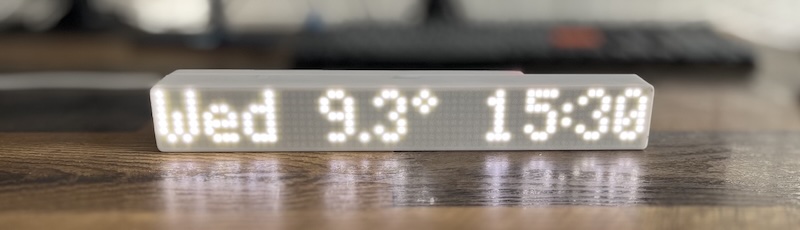
MAX7219 LED dot matrix display driven by an ESP32 or ESP8266 MCU.
The latest firmware version can be found in Releases
- Home Assistant client [display sensor values]
- OpenWeatherMap client [display: temperature (C/F), humidity, pressure, wind speed, weather icon]
- MQTT client [each display zone support own topic]
- Display controll through MQTT
- Wall NTP clock [NTP sync clock]
- Manual input
- Stock Ticker Mode: Display real-time stock prices on any zone. Supports multiple symbols, customizable display format, prefix/suffix, and price change arrows (↑↓)
- Countdown timer
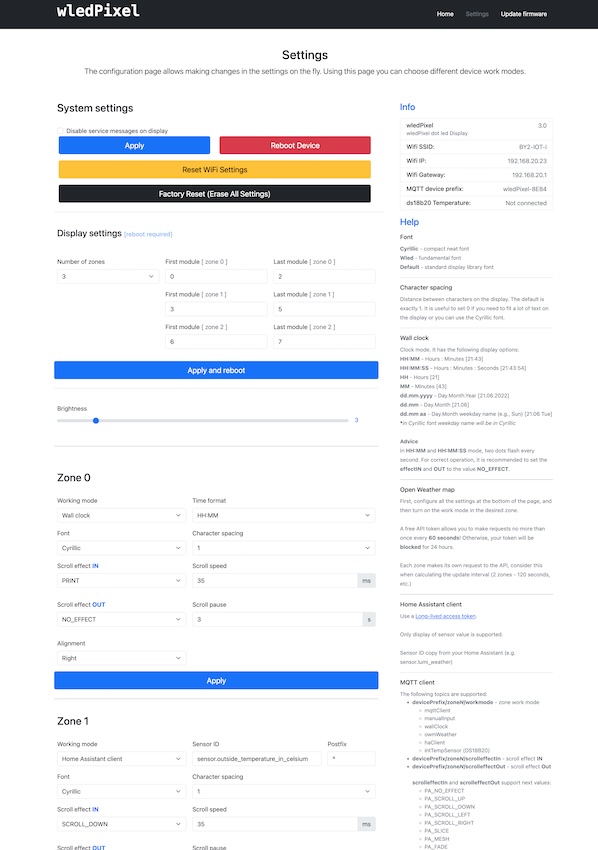
- Full controll through web UI
- Home Assistant MQTT discovery [When MQTT settings specified, device will be automatically send discovery message to HA]
- Control display as light in Home Assistant [MQTT setup required]
- Initial setup through wifi AP and web UI
- Support 4 independent display zones
- Support up to 12 display segments at the same time [configured in web UI]
- Included 3 different fonts
- Plus symbols font
- Dot matrix display MAX7219, something like this: https://aliexpress.com/item/32618155357.html
- ESP32 or WeMos D1 Mini (ESP8266), something like this: https://aliexpress.com/item/32651747570.html
- 3D Printed Case: Download from Printables
This font allows you to display text alongside icons within a single message.
 This font allows accessing special icons using the
 ~ prefix followed by a specific character.
Mapped by ~ + Character.
| Code | Index | Symbol | Code | Index | Symbol |
|---|---|---|---|---|---|
~! |
129 | Battery Empty | ~G |
167 | Key |
~" |
130 | Battery 25% | ~H |
168 | Male |
~# |
131 | Battery 50% | ~I |
169 | Alarm |
~$ |
132 | Battery 75% | ~J |
170 | Clock |
~% |
133 | Battery Full | ~K |
171 | Garbage |
~0 |
144 | WLED Logo | ~M |
173 | Moon |
~1 |
145 | X Symbol | ~N |
174 | Message |
~2 |
146 | Stop | ~O |
175 | Reminder |
~3 |
147 | Rain | ~S |
179 | Sun |
~4 |
148 | IP Icon | ~T |
180 | Thunderstorm |
~8 |
152 | Full Block | ~c |
195 | Scattered Clouds |
~A |
161 | Calendar | ~f |
198 | Mist / Fog |
~B |
162 | Windows Logo | ~m |
205 | Few Clouds (Night) |
~C |
163 | Broken Clouds | ~r |
210 | Rain |
~D |
164 | Door | ~s |
211 | Few Clouds (Sun) |
~E |
165 | Female | ~P |
224 | P Icon |
~F |
166 | Snow | ~@ |
230 | @ Symbol |
Support Germany alphabet

Support Cyrilic alphabet


This font maps standard ASCII characters directly to icons.
| Input | Index | Symbol | Input | Index | Symbol |
|---|---|---|---|---|---|
0 |
48 | WLED Logo | K |
75 | Garbage |
1 |
49 | X Symbol | M |
77 | Moon |
2 |
50 | Stop | N |
78 | Message |
3 |
51 | Rain | O |
79 | Reminder |
4 |
52 | IP Icon | P |
80 | P Icon |
8 |
56 | Full Block | R |
82 | Shower Rain |
A |
65 | Calendar | S |
83 | Sun |
B |
66 | Windows Logo | T |
84 | Thunderstorm |
C |
67 | Broken Clouds | c |
99 | Scattered Clouds |
D |
68 | Door | f |
102 | Mist / Fog |
E |
69 | Female | m |
109 | Few Clouds (Night) |
F |
70 | Snow | r |
114 | Rain |
G |
71 | Key | s |
115 | Few Clouds (Sun) |
H |
72 | Male | DEL |
127 | Hollow Up Arrow |
I |
73 | Alarm | ° |
176 | Degree Symbol |
J |
74 | Clock |
// Display pinout
#define DATA_PIN  23         // ESP32 GPIO23
#define CS_PIN    5          // ESP32 GPIO5
#define CLK_PIN   18         // ESP32 GPIO18

// Ds18b20 pinout
const int oneWireBus = 4;    // ESP32 GPIO04
// Display pinout
#define DATA_PIN  D7         // WeMos D1 mini or ESP8266 -> GPIO13
#define CS_PIN    D6         // WeMos D1 mini or ESP8266 -> GPIO12
#define CLK_PIN   D5         // WeMos D1 mini or ESP8266 -> GPIO14

// Ds18b20 pinout
const int oneWireBus = D4;   // WeMos D1 mini or ESP8266 -> GPIO02

- Device will boot in wifi access point mode and show "AP Mode" on the display.
- AP wifi name: wledPixel-[short MAC address]
- AP wifi password: 12345678
- Connect to this AP and configure your wifi settings (connect to your wifi network)
- When the device connects to the WIFI network, the device's IP address will be displayed on the zone0
- Open the browser and go to the device IP address
- PlatformIO (VSCode extension or CLI)
- Git
-
Clone the repository:
git clone https://github.com/widapro/wledPixel.git cd wledPixel -
Build for ESP32:
pio run -e esp32
-
Build for ESP8266 (D1 Mini):
pio run -e d1_mini
-
Upload firmware:
# For ESP32
pio run -e esp32 -t upload

# For ESP8266
pio run -e d1_mini -t upload
-
Monitor serial output:
pio device monitor -b 115200
If the device gets stuck at boot, erase the flash memory:
pio run -e esp32 -t erase
pio run -e esp32 -t upload/api/temperature - get measured temperature from connected ds18b20 sensor
Topic Structure: [devicePrefix]/[zone]/[command]
- devicePrefix:
wledPixel-{shortMAC}(e.g.,wledPixel-A071) - zone:
zoneNwhere N is 0, 1, 2, or 3.
| Topic Suffix | Description | Payload / Values |
|---|---|---|
/text |
Zone text | Text to display (active when workmode=mqttClient) |
/scrolleffectIn |
Scroll effect IN | Effect name (e.g., PA_PRINT) |
/scrolleffectOut |
Scroll effect OUT | Effect name |
/scrollspeed |
Scroll speed | 0 - 100 |
/scrollpause |
Scroll pause | Seconds |
/scrollalign |
Scroll alignment | PA_LEFT, PA_CENTER, PA_RIGHT |
/charspacing |
Character spacing | Pixels |
/workmode |
Zone work mode | mqttClient, manualInput, wallClock, countdown, wopr, etc. |
/scrollInfinite |
Infinite scroll | ON/OFF, true/false, 1/0 |
| Topic Suffix | Description | Values |
|---|---|---|
/intensity |
Brightness | 0 - 15 |
/power |
Power control | ON / OFF |
- Topic:
.../zoneN/countdown - Payload: String with date/time.
Supported Formats:
| Format | Example | Description |
|---|---|---|
YYYY-MM-DDTHH:MM:SS |
2026-12-31T23:59:59 |
Full ISO format |
YYYY-MM-DDTHH:MM |
2026-12-31T23:59 |
ISO without seconds |
YYYY-MM-DD |
2026-12-31 |
Date only (Time: 00:00:00) |
HH:MM:SS |
23:59:59 |
Time only (Date: Today) |
- Topic:
.../zoneN/countdownFormat - Payload: Format token string.
Options:
- Basic:
SS(seconds),MM(minutes),HH(hours),DD(days) - Combined:
HHMM,HHMMSS,DDHH,DDHHMM,DDHHMMSS - Calendar:
YY(years),YYMM,YYMMDDHHMM,YYMMDDHHMMSS - Automatic:
auto(hides zero leading units)
where devicePrefix = wledPixel-A071 zoneN = zone number (e.g. Zone0, Zone1, Zone2, Zone3)
workMode supported values:
mqttClient- MQTT clientmanualInput- Manual static text inputed in UIwallClock- NTP sync clockowmWeather- Open Weather Map clienthaClient- Home Assistant clientwopr- WarGames effectcountdown- Countdown timer
Both MQTT Client and Manual Input modes share the same display logic:
- The message appears using the selected IN effect.
- If Infinite Scroll is DISABLED:
- If OUT effect is
NO_EFFECT: The message stays static on the display until a new message arrives. - If OUT effect is any other effect: The animation plays once (IN → Scroll pause → OUT) and then stops. The message does not repeat.
- If OUT effect is
- If Infinite Scroll is ENABLED:
- If OUT effect is
NO_EFFECT: The message stays static on the display until a new message arrives. - If OUT effect is any other effect: The message loops continuously (IN → Scroll pause → OUT → repeat).
- If OUT effect is
- It automatically scrolls to show the full text.
- If Infinite Scroll is enabled: It scrolls in a loop.
- If Infinite Scroll is disabled: It scrolls once and stops.
- If a service message doesn't fit, it scrolls once and then remains static.
- Duplicate status messages are ignored to prevent flickering.
- Can be completely disabled via the "Disable service messages" setting.
Wall clock mode support next following display options:
HH:MM- Hours : Minutes [21:43]HH:MM:SS- Hours : Minutes : Seconds [21:43:54]HH- Hours [21]MM- Minutes [43]dd.mm.yyyy- Day.Month.Year [21.06.2022]dd.mm- Day.Month [21.06]dd.mm aa- Day.Month weekday name (e.g., Sun) [21.06 Tue] *in Cyrillic font weekday name will be in Cyrillicaa- Weekday name (e.g. Sun) *in Cyrillic font weekday name will be in Cyrillic
- If text fits in the zone:
- Displays statically.
- Dots blink (unless disabled).
- If text does NOT fit in the zone:
- Text scrolls completely until it disappears.
- Screen remains blank for the duration of Scroll Pause.
- Text starts scrolling again.
- Dots do NOT blink to prevent interrupting the scroll cycle.
Note: The Scroll Effect Out setting in the Web UI is disabled (greyed out) for Wall Clock mode because the loop animation doesn't use an exit effect.
Default effects:
PA_RANDOMPA_PRINTPA_SCAN_HORIZPA_SCROLL_LEFTPA_WIPEPA_SCAN_VERTXPA_SCROLL_UP_LEFTPA_SCROLL_UPPA_FADEPA_OPENING_CURSORPA_GROW_UPPA_SCROLL_UP_RIGHTPA_BLINDSPA_CLOSINGPA_GROW_DOWNPA_SCAN_VERTPA_SCROLL_DOWN_LEFTPA_WIPE_CURSORPA_SCAN_HORIZXPA_DISSOLVEPA_MESHPA_OPENINGPA_CLOSING_CURSORPA_SCROLL_DOWN_RIGHTPA_SCROLL_RIGHTPA_SLICEPA_SCROLL_DOWNPA_SPRITE(Generic)
PACMANWAVEROLLLINESARROWSAILBOATSTEAMBOATHEARTINVADERROCKETFBALLCHEVRONWALKERMARIO(New!)GHOST(New!)DINO(New!)
Watch the effects demo on YouTube
Send sensor value each time when a value has been changed
---
- alias: Outside temp change - send new temp to wled panel mqtt
  initial_state: 'on'
  trigger:
    platform: state
    entity_id: sensor.outside_thp_sensor_3
  action:
    - service: mqtt.publish
      data:
        topic: wledPixel-A071/zone0/text
        payload_template: "{{ states('sensor.outside_thp_sensor_3') }} C"
Change wledPixel-A071 to device name with your prefix

