Azure Developer
We used Azure's functions to send weekly emails to our subscribed users, using time triggered functions allows us to send emails to our subscribers automatically once a week at a certain time of our choice.
1- Go to https://portal.azure.com/ and log in with your username and password after you have received access from our team.
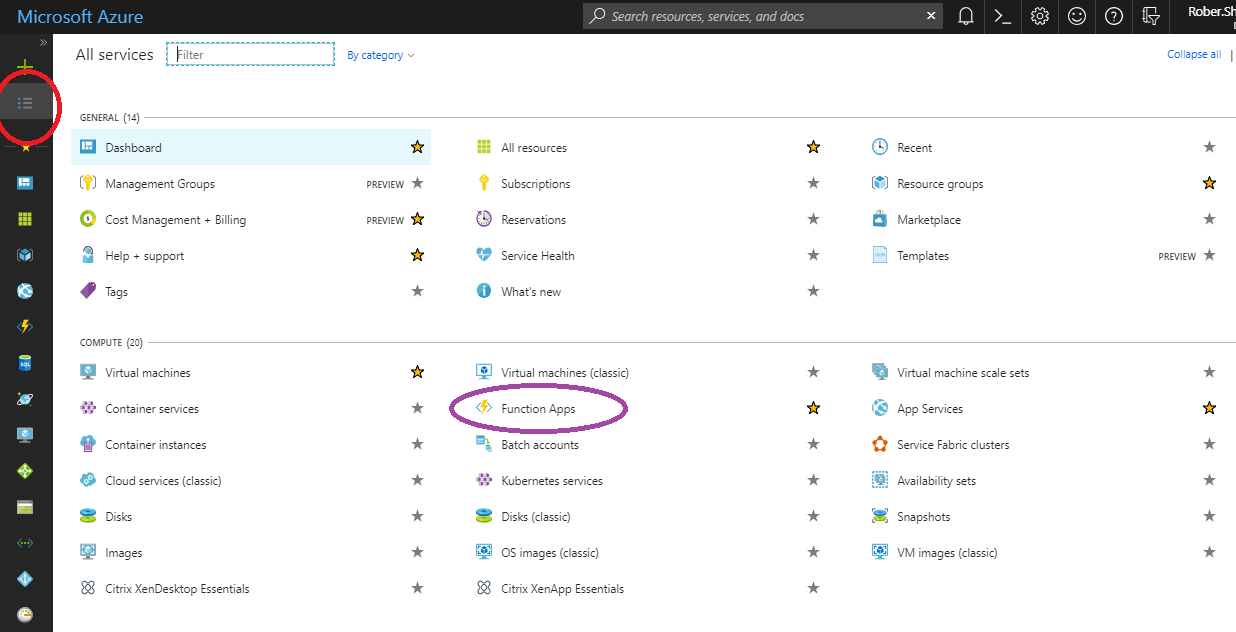
2- On the main page of the portal, click on All services from the list on the right (shown in the red circle)
3- Click on Function Apps from the pop up list (shown in the purple circle)
4- Open the TimeTriggerJS1 function by clicking on DailyPulseMe -> Functions -> TimerTriggerJS1 on the left side of the screen (shown in the red circle).
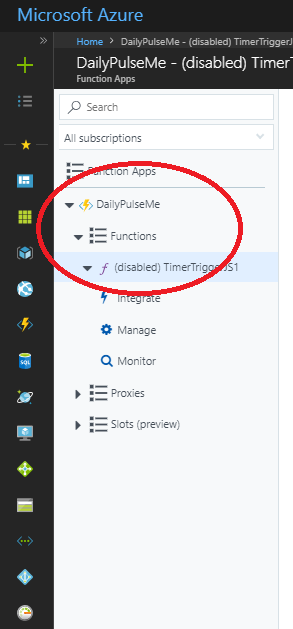
Here you can edit the function's body. It's already configured to send an HTTPS request to our server on Azure.
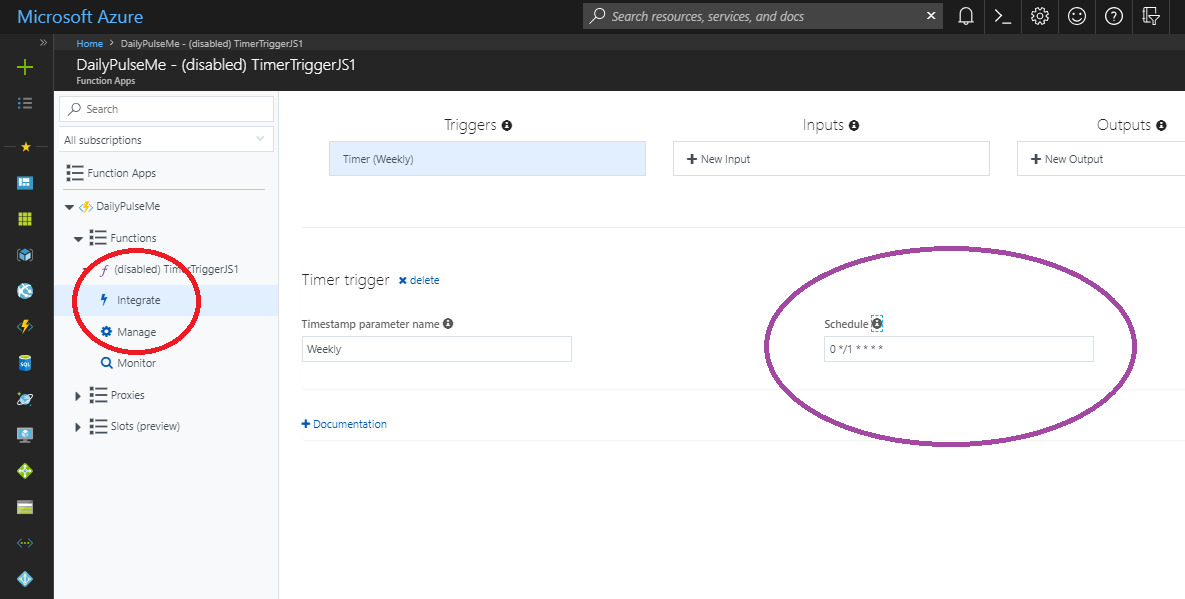
To integrate how often the function is going to run, go to Integrate shown in the red circle then change the schedule field (shown in the purple circle). The format should be as specified here.
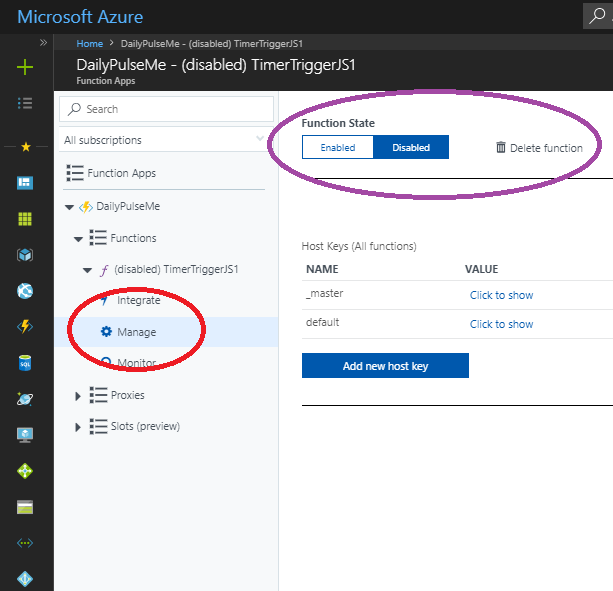
To enable, disable or delete the function go to Manage (shown in the red circle) and there you can find those settings (shown in the purple circle).
To add a new trigger function, click on the + button next to the Functions button (shown in the red circle). Choose the type of function trigger you would like to use then continue the process depending on which trigger you chose.
