User Manual
Sign up to our website and become a DailyPulseMe member now!
You can sign up using an email and a password of your choice or via your Google account for easier access.
All the configurations needed for you to start using our services are offered in an elegant and easy to perform way using our wizard upon signing up.
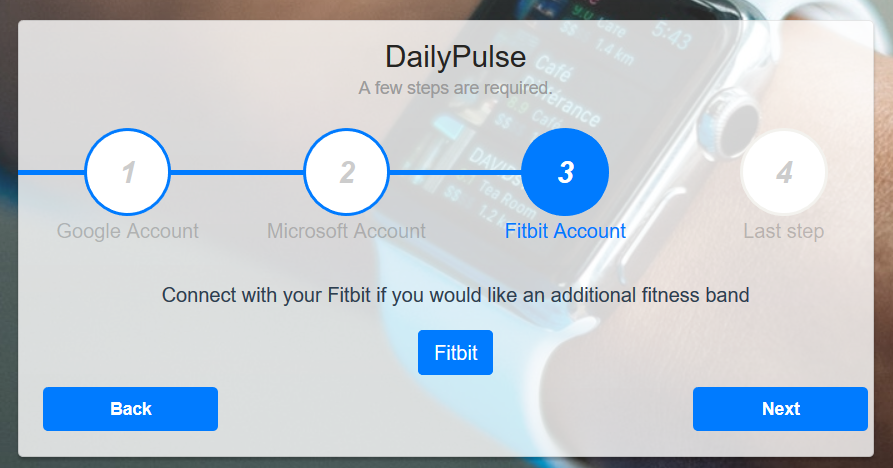
We support every fitness band that can be connected to Google Fit so you can connect via your favorite band. On top of that, we support the Fitbit band as well. But you still need to connect to Google before setting up your Fitbit band.
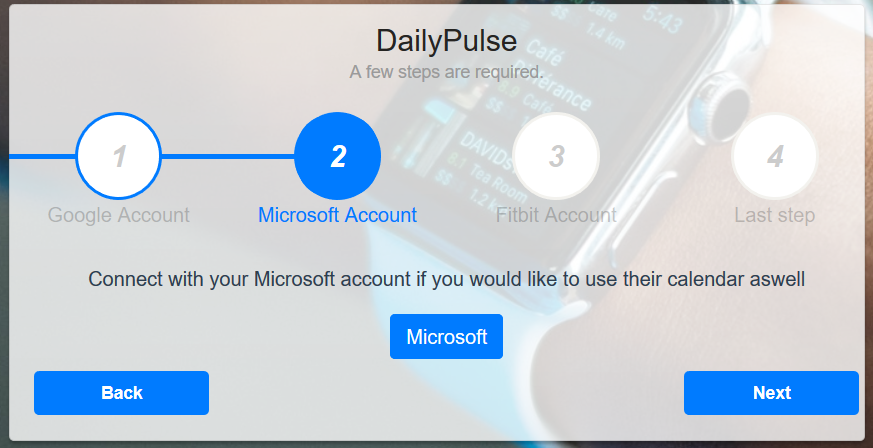
We need access to your Google account so we can collect your heart rate data and your events. You can also connect to your Microsoft account so we can extract your events from it too. We also offer you the option to connect a different FitBit band account and a different Microsoft account at any time.
Events will be collected from your calendars automatically and displayed in our spectacular calendar on our website.
We offer accurate analysis and recommendations based on deep researches and provide different ways to display your data for easy access, which in turn will help you decide which events were good for your health and which were not.
You will also be subscribed by default to the DailyPulseMe weekly email reminders so you never forget to live a healthier life every week!
So sign up now! What are you waiting for?
The link to our website is https://dailypulse.azurewebsites.net/.
First of all, you need to register to our website. You can do that manually or via Google
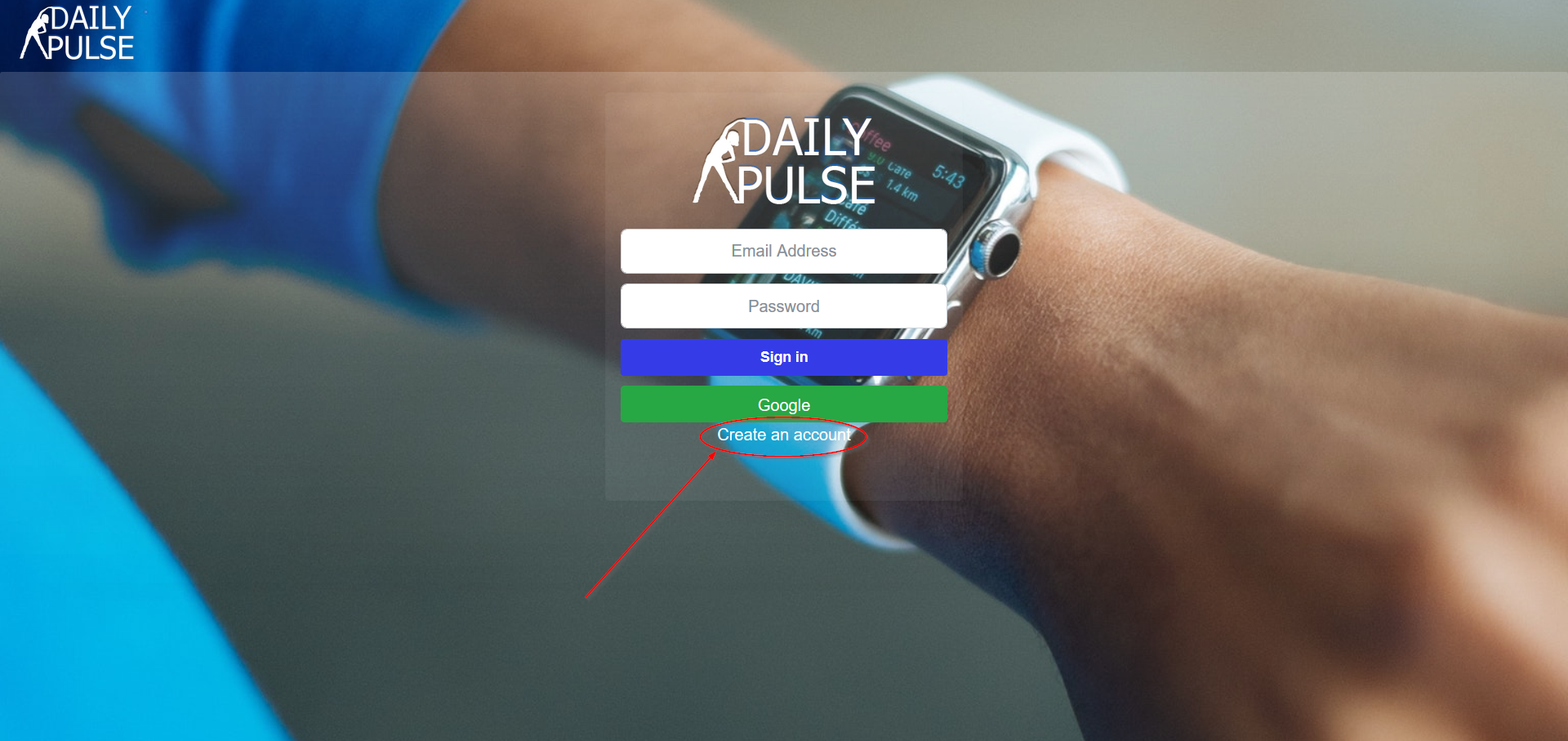
To register manually click on create an account as shown below and you'll be redirected to the registering page.
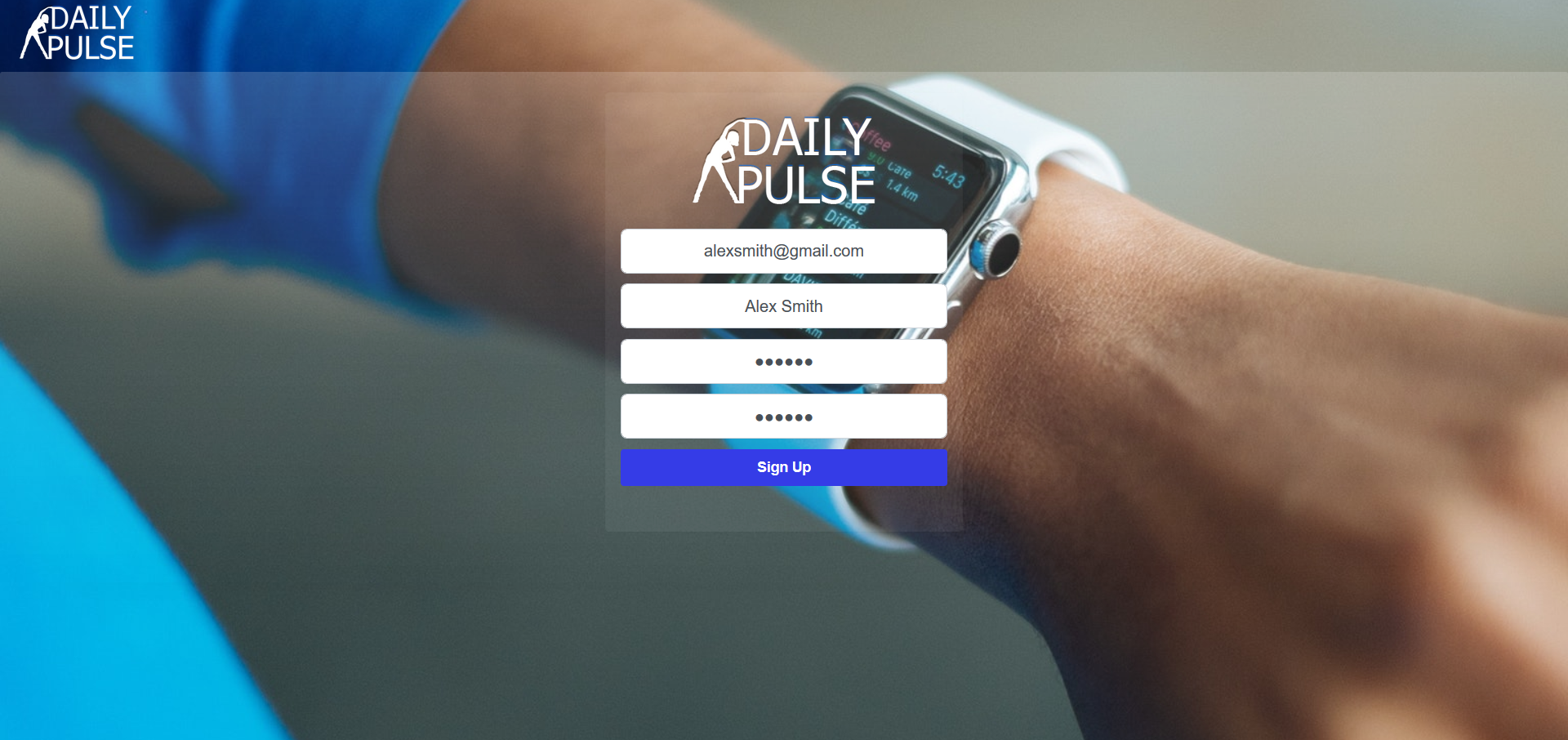
Here you need to fill the presented fields with your information and then click on sign up and you'll be redirected to the log-in page. Be sure to use your real email to keep being reminded to live a healthy life!
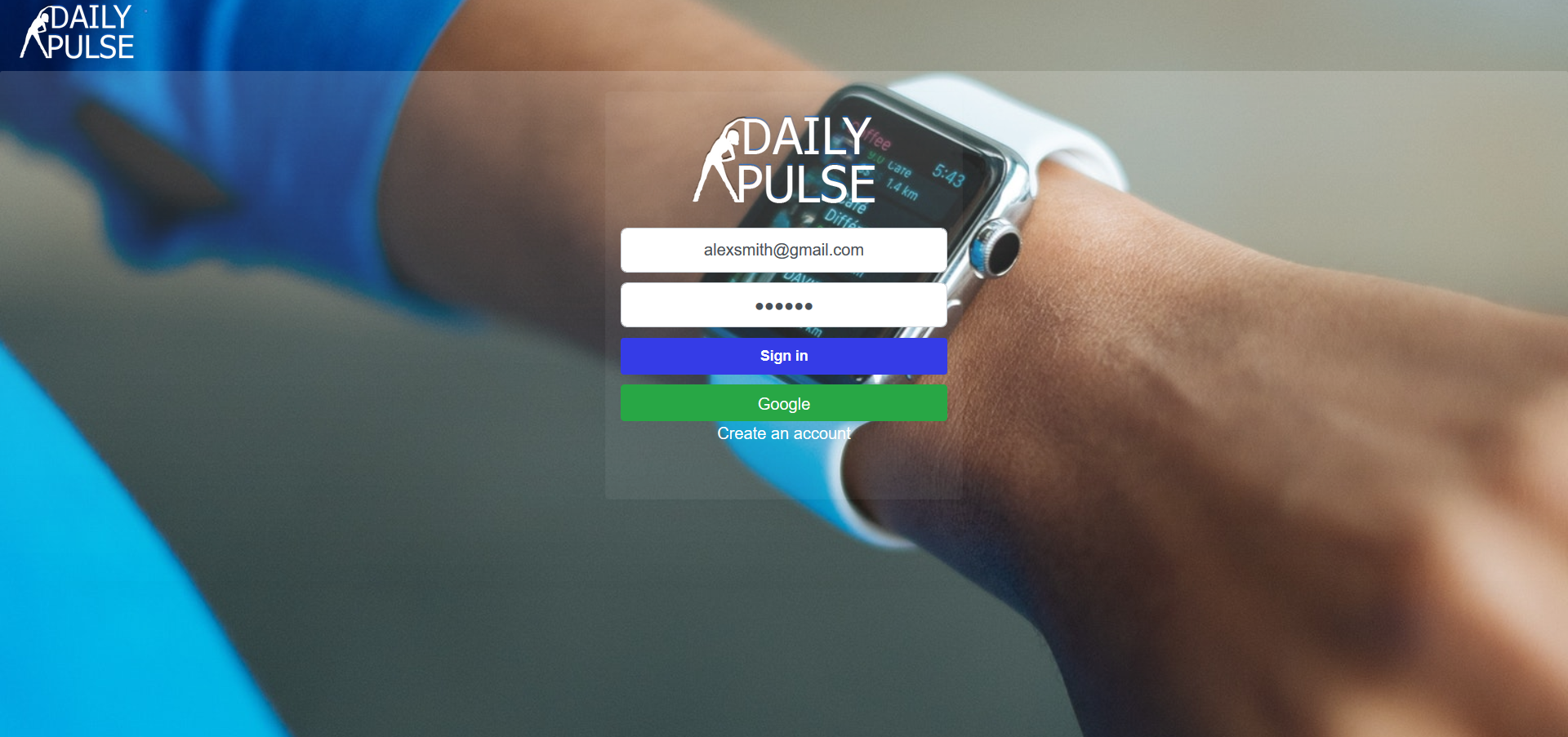
One the log-in page, put in your email and password that you chose when signing up on the previous step and then click sign in.
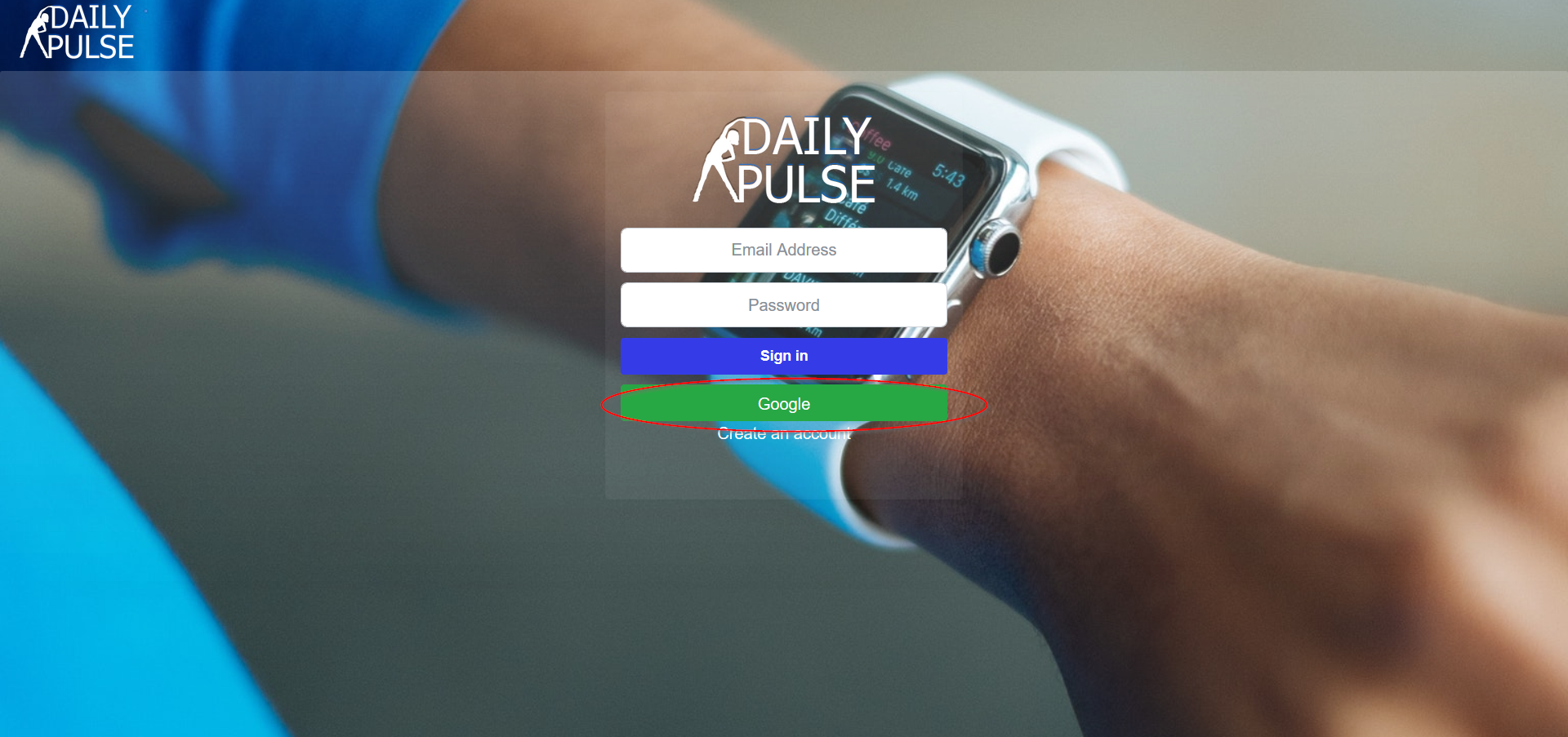
To register via Google, on the homepage click on the green button that says Google as shown below.
Then you need to log in to your Google if you haven't already, and you'll be redirected to giving us access to the information we need from you.
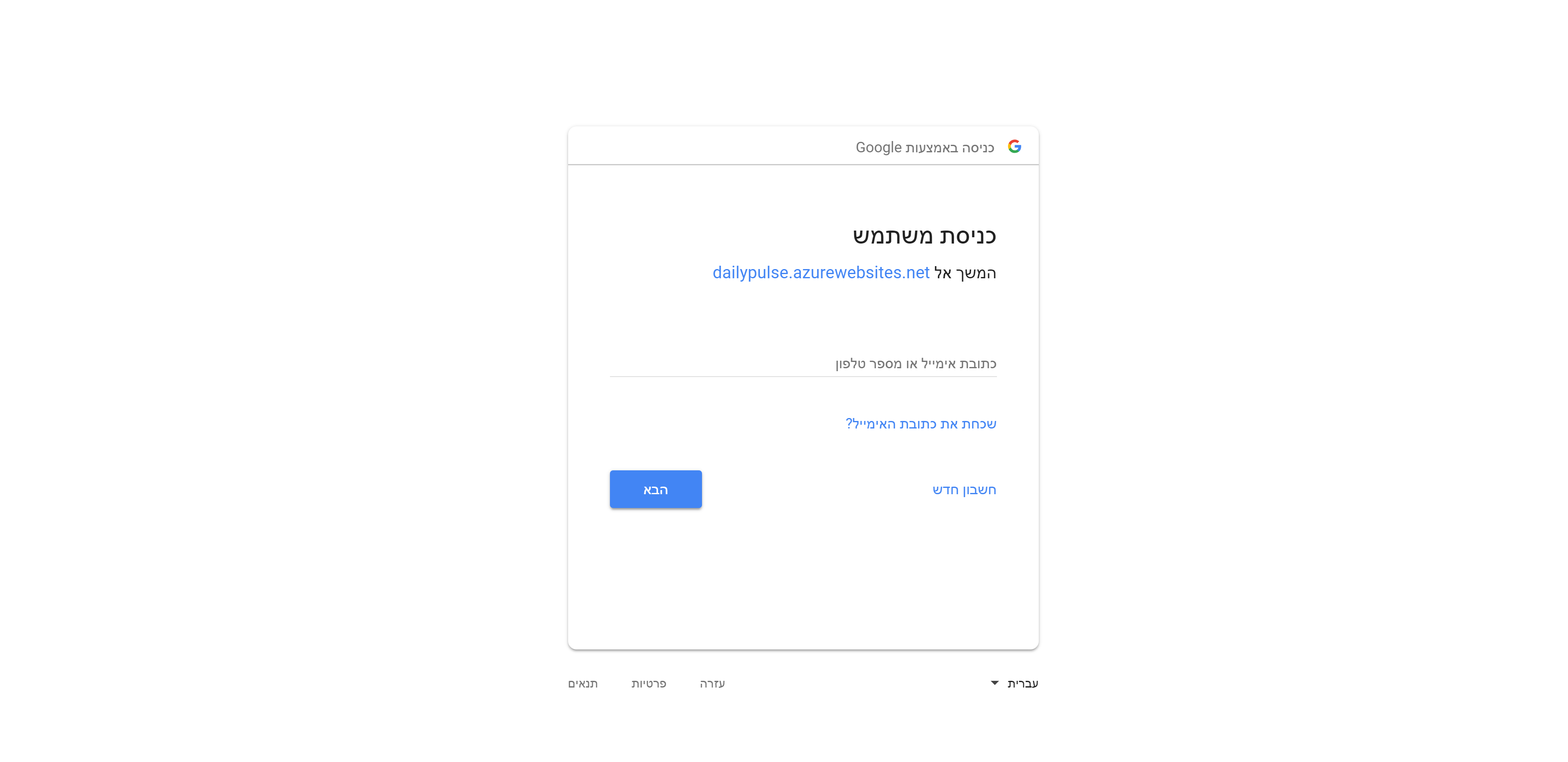
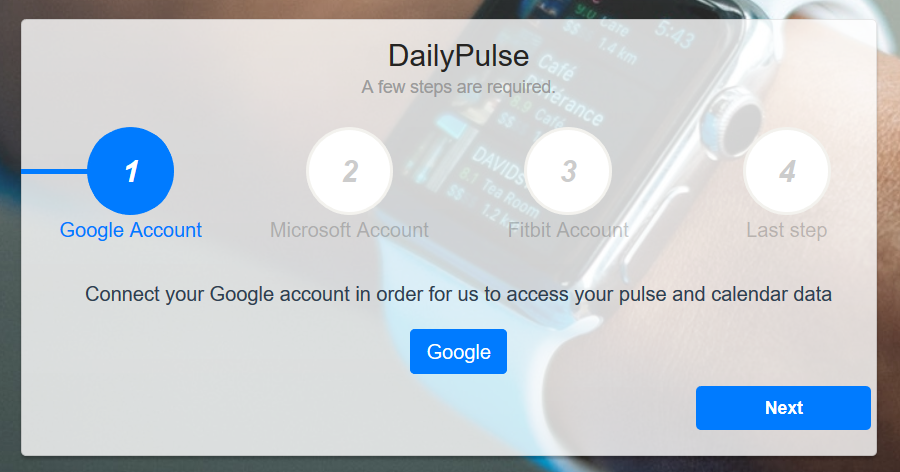
After logging in you will be presented a wizard to configure your Google, Microsoft and Fitbit account. We need access to your Google or/and Microsoft calendars to get your events.
You also need to configure the Xiaomi band (or any other fitWatch that work with Google fit) to synchronize with the Google Fit so we can have access to your heart rate data via your Google account (whether it's the one you used to sign up or added it later using the wizard). A tutorial to configure the Xiaomi band can be found here.
Note that if you signed up via Google, we will collect your heart rate data and events from that account so you won't be redirected to the wizard on your first sign in. To see how to configure other accounts refer to the settings tab manual bellow.
Again, for each step in the wizard as shown below, you need to log in (by clicking on the blue buttons - it will open a pop-up where you need to sign-in to the desired account) if you haven't already and give us access on the promoted page. After you log-in in the pop-up window, it will automatically close and you will be able to continue to the next wizard step.
Upon finishing with configuring your accounts via the wizard, and from now on when you visit our website, you will be presented with our homepage, welcoming you and giving you a short overall explanation of our website's structure and the features we offer.
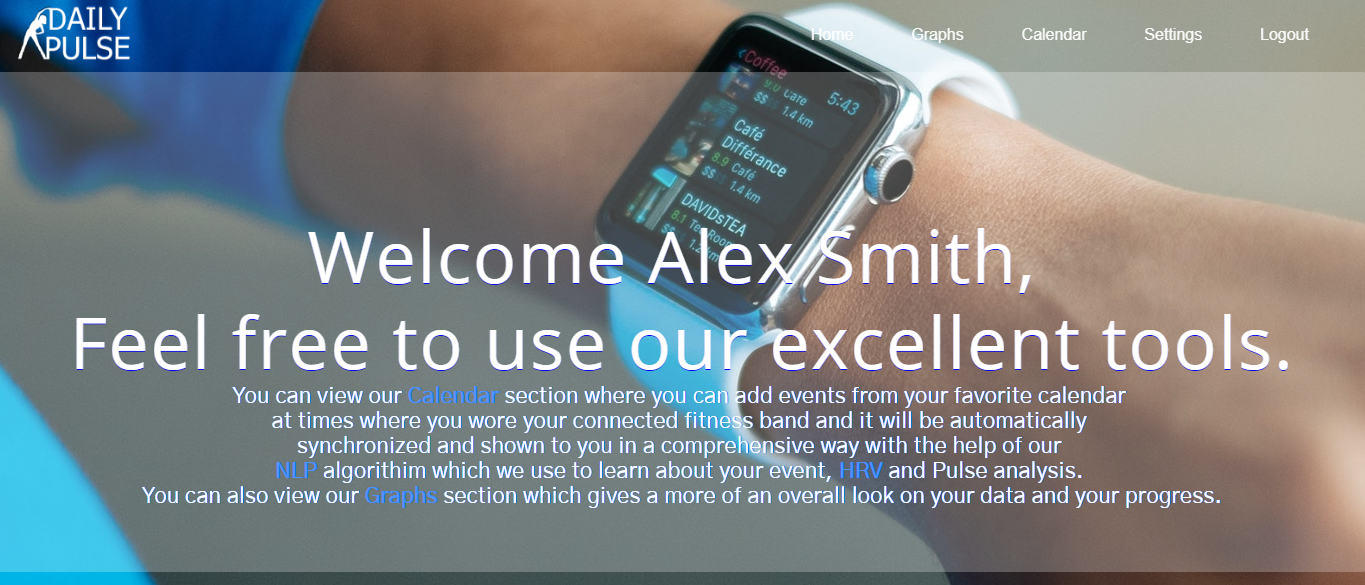
By clicking on the Calendar tab on the upper right corner of our website, you will be presented with our calendar.
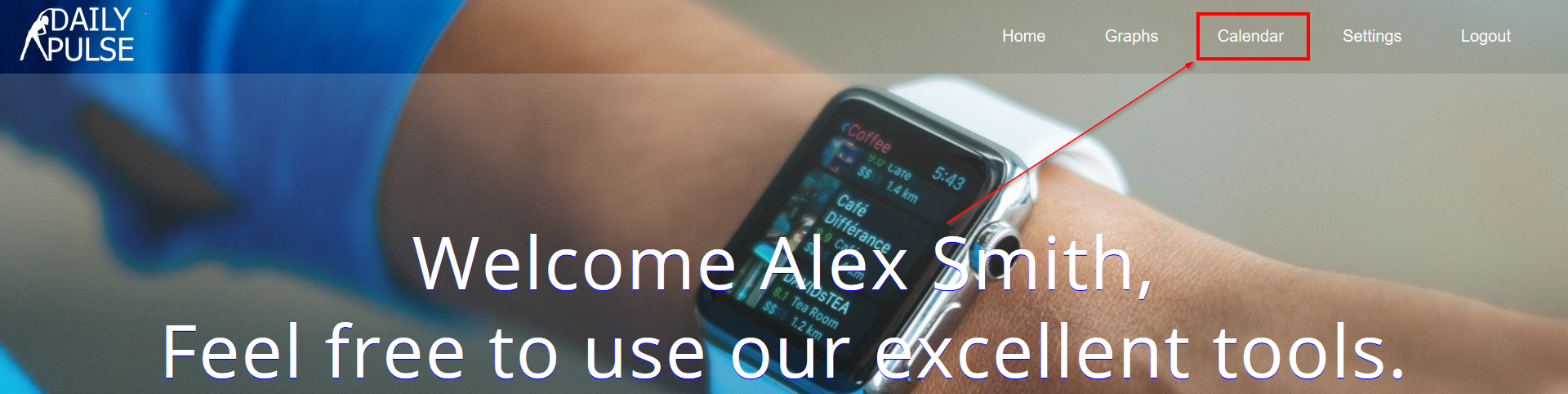
Here you can see all the events that we extracted from your Google or/and Microsoft account. For every event with heart rate data, you can see our NLP analysis that also classify the type of the event using keywords from the event name.
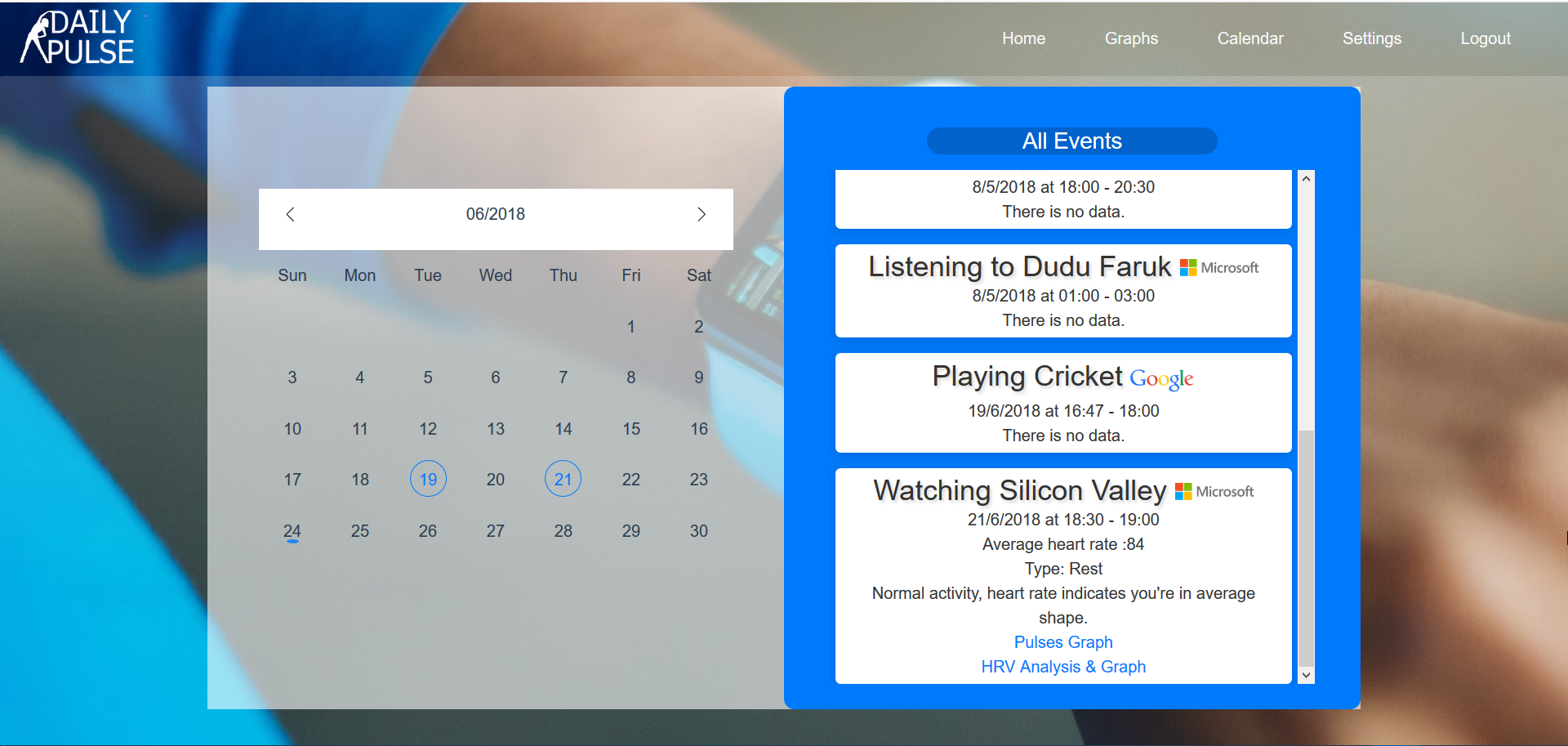
By clicking on the Graphs tab just left of the Calendar tab, you will be redirected to your events graph.
There you can find all of your events that we extracted from your Google or/and Microsoft account with our analysis represented in a graph. Each line in the graph represents an event, the hight of each line indicates your average heart rate during that event. If you hover over a line in the graph with your mouse you can see a short summary of that event.
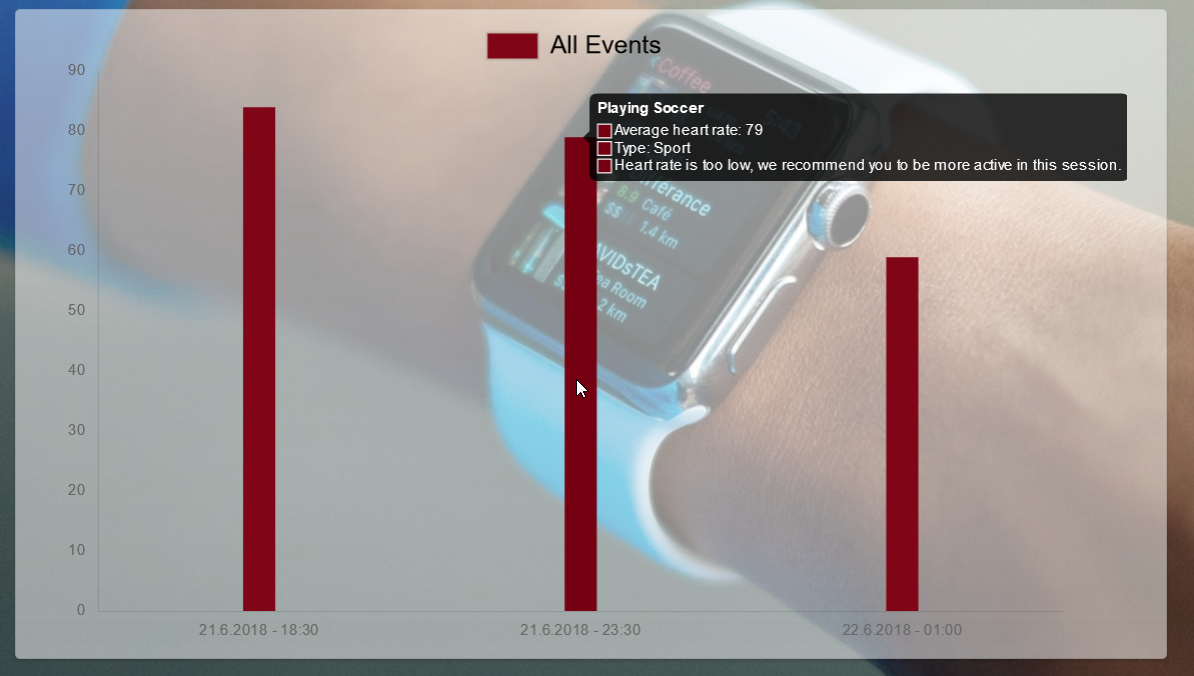
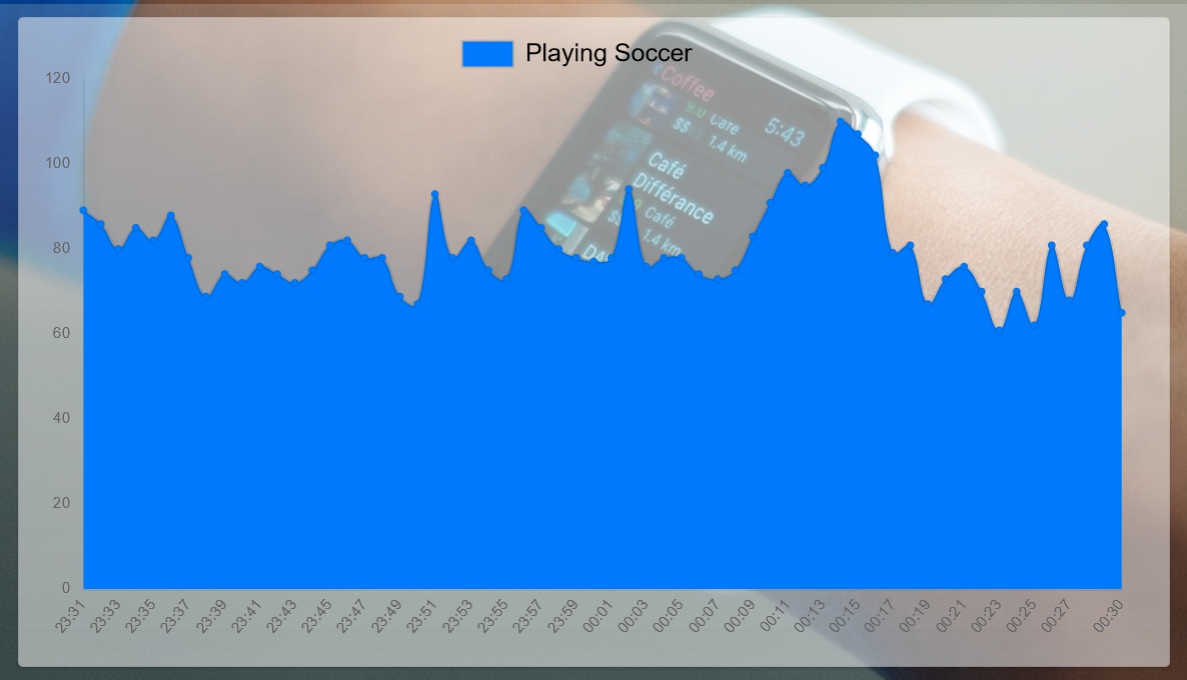
By clicking on an event, you will be redirected to the event's pulse graph. Hover over any point to see the exact heart rate average of that time.
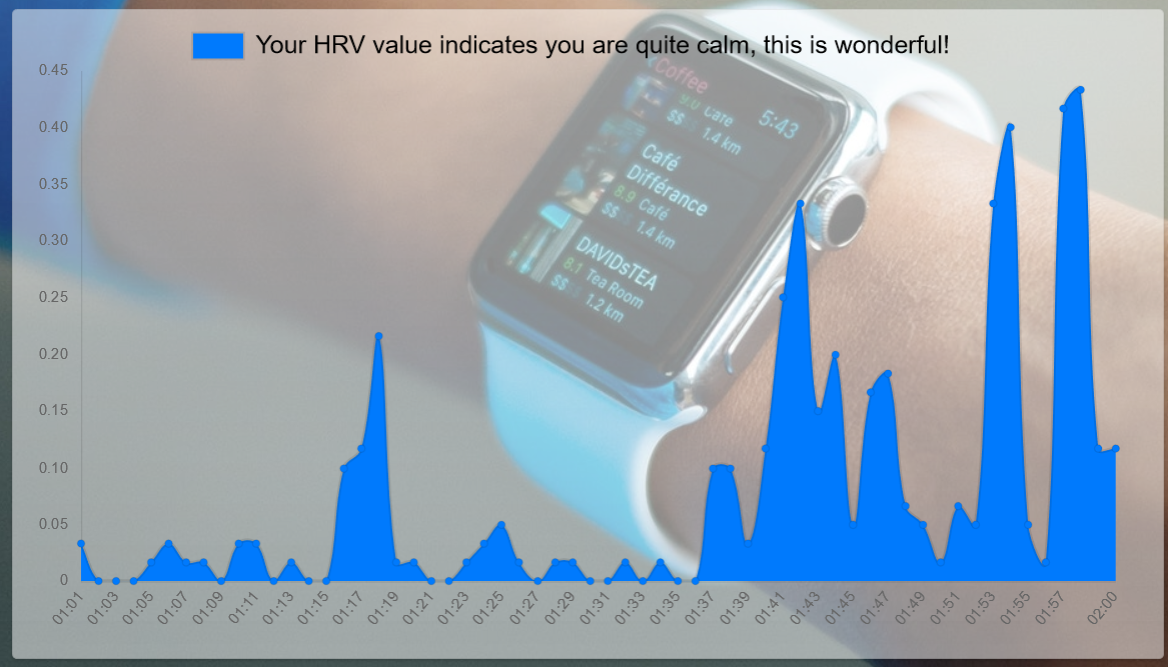
By clicking on 'HRV Analysis & Graph' in the calendar on rest typed events, you will be redirected to the HRV graph. At the top of the page you can see our HRV analysis of your stats. Hover over any point to see the exact HRV value of that time. The higher the value the more it indicates on stress in the activity.
More information about HRV can be found here
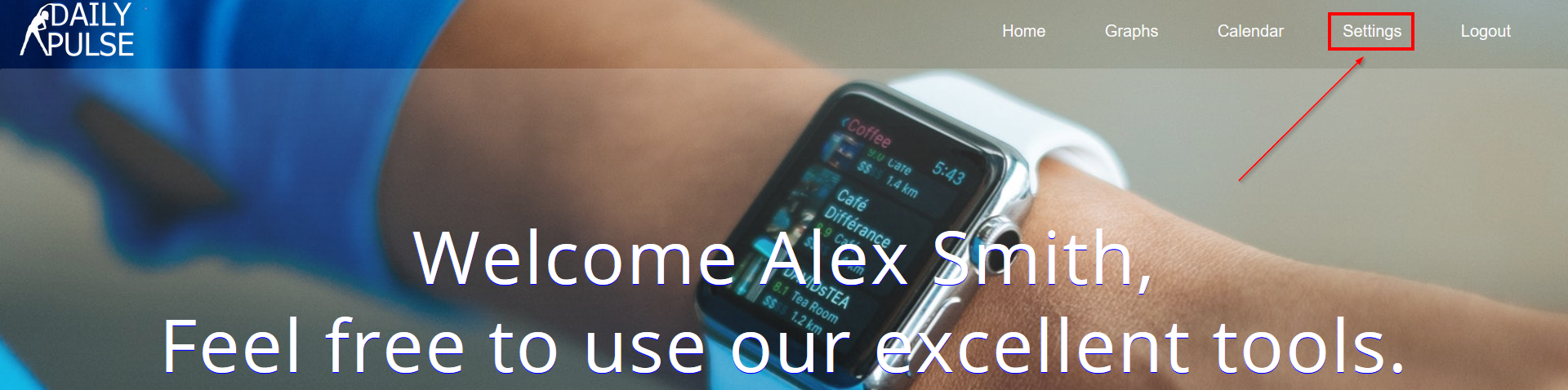
By clicking on the Settings tab just right of the Calendar tab, you will be presented with our configurations.
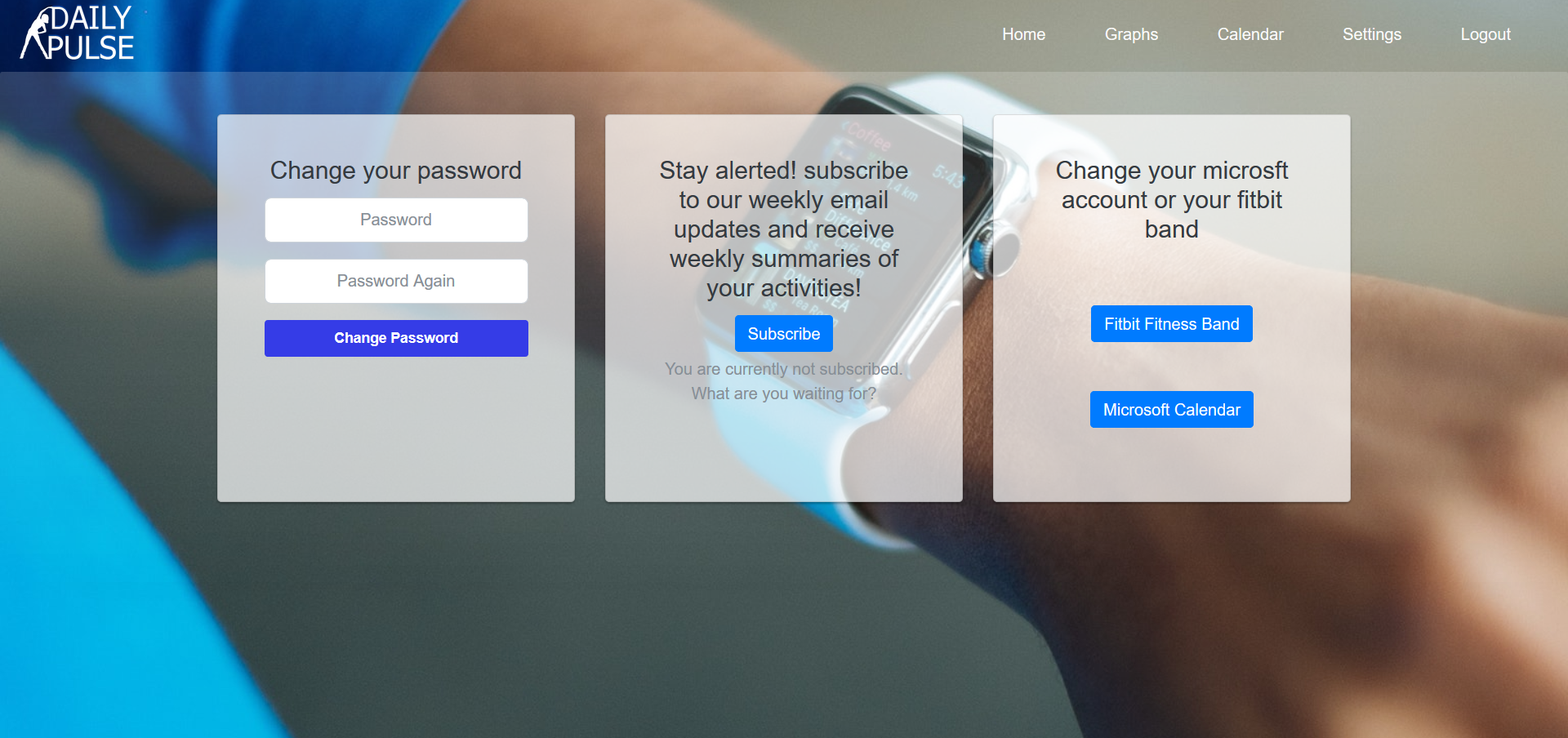
By default, you will be subscribed to our weekly emails. This way you will receive weekly reminders to live a healthier life and visit our website to see how you have been doing! But if you decide you want to unsubscribe, all you need to do is click the unsubscribe button as shown below.
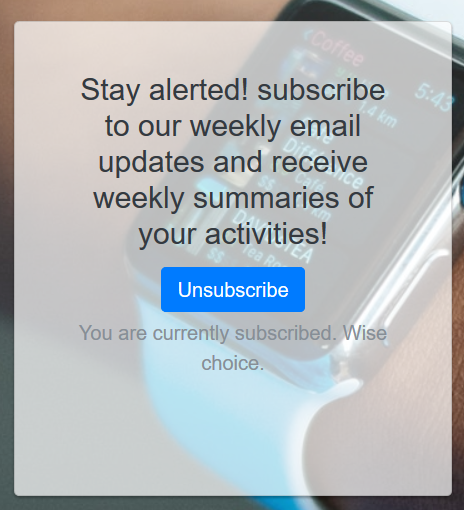
To resubscribe click on the subscribe button and that's it!

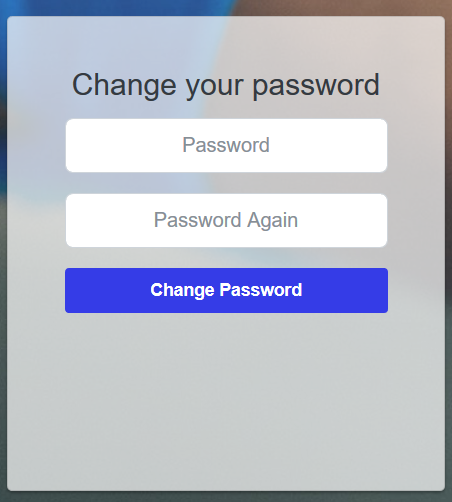
On the settings tab, you can also change your password. If you have signed up via Google you can set up a password for your account and then log in using your Gmail and your new password.
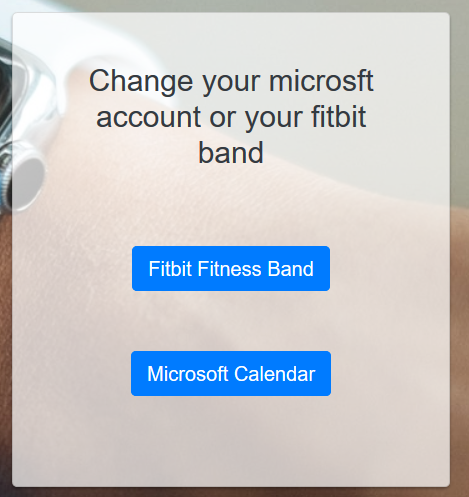
If you have made any mistakes while configuring your account using the wizard or you simply want to update your Microsoft Calendar or Fitbit fitness band account you can also do it here. You need to click on the desired button (just like in the wizard).
To log out from our website, just click the Logout button on the right top corner.