Dataset Menu
When you click on the dataset menu, you can see the following options:

Upload dataset provides an option to upload your data or use the sample dataset provided as an example:
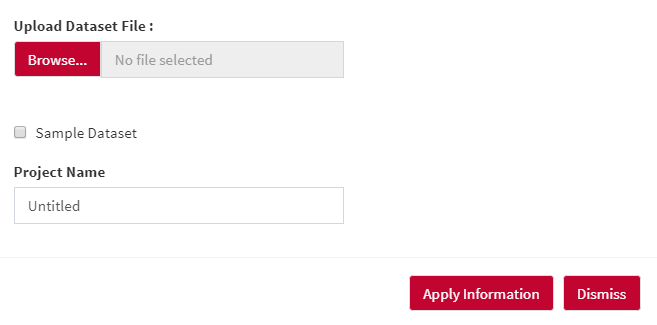
A wide range of datasets can be easily uploaded in AllInOne. AllInOne now works well with the three most common file formats such as .txt, .csv, and .xlsx.
-
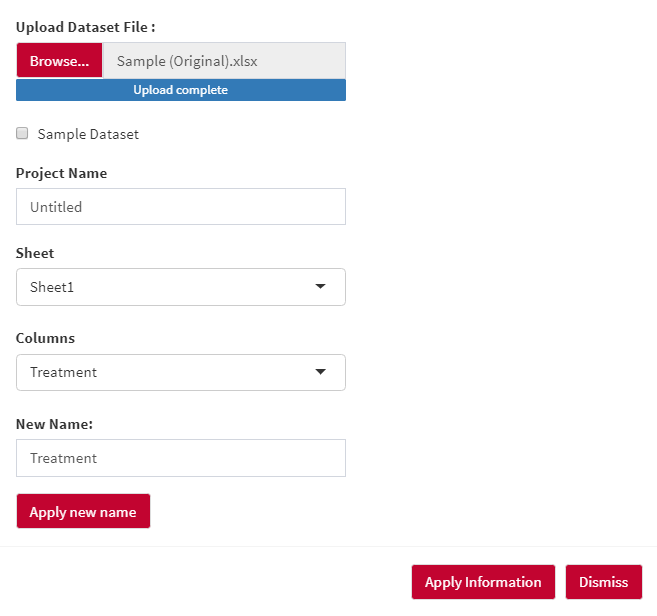
When you upload .xlsx file, you have a chance to select the sheet.
-
When you upload .txt or .csv file, you have a chance to select the Delimiter. You also have the option to select the first row as the header (column name).
-
You can set a project name for your project under the Project Name.
-
Sometimes, you need to change the column names. No worries! There is no need to do it outside AllInOne. You can do it here in AllInOne by selecting the column names and setting the new names under the New Name option.
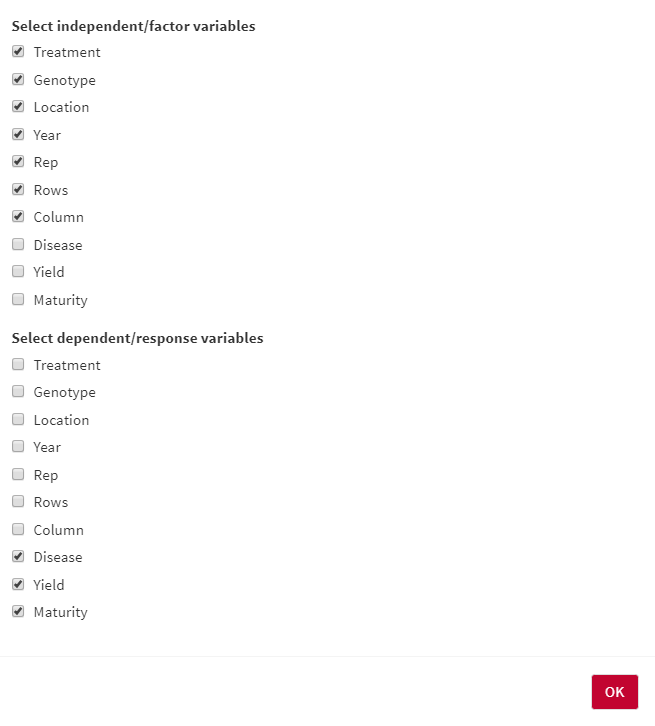
After uploading the dataset, you need to let AllInOne know what are independent/factor and dependent/response variables in your dataset.
You can do it by clicking on the Select Variables button:
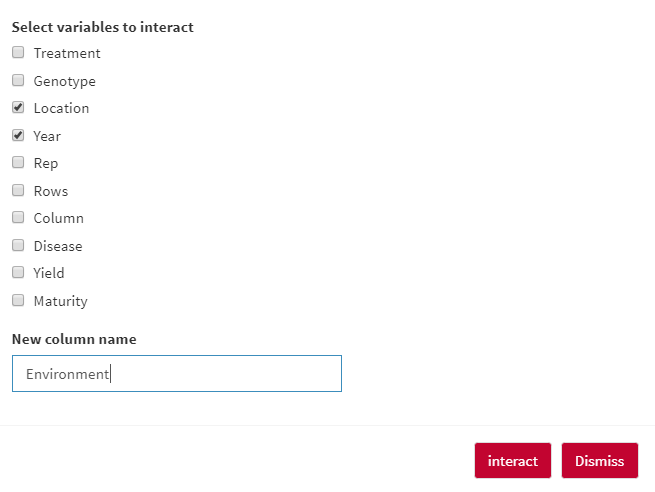
Do you want to have an interaction between two independent/factor variables?
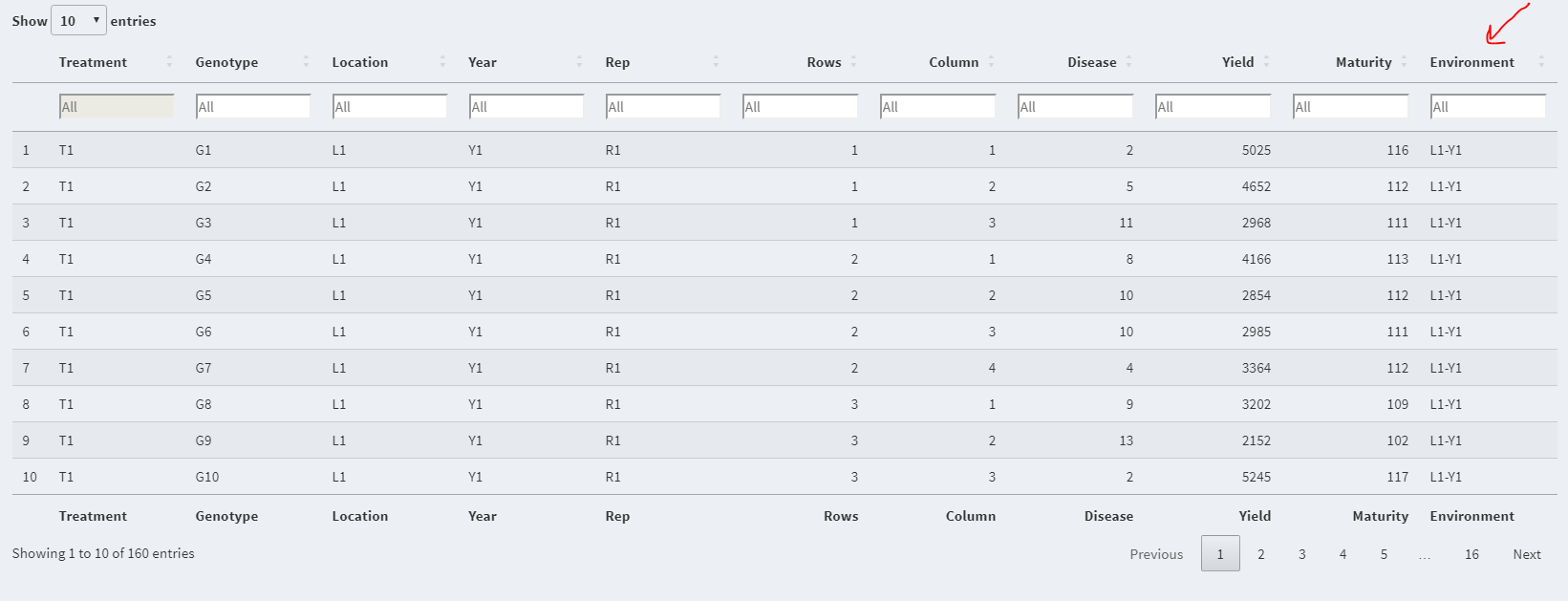
We know most of the time, breeders are interested to have an Environment column which is the interaction between Year and Location (Year*Location).
You can make an interaction by clicking on Create Interaction button:
Then you will see the interaction column in your dataset:
We are sure you would like to subset your dataset for different purposes.
You can do it by clicking on the Subset Dataset button:
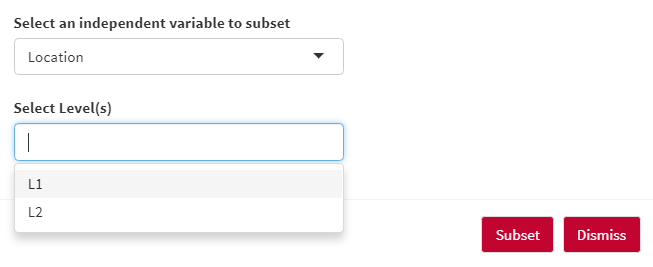
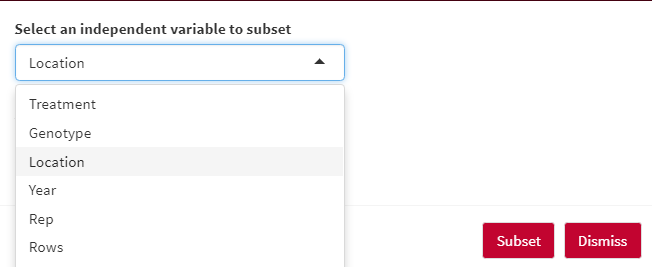
Select the independent/factor variables you would like to subset:
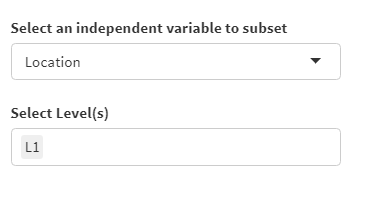
Select levels you want to keep:
You can save the shown dataset anytime by clicking on Save As button.
The dataset will be saved as .csv file.